User Management and Roles
Version 25.3.9469
Version 25.3.9469
User Management and Roles
The first time you launch CData Arc, you are prompted to create the first application user by setting a username and password. The first user defaults to the Admin role, as defined below.
Users
To create and manage additional users, navigate to the Settings page, then the Users tab. This tab includes a table of all users, and includes information about their roles, their status, whether they are temporary users, their two-factor authentication (2FA) status, and more.
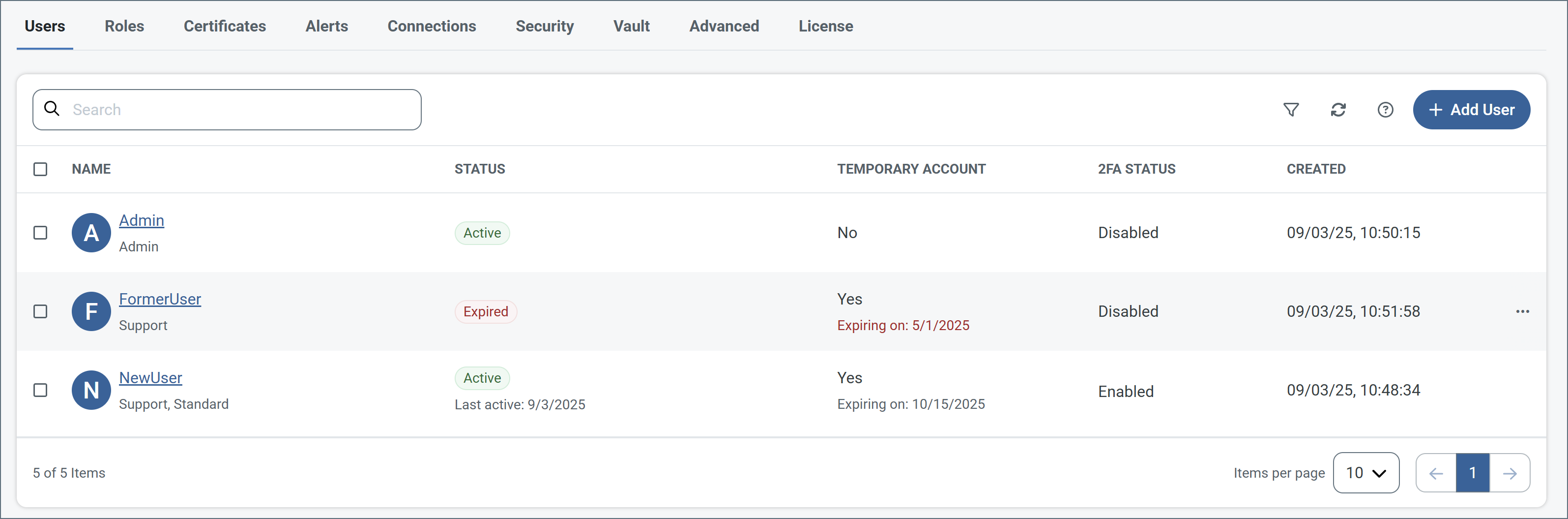
Note: If you use AD/LDAP to manage user credentials, user names must be in the format domain\username.
Members of the Admin role can create, delete, and modify users on this tab. Admin is the only role with permission to manage other users.
Add or Edit Users
To add a user, click Add User. To edit an existing user, hover over their row in the table, click the ellipses, then choose Edit. The following image shows adding a new user to the application.
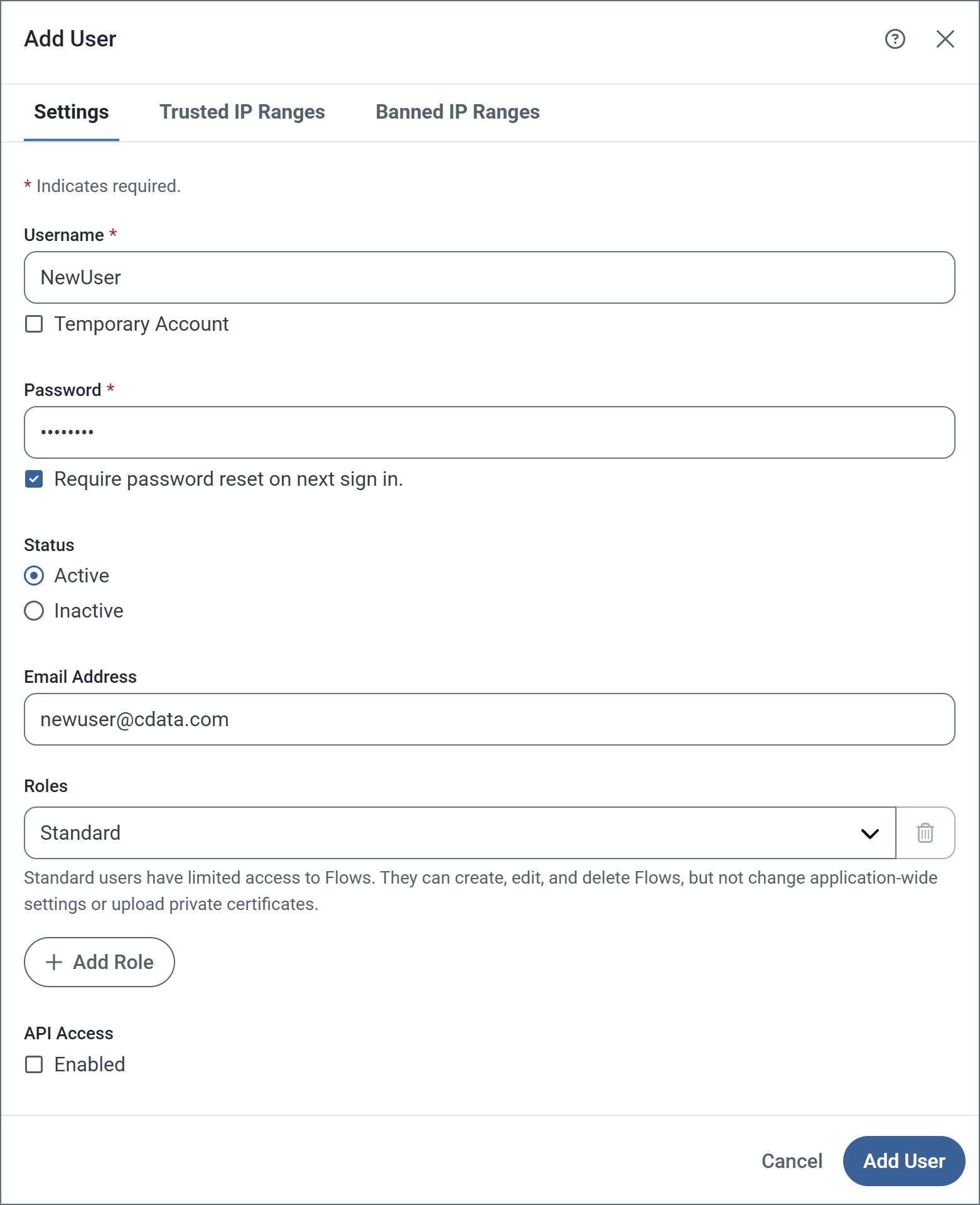
Complete the following fields:
- Username Enter a username. This field cannot be changed once you save the user.
- Temporary Account If the user should only have temporary access, check this and supply an Expiration Date (not pictured).
- Password Enter a password. Ensure that it meets the requirements in Sign In Settings. Check Require password reset on next sign in to force the user to change their password on login.
- Status Indicate whether the user is active or inactive.
- Email Address Best practice is to provide an email address for each user so that they can reset their passwords when necessary.
- Roles Select the user roles to assign the user.
- API Access Check Enabled to grant the user an Auth Token that can be used to access the Admin API. See Admin API Access for details. When you enable API access, the following fields appear.
- Token Expiration (days) The number of days before the token expires. Check No Expiration if you do not want the token to expire.
- Authtoken The system-generated authtoken. Make sure to copy it to a safe location before saving the user, because it is not shown again.
- Maximum Requests per Hour Uncheck Unlimited Requests to set a limit on the maximum requests per hour for this user.
- Maximum Concurrent Requests Uncheck Unlimited Requests to set a limit on the maximum number of requests that can be sent simultaneously.
To add trusted or banned IP ranges specific to this user, click the Trusted IP Ranges or Banned IP Ranges tabs to add the ranges. You can provide single IP addresses, simple ranges (such as 203.0.113.* or 203.0.113.1-255), or Classless Inter-Domain Routing (CIDR) ranges. These tabs also display the global trusted and banned ranges that have been defined on the Network Access portion of the Settings > Security page.
Single Sign-On
Arc supports single sign-on (SSO) via identity providers that implement the OpenID standard. For more information, including specific guidance for Azure AD, see Single Sign-On.
Admin API Access
Each user is granted an Auth Token that can be used to access the Admin API. For more information on authenticating against the Admin API, see Admin API Authentication.
The specific actions that a user can perform using the Admin API mirror the actions that the same user can perform using the UI. For example, a user that cannot delete connectors in the UI cannot use the Admin API to delete connectors. To perform any action using the Admin API, use an Auth Token from an Admin user when invoking the API.
Password Resets
Every user can have an email address associated with their account. This way, if they need to reset their password, they can click the Forgot password link to have a reset link emailed to them. Every password reset that is sent adds a row to the application log.
Users who do not have an email associated with their account must contact an administrator to have their password reset, so it is best practice for administrators to associate an email with each user account.
User Roles
The Roles tab displays a table of all roles defined in the application, along with the associated workspaces and a link to all users who can assume each role. Roles enable you to restrict users to only performing certain actions in certain workspaces. The roles assigned to a user affect everything that they see in Arc, including but not limited to:
Every installation of Arc includes three built-in roles:
These are global roles that cannot be edited or deleted. They apply to all workspaces. However, you can define custom roles which limit each user’s permissions. Custom roles are made up of policies, which provide the most granular control over exactly what users can see or do in Arc. Custom roles also identify which workspace(s) users can see and interact with.
The following sections describe each built-in role, explain how to define new policies and roles, and provide an example policy. Use the comparison table for help building your own policies and roles.
Admin Role
The Admin role provides full control over the application. An admin can create new flows, delete existing flows, change Profile settings, and perform every other operation supported by the console.
In addition, only admins can view the Audit Log, which records all changes made by any user in the application.
Standard Role
Members of the Standard role can create, edit, and delete connectors and flows. However, they cannot change any application-wide settings, such as those exposed in the Profile page.
Standard users can upload new files into flows, and can upload public certificates for use by connectors. They cannot upload private certificates that are set in a Profile.
Support Role
The Support role is a read-only role; members of this role cannot create or delete flows, or change application settings. Support users can send files through existing flows using the Send operation, but cannot upload new files (in other words, they can only process files already present in the Input tab of a connector).
Custom Roles
Custom roles give you more granular control over what each user can see or do in Arc. Custom roles are defined by creating policies, which specify the exact permissions members of that role have, as well as which certificate permissions they have. Custom roles also identify which workspace(s) and certificate(s) users can see and interact with.
Creating Roles and Policies
- To create a custom role, navigate to the Settings page, then the Roles tab.
- Click Add Role. Give the role a meaningful name and description, then click Add Role.
- To define the policy, click Add Policy.
- Use the toggles next to Workspace Permissions and Certificate Permissions to edit the sections you need for your policy.
-
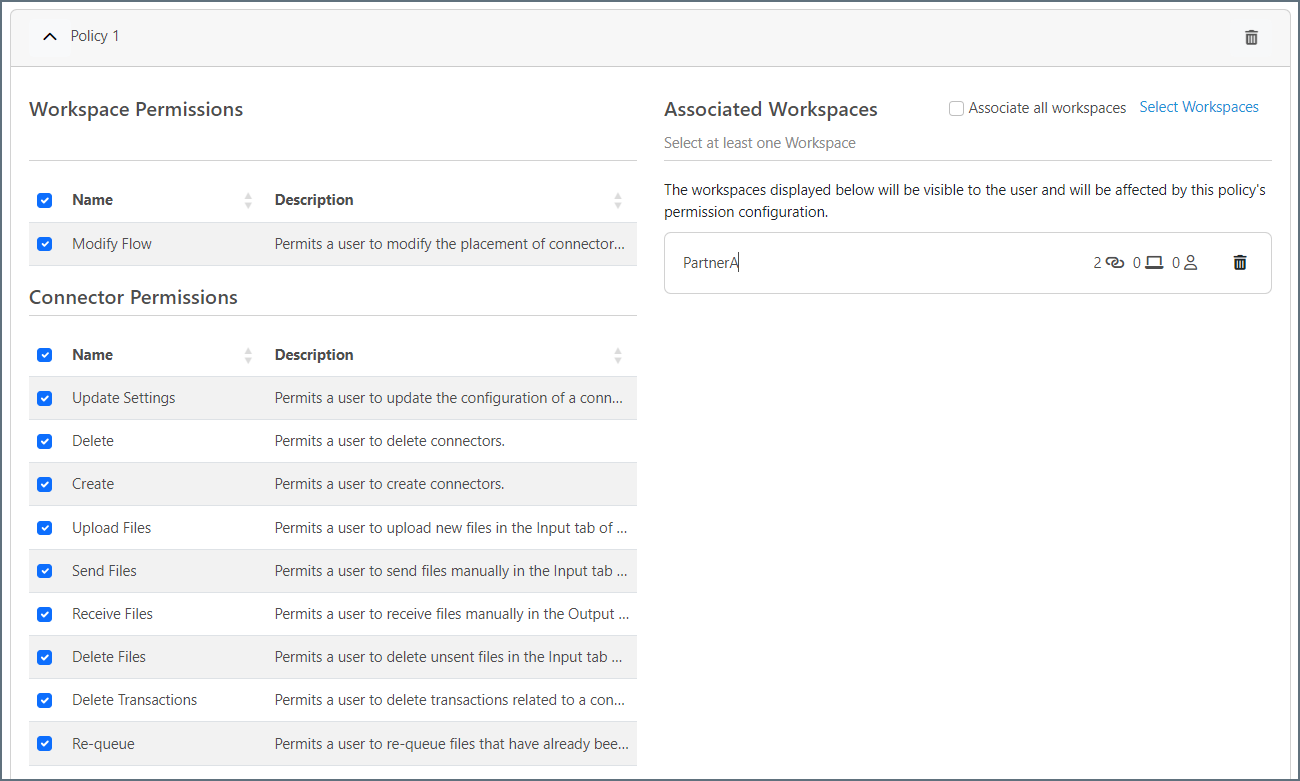
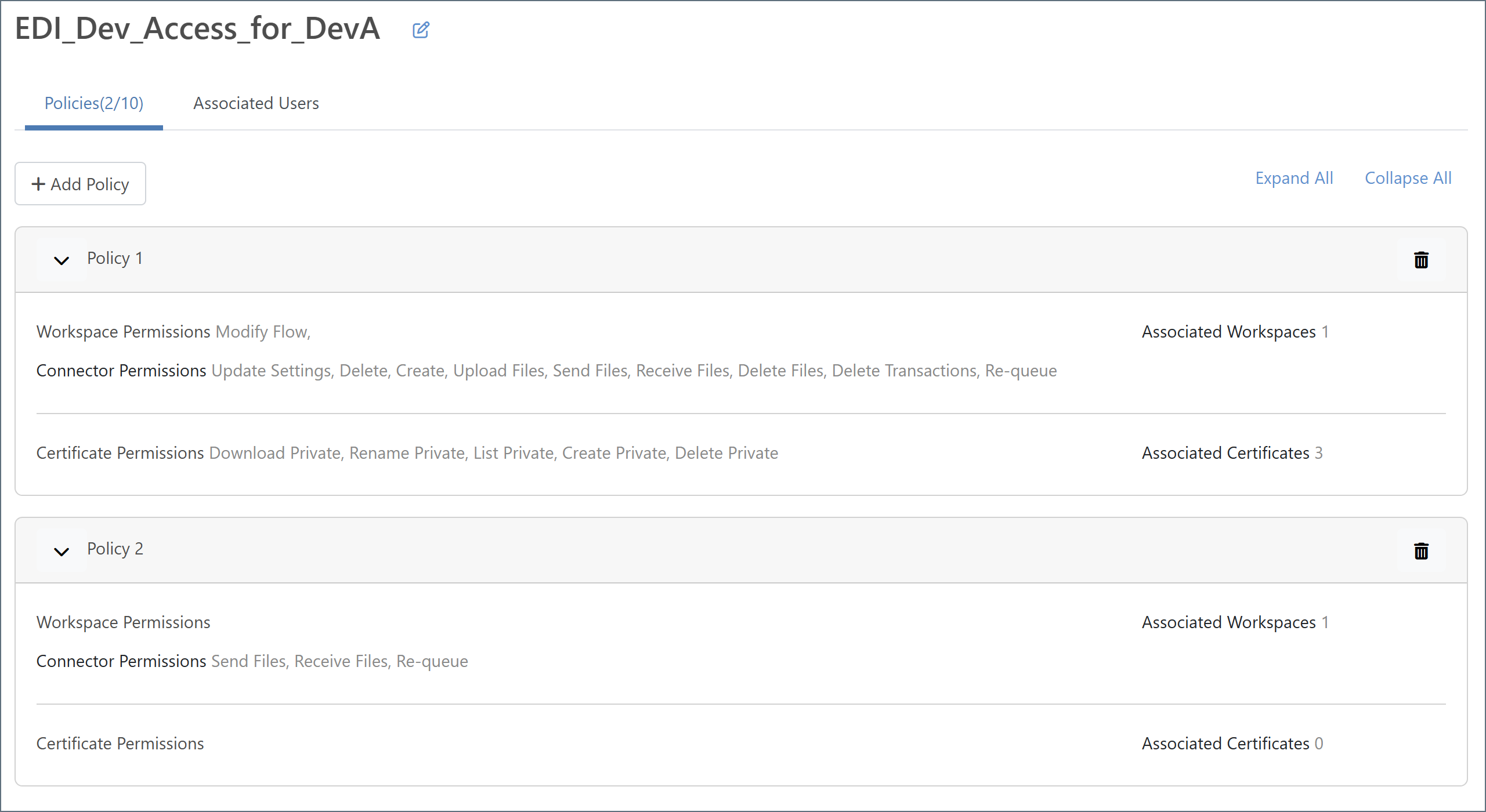
Check the checkboxes next to the policy Allowed Workspace Actions and Allowed Connector Actions permissions you want to assign, then use the All Workspaces dropdown to assign the policy to one or more workspaces. To assign it to all workspaces, use the All current and future workspaces toggle. The following image shows Policy 1 with completed Workspace and Connector permissions.
-
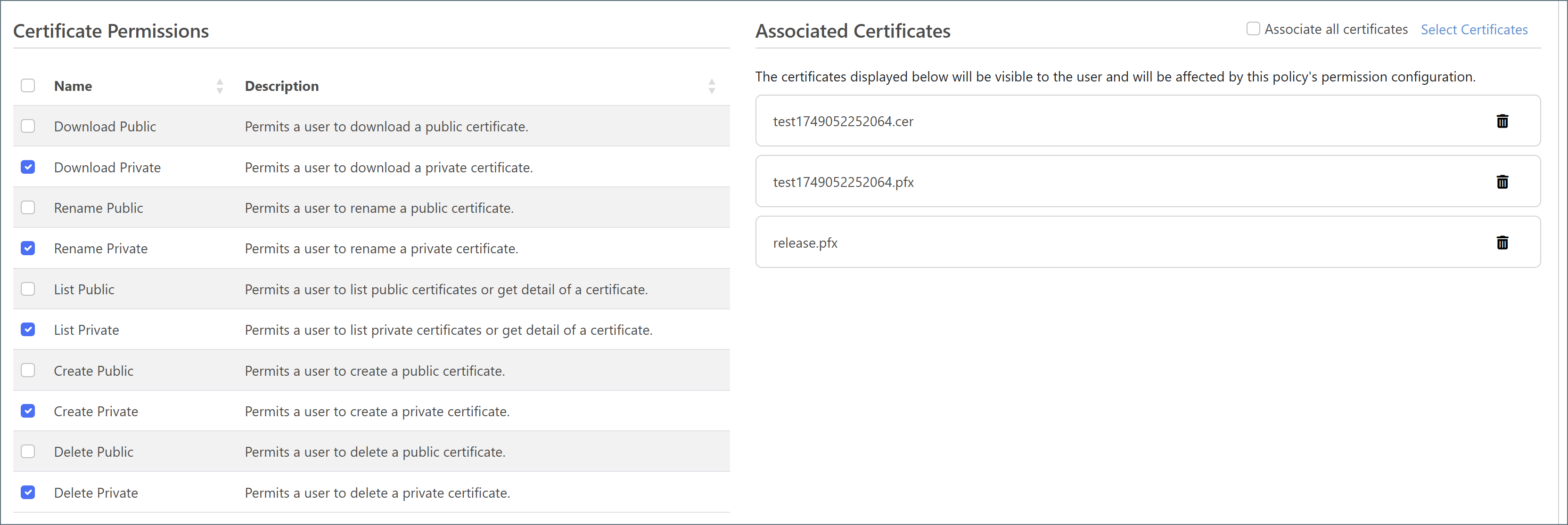
Similarly, the Certificate Permissions section of the page gives you control over what users can do with public and private certificates. Check the checkboxes next to the policy certificate permissions you want to assign, then click the Select Certificates link to assign the policy to one or more certificates.
- To add another policy, click Add Policy and repeat the previous steps.
-
When you are finished, click Save. The following image shows a role with two policies.
Associating Users with Roles
- To add users to the role, click the Associated Users tab.
- Click Add Users, then select the user(s) who can assume this role.
- When you are finished, click Add Users.
-
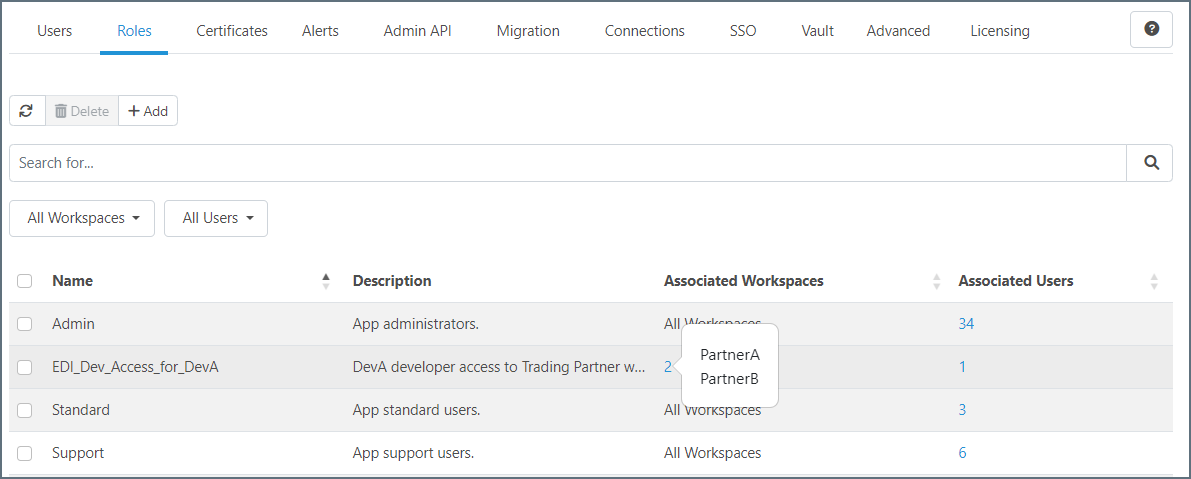
Use the Roles tab to view summary information for each role, including the associated workspaces and users. Hover over the counts to see details.
Note: If a certificate policy includes access to a specific subset of certificates, a user who is governed by that policy can create a new certificate but they cannot view or list it in a connector after its creation. This is because the new certificate is not one of the subset of certificates in the policy.
Role and Policy Example
Imagine a scenario where your company has a group of EDI developers. The company has multiple trading partners; we will use two trading partners and two developers for this example.
The trading partner flows are broken up into two separate workspaces: PartnerA and PartnerB. Each EDI developer (DevA and DevB) works primarily in their corresponding workspace (DevA = PartnerA), but they also need to be able to view or send files as necessary in the PartnerB workspace. To manage this, you can create the DevA user, create a custom role for DevA, and assign two policies to the role, as shown in the following image.
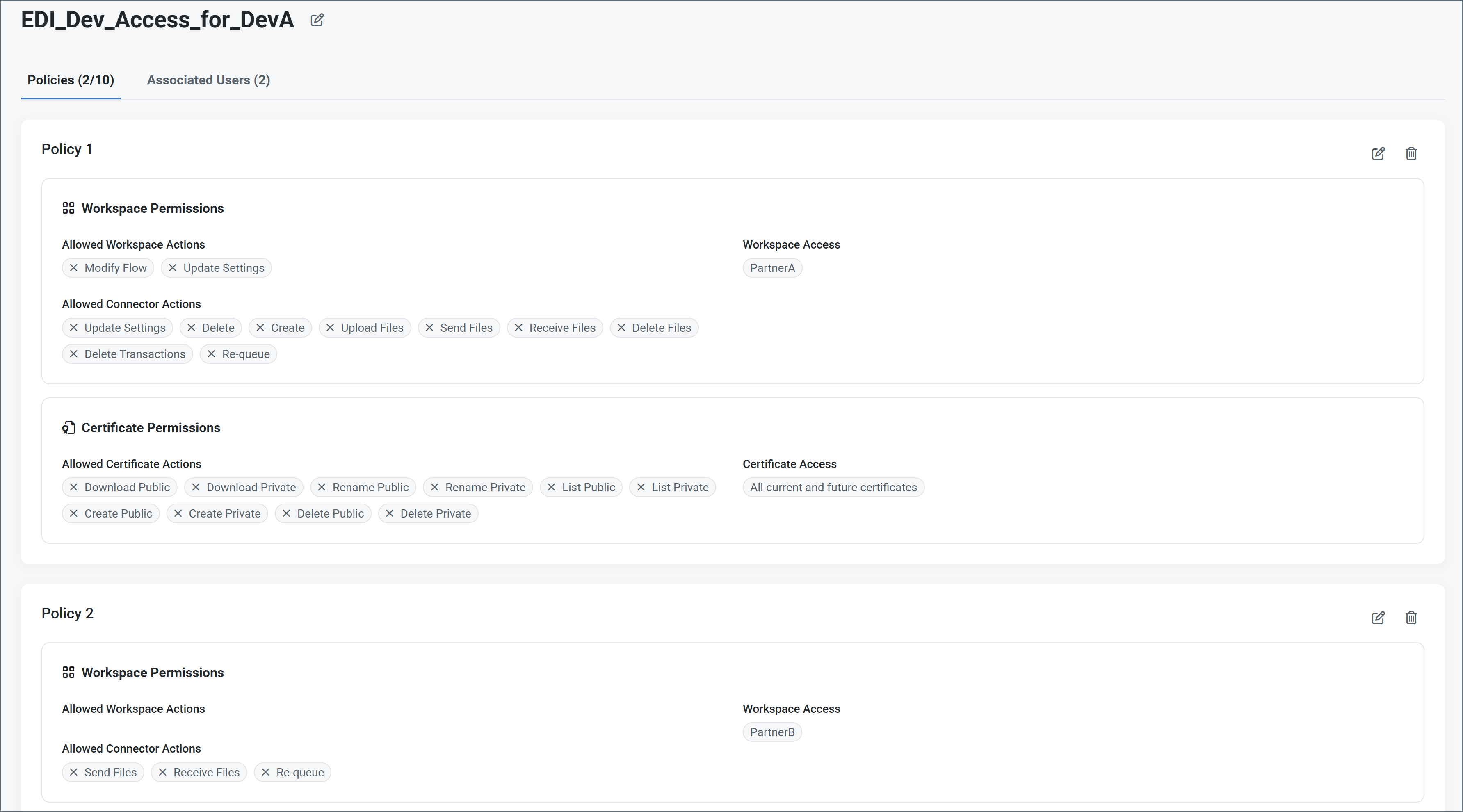
- Policy1 gives DevA full access to the PartnerA workspace.
- Policy2 gives DevA limited access to the PartnerB workspace, allowing them to view and send files, but not create or delete connectors, or modify flows or settings.
User Roles Comparison Table
This table describes the functionality available in all types of roles.
| Action | Admin | Standard | Support | Custom |
|---|---|---|---|---|
| Modify Flows | ✔ | ✔ | ✔ | |
| Update Settings | ✔ | ✔ | ✔ | |
| Delete Connectors | ✔ | ✔ | ✔ | |
| Create Connectors | ✔ | ✔ | ✔ | |
| Upload Files | ✔ | ✔ | ✔ | |
| Send Files (on a connector’s Input tab) | ✔ | ✔ | ✔ | ✔ |
| Receive Files (on a connector’s Output tab) | ✔ | ✔ | ✔ | ✔ |
| Delete Files (on a connector’s Input tab) | ✔ | ✔ | ✔ | |
| Delete Transactions | ✔ | ✔ | ✔ | |
| Re-queue (on a connector’s Input tab) | ✔ | ✔ | ✔ | ✔ |
| View Connectors and Flows | ✔ | ✔ | ✔ | ✔ 1 |
| View Application and Transaction Logs | ✔ | ✔ | ✔ | ✔ 1 |
| Upload Private Certificate Files to the Profile | ✔ | |||
| Change Profile Settings | ✔ | |||
| View Audit Logs | ✔ | |||
| Add and Manage Users | ✔ |