ICAP Connector
Version 25.3.9469
Version 25.3.9469
ICAP Connector
The ICAP connector enables seamless integration with Internet Content Adaptation Protocol (ICAP) servers in CData Arc. This connector facilitates content adaptation services, particularly real-time security scanning, by acting as an intermediary between your application and ICAP-compliant servers.
Key Capabilities
- Real-time content adaptation and security scanning
- Support for both request modification (REQMOD) and response modification (RESPMOD) modes
- TLS encryption support for secure communications
- Customizable HTTP encapsulation for legacy system compatibility
- Flexible authentication options including private certificate support
- Functions as a Transform step in the flow. Files that are flagged as needing attention yield errors, while other files proceed down the flow as usual.
Connector Configuration
This section contains all of the configurable connector properties.
Settings Tab
Settings related to the core configuration of the connector.
- Connector Id The static, unique identifier for the connector.
- Connector Type Displays the connector name and a description of what it does.
- Connector Description An optional field to provide a free-form description of the connector and its role in the flow.
- ICAP URI (Required) The ICAP Uniform Resource Identifier (URI) of the ICAP server to connect to. Must be in this format:
icap://<hostname>:<port>/<service_name>. - ICAP Headers Optional headers for specialized server requirements. Use this to add custom ICAP request headers that you want to include in the outgoing ICAP request.
- TLS Configuration Check this to enable TLS encryption for the ICAP connection.
- TLS Server Certificate The public key certificate used to verify the identity of an TLS/SSL server. This is only necessary if the ICAP server has enabled TLS. Set it to
Any Certificateto unconditionally trust the ICAP server’s identity. Only relevant when TLS Configuration is enabled. - Local File Scheme A scheme for assigning filenames to messages that are output by the connector. You can use macros in your filenames dynamically to include information such as identifiers and timestamps. For more information, see Macros.
Advanced Tab
TLS Client Authentication
- Private Certificate Select, create, or upload the TLS certificate to use for authentication.
- Certificate Password The password required to access the Private Certificate.
Other Settings
- ICAP Mode Specify the type of ICAP transaction: use REQMOD for request modification or RESPMOD for response modification. The default is REQMOD.
- ArcScript in Headers Allows for the evaluation of ArcScript expressions in the headers before the before the query is issued. For example,
[_ | now('yyyy-MM-dd')]evaluates the current date, and[_message.header:headername]evaluates the headername header from the input message context. - ArcScript in URL Allows for the evaluation of ArcScript expressions in the URL before the query is issued. For example,
[_ | now('yyyy-MM-dd')]evaluates the current date, and[_message.header:headername]evaluates the headername header from the input message context. - Preview size Controls the size of the message body preview sent to the ICAP server.
Automaticmakes your client query the server using an OPTIONS request to determine the optimal preview size. Alternatively, you can specify an exact number (in bytes) to use for the preview size. - Chunk size The maximum size (in bytes) of each data chunk sent after the preview phase (or for requests without a preview). The default is 16KB.
- Timeout (seconds) The length of time in seconds that the connector waits for a connection response before throwing a timeout error. The default is 60 seconds.
- Response Headers A comma-separated list of ICAP response header names (such as
X-Infection-Found,X-Scan-Result) to be extracted and added as metadata to the processed message. - TLS Enabled Protocols The list of TLS/SSL protocols supported when establishing outgoing connections. Best practice is to only use TLS protocols. However, some obsolete operating systems do not support TLS 1.2. TLS v1.3 is not universally adopted, and might be refused if the destination server does not support it.
Proxy Settings
These are a collection of settings that identify and authenticate to the proxy through which the connection should be routed. By default, this section uses the global settings on the Proxy Settings portion of the Security Settings page. Clear the checkbox to supply settings specific to your connector.
- Proxy Type The protocol used by a proxy-based firewall.
- Proxy Host The name or IP address of a proxy-based firewall.
- Proxy Port The TCP port for a proxy-based firewall.
- Proxy User The user name to use to authenticate with a proxy-based firewall.
- Proxy Password A password used to authenticate to a proxy-based firewall.
- Authentication Scheme Leave the default None or choose from one of the following authentication schemes: Basic, Digest, Proprietary, or NTLM.
Logging
Settings that govern the creation and storage of logs.
- Log Level The verbosity of logs generated by the connector. When you request support, set this to Debug.
- Log Subfolder Scheme Instructs the connector to group files in the Logs folder according to the selected interval. The Weekly option (which is the default) instructs the connector to create a new subfolder each week and store all logs for the week in that folder. Leaving this setting blank tells the connector to save all logs directly in the Logs folder. For connectors that process many transactions, using subfolders helps keep logs organized and improves performance.
- Log Messages Check this to have the log entry for a processed file include a copy of the file itself. If you disable this, you might not be able to download a copy of the file from the Input or Output tabs.
Miscellaneous
Miscellaneous settings are for specific use cases.
- Other Settings Enables you to configure hidden connector settings in a semicolon-separated list (for example,
setting1=value1;setting2=value2). Normal connector use cases and functionality should not require the use of these settings.
Automation Tab
Automation Settings
Settings related to the automatic processing of files by the connector.
- Send Whether files arriving at the connector are automatically sent as ICAP transactions.
Performance
Settings related to the allocation of resources to the connector.
- Max Workers The maximum number of worker threads consumed from the threadpool to process files on this connector. If set, this overrides the default setting on the Performance Settings portion of the Advanced Settings page.
- Max Files The maximum number of files sent by each thread assigned to the connector. If set, this overrides the default setting on the Performance Settings portion of the Advanced Settings page.
Alerts Tab
Settings related to configuring alerts.
Before you can execute Service Level Agreements (SLAs), you need to set up email alerts for notifications. By default, Arc uses the global settings on the Alerts tab. To use other settings for this connector, toggle Override global setting on.
By default, error alerts are enabled, which means that emails are sent whenever there is an error. To turn them off, uncheck the Enable checkbox.
Enter a Subject (mandatory), then optionally enter a comma-separated list of Recipient emails.
SLAs Tab
Settings related to configuring Service Level Agreements (SLAs).
SLAs enable you to configure the volume you expect connectors in your flow to send or receive, and to set the time frame in which you expect that volume to be met. CData Arc sends emails to warn the user when an SLA is not met, and marks the SLA as At Risk, which means that if the SLA is not met soon, it will be marked as Violated. This gives the user an opportunity to step in and determine the reasons the SLA is not being met, and to take appropriate actions. If the SLA is still not met at the end of the at-risk time period, the SLA is marked as violated, and the user is notified again.
To define an SLA, toggle Expected Volume on, then click the Settings tab.
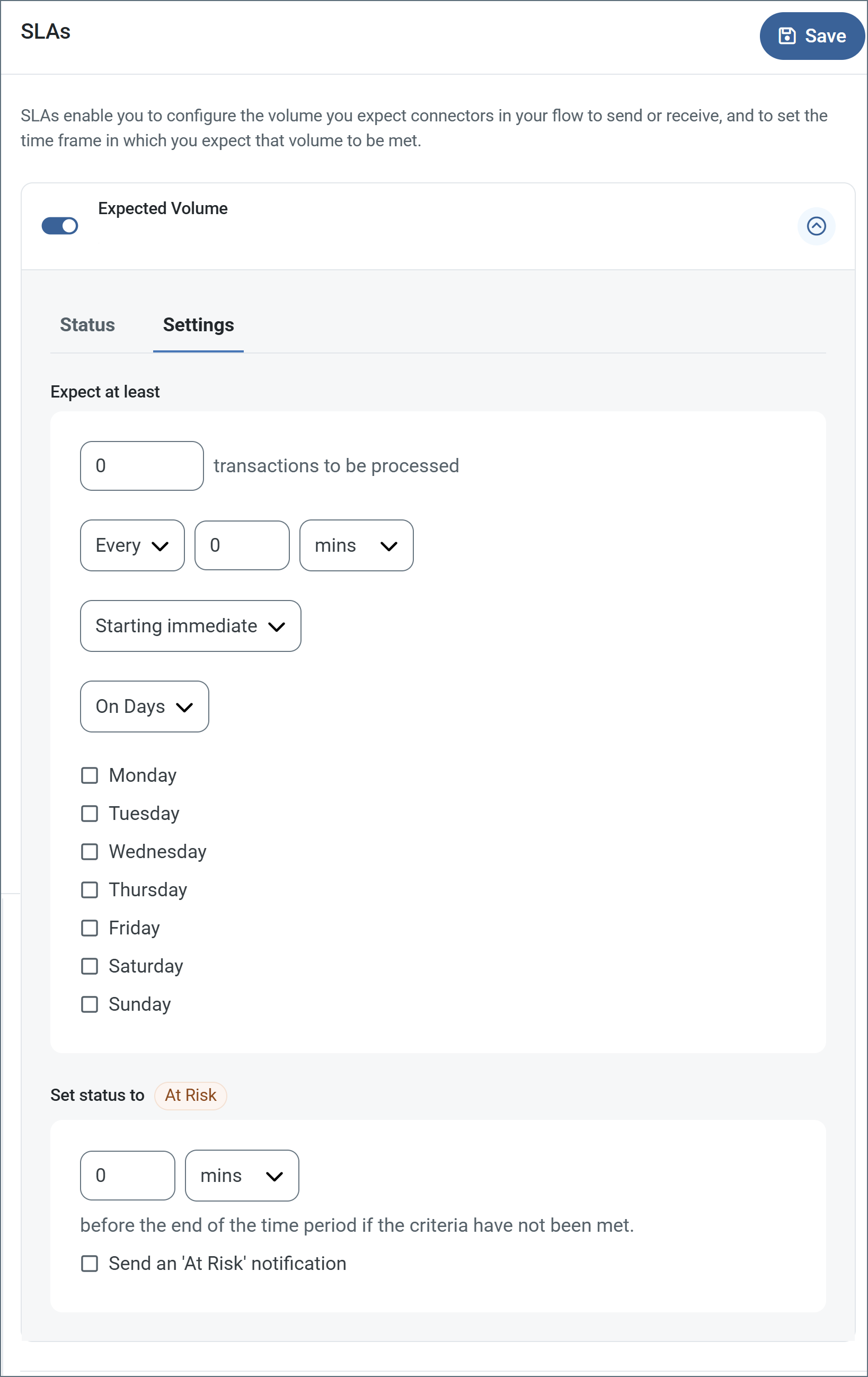
- If your connector has separate send and receive actions, use the radio buttons to specify which direction the SLA pertains to.
- In the Expect at least portion of the window:
- Set the minimum number of transactions you expect to be processed (the volume)
- Use the Every fields to specify the time frame
- Indicate when the SLA should go into effect. If you choose Starting on, complete the date and time fields.
- Check the boxes for the days of the week that you want the SLA to be in effect. Use the dropdown to choose Everyday if necessary.
- In the Set status to ‘At Risk’ portion of the window, specify when the SLA should be marked as at risk.
- By default, notifications are not sent until an SLA is in violation. To change that, check Send an ‘At Risk’ notification.
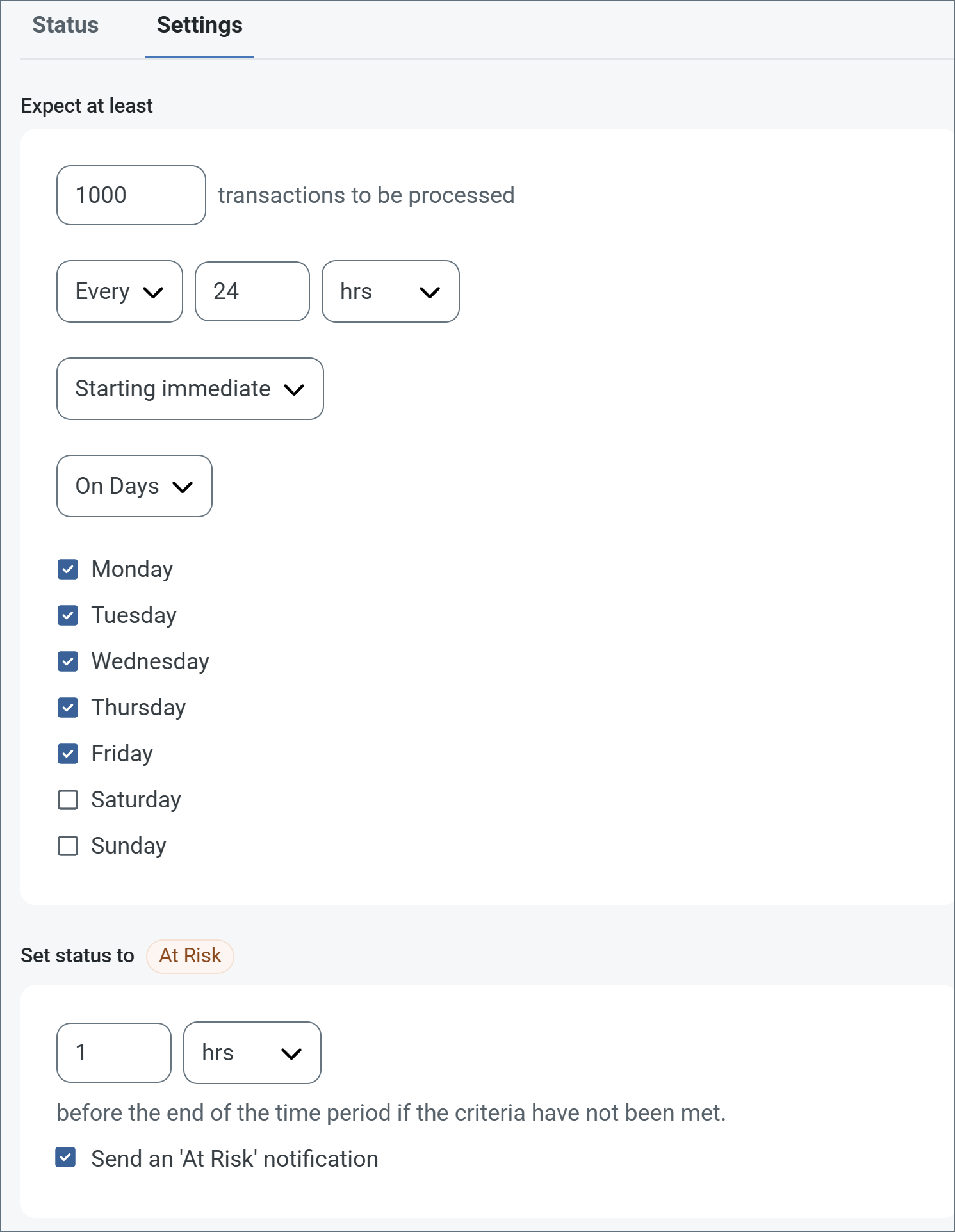
The following example shows an SLA configured for a connector that expects to receive 1000 files every day Monday-Friday. An at-risk notification is sent 1 hour before the end of the time period if the 1000 files have not been received.
Transactions Tab
This tab lists all messages associated with the connector. Use the search bar to find specific messages, or click the funnel icon to apply a filter. You can filter by time, message direction, and/or status.
Incoming responses appear on this tab.
Events Tab
- Response This event lets you extend the way the connector interprets replies from the ICAP server. By default, the connector finalizes messages based on the ICAP server’s status code. However, since ICAP servers can also include scan details in response headers, the Response event lets you apply custom logic to those headers for more granular control. No output is created from this event; instead, you can use the arc:throw keyword to block the file (for example, if a particular header value indicates a failed scan).
- Before Send This event fires after the connector has fully prepared a file to send/process a file, but before the sending/processing actually occurs.
- After Receive This event fires after the connector has received a file.
The following are available in the Response event:
- StatusCode: The ICAP response status code (such as 200, 204, or 4xx)
- _response: The ICAP response. You can use
[_response.header:xxx]to get a specific header. - _message: To refer to the input message (headers and body), and adding headers to the output.
Macros
Using macros in file naming strategies can enhance organizational efficiency and contextual understanding of data. By incorporating macros into filenames, you can dynamically include relevant information such as identifiers, timestamps, and header information, providing valuable context to each file. This helps ensure that filenames reflect details important to your organization.
CData Arc supports these macros, which all use the following syntax: %Macro%.
| Macro | Description |
|---|---|
| ConnectorID | Evaluates to the ConnectorID of the connector. |
| Ext | Evaluates to the file extension of the file currently being processed by the connector. |
| Filename | Evaluates to the filename (extension included) of the file currently being processed by the connector. |
| FilenameNoExt | Evaluates to the filename (without the extension) of the file currently being processed by the connector. |
| MessageId | Evaluates to the MessageId of the message being output by the connector. |
| RegexFilename:pattern | Applies a RegEx pattern to the filename of the file currently being processed by the connector. |
| Header:headername | Evaluates to the value of a targeted header (headername) on the current message being processed by the connector. |
| LongDate | Evaluates to the current datetime of the system in long-handed format (for example, Wednesday, January 24, 2024). |
| ShortDate | Evaluates to the current datetime of the system in a yyyy-MM-dd format (for example, 2024-01-24). |
| DateFormat:format | Evaluates to the current datetime of the system in the specified format (format). See Sample Date Formats for the available datetime formats |
| Vault:vaultitem | Evaluates to the value of the specified vault item. |
Examples
Some macros, such as %Ext% and %ShortDate%, do not require an argument, but others do. All macros that take an argument use the following syntax: %Macro:argument%
Here are some examples of the macros that take an argument:
- %Header:headername%: Where
headernameis the name of a header on a message. - %Header:mycustomheader% resolves to the value of the
mycustomheaderheader set on the input message. - %Header:ponum% resolves to the value of the
ponumheader set on the input message. - %RegexFilename:pattern%: Where
patternis a regex pattern. For example,%RegexFilename:^([\w][A-Za-z]+)%matches and resolves to the first word in the filename and is case insensitive (test_file.xmlresolves totest). - %Vault:vaultitem%: Where
vaultitemis the name of an item in the vault. For example,%Vault:companyname%resolves to the value of thecompanynameitem stored in the vault. - %DateFormat:format%: Where
formatis an accepted date format (see Sample Date Formats for details). For example,%DateFormat:yyyy-MM-dd-HH-mm-ss-fff%resolves to the date and timestamp on the file.
You can also create more sophisticated macros, as shown in the following examples:
- Combining multiple macros in one filename:
%DateFormat:yyyy-MM-dd-HH-mm-ss-fff%%EXT% - Including text outside of the macro:
MyFile_%DateFormat:yyyy-MM-dd-HH-mm-ss-fff% - Including text within the macro:
%DateFormat:'DateProcessed-'yyyy-MM-dd_'TimeProcessed-'HH-mm-ss%