Certificates
Version 25.3.9469
Version 25.3.9469
Certificates
The Certificates tab displays a sortable table of all certificates that are used and managed by the application. Use this tab as a reference to quickly determine which certificates are in use by which connectors in your flows.
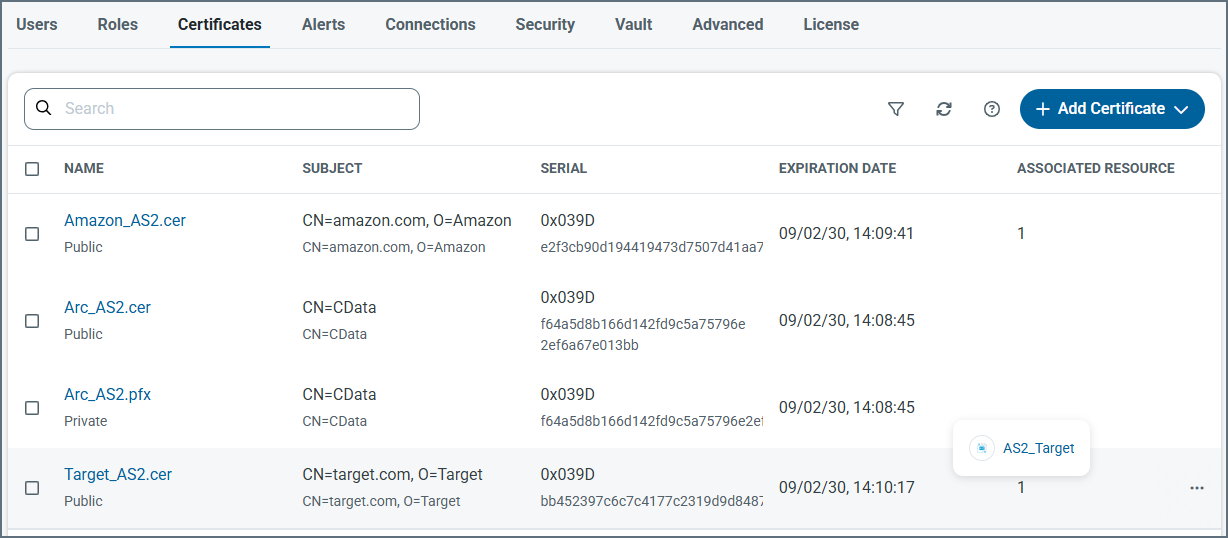
If you have the appropriate permissions, you can add or upload new certificates, edit the names of existing certificates, download certificates, and remove those you no longer need. Click Add Certificate to see the options for creating or uploading certificates. To edit, download or delete a certificate, click the ellipses that appear when you hover over a certificate and choose one of the options.
Use the search bar to search in columns such as Name or Serial to find specific certificates. Hover over a number in the Associated Resources column to see the connector Ids of all connectors using a specific certificate. Click a connector Id to go directly to its settings.
All certificates created or uploaded in CData Arc are stored in the data directory. Typically, certificates come in public/private pairs with the same filename but different file extensions: .pfx for private and .cer for public. Certificates in other formats that are uploaded to the application are stored as-is.
Arc enumerates the certificates in the data directory to determine the options available when configuring a certificate in the UI. Adding a certificate file to the data directory accomplishes the same thing as uploading a certificate in the UI.