Configure an AS4 Connection
Version 25.3.9469
Version 25.3.9469
Configure an AS4 Connection
Overview
CData Arc supports establishing an AS4 connection with a trading partner in a simple two-step process. First the AS4 profile is configured with local AS4 details (identifier, private certificates, and so on). Then an AS4 connector is configured on the Flows page with the AS4 details for a specific trading partner.
AS4 Profile Configuration
The Profiles page contains an AS4 section where local AS4 details are configured. The primary configuration details are:
- Party identifier (the value that identifies Arc to your trading partners as an AS4 entity)
- Private certificate (the certificate that is used to decrypt incoming messages and sign outgoing messages)
Click Profiles on the navbar to configure the AS4 profile settings, as described below.
Party Identifier
Your AS4 identifier is included in outgoing AS4 messages and identifies you as the sender. Additionally, incoming AS4 messages must be addressed to this identifier to be accepted by the application. AS4 identifiers have some restrictions: for example, they cannot include whitespace characters and they are case-sensitive. Other than those (and any restrictions imposed by your trading partners), AS4 identifiers can be any mutually agreed upon value.
Some identifiers must be qualified by the Party Identifier Type to provide context to the identifier value. This value should be the domain to which the Id belongs, such as urn:oasis:names:tc:ebcore:partyid-type:iso6523:0060.
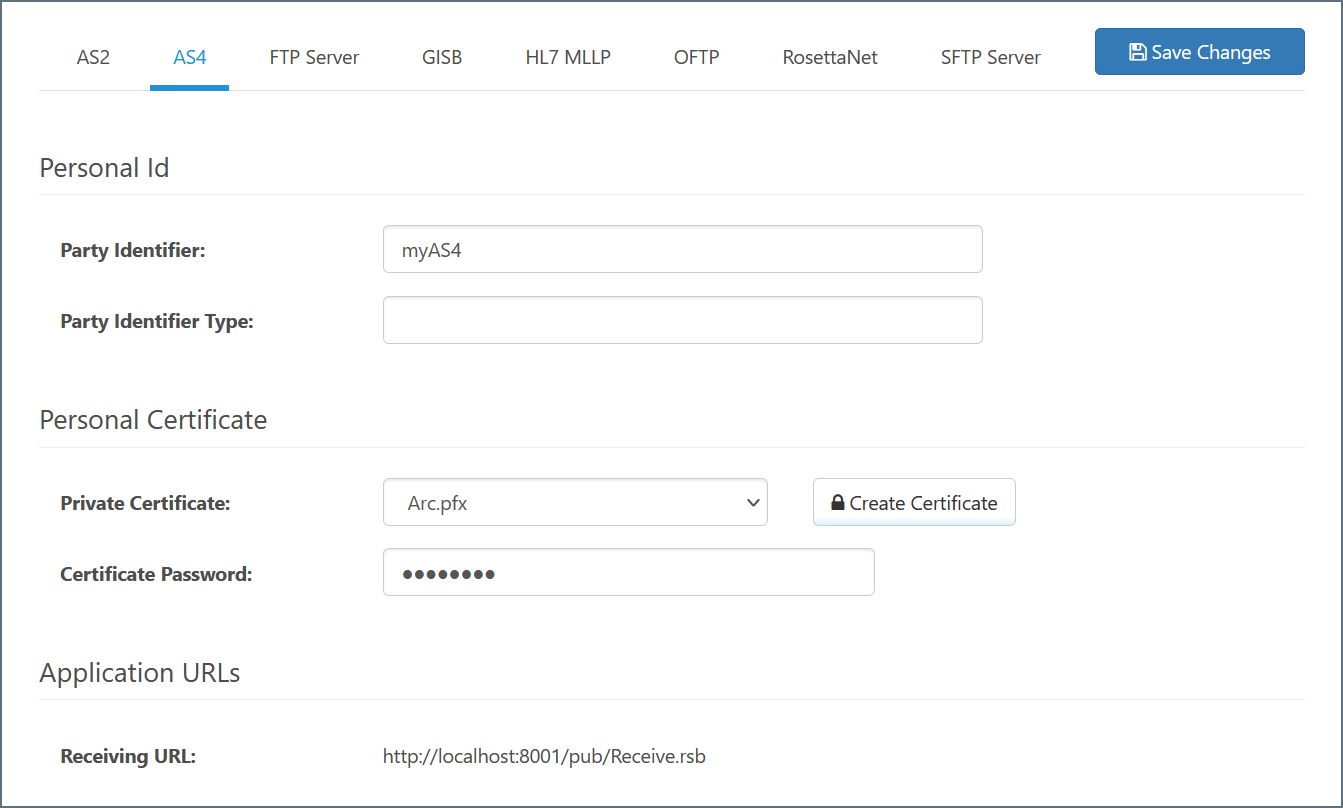
Private Certificate
Your private certificate is used for digital cryptography (decryption and digital signatures). The private certificate contains a private key that is paired with your public encryption key. When a trading partner uses your public encryption key to secure an AS4 message, it ensures that only you can decrypt the message (with the paired private key).
Arc supports private certificates in PKCS#12 format (.pfx or .p12 files), and PEM-encoded public key certificates (.cer files).
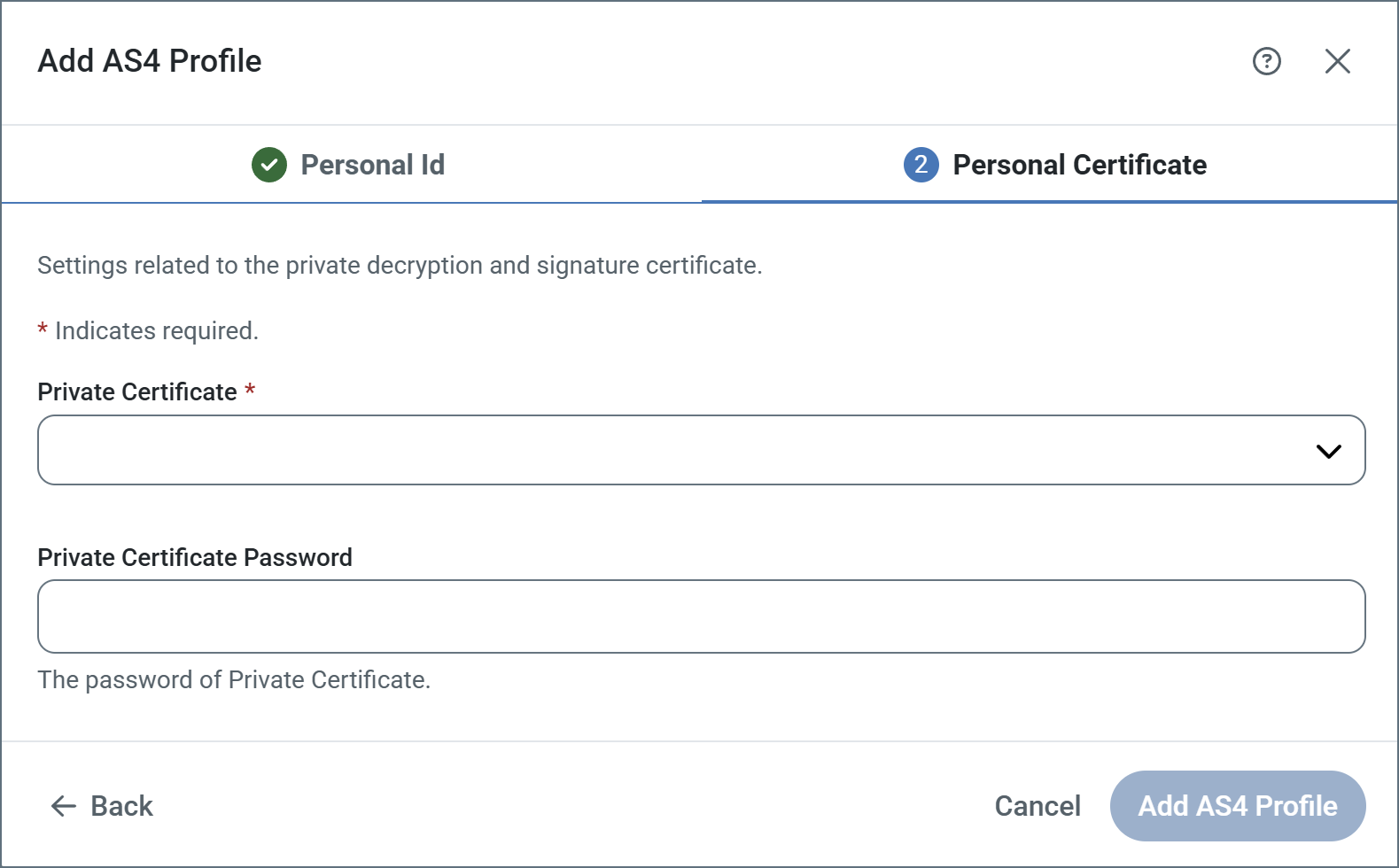
Creating a New Certificate Pair
If you do not already have a private and public key pair to use for AS4 security, Arc supports creating a self-signed certificate. Self-signed certificates are common in the AS4 space, but some partners might require purchasing a certificate from a trusted Certificate Authority (CA).
To create a new certificate pair, choose Create Certificate in the Private Certificate dropdown:
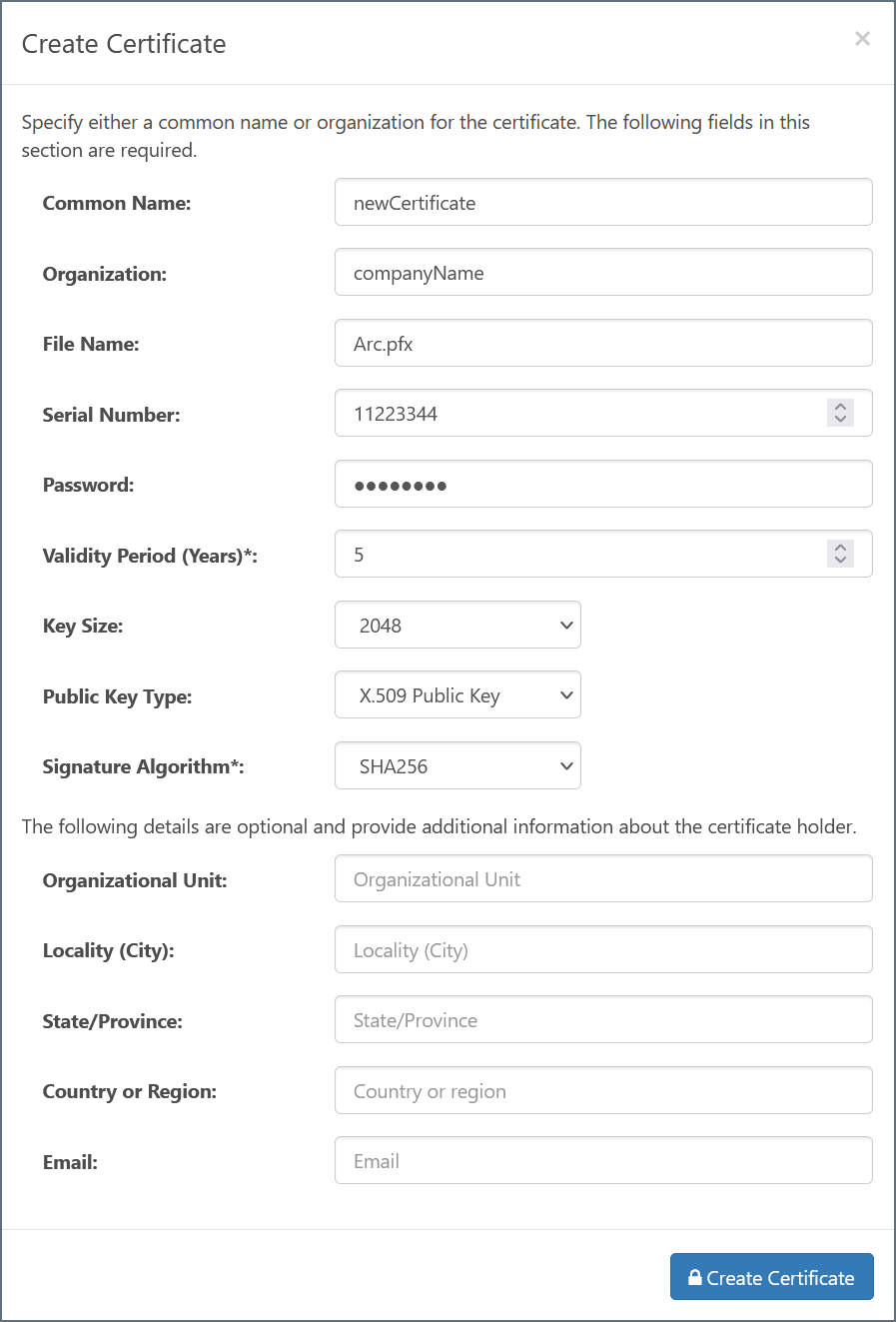
The following fields are required:
- Common Name: The hostname of the server using the certificate. It is used in conjunction with the serial number to identify the certificate.
- File Name: The name of the certificate file, with a
.pfxextension. The corresponding public key certificate is given the same name with a.cerextension. - Serial Number: A unique serial number that is used in conjunction with the common name to identify the certificate.
- Password: The password required to access the private key.
- Validity Period: Determines the expiration date of the certificate.
- Key Size: Whether to create a 512, 1024, 2048, or 4096-bit key.
- Public Key Type: Whether to create an X.509, OpenSSH, or SSH2 public key.
- Signature Algorithm: The algorithm to use when applying a digital signature to the certificate to verify its authenticity.
The remaining fields are optional, but you can use them to add further context and metadata to the certificate.
Once created, the certificate files are placed in the application data directory. Certificate files in this directory are included in the dropdown lists of any certificate-type settings in the application.
Application URLs
The Application URLs section of the AS4 profile defines the publicly-accessible endpoints where trading partners can send AS4 messages to Arc. Set the Base URL field in the Additional Settings portion of the Settings > Advanced page to the base URL that leads to the machine or network where Arc is hosted (for example, https://mydomain.com/Arc). The Receiving URL endpoint is generated based on this domain value and the port on which the application’s web server is listening.
AS4 Connector Configuration
After the AS4 profile is configured, navigate to the Flows page and create an instance of the AS4 connector. Each AS4 connector is configured with the AS4 details for a single trading partner.
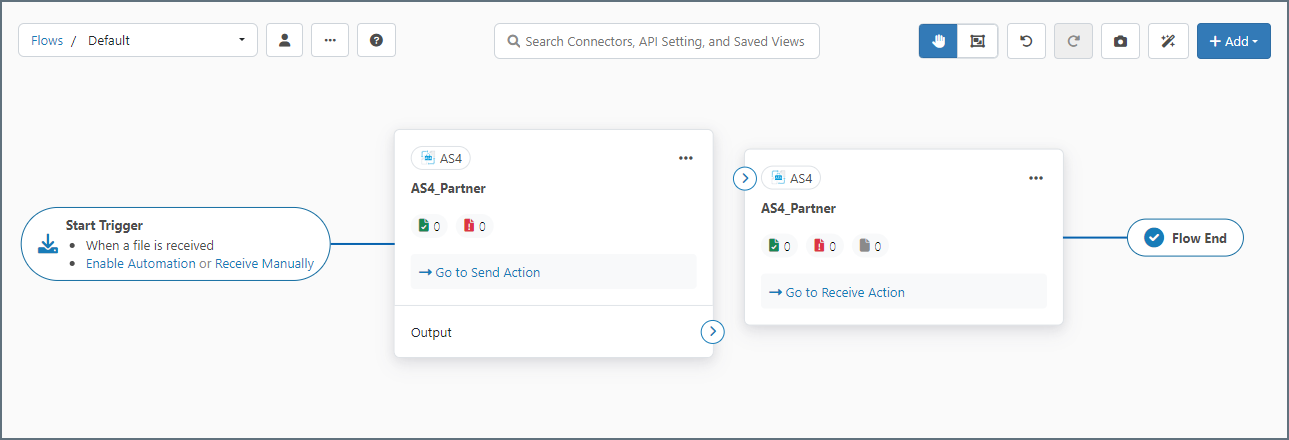
Required Configuration Settings
AS4 configuration details must be provided by the trading partner. These values are mutually agreed upon with your trading partners, so be sure to clearly communicate with them to understand what values they expect in these fields. At a minimum, the details that the trading partner must provide include:
- Party Identifier
- URL or endpoint where outgoing AS4 messages are sent
- Public certificate or key for encryption
- Agreement
- Business agreement details
Click Create in the Connection field on the Settings tab of your AS4 connector, then provide the following mandatory values on the Configure Connection page:
- Party Identifier: The case-sensitive party identifier specific to the target trading partner.
- URL: The trading partner’s public endpoint where outgoing AS4 messages are sent.
- Agreement: The shared AS4 agreement that governs the exchange.
- Encryption Certificate: The public key certificate used for AS4 encryption when sending messages.
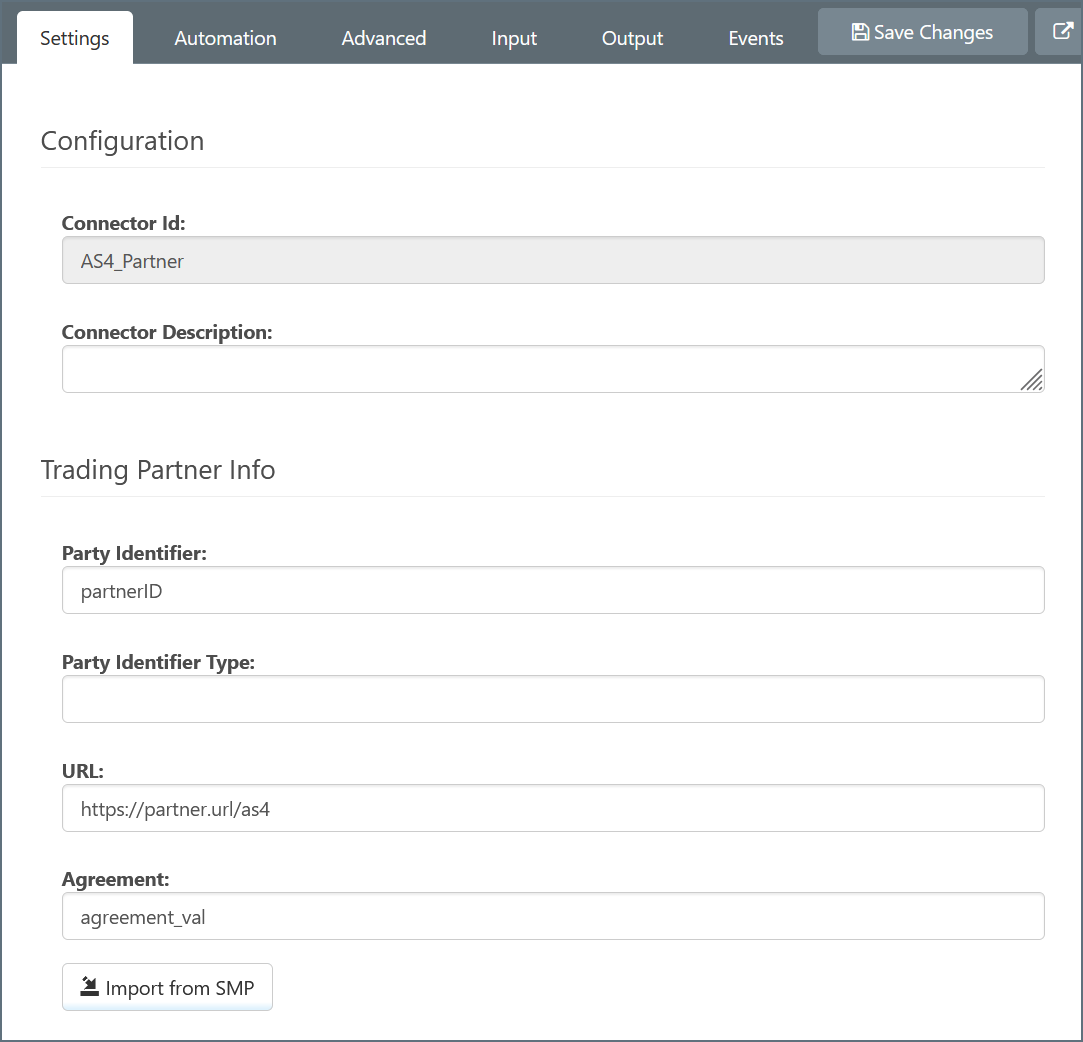
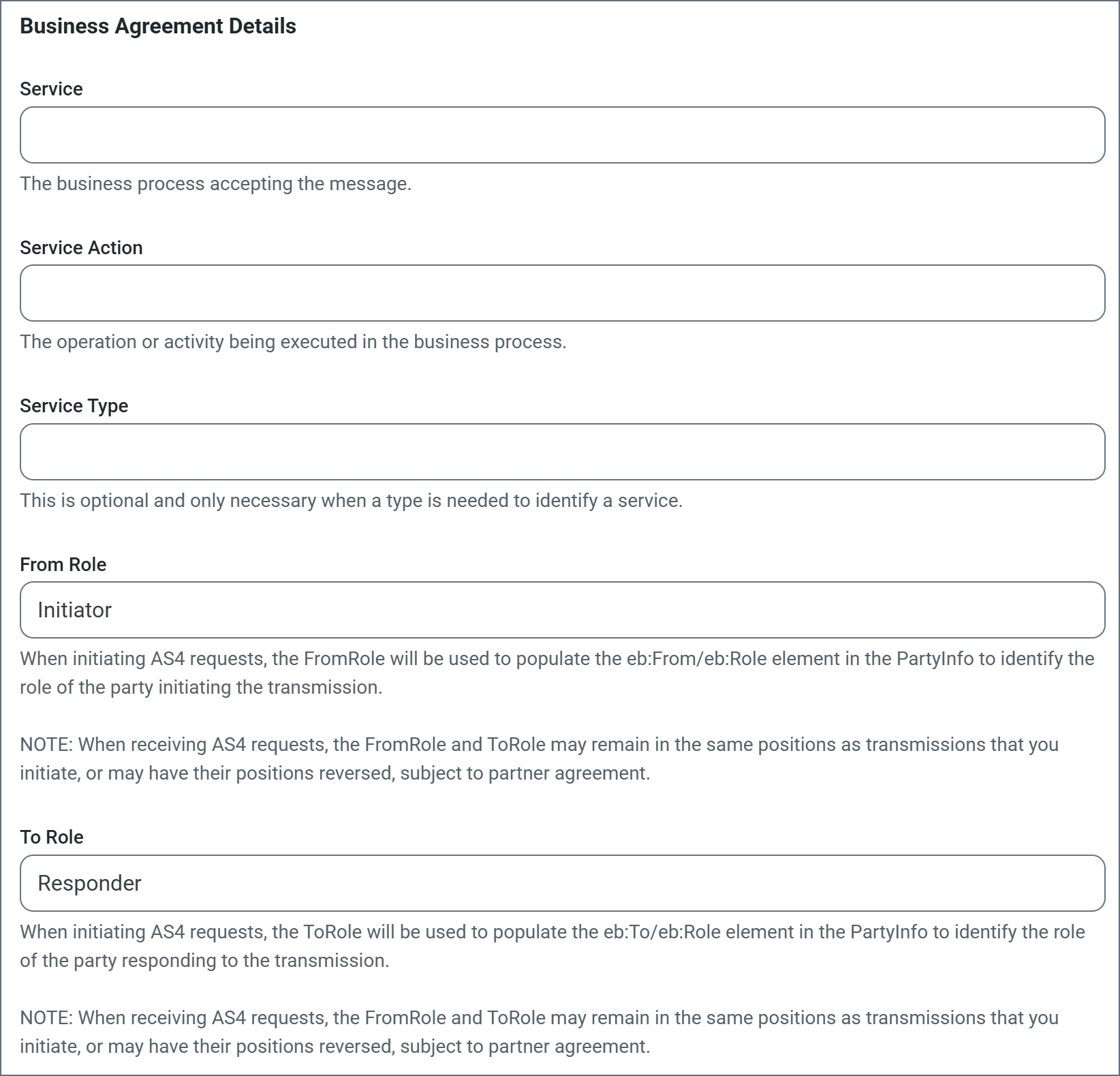
Supply the remaining mandatory Business Agreement Details on the connector Settings tab. These pieces of metadata convey information about how the AS4 message should be received and interpreted:
- Service: The business process accepting the message.
- Service Action: The operation or activity being executed in the business process.
- From Role: The role of the party from which the message originates.
- To Role: The role of the party to which the message is delivered.
Additional Configuration Settings
Partners can include additional requirements, such as:
- Synchronous or asynchronous receipts (configured on the Settings tab; if not specified, assume they want synchronous)
- TLS server certificates for connecting to an HTTPS server (configured on the Configure Connection page)
- Message properties (additional metadata to include in the AS4 payload, configured on the Advanced tab of the connector configuration tabs)
- Specific encryption or signature algorithms (configured in the Advanced tab of the Configure Connection page)
- A separate certificate (in addition to the encryption certificate) for verifying signatures (configured in the Advanced tab of the Configure Connection page)
Partners might also require a specific profile be used in the AS4 interchange. Configure this using the Profile dropdown on the Configure Connection page. It helps determine shared configuration settings to ensure compatibility between partners. Setting the profile automatically updates relevant configuration options in the connector. The available profiles are Standard, ENTSOG, e-SENS, DBEW, ENTSOG V4, and eDelivery V2.
You can choose Auto as the value for several advanced settings, including Encryption Algorithm, Signature Algorithm, Security Token Format, and SSL Enabled Protocols. When set to Auto, the connector automatically chooses the appropriate value for each setting based on the selected profile, but you can manually override these values when necessary.
Note: To edit a connection after it has been created, find it in Settings > Connections and click its name to open the Edit Connection pane. Connections cannot be edited in the AS4 connector.
Testing the AS4 Connection
Once the configuration for a trading partner is complete, you can test the outgoing connection by generating test documents. Navigate to the AS4 connector’s Transactions tab and choose Add Files > Add Test Files.
Unless Send Automation is disabled on the Automation tab, the connector automatically attempts to process these test files. Any errors that occur when sending the test files to the configured partner are reported on the Transactions tab, including a log file with context and details on the error. To further diagnose connection issues, use the Log Level and Log Messages options on the Advanced tab.
Successfully processed files appear with a green Sent status. Successfully sending test files establishes that the AS4 configuration is correct.
Providing AS4 Details to Trading Partners
In the same way that trading partners must provide you with AS4 configuration details in order to configure an AS4 connector, you are responsible for providing AS4 configuration details to your partners.
At a minimum, you must provide your partner with:
- Your AS4 identifier
- Your public key or encryption certificate
- Your receiving URL
Additionally, the Agreement and Business Agreement Details metadata in AS4 messages must be mutually agreed upon.
Sending and Receiving AS4 Messages
Once an AS4 connector has successfully established a AS4 connection, you can securely and reliably share files with your trading partner.
When an AS4 message arrives on the Arc web server, the application attempts to route the message to a specific AS4 connector. Arc uses the AS4 identifiers in the message headers to route the incoming file to the AS4 connector configured for the partner that sent the message. If the application cannot find an AS4 connector configured for the incoming message (based on the AS4 identifiers), an error is logged on the Application log tab and the file is not received.
Transactions Tab
Files placed in the AS4 connector Transactions tab (either manually or passed in from another connector) are scheduled to be sent by the connector. If Send Automation is enabled on the Automation tab (it is enabled by default), the connector automatically polls this location for files to process. Alternatively, you can manually send files from the Transactions tab. Click the checkbox to the left of the target file(s) and click Send.
You can use the Transactions tab to upload files into the Send folder by choosing Add Files > Upload Files. Files can also arrive at the AS4 connector when they are part of a connected flow.
When files received over AS4 are routed to specific AS4 connectors (based on the AS4 identifiers), the files also arrive in the connector’s Transactions tab. If an AS4 connector is not connected to another connector in the flow, the received files remain on the Transactions tab, where you can view them.
Sending and Receiving as Part of a Flow
In most workflows, files are processed by other Arc connectors before they should be sent out by the AS4 connector. When another connector is connected before the AS4 connector in a flow, files are automatically passed to the AS4 connector’s Transactions tab.
If an AS4 connector has connectors after it in the flow, files do not stay on the Transactions tab and are instead passed along to the next connector.
Managing Receipts
After sending a file, the AS4 connector automatically waits for receipts if Enable Receipt is checked on the Settings tab. If the receipt contains a negative response (for example, if the partner has rejected the exchange), the connector reports an error instead of a successful send. If an asynchronous receipt is requested, the connector stays in pending status until the partner returns the receipt. CData recommends you use synchronous receipts unless the files you exchange over AS4 are very large (500MB or larger).
If an incoming AS4 message requests a receipt, the AS4 connector automatically generates and sends it. If an error occurs while receiving the AS4 message, this error is logged in Arc and included in the receipt returned to the trading partner. The settings required for sending receipts are included in the incoming AS4 message and do not need to be explicitly configured in the AS4 connector.