Script Connector
Version 25.3.9469
Version 25.3.9469
Script Connector
The Script connector provides the ability to perform functions or operations that are not otherwise available in the built-in connectors of CData Arc.
Key Capabilities
- Custom business logic implementation using ArcScript or Python
- Access to full message context including message headers and file content
- Integration with external libraries and system commands (Python)
- Support for complex data transformations and business rule processing
Overview
Script connectors use the powerful ArcScript scripting language to accomplish a wide range of custom behavior. The script configured in the connector is run each time a document is placed in the Transactions tab for the connector. The input document can be read and modified in the script, or the input document can simply trigger an external function configured in the connector. Script connectors can also be configured to run on a schedule via Receive automation on the Automation tab.
These are a few of the tasks you can configure a Script connector to do:
- Replace values in the input document with data returned from custom SQL queries
- Call a custom Web service to invoke a specialized workflow
- Run an external script or executable via the sysExecute operation
After you decide the appropriate task for your Script connector, read the Scripting documentation to explore how to call various operations using ArcScript.
Connector Configuration
This section contains all of the configurable connector properties.
Script Tab
Options related to writing and testing the script.
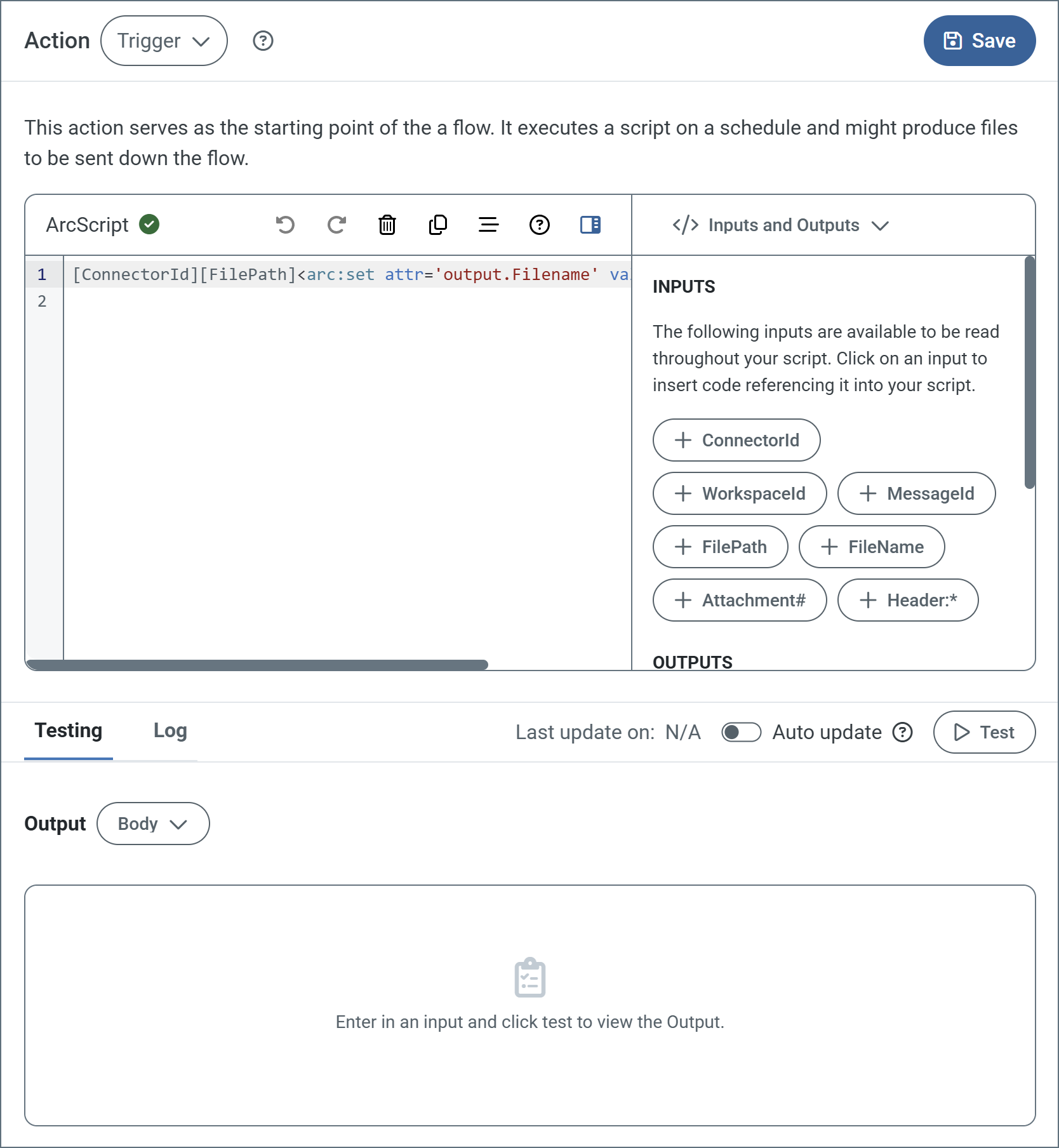
- Action dropdown Choose the connector’s action. (See Actions for details on the three options.)
- ArcScript editor Use the editor to write your script. The toolbar contains standard editing options such as undo, redo, delete, copy, and format. It also includes an option to hide the Insert Options in the right pane.
- Insert Options The panel in the right pane makes it easy to insert code into your script with one click. The dropdown includes Inputs and Outputs (such as ConnectorId or Encoding), Snippets, Keywords, Operators and Formatters. Find the code you want to insert, and click to add it.
- Testing tab Specify whether to view the script input and/or output as the message body or headers. Options on this tab vary based on the script’s action type (for example, trigger scripts do not have inputs). Click Test to test the script.
- Log tab Displays the test log.
- Last update on Displays the datetime the script was last modified and saved.
- Auto update Use the toggle to automatically test the script after each modification.
Actions
このコネクタは、次の3種類のコネクタアクションのいずれかを実行できます:
- Trigger は、スケジュールに従ってscript を実行し、フローに送信されるファイルを生成する場合があります。このアクションはフローの起点として機能します。
- Transform は、フローからのメッセージをscript のインプットとして受け入れ、アウトプットを生成します。このアクションはフローの中間として機能します。
- Terminal は、フローからのメッセージをscript のインプットとして受け入れ、フローの終点として機能します。
Settings Tab
Configuration
Settings related to the core operation of the connector.
- コネクタId コネクタの静的な一意の識別子。
- コネクタの種類 コネクタ名とその機能の説明が表示されます。
- コネクタの説明 コネクタとフローにおけるロールについて自由形式の説明を記載するオプションのフィールド。
Advanced Settings
- ローカルファイルスキーム コネクタがアウトプットするメッセージにファイル名を割り当てるスキーム。ファイル名にマクロを動的に使用して、識別子やタイムスタンプなどの情報を含めることができます。詳しくは、マクロ を参照してください。
Message
- Sent フォルダに保存 チェックすると、コネクタで処理されたファイルをコネクタのSent フォルダにコピーします。
- Sent フォルダのスキーム 選択された時間間隔に従ってSent フォルダ内のメッセージをグループ化するようコネクタに指示します。例えば、Weekly オプションを選択すると、コネクタは毎週新しいサブフォルダを作成してその週のすべてのメッセージをそのフォルダに格納します。ブランクに設定すると、コネクタはすべてのメッセージをSent フォルダに直接保存します。多くのメッセージを処理するコネクタの場合、サブフォルダを使用するとメッセージが整理されてパフォーマンスが向上します。
Logging
- Log Level The verbosity of logs generated by the connector. When you request support, set this to Debug.
- Log Subfolder Scheme Instructs the connector to group files in the Logs folder according to the selected interval. The Weekly option (which is the default) instructs the connector to create a new subfolder each week and store all logs for the week in that folder. Leaving this setting blank tells the connector to save all logs directly in the Logs folder. For connectors that process many transactions, using subfolders helps keep logs organized and improves performance.
- Log Messages Check this to have the log entry for a processed file include a copy of the file itself. If you disable this, you might not be able to download a copy of the file from the Input or Output tabs.
Miscellaneous
Miscellaneous settings are for specific use cases.
- Other Settings Enables you to configure hidden connector settings in a semicolon-separated list (for example,
setting1=value1;setting2=value2). Normal connector use cases and functionality should not require the use of these settings.
Automation Tab
Automation Settings
Settings related to the automatic processing of files by the connector.
- Send Whether messages arriving at the connector are automatically processed.
- Retry Interval The number of minutes that the connector waits before retrying a failed script execution.
- Max Attempts The number of times that the connector retries a failed script execution before raising an error.
- Receive Whether the connector should automatically run the script on a configured schedule.
- Receive Execution Interval The unit of measure to use for the receive automation schedule (such as Minutes, Hours, or Days).
- 毎時何分 時間単位のスケジュールの分オフセット。上記の受信間隔の設定が Hourly に設定されている場合にのみ適用されます。例えば、この値を5 に設定すると、自動的に1:05、2:05、3:05 のようにダウンロードを行います。
- 時 試行が行われる時刻。上記の受信間隔の設定が Daily 、Weekly、または Monthly に設定されている場合にのみ適用されます。
- 曜日/日付 試行が行われる日。上記の受信間隔の設定が Weekly または Monthly に設定されている場合にのみ適用されます。
- 分 ダウンロードを試行するまでの待機時間。上記の受信間隔の設定が Minute に設定されている場合にのみ適用されます。
- Cron 式 いつ試行するかを決定するcron 式を表す5つの欄の文字列。上記の受信間隔の設定が Advanced に設定されている場合にのみ適用されます。
Performance
コネクタへのリソースの割り当てに関する設定。
- 最大ワーカー数 このコネクタでファイルを処理するためにスレッドプールで消費されるワーカースレッドの最大数。設定すると、高度な設定ページのパフォーマンス設定セクションのデフォルト設定がオーバーライドされます。
- 最大ファイル数 コネクタに割り当てられた各スレッドが送信するファイルの最大数。設定すると、高度な設定ページのパフォーマンス設定セクションのデフォルト設定がオーバーライドされます。
アラートタブ
アラートの設定に関連する設定.
サービスレベル(SLA)を実行する前に、通知用のE メールアラートを設定する必要があります。デフォルトでは、Arc はアラートタブのグローバル設定を使用します。このコネクタに他の設定を使用するには、グローバル設定をオーバーライドをON にしてください。
デフォルトでは、エラーアラートが有効になっています。これはエラーが発生するたびにE メールが送信されることを意味します。アラートをオフにするには、有効化チェックボックスのチェックを外します。
件名(必須)を入力し、オプションでE メールの受信者のリストをカンマ区切りで入力します。
SLA タブ
サービスレベル(SLA)の設定に関連する設定.
サービスレベルでは、フロー内のコネクタが送受信すると予想される処理量を設定し、その量が満たされると予想される時間枠を設定できます。CData Arc は、サービスレベルが満たされていない場合にユーザーに警告するE メールを送信し、SLA を At Risk(危険) としてマークします。これは、サービスレベルがすぐに満たされない場合に Violated(違反) としてマークされることを意味します。これにより、ユーザーはサービスレベルが満たされていない理由を特定し、適切な措置を講じることができます。At Risk の期間内にサービスレベルが満たされなかった場合、SLA はViolated としてマークされ、ユーザーに再度通知されます。
SLA を定義するには、予想処理量をON にして設定タブをクリックします。
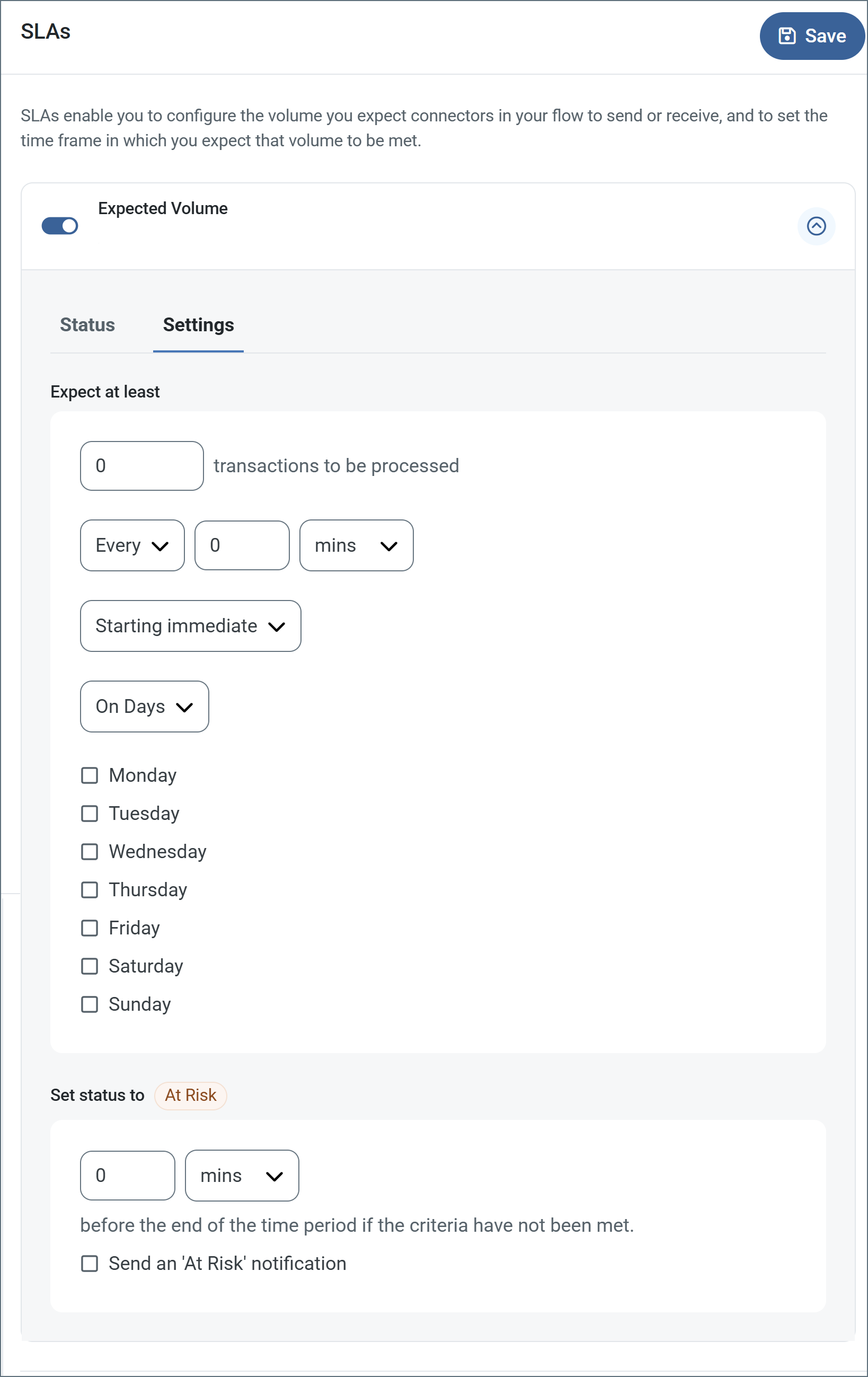
- コネクタに個別の送信アクションと受信アクションがある場合は、ラジオボタンを使用してSLA に関連する方向を指定します。
- ウィンドウの検知基準(最小)で:
- 処理が予想されるトランザクションの最小値(量)に設定します
- 毎フィールドを使用して期間を指定します
- SLA がいつ有効になるかを示します。開始日 を選択した場合は、日時フィールドを入力してください。
- SLA を有効にする曜日のボックスをON にします。必要に応じて、ドロップダウンから毎日を選択します。
- ウィンドウの期間終了前にステータスを’At Risk’ に設定するタイミングで、SLA がAt Risk としてマークされるタイミングを指定します。
- デフォルトでは、通知はSLA が違反のステータスになるまで送信されません。これを変更するには、‘At Risk’ 通知を送信のチェックをON にします。
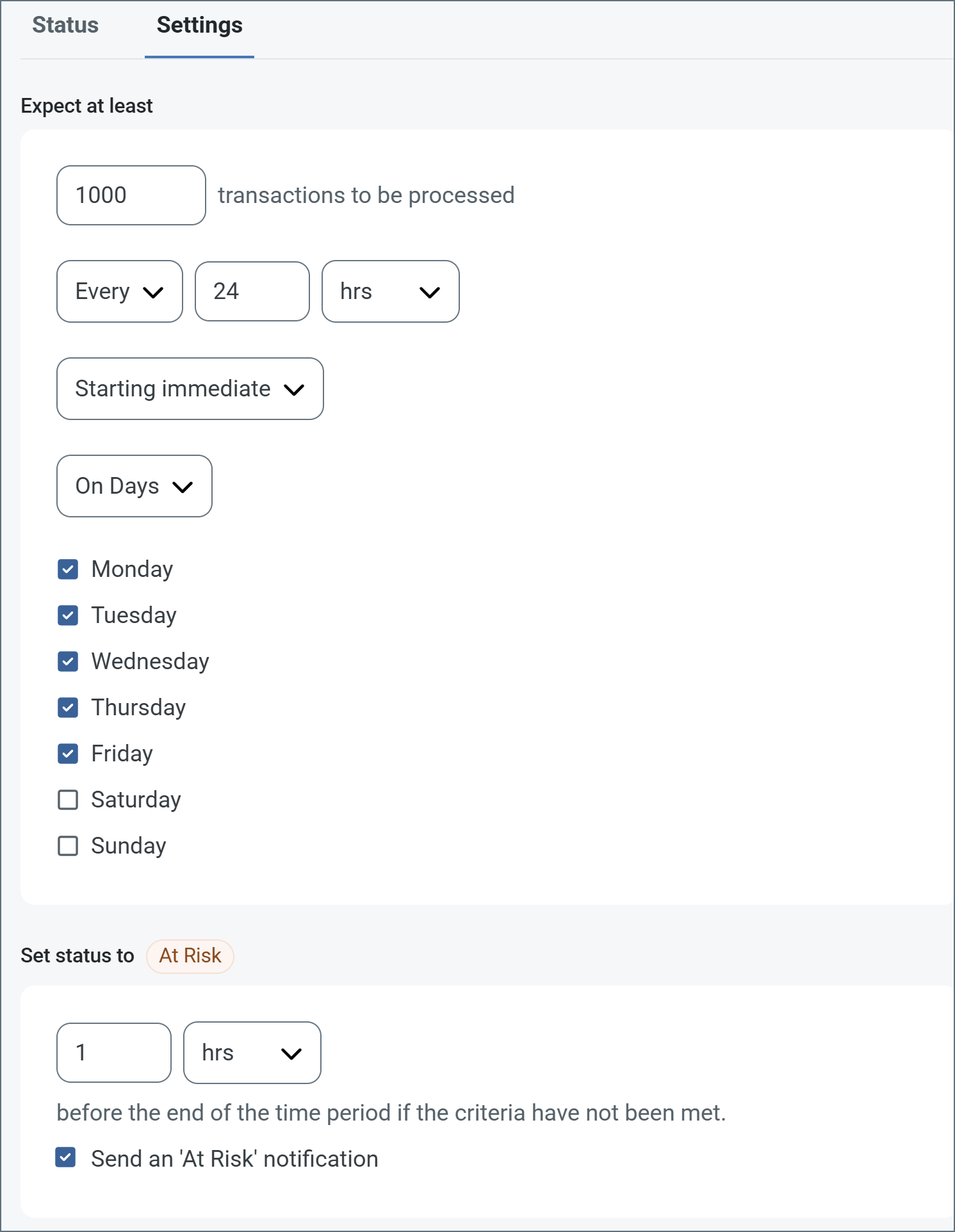
次の例は、月曜日から金曜日まで毎日1000ファイルを受信すると予想されるコネクタに対して構成されたSLA を示しています。1000ファイルが受信されていない場合、期間終了の1時間前にAt Risk 通知が送信されます。
Transactions Tab
This tab lists all messages associated with the connector. Use the search bar to find specific messages, or click the funnel icon to apply a filter. You can filter by time, message direction, and/or status.
Options on this tab vary depending on the connector’s action type:
- If your connector is a Trigger, use the Receive button to start the flow.
- If your connector is a Transform or Terminal, use the Upload Files button to upload files to the flow.
Using the arc:push Keyword
The arc:push keyword is commonly used in Script connectors to pass items to the output feed of the script. Following are three common use cases.
1 Create and output a file:
<arc:set attr="output.filename" value="results.txt" />
<arc:set attr="output.data" value="This is my result" />
<arc:push item="output" />
2 Pass an input file as output:
<arc:set attr="output.filepath" value="[filepath]" />
<arc:push item="output" />
3 Write entries to the Script connector log file:
<arc:set attr="logger.log#" value="Custom Log entry line 1" />
<arc:set attr="logger.log#" value="Custom Log entry line 2" />
<arc:push item="logger" />
Macros
ファイルの命名規則にマクロを使用することで、組織の効率とデータの文脈的理解を高めることができます。マクロをファイル名に組み込むことで、識別子、タイムスタンプ、ヘッダー情報などの関連情報を動的に含めることができ、各ファイルに有益なコンテキストを付与できます。これにより、組織にとって重要な詳細をファイル名に反映させることができます。
CData Arc はこれらのマクロをサポートしており、すべて次の構文を使用します:%Macro%
| Macro | 説明 |
|---|---|
| ConnectorID | コネクタのConnectorID を返します。 |
| Ext | コネクタが処理中のファイルの拡張子を返します。 |
| Filename | コネクタが処理中のファイルのファイル名(拡張子を含む)を返します。 |
| FilenameNoExt | コネクタが処理中のファイルのファイル名(拡張子なし)を返します。 |
| MessageId | コネクタがアウトプットするメッセージのMessageId を返します。 |
| RegexFilename:pattern | コネクタで処理中のファイルのファイル名にRegEx パターンを適用します。 |
| Header:headername | コネクタが処理中のメッセージのヘッダー(headername)の値を返します。 |
| LongDate | システムの現在の日時を長い形式(例:Wednesday, January 24, 2024)で返します。 |
| ShortDate | システムの現在の日時をyyyy-MM-dd 形式(例:2024-01-24)で返します。 |
| DateFormat:format | システムの現在の日時を指定されたフォーマット(format)で返します。使用可能な日付フォーマットについては、サンプル日付フォーマット を参照してください。 |
| Vault:vaultitem | 指定されたvault 項目の値を返します。 |
例
%Ext% や%ShortDate% などの引数を必要としないマクロもありますが、引数を必要とするマクロもあります。引数を渡すマクロはすべて次の構文を用います:%Macro:argument%
以下は、引数を渡すマクロの例です。
- %Header:headername%:
headernameはメッセージのヘッダー名です。 - %Header:mycustomheader% は、インプットメッセージで設定された
mycustomheaderヘッダーの値を返します。 - %Header:ponum% は、インプットメッセージで設定された
ponumヘッダーの値に対応します。 - %RegexFilename:pattern%:
patternは正規表現パターンです。例えば、%RegexFilename:^([\w][A-Za-z]+)%はファイル名の最初の単語と照合し、大文字と小文字を区別せずに結果を返します(test_file.xmlはtestに変換されます)。 - %Vault:vaultitem%:
vaultitemは、vault のアイテム名です。例えば、%Vault:companyname%はVault に保存されているcompanynameアイテムの値を返します。 - %DateFormat:format%:
formatは使用可能な日付フォーマットです(詳細はサンプル日付フォーマット を参照してください)。例えば、%DateFormat:yyyy-MM-dd-HH-mm-ss-fff%はファイルの日付とタイムスタンプを返します。
以下の例に示すように、より詳細なマクロを作成することもできます。
- 複数のマクロを1つのファイル名にまとめる:
%DateFormat:yyyy-MM-dd-HH-mm-ss-fff%%EXT% - マクロの外側にテキストを含める:
MyFile_%DateFormat:yyyy-MM-dd-HH-mm-ss-fff% - マクロ内にテキストを含める:
%DateFormat:'DateProcessed-'yyyy-MM-dd_'TimeProcessed-'HH-mm-ss%