User Management
Version 25.3.9396
Version 25.3.9396
User Management
The first time that you launch CData Sync, the application prompts you to create the first application user (with username and password credentials).
Note: The first user that you create defaults to the Admin role because this role has full control over the application. See Roles for more information about built-in (predefined) and custom roles.
Viewing Your User Accounts
You can view a list of all your user accounts (or, users) from the Users tab on the Settings page. The table on this page summarizes your users and enables you to manage those accounts from one access point.
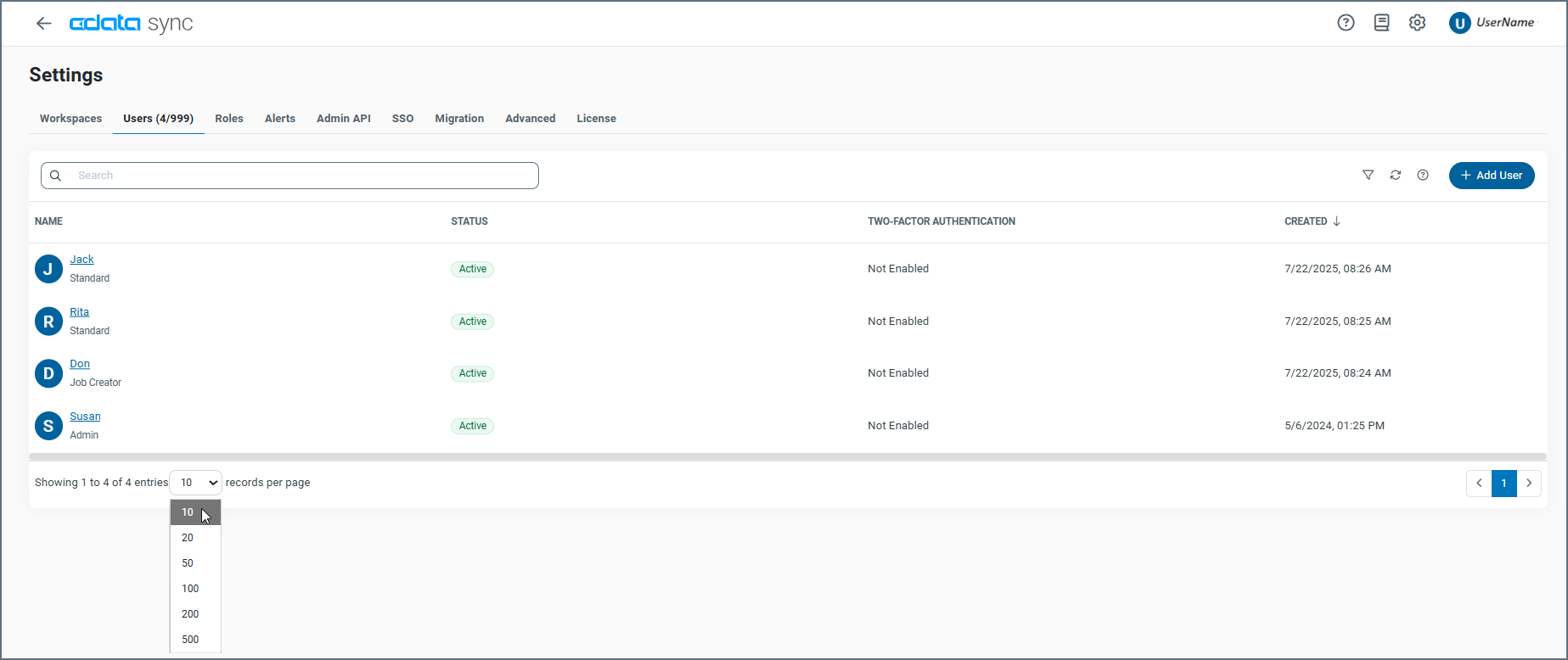
The users are displayed in rows, with columns that provide details about each user. As shown above, you can specify the number of rows that you want to display on the page by selecting a number from the X records per page list at the bottom of the page.
Sync information about user accounts in these four columns:
-
NAME - Shows the user’s name and role.
-
STATUS - Indicates whether the user is active or inactive.
-
TWO-FACTOR AUTHENTICATION - Specifies whether two-factor authentication is enabled for the user account.
-
CREATED - Shows the date and timed when the user account was created.
If you click a user name, Sync opens the Edit User dialog box where you can make changes to the user settings.
You can organize your user list in ascending or descending order for the NAME, STATUS, TWO-FACTOR AUTHENTICATION, and CREATED columns. To order the columns, simply click the up (↑) and down (↓) arrows next to the column by which you want to sort.
In addition, you can filter the table by role type and status. Sync also enables you to save filters that you define so that you can use them later. Unlike other pages, the Users page does not allow you to reset or save filter options. The only way you can clear a filter and return to the full Users table is to refresh the page from your browser bar.
Adding a User
To add a user:
-
Select Settings > Users to open the Users tab page.
-
Click Add User to open the Add User dialog box.
-
Configure the following properties:
-
User Name - Enter the user name.
-
Email Address - (Optional) Add the user’s email address.
-
Password - (Optional) Enter a password for the account
-
Roles - (Optional) Select a role from the drop-down list. You can also add one or more roles by clicking the Add Role button below the Role property.
-
Federation Id - (Optional) Enter a federation identity only if you are using single sign-on.
-
Options - Select the API Access checkbox if you want to access the Sync REST API. When you select this checkbox, an Authtoken text box is displayed that contains an authentication (auth) token. To generate a different auth token, click the Refresh icon (
 ).
). -
Active - Select this checkbox to activate the user.
-
-
Click Add User to create the user and close the dialog box. Once the dialog box closes, the new user appears in the Users table.
User Management
From the Users table, you can edit user settings or delete a user by clicking the options menu (…) at the end of a user row.
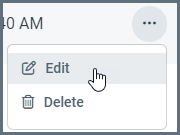
Selecting Edit opens the Edit User dialog box, where you can change any of the current settings.
Selecting Delete permanently removes a user account.
User Creation on External Java Servlets
When Sync is deployed to an external servlet (that is, Sync is not using the embedded server that is included), additional Java Authentication and Authorization Service (JAAS) configuration is required to enable Sync to create users dynamically within the application. For more information about JAAS configuration for specific Java servlets, see Deploying CData Sync to External Servlets.
CData Sync API Access
Each user can be granted an auth token that enables access to the Sync API. For more information about authenticating against the Sync API, see Authentication.
The specific actions that a user can perform via the Sync API mirrors the actions that the same user can perform via the UI. For example, a user that cannot delete connections via the UI cannot use the Sync API to delete connections. To perform any arbitrary action via the Sync API, use an auth token from an Admin user when you invoke the API.
Password Resets
In the event that an administrator is locked out of Sync, the embedded web servers in each edition provide the ability to reset an administrator’s password to regain access to the application.
To reset the password in Sync, submit the following command:
java -jar sync.jar -ResetPassword -User <user> -Password <password> -AppDirectory <AppDirectory>
Note: As an option, you can set the password via the REST API, as explained in Modify a User.