Connections Page
Version 25.3.9396
Version 25.3.9396
Connections Page
CData Sync provides a comprehensive framework of connectors that enable you to create connections between various data sources and destinations. These connections establish pipelines through which you can transfer and synchronize your data across disparate systems.
The intuitive interface on the Sync Connections page enables you to create these connections with ease so you can configure and manage data synchronization tasks efficiently. This summary page facilitates all of the activities related to creating connections, including the following tasks:
Viewing Your Connections
You can view a list of all your connections from the Connections page. The table on this page summarizes your connections and enables you to manage them from a single access point.
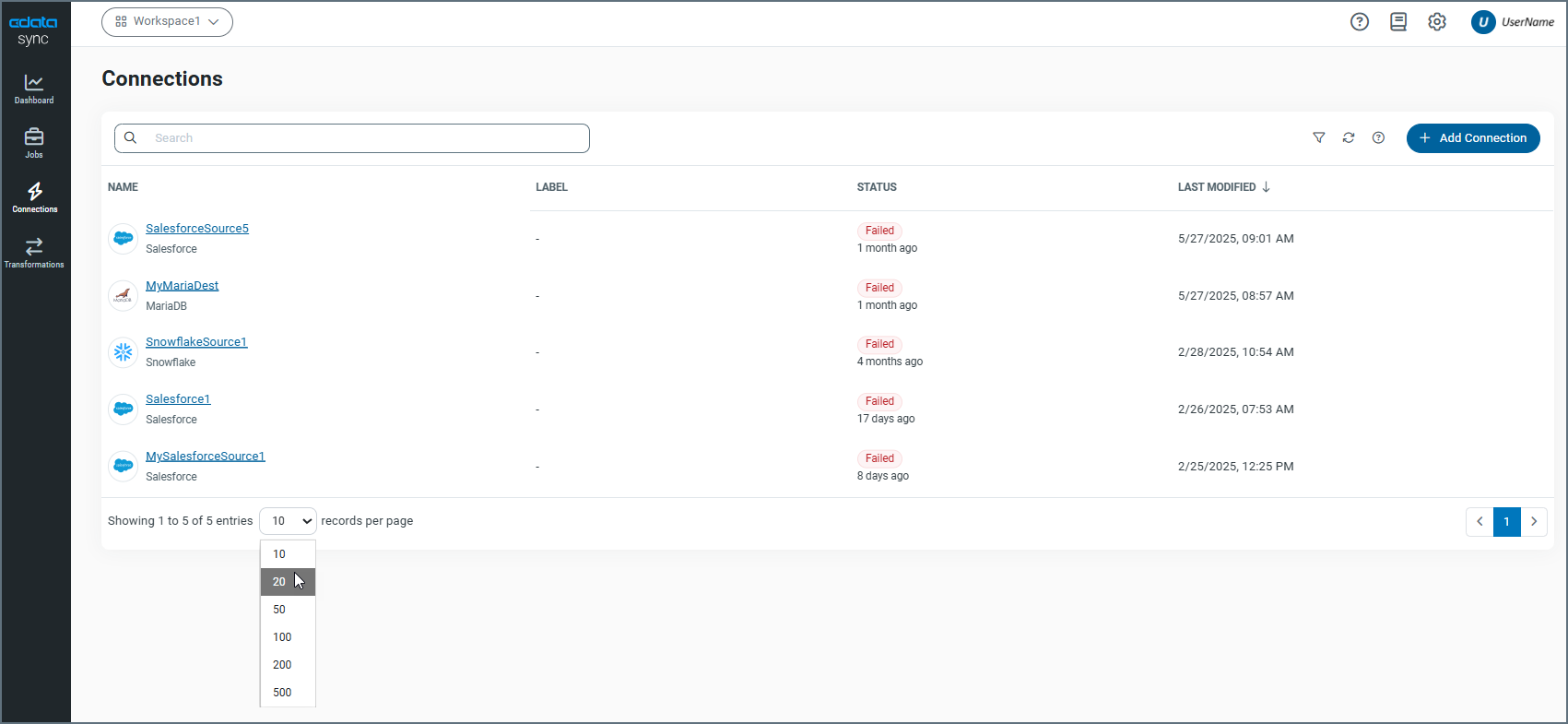
The connection records are displayed in rows, with columns that provide details about each connection. As shown above, you can specify the number of rows that you want to display on the page by selecting a number from the X records per page list at the bottom of the page.
Sync provides details about your connections in four columns:
-
NAME - Displays the connection name.
-
LABEL - Displays any labels that you assign to your connection. You add labels in either of these ways:
-
Select . . . > Add Labels at the end of the connection row.
-
Click Add Labels in the Labels section on the Overview tab in the connection settings.
-
-
STATUS - Lists the status of whether the connection was successful or whether it failed.
-
LAST MODIFIED - Specifies the date and time that you last updated your connection.
If you click a connection name, displays the Settings page for that connection.
You can organize your connections list in ascending or descending order for the NAME, STATUS, or LAST MODIFIED columns. To order the columns, simply click the up (↑) and down (↓) arrows that are next to the column by which you want to sort.
In addition, you can filter the connections table by connection type and label. After you set filters, you can clear all filter options by clicking Reset. Sync also enables you to save filters that you define so that you can use them later.
To add a filter:
-
Choose your filter options.
-
Select Saved Filters > Add Saved Filter.
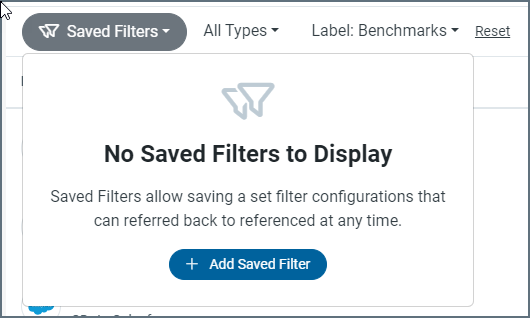
-
This selection opens the Add Saved Filter dialog box.
-
Enter a name for your filter. Then, click Add Saved Filter to save the filter and exit the dialog box.
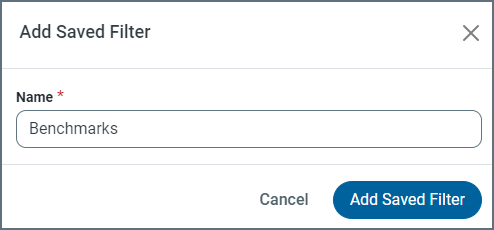
After you save the filter, its name appears in the Saved Filter list. Then, you can choose that filter from the list any time that you want to apply it.
Adding a Connection
To add a connection:
-
Click Connections in the Sync navigation bar to open the Connections page.
-
Click Add Connection to open the Select Connectors page.
-
Click either the Sources tab or the Destinations tab, depending on the type of connector that you want to download.
-
Search for the connector that you want to add. Then, click the Install Connector (
 ) icon that appears at the end of the row. When the connector installs successfully, you receive a message to that effect in the top right of the window.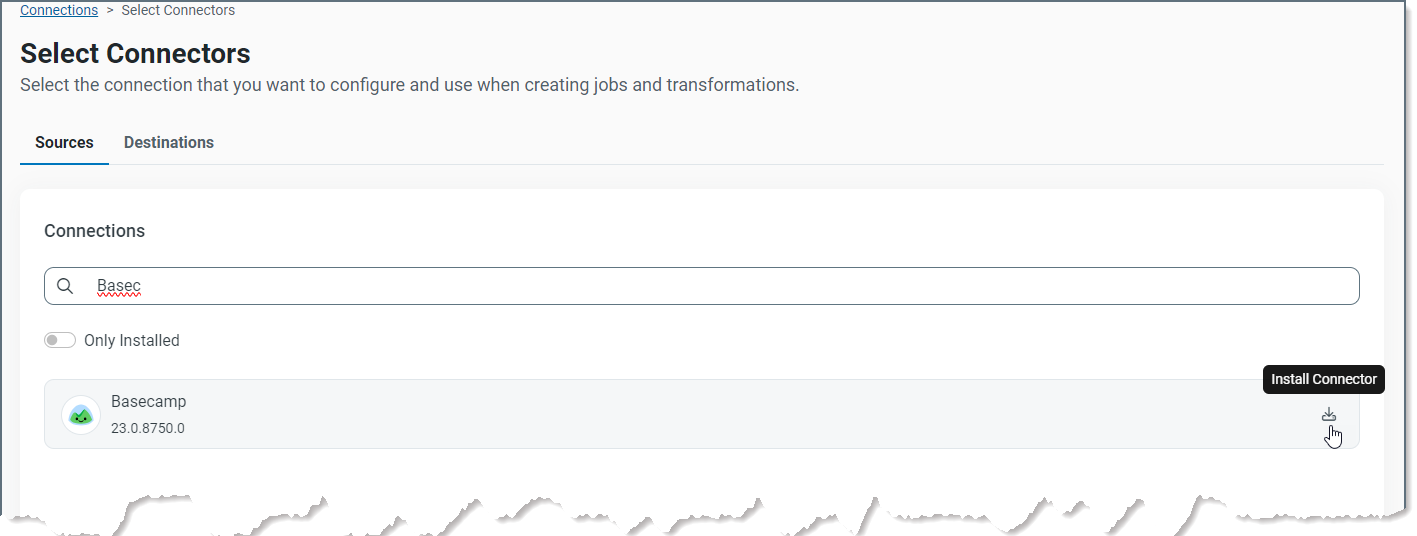
Note: If you want to see a list of only connectors that you already have installed, toggle the Only Installed switch to the right. (The switch is in the left corner above the connector list on the Select Connectors page.)
Configuring a Connection
To configure a connection:
-
In the Sync application, locate your connection on the Select Connectors page.
-
Click the Configure Connection arrow (→) at the end of the connector row to open the New Connection page.
-
Specify basic connection properties on the Settings tab of your connector’s page. Then, if necessary, configure advanced settings on the Advanced tab.
-
Click Create & Test to create your connection.
Updating a Connection
In Sync, you can update a connection either by adding a new version or by selecting a different version, as explained below. Only users with the cdata_admin role are authorized to update connections.
To update a connection:
-
Click Connections in the Sync navigation bar to open the Connections page.
-
For the connector that you want to update, click the options menu (…) at the end of that row and select Update Connector. This option opens the Update Connector dialog box.
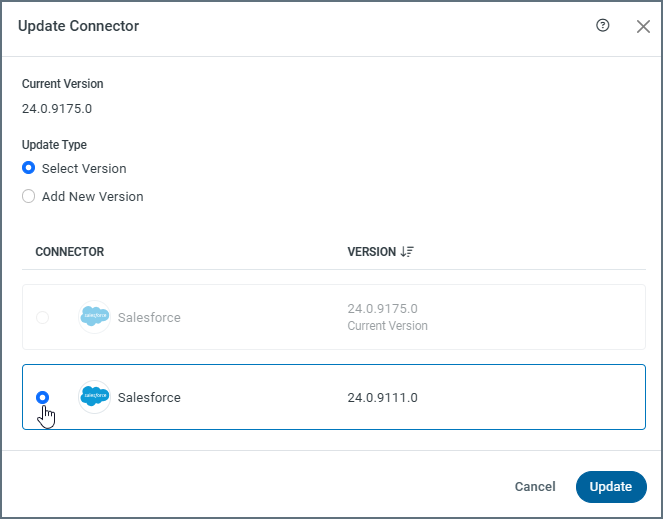
This dialog box lists the current version and displays two update options:
-
Select Version - Provides a list of available connector versions in descending order. (You can change the order of the versions by clicking the arrow next to the VERSION column.)
This option enables you to select from the following items:
-
all installed versions
-
the latest downloadable version that is available from the website
Notes:
-
If the selected version is not installed, it is downloaded and installed automatically from the website.
-
All connections of that same type are updated to use the new version of the connector. However, when you create a new connection, Sync always defaults to the latest available version, regardless of the versions that are used by other existing connections of the same type.
-
If more than three versions of the same connector are installed, the latest version is deleted to maintain version control.
-
-
Add New Version - Enables you to manually add a new connector version that is not yet listed. Select this option if you have obtained a connector version through an alternate method of distribution.
-
-
Select the update option that you want to use.
-
Select Version: Select the version that you want to use from the list. Then, click Update (bottom right corner). When the update is complete, a message stating that it was successful is displayed in the top right corner of the Sync window.
-
Add New Version: Click Choose File to open an explorer window and select the file from which you want to download the new version, as shown below.
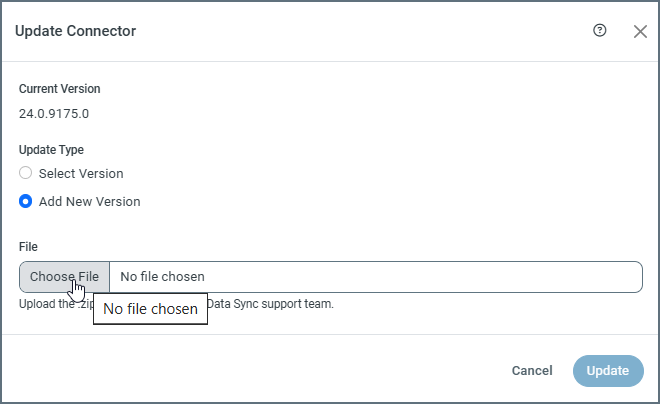
Then, click Update (bottom right corner). When the update is complete, the dialog box closes and a message stating that it was successful is displayed in the top right corner of the Sync window.
-
The next time that you open the Update Connector dialog box, the new version appears at the top. The new version also appears at the top of your connection’s properties page.
Cloning a Connection
Instead of adding an entirely new connection, you can clone an existing one. Cloning creates a new connection by copying the settings and tasks from an existing connection.
To clone a connection:
-
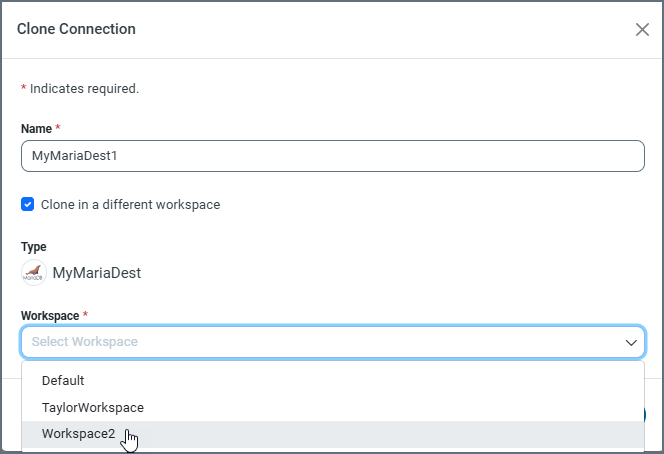
Locate the connection that you want to clone and select Clone from the options menu (…). This option opens the Clone Connection dialog box, where you can define the connection that you want to clone.
-
Enter a name for your new connection. The Type category below the Name text box shows the name and the associated icon for the connection that you are cloning.
Note: In order to clone the connection in the current workspace, the name you enter must be different than the original connection name.
-
(Optional) Select Clone in a different workspace if you want to clone the connection in a different workspace. When you choose this option, a Workspace list box is displayed from which you can select a different workspace.
-
Click Clone Connection to clone your connection.
After you perform these steps, your cloned connection is displayed in the connections table on the Connections page.
If you want to change the configuration for your new connection, select … > Edit to open the configuration page for your new connection. This page contains four tabs: Settings, Advanced, Logs, and Comments.
-
On the Settings tab, define any settings that are not replicated via the cloning process (for example, Server) or modify any existing settings that you want to change. You can also add a connection label, set logfile verbosity, or define a refresh interval for the metadata cache from this page.
-
(Optional) Configure any additional settings that you want from the Advanced tab.
-
(Optional) Use the Logs tab to view, filter, or download logs.
-
(Optional) Add comments about your connection on the Comments tab. Each comment is saved with a timestamp for reference on that tab.
When you finish updating the settings:
-
Click Test in the top right of the window to verify that your connection settings are valid.
-
Click the Update Connector (
) icon to save and update your configuration.
Removing a Connection
To remove a connection:
-
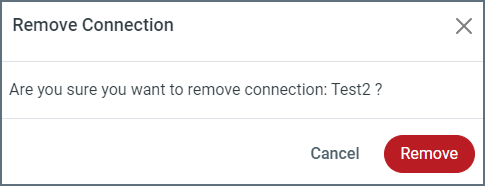
Select … > Delete for the connection that you want to remove. This selection opens the Remove Connection dialog box.
-
Click Remove to delete the connection permanently.
More Information
See Connections for detailed information about the following topics:
-
installing new connectors that are not part of your Sync bundle
-
connection documentation for specific sources and destinations