Transformations Page
Version 25.3.9396
Version 25.3.9396
- Viewing Your Transformations
- Adding a New Transformation
- Adding Labels to Transformations
- Editing Transformation Settings
- Cloning a Transformation
- Exporting an SQL Transformation
- Importing an SQL Transformation
- Moving a Transformation between Workspaces
- Enabling and Disabling the Scheduler
- Starting and Stopping Transformations
- More Information
Transformations Page
Transformations take raw data from your source and clean, shape, and organize it into a form that best fits your needs as you proceed through your data pipeline. Transformations allow you to decide how your data should be shaped, giving you only the data you need in the form you need.
The following sections explain the features of the Transformations summary page as well as the following tasks:
Viewing Your Transformations
To access the Transformations page, click the Transformations icon in the left navigation pane in the CData Sync interface. You can view a list of all your transformations from this page. The Transformations page has two tabs (Overview and History) that provide all the details about your transformations. The following sections explain the information on each of these tabs.
Overview Tab
The table on this page summarizes your transformations, enabling you to manage them from one access point.
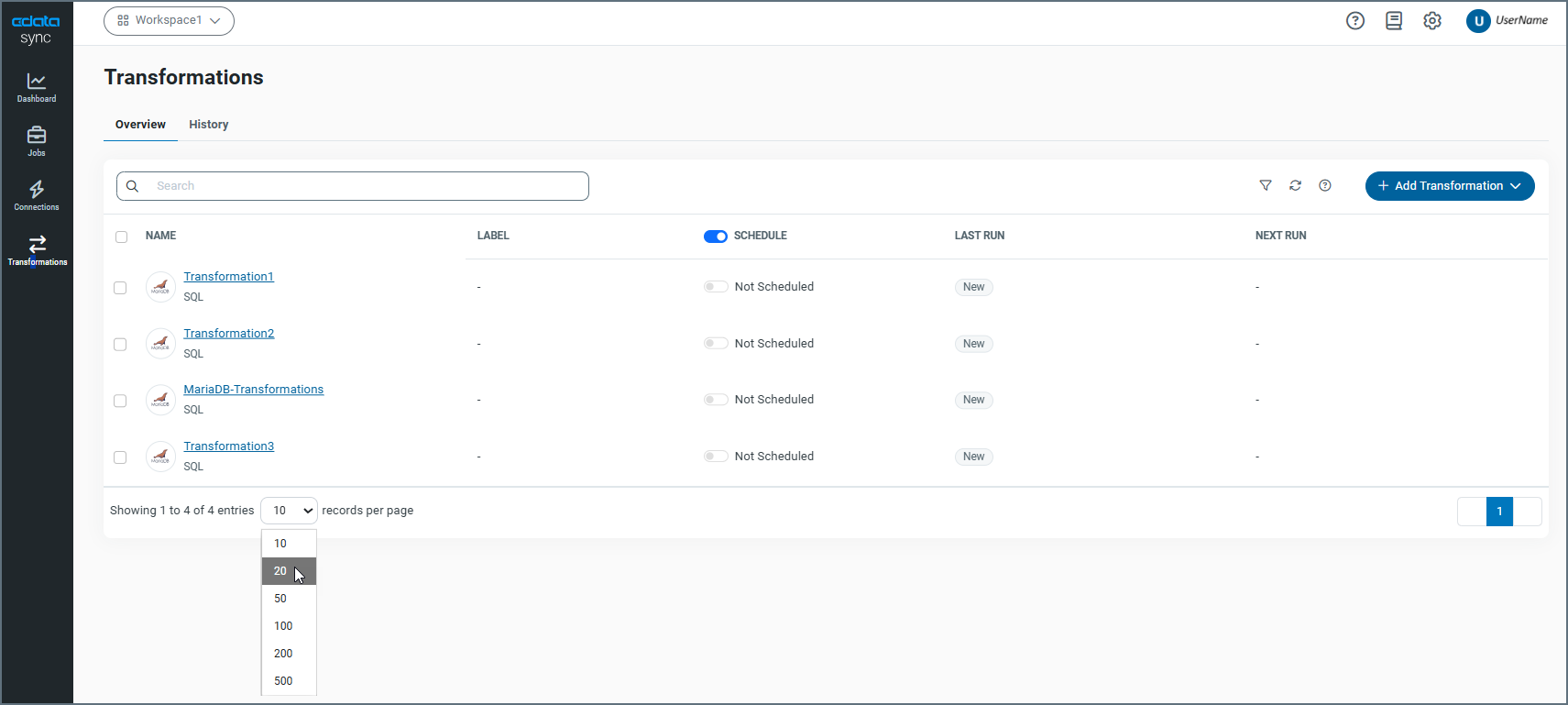
The transformation records are displayed in rows, with columns that provide details about each transformation. As shown above, you can specify the number of rows that you want to display on the page by selecting a number from the X records per page list at the bottom of the page.
Sync provides details about your transformations in five columns:
-
NAME - Lists the name of the transformation, the destination connectors, and the transformation type (either SQL or dbt Cloud).
-
LABEL - Displays labels that you assign to your transformation. You add labels in either of these ways:
-
Select . . . > Add Labels at the end of the transformation row.
-
Click Add Labels in the Labels section on the Overview tab in the transformation settings.
-
-
SCHEDULE - Specifies the run schedule for your transformation. For more details, see Enabling and Disabling the Scheduler.
-
LAST RUN - Specifies the last date and time that the transformation ran, how long the run took, and the number of rows that were affected.
-
NEXT RUN - Specifies the next date and time that the transformation will run.
If you click a transformation name, Sync opens the Settings page for that transformation.
You can organize your transformations list in ascending or descending order for the NAME, LAST RUN, or NEXT RUN columns. To order the columns, simply click the up (↑) and down (↓) arrows next to the column by which you want to sort.
Filtering the Transformation Table
In addition, you can filter the table by transformation type, status, destination, and label. After you set filters, you can clear all filter options by clicking the Reset link to the right of the filter menu. Sync also enables you to save filters that you define so that you can use them later.
To save a filter:
-
Choose your filter options.
-
Select Saved Filters > Add Saved Filter.

This selection opens the Add Saved Filter dialog box.
-
Enter a name for your filter. Then, click Add Saved Filter.

After you save the filter, the filter name appears in the Saved Filter list. Then, you can choose that filter from the list any time that you want to apply it.
Running Bulk Operations on Transformations
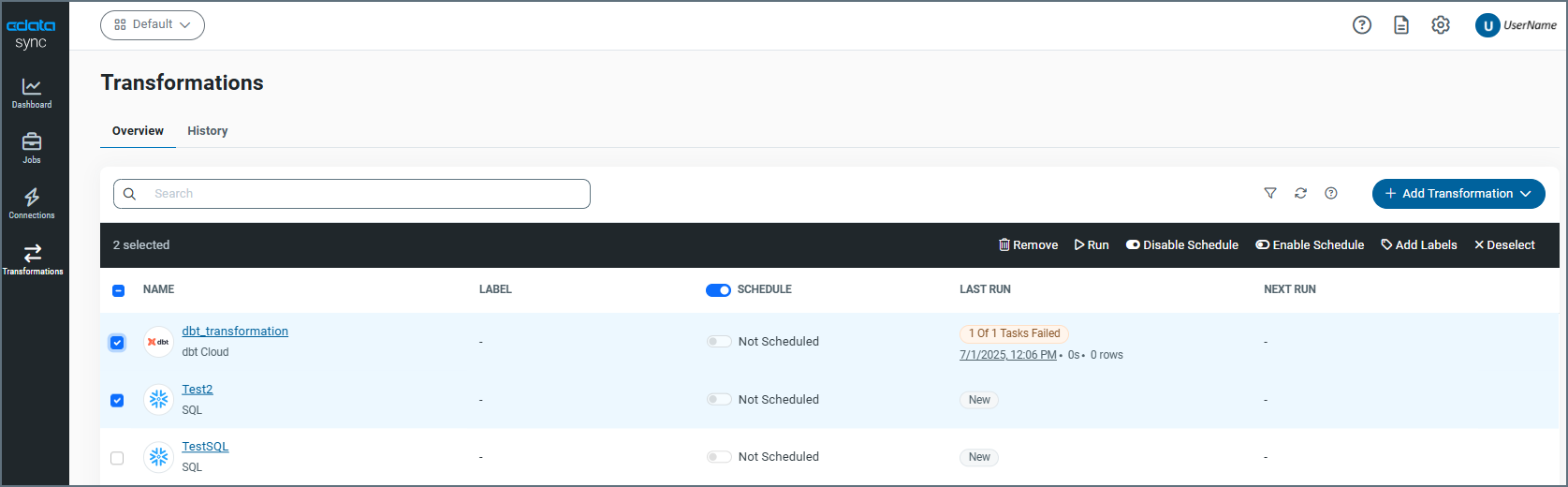
To use bulk operations on multiple transformations:
-
Select the checkbox next to one or more transformations.
-
Click the bulk operation (Remove, Run, Disable Schedule, Enable Schedule, Add Label, and Deselect) that you want to run in the black navigation bar, as shown below:
History Tab
The History tab displays history information about transformations that you have run. The table on this page contains three columns with details about your transformations:
-
NAME - Lists the name of the transformation and the transformation type.
-
RUN DATE - Specifies the run status (Successful, Failed, or ERROR), the date and time that your transformation ran, how long the transformation took to run, and the number of rows that were affected. If an error occurs, the error message is displayed in this column.
-
INSTANCE ID - Specifies the instance identifier (Id) that ran the transformation. This Id is important for clustered environments because it indicates which machine executed the transformation.
On this tab, you can also manage your transformation histories in the following ways:
-
You can organize your transformation history list in ascending or descending order for the RUN DATE or INSTANCE ID columns. To order the columns, simply click the up (↑) and down (↓) arrows next to the column by which you want to sort.
-
You can filter the table by transformation type, status, and destination connection. Unlike other pages, the History tab does not allow you to reset or save filter options. You can clear the filter and return to the transformations table either by clicking the Overview tab or by clicking the Transformations icon in the navigation bar.
-
You can export the transformation history to your local machine by clicking the Export History button (upper right of the window). You can choose to export a history over 1, 2, or 5 days.
-
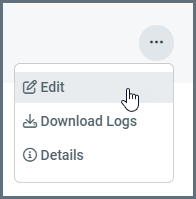
You can edit settings for a transformation, download the history log, or obtain details by clicking the options menu (…) at the end of a transformation row and selecting the option that you want.
Managing Transformations
You can manage your transformations from the options menu (…) that appears when you hover your cursor over the end of a transformation row. The following options are available from that menu:
-
Edit - Modify your transformation settings, including modifying general settings, setting email alerts, scheduling the transformation to run, and viewing the history for a transformation.
-
Clone - Create a copy of your transformation. You can clone it to a different workspace, choose a different destination, and copy tasks and settings.
-
Export - Save your transformation as a SYNCJOB file to your local machine. You can also export and encrypt sensitive values by specifying a password.
-
Move - Transfer your transformation from one workspace to another workspace.
-
Add Labels - Apply labels to your transformation, which are displayed in the LABEL column for the transformation on the Transformations summary page.
-
Remove - Permanently deletes the transformation.
Details about using these menu options are explained in later sections on this page.
Adding a New Transformation
Adding a transformation requires preconfigured destination connections or dbt transformations (depending on the type of transformation you want to create). After you define a supported destination connection to your database or you set up a dbt transformation, follow these steps to create a new transformation:
-
Click Transformations in the navigation bar to open the Transformations page.
-
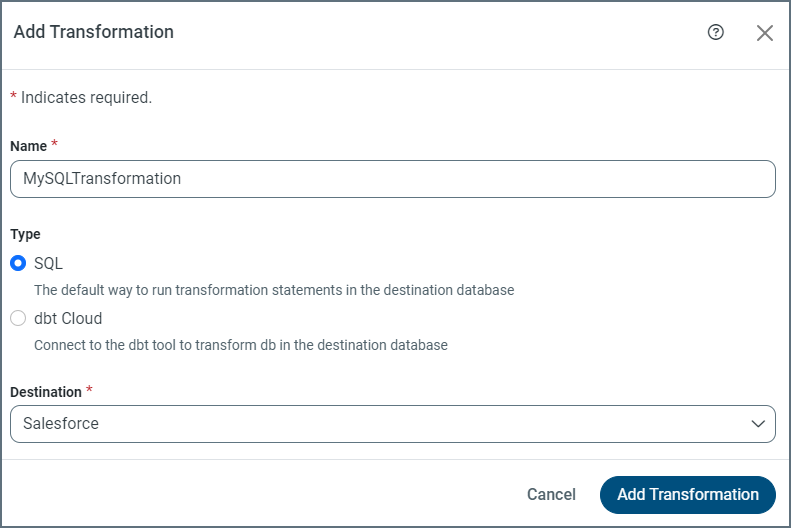
Select Add Transformation > Add New Transformation (upper right corner). This action opens the Add Transformation dialog box where you can enter transformation information.
-
Enter a transformation name. Then, select a transformation type (either SQL or dbt Cloud) and either a destination (for SQL) or a dbt transformation (for dbt Cloud).
-
Select a transformation type.
-
Click Add Transformation to create your new transformation.
From your specific transformation page (Transformations > YourTransformationName), you can set specific features, including setting triggers for run schedules, adding and managing queries (for SQL queries only), mapping columns, and more.
Adding Labels to Transformations
Sync enables you to add labels to transformations, which can be useful for organization and tracking. Labels can be anything that you want, for example, the transformation priority level (for example,High Priority, Medium Priority, or Low Priority).
To add a label:
-
Click the Overview tab on the Transformations page.
-
Select … > Add Labels from the end of the row for the transformation that you want to export. This selection opens the TransformationName - Add Label dialog box.
-
In the Search or Add Label text box, enter the label that you want to add. Then click Add.
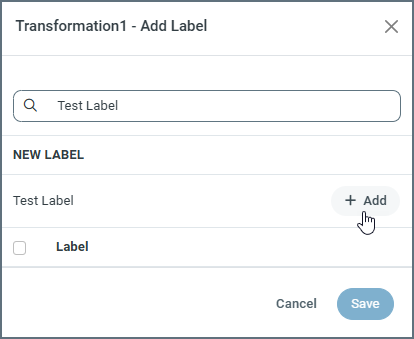
The new text is added alphabetically in the list of labels, as shown below:
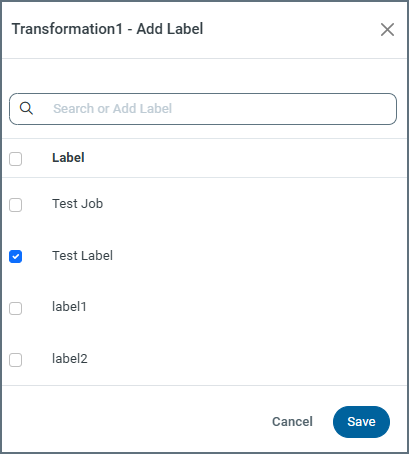
Repeat this step if you want to include additional labels.
-
Click Save and your label is added to the Label column in the transformation row on the Overview tab.
After you create labels, you can also edit them in the TransformationName - Edit Labels dialog box by clicking Edit Labels on the options (…) menu in the transformation row.
Note: You cannot delete labels. However, you can remove them from appearing in the transformations table, as follows:
-
Select … > Edit Labels.
-
Clear the checkbox next to the label name in the TransformationName - Edit Labels dialog box.
-
Click Save. Once you exit the dialog box, the label is removed from the LABEL column in the transformation’s row.
Editing Transformation Settings
After you create a transformation, you might want to edit the settings and configuration options. For details about modifying these settings and configurations, see Specifying SQL Transformation Settings and Specifying DBT Transformation Settings.
Cloning a Transformation
To clone a transformation:
-
Click the Overview tab on the Transformations page.
-
Select … > Clone from the end of the row for the transformation that you want to copy. This selection opens the Clone Transformation dialog box.
-
Enter a name for your transformation in the Name field. You can use the default name or provide a new one.
Note: To reuse the original name, you must move the cloned transformation to a different workspace because workspaces cannot contain multiple transformations with the same name.
-
(Optional) Select the Clone in a different workspace checkbox if you want to place the transformation in another workspace or reuse the original name. When you select this option, Sync expands the dialog to display a New Workspace drop-down list, which allows you to choose a workspace. A Select Destination list also appears, where you must choose a destination (either the original destination or a new one).
-
(Optional) Select the Choose a different destination checkbox if you want the new transformation to use a different destination. Like the Clone in a different workspace option, this selection reveals a Select Destination list where you must choose a destination.
-
(Optional) Select Tasks, Additional Settings, or both if you want the new transformation to contain the tasks and additional settings from the original transformation.
-
Click Clone to create your new transformation.
Exporting an SQL Transformation
In Sync, you can export only SQL transformations. You can export these transformations from the Transformations page to a location on your machine.
To export an SQL transformation:
-
Open the Transformations page and click the Overview tab.
-
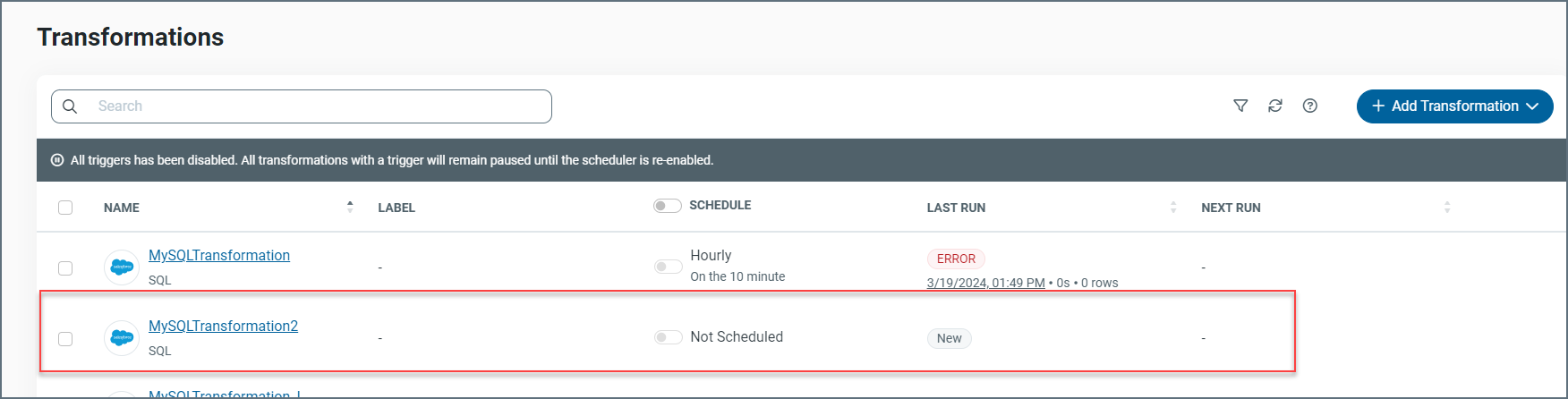
Select … > Export at the end of the transformation row in the transformation table. This selection opens the Export Tranformation dialog box.
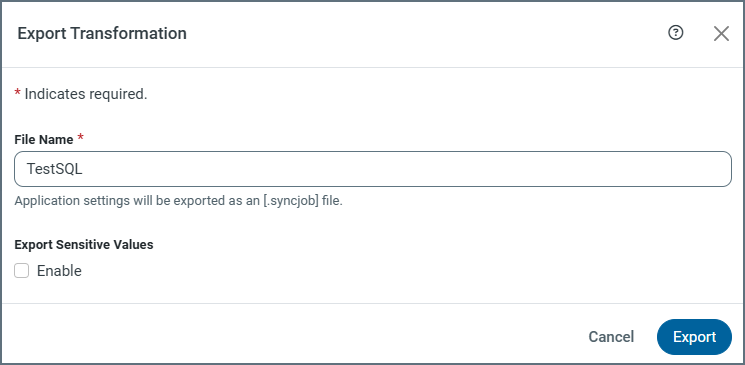
By default, the transformation name is included in the File Name text box and the Enable option Export sensitive values is not selected. Application settings are exported as a SYNCJOB file (for example, MySettings.syncjob).
If you enable the exporting of sensitive values, a Password text box is displayed. You must enter a password, which is used to export and encrypt sensitive values. You also need this password if you import the transformation at a later time.
-
Click Export to upload your transformation. Sync exports the transformation to your Downloads folder. From there, you can move it to any other location on your machine. The resulting SYNCJOB file contains the details of the exported transformation, including the destination, tasks, and additional settings.
Importing an SQL Transformation
In Sync, you can import only SQL transformations. You can import these transformations from your machine to the Transformations table.
To import an SQL transformation:
-
Select Add Transformation > Import Transformation from the Transformations page. This action opens the Import Transformation dialog box.
-
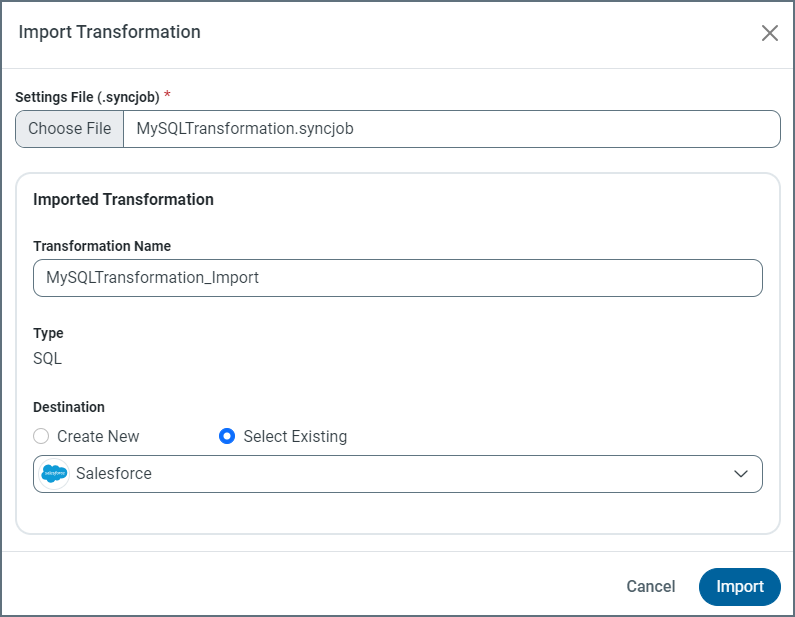
Click Choose File to open an explorer window where you can select the transformation that you want to import. (The transformation file must be a SYNCJOB file, as shown below.) Once you select your file, the dialog box expands, as shown below.
-
Keep the original transformation name or modify it, as necessary. Then, choose whether to create a new destination or to select an existing destination.
-
Click Import to import the transformation into the Transformations table.
Moving a Transformation between Workspaces
In Sync, a transformation can exist only in one workspace at a time. However, you can easily move a transformation from one workspace to another workspace, as follows:
-
Click the Overview tab on the Transformations page.
-
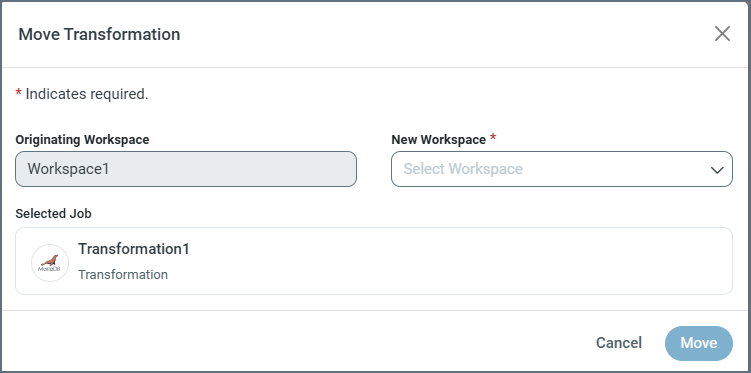
Select … > Move from the end of the row for the transformation that you want to move. This selection opens the Move Transformation dialog box, which displays the originating workspace.
-
Select the destination workspace from the New Workspace list.
-
Click Move to transport your transformation to the new workspace.
Enabling and Disabling the Scheduler
You can enable or disable the scheduler via these two methods:
-
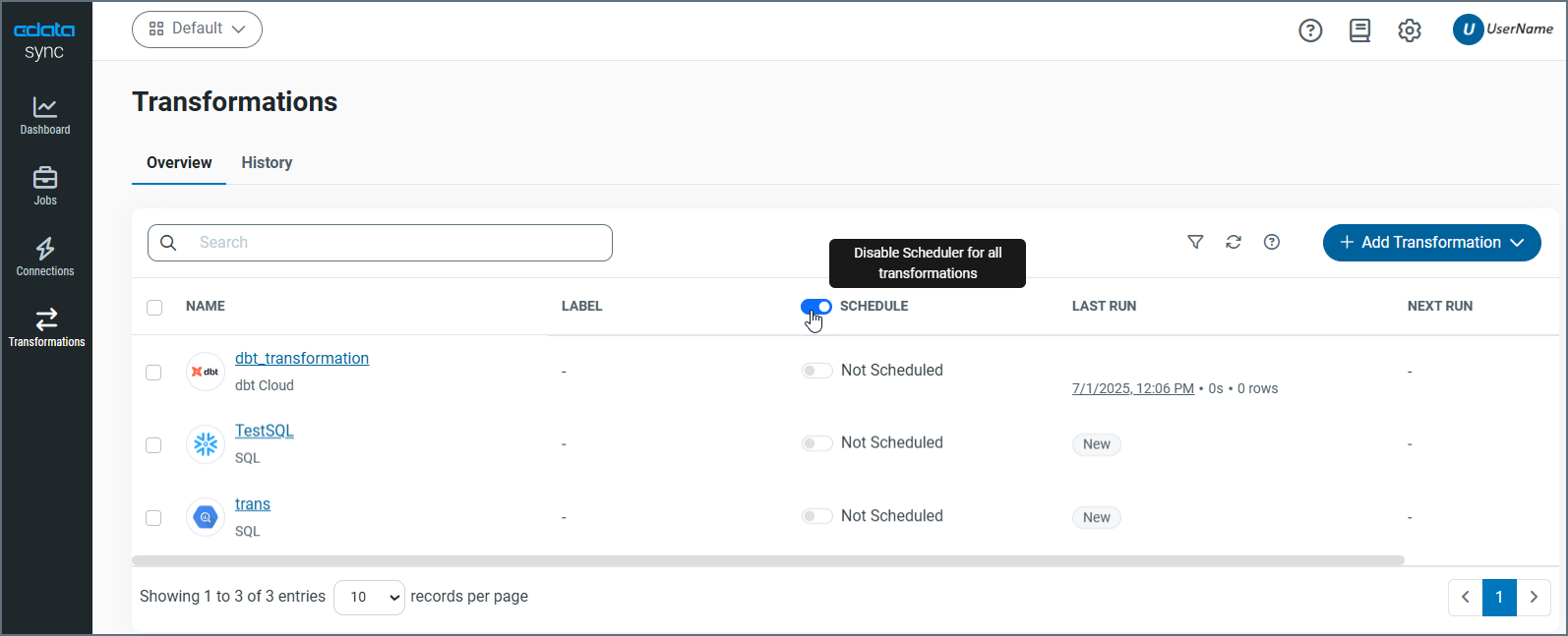
the SCHEDULE column on the main Transformations page (for all transformations). This option allows you to enable or disable a schedule that is already defined, for all transformations on that page. To enable scheduling, slide the switch to the right. When scheduling is enabled, the switch turns blue.
-
the Trigger category on the Overview tab of the settings page (for an individual transformation). This category enables you to configure a specific schedule by which to run your transformation. Click Configure in the Trigger category to open the Edit Trigger dialog box.
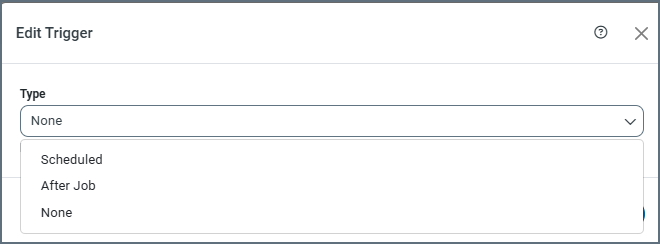
If you select Scheduled or After Job, the dialog box changes dynamically to show the configuration options that are relevant to each of those selections. If you select None, no trigger is set and you must run the transformation manually.
Starting and Stopping Transformations
You can start a transformation by positioning your cursor over the end of the transformation row and clicking the Run Transformation (▷) icon.
When a transformation is running, you cancel that run by clicking the Stop Transformation (■) icon.
More Information
For more detailed information about Sync transformations and how they work, see Transformations.