SQL Transformations
Version 25.3.9396
Version 25.3.9396
SQL Transformations
An SQL transformation processes SQL queries midstream (ETL) in a pipeline. This type of transformation processes external SQL scripts or SQL queries that you create in an SQL editor. You can use these queries to insert, delete, update, and retrieve rows from a database. The SQL transformation processes the queries, returning rows and database errors.
Creating an SQL Transformation
To add an SQL transformation:
-
Open Sync and navigate to the Transformations page.
-
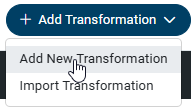
Select Add Transformations > Add New Transformation.
-
Fill out the fields in the Add Transformation dialog box, as follows:
-
Name: Enter a name for your transformation.
-
Type: Select SQL as the transformation type.
-
Destination: Select a destination on which to run the transformation.
-
-
Click Add Transformation.
After you create your transformation, you can manage your transformation from the options menu (…).
Specifying SQL Transformation Settings
To modify transformation settings, select … > Edit at the end of the transformation row. The settings page contains three tabs from which you can manage settings:
-
Overview
-
Queries
-
Comments
Overview Tab
The Overview tab enables you to manage general settings, triggers, and email alerts. You can also see details from the last run of your transformation on this page.
Settings Category
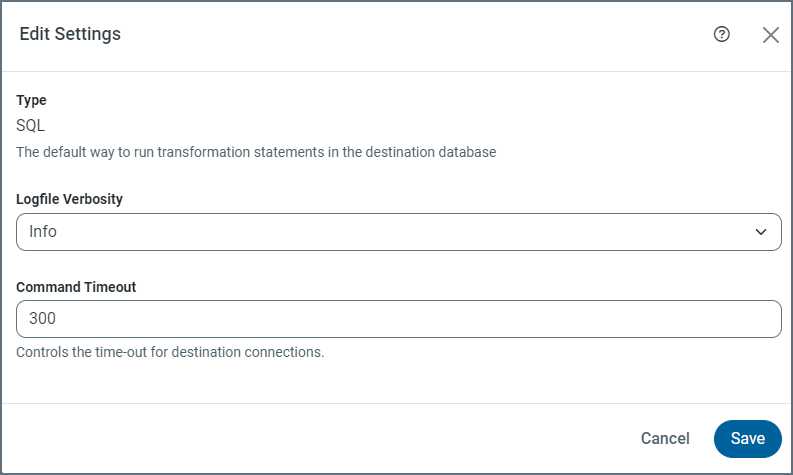
The Settings category enables you to specify automatic job retry, logfile verbosity, and command timeout, as follows.
-
Select … > Edit at the end of the transformation row. This action opens the Edit Settings dialog box.
-
(Optional) Select Enabled if you want Sync to retry the transformation if one or more tasks fail. Only failed tasks are re-executed.
-
Select a level for Logfile Verbosity. The default level is Info.
-
Enter a timeout value in the Command Timeout field.
-
Click Save.
Trigger Category
The Triggers category enables you to set a specific schedule by which to run your transformation, as follows.
-
Click Configure in the Triggers category. This action opens the Trigger dialog box.
-
Specify the type of trigger that you want. You can select from the following types:
-
None - Turns off scheduling options, allowing you to start a transformation manually.
-
Scheduled - Enables you to set a specific schedule by which to run your transformation. This setting also activates the Intervals and Minutes Past The Hour fields. You can choose more granular settings for the Intervals setting:
-
Minute - Activates the Every option where you can specify increments in minutes (every 10, 15, 20, or 30 minutes) in which to run your transformation.
-
Hourly - Activates a Minutes Past The Hour field so you can set your transformation to run hourly at specific numbers of minutes past the hour (0-59). For example, you might want to run the transformation every hour at 15 minutes past the hour.
-
Daily - Activates a Time of Day field so you can set the specific time each day that you want your transformation to run.
-
Weekly - Activates two fields (Days and Time of Day) where you can specify a specific day of the week and time to run your transformation.
-
Monthly - Activates Day and Time fields. However, for Day, you choose a specific day of each month (values of 1 through 31 or Last Day) along with the time.
-
Cron - Activates a Cron Statement field where you can write a cron job to initiate a transformation run.
The Scheduled type is useful when you run multiple jobs. You cannot use the After Job option for multiple jobs because you cannot specify after which job to run the transformation.
-
-
After Job - Activates a Job drop-down list that presents a list of all available jobs. You can choose the specific job after which you want the transformation to run.
You can also specify various tasks to run on your data by clicking Select Specific Tasks under the Job field. Simply select the task or tasks that you want to run.
-
-
Click Save.
Note: To disable schedule triggers, slide the toggle switch in the Trigger category to the left (the switch turns gray when it is disabled).
Labels Category
This category enables you to add To add a label:
-
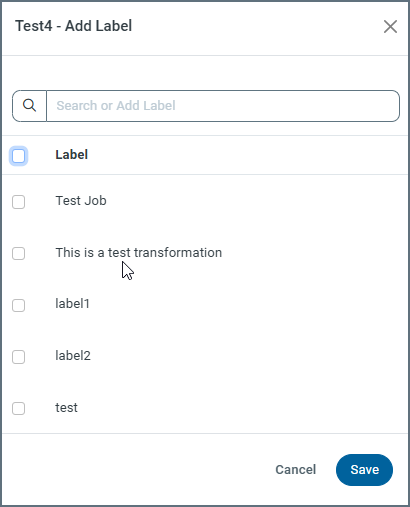
Click Add Labels in the Labels category. This action opens the TransformationName - Add Label dialog box. You can search and select a label currently available in the list or you can add a new label.
-
To add a new label, enter the label in the Search or Add Label text box and click Add.
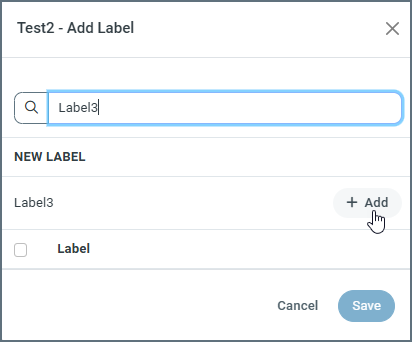
Then, the new label appears in the list of available labels, as shown below.
-
Click Save.
After you complete these steps, the new label appears in the Labels category box on the settings page.
Notifications Category
The Notifications category enables you to set email alerts for transformations, as follows.
-
Select … > Edit at the end of the transformation row for which you want to set alerts.
-
Click Configure in the Notifications category.
-
Set the following options in the Notifications dialog box:
-
To - The email to which to send alerts.
-
Subject - The subject for alert emails.
-
Errors Only - An option that you can select to specify that alert emails should be sent only when the job encounters an error. If you do not select this option, Sync sends alerts after each job run.
-
-
Click Save.
Note: To disable alerts, slide the Notifications toggle switch to the left (the switch turns gray when it is disabled). The toggle switch appears to the right of Notifications in the category box.
Queries Tab
This tab enables you to add and manage queries that execute as part of your transformations.
Adding a Query
To add a query:
-
Click Add Query to open the Add Query dialog box.
-
Enter your query in the text box. If you have multiple statements, make sure that you separate each statement with a semicolon.
-
Click Add Query. If the addition of the query is successful, Sync displays a message saying it is successful at the top of the Queries page.
If you want to run your query, click Run at the top of the Queries page.
After you add and run queries, the Queries page displays a table of the queries as well as the LAST RUN date.
Editing a Query
To edit a query:
-
Select … > Edit at the end of the query row.
-
Modify your query, as necessary, in the Edit Query dialog box.
-
Click Save.
Transformations History Tab
This tab provides details about your transformation job run. Details include Run Date, Status, Records Affected, and Run Time. You can also filter your report to show transformations by status (All Status, SUCCESS, FAILED, or ERROR). In addition, you can export the history by clicking Export History.
Comments Tab
This tab records and tracks notes that are related to your transformation. Each comment appears with a timestamp. You can change the sort order based on timestamp by using the drop-down menu in the top-right corner, with options for Newest First (default) or Oldest First. You can also edit a comment or delete it by clicking, respectively, the Edit Comment icon ( ) or the Remove Comment icon (
 ) at the end of the row.
Sample Query for All Databases
The following SQL query deduplicates records:
CREATE OR REPLACE TABLE dbo.Accounts_Deduplicated as (
  SELECT *, row_number() over (partition by id order by modified desc) as duplicate_rank
  FROM dbo.Accounts
);
DELETE FROM dbo.Accounts_Deduplicated	WHERE duplicate_rank > 1;