Settings Page
Version 25.3.9396
Version 25.3.9396
Settings Page
The Settings page in the CData Sync application contains global settings and user management tools. You access this page by clicking the gear icon in the top-right menu bar, as shown below:

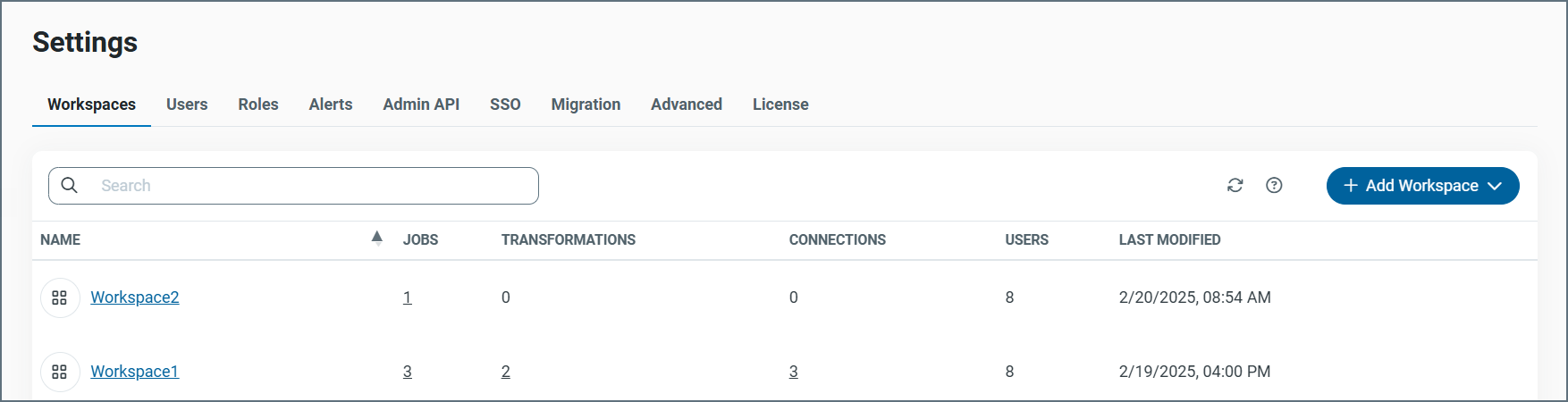
By default, the Settings page opens on the Workspaces tab, as shown below:
The following sections explain the purpose of each tab on this page.
Workspaces Tab
The Workspaces tab summarizes your workspaces and enables you to manage them from one access point. The table on this page contains a row for each workspace that you have created (including the default workspace). Each workspace row details the number of jobs, transformations, and connections a workspace has as well as the number of users for the workspace and last-modified data. For more information, see Workspace Management.
Users Tab
The Users tab contains a table of the users that are authorized to access the application. This table displays the credentials information, role, and status for each user. For more information, see User Management.
Roles Tab
The Roles tab provides descriptions for each role and it displays the number of users that are assigned to each role. For more information, see Roles.
Alerts Tab
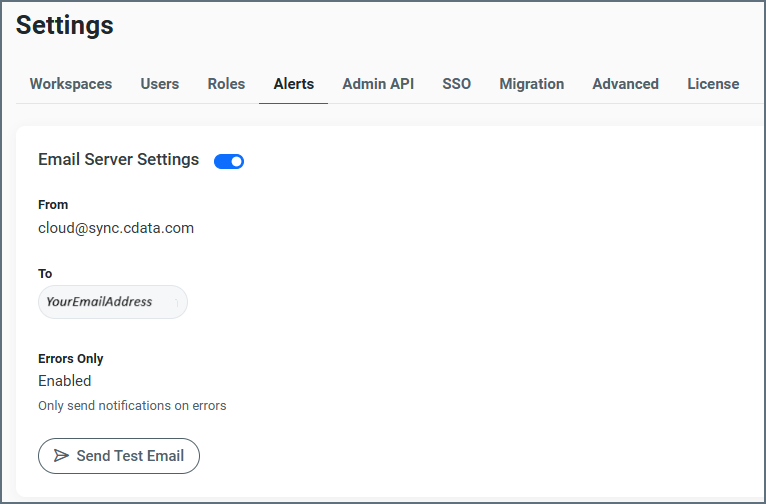
The Alerts tab enables you to configure global email alerts and system health alerts. You can choose to have alerts sent to you after the completion of a job run. Alerts contain information regarding the overall job run, including the status of each query. For more information about both email and system health alerts, see Alerts.
Note: By default, each job that you create automatically uses your global alert settings for that job.
Email Server Settings
To enable email alerts for a job, you need to configure your global email server, as follows:
-
Navigate to the Settings page and click the Alerts tab.
-
Click the Edit icon (
 ) in the Email Server Settings box to open the Email Server Settings dialog box.
 -
Configure the following properties for the SMTP mail server that is used to send alerts:
-
From: Enter the email address to display in the From text box. The default address is [email protected].
-
To: Enter the default email address to which alerts should be sent.
-
Errors Only: This property specifies whether Sync sends alerts for all job runs or only for job runs where errors occur. By default, Sync sends alerts for all job runs. To enable global alerts only when errors occur, select Enable under the Errors Only property.
-
-
Click Save to save your settings and return to the Alerts tab.
To enable or disable email alerts globally for jobs, use the toggle switch in the Email Server Settings section. When global alerts are enabled, the switch is blue, as shown below.
System Health Alerts
The System Health Alerts section displays information related to the performance and integrity of the Sync system.
To configure the system-health properties:
-
Navigate to the Settings page and click the Alerts tab.
-
Click the Edit icon (
) in the Email Server Settings box to open the System Health Alerts dialog box. -
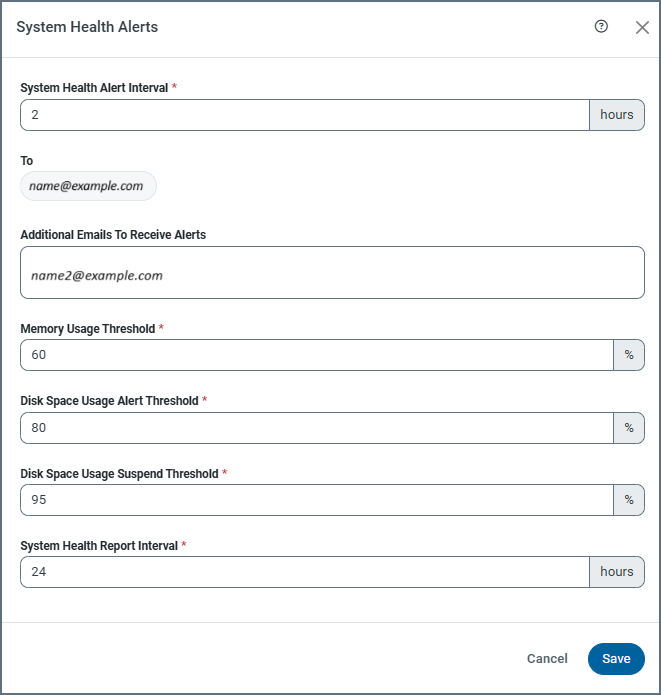
Configure the following system-health properties:
-
System Health Alert Interval - The interval, in hours, at which the health alerts are run. The default interval is Every 1 hour.
-
To - The email address to which alerts should be sent.
-
Additional Emails To Receive Alerts - Optional email addresses to which the alerts should be sent.
-
Memory Usage Threshold - The percentage of memory used that, when exceeded, triggers Sync to send an alert. The default threshold value is 60%.
-
Disk Space Usage Alert Threshold - The percentage of disk storage used that, when exceeded, triggers Sync to send an alert. The default threshold value is 80%.
-
Disk Space Usage Suspend Threshold - The percentage of disk space used at which Sync automatically stops the job schedule so that no more jobs run until the space issue is resolved. When this issue occurs, a warning is displayed in a bar at the top of the Alerts page. The default threshold value is 95%.
-
System Health Report Interval - The interval at which Sync generates a health report for your system. The default interval is Every 24 hours.
-
-
Click Save to save your settings and return to the Alerts tab.
Admin API Tab
The Admin API tab of the Settings page enables you to control settings that are related to the CData Sync API. This tab contains two categories:
-
Trusted IP Addresses
-
Additional Settings
Trusted IP Addresses
This section defines the IP addresses that are allowed to make connections to the Sync API. The following functions are available:
-
Add - Opens a dialog box where you can enter a new IP address range.
-
Edit - Opens a dialog box where you can modify the selected IP address range.
-
Delete - Deletes the selected IP address range from the list.
The following behaviors apply for the Trusted IP Addresses property:
-
localhostis always allowed to access the Sync API. This behavior cannot be changed. -
Ranges are supported. For example, the entry
100.10.100.1-15indicates that IP addresses between100.10.100.1and100.10.100.15are allowed. Any IP addresses outside of that range are rejected. -
Wildcard patterns are supported (in the wildcard text box). For example, the entry
100.10.100.*indicates that IP addresses beginning with100.10.100are allowed. Any IP addresses outside of that range are rejected.
Additional Settings
The Additional Settings section enables you to enable and configure cross-origin resource sharing (CORS) and to choose whether to include an authorization (auth) token in the request URL.
Cross-Origin Resource Sharing (CORS)
CORS enables browser-based clients to connect to the Sync application. Without CORS, browser-based scripts cannot connect to the Sync API because of the same-origin policy that is enforced by the browser. This policy restricts client-side scripts and documents from replicating resources outside of their origin. The origin of a script consists of the protocol, the host, and the port.
If you enable CORS, you can configure it with the following options:
-
Allow all domains without ‘*’: When this option is enabled, Sync allows any origin that is passed by the client by returning that origin in the Access-Control-Allow-Origin header.
-
Access-Control-Allow-Origin: Enter the origins for which Sync will participate in CORS. Sync returns these origins in the Access-Control-Allow-Origin header. When this option is set to an asterisk (*), Sync allows any origin and passes the asterisk in the Access-Control-Allow-Origin header. This behavior is suitable for public APIs.
-
Access-Control-Allow-Methods: For this option, enter a comma-separated list of allowed methods.
-
Access-Control-Allow-Headers: For this option, enter a comma-separated list of headers that can be used in requests that are made by the script.
-
Access-Control-Allow-Credentials: Set this option to True if you want to require that clients provide credentials.
-
Access-Control-Max-Age: Enter the number of seconds that the user agent can cache preflight requests.
Include an Auth Token in the Request URL
You can choose whether to include an auth token in the request URL in this section. For more information about this option, see Authentication.
SSO Tab
The single sign-on (SSO) tab contains settings that are required in order to link user authentication in Sync with identity providers such as Microsoft Entra ID or Okta, both of which support the OpenID Connect and SAML 2.0 authentication standards. For details about configuring the properties on this tab, see Single Sign-On.
Migration Tab
The Migration tab enables you to perform a full import or export of your application, including all of the global application data and settings.
Migrating your Sync configuration enables you to export connections, jobs, and application settings from one Sync installation to another.
To export global application data, use the Export button. This action generates a ZIP file that contains all global data, including multiple workspaces, settings, users, reports, and other configuration details.
Similarly, you can import application data by clicking the Import button and selecting a ZIP file. The file should contain exported global data such as workspaces, settings, users, and reports.
The following steps explain how to export or import your Sync configuration:
-
Click the Settings tab on the Sync top navigation bar.
-
Click the Migration tab to export or import settings, as follows:
Export:
-
Click Export to download all jobs, transformations, connections, tasks, and Sync settings as a zipped CSV file.
-
Configure the following properties:
Type: Select Export all jobs, transformations, and connections to export everything, or select Custom export to choose specific items. If you select Custom export and click Next, a dialog box appears that lists available jobs and transformations (along with their associated connections, tasks, and settings) that you can select for export.
File Name: Specify a filename for the exported ZIP file (or keep the default name, CDataSync). This file contains the selected application settings.
Export Sensitive Values: When you export all jobs, transformations, connections, tasks, and settings, the Export Sensitive Values checkbox is enabled by default. If you select Custom export, this checkbox is disabled by default and must be enabled manually. When the checkbox is enabled, you must supply a password to encrypt sensitive values that are included in the export.
-
Click Export to export your file.
Import:
-
Click Import to import a ZIP file with custom jobs, transformations, connections, tasks, and Sync settings.
-
Click Choose File and select a ZIP file to import.
-
Click Import to import your file.
-
Advanced Tab
Sync enables you to archive and cleanup logs, either in the same instance of Sync that is running (local disk) or in an Amazon S3 bucket. You can perform cleanup activities from the Cleanup Settings category on the Advanced tab.
Cleanup Settings
To clean up and archive your logs:
-
Open Sync and navigate to the Clean-up Settings category on the Advanced tab. (Settings > Advanced).
-
Click the Edit icon (
) to set the properties that are listed below. (The edit icon is next to the documentation icon at the top right of that category.) -
Specify the type of cleanup (Archive or Delete) that you want to perform.
If you select Archive, specify these properties:
-
Retention Period (Days): Set the number of days that you want the log files to be held in the original directory. When this number expires, Sync archives these files. The default number of days is 7.
-
Daily Clean-up Time: Specify the time that you want to run the cleanup job each day. If you want to run the cleanup job immediately, return to the Clean-up Settings category on the Advanced tab and click Run Clean-up.
-
S3 Bucket: Specify the name of your S3 bucket.
-
S3 Access Key: Specify the access key for your S3 bucket.
-
S3 Secret Key: Specify the secret key for your S3 bucket.
-
S3 Region: Specify the region where Amazon stores your bucket.
After you specify these settings, click Test Connection to verify that your S3 connection works.
If you select Delete (the default type), specify these properties:
-
Retention Period (Days): Set the number of days that you want the log files to be held in the original directory. When this number expires, Sync deletes these files. The default number of days is 7.
-
Daily Clean-up Time: Specify the time that you want to run the cleanup job each day. If you want to run the cleanup job immediately, return to the Clean-up Settings category on the Advanced tab and click Run Clean-up.
-
-
Click Save to save your settings and return to the Advanced tab.
dbt Cloud
dbt Cloud enables you to write, run, and test code as well as manage version control in your dbt project from your browser (no command-line use is required). For details about how to connect to dbt Cloud to Sync via global settings on the Advanced tab, see dbt Cloud Details.
Proxy Settings
The Proxy Settings category contains global outbound-proxy settings. Connectors that support an outbound proxy (such as AS3) default to these settings, but you can configure individual connectors with separate proxy settings on the Advanced tab of some other connectors (for example, FTP and SFTP).
To modify your proxy settings:
-
Open Sync and navigate to the Proxy Settings category on the Advanced tab. (Settings > Advanced).
-
Click the Edit icon (
) to open the Proxy Settings dialog box. -
Select the proxy protocol that you want to use from the Type list in the dialog box.
-
None: (default) - Indicates that you do not want to use a proxy server.
-
Tunnel - Transmits data securely across networks by encapsulating one protocol within another.
-
SOCKS4 - Enables applications to exchange data through a proxy server.
-
SOCKS5- The latest version of the SOCKS protocol.
-
HTTP - Forwards connection requests from you to the target website and returns the requested data.
-
-
Configure the following properties for all proxy protocols except None (which has no additional properties).
-
Host: Enter the name or IP address of your proxy-based firewall.
-
Port: Enter the TCP port for your proxy-based firewall. The default port is 25.
-
Authentication Scheme: Select the authentication (auth) scheme that you want to use. Available auth schemes are as follows:
-
None
-
Basic
-
Digest
-
Proprietary
-
NTLM (default)
-
-
Username: Enter the username that you use to authenticate with a proxy-based firewall.
-
Proxy Password: Enter the password that you use to authenticate to a proxy-based firewall.
-
-
Click Save to save your settings and exit the dialog box.
Additional Settings
The Additional Settings category enables you to configure the additional application settings, as follows:
-
Open Sync and navigate to the Additional Settings category on the Advanced tab. (Settings > Advanced).
-
Click the Edit icon (
) to set the properties that are listed below. (The edit icon is next to the documentation icon at the top right of that category.) -
Configure the following properties:
-
Logs Folder: Enter the folder in which you want to store all jobs and logs. The default logs folder is
Logs, which is located in theAppDatafolder. -
Application Log Level: Select the logging level for the current application:
- None
- Error
- Warning
- Info (default)
- Debug
- Trace
-
Log Subfolder Scheme: Specify the scheme for creating subfolders to organize log files by time period:
- Daily
- Weekly
- Monthly
- Yearly
-
Allow Cluster Mode: Enable this setting to allow multiple Sync installations to work together and process the same jobs with the same configurations.
-
Base URL: Enter the base URL from which Sync will be accessed through a proxy server.
-
Two-Factor Authentication: Specify whether users can enable two-factor authentication for their account:
- Enabled
- Required
- Disabled
-
Other Settings: Enter hidden connector settings in a semicolon-separated list (for example,
enablecdatasqlserverdestination=true).
-
-
Click Save to save your settings and to exit the dialog box.
License Tab
The License tab provides your licensing information, connector-usage information, and the version of Sync that you are running. This tab also displays the number of connections that you are currently using, your license expiration date, and your node identifier (Id). In addition, you can access information about upgrading your license by clicking Compare licenses in the settings section. You can also see how much disk space you have used in the Disk Space Usage category on this tab.
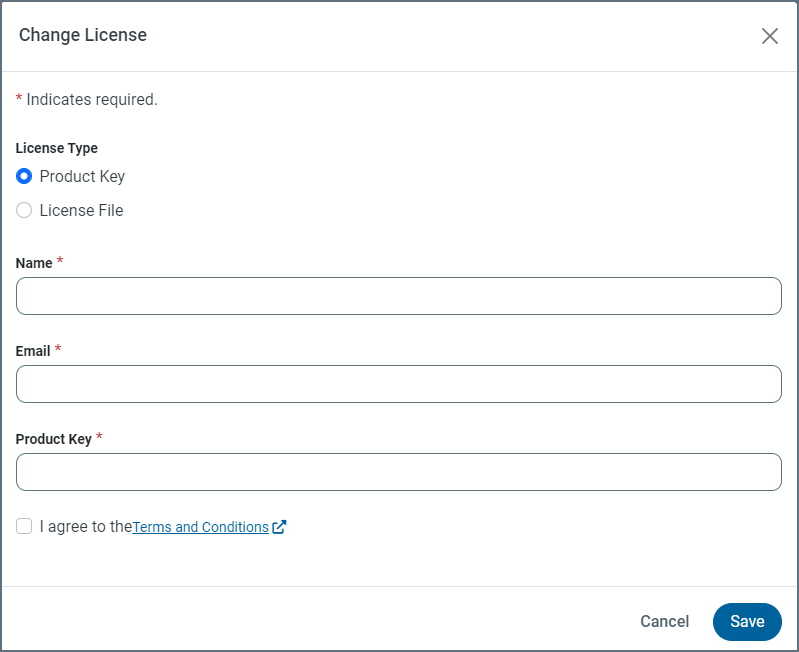
If you purchase a new license, you can install the license by clicking the Change License Edit icon () in the settings section category. This icon opens the Change License dialog box (shown below), from which you can you can add the new license.
Note: You can extend a trial license by contacting [email protected] and giving them your node Id.