Two-Factor Authentication
Version 25.3.9396
Version 25.3.9396
Two-Factor Authentication
Enabling two-factor authentication (2FA) in CData Sync strengthens the security of your Sync instance by requiring two forms of verification at login:
-
A credential that you already know: Your password.
-
A credential that you retrieve: A time-sensitive code from an authenticator application (app).
Even if your password is compromised, 2FA helps block unauthorized access by ensuring that only you can complete the login process. CData Sync supports popular authenticator apps such as Google Authenticator, Microsoft Authenticator, and Authy.
Enabling Two-Factor Authentication for Your Account
To enable 2FA in Sync:
-
Click your user avatar in the upper-right corner of the Sync window.
-
On the User Details page, click Set Up under Two-Factor Authentication.
-
Enter your password in the dialog box to verify your identity. Then, click Next.
-
Open your preferred authenticator app. Then scan the QR code that is provided in the Set Up Two-Factor Authentication dialog box that is displayed in Sync.
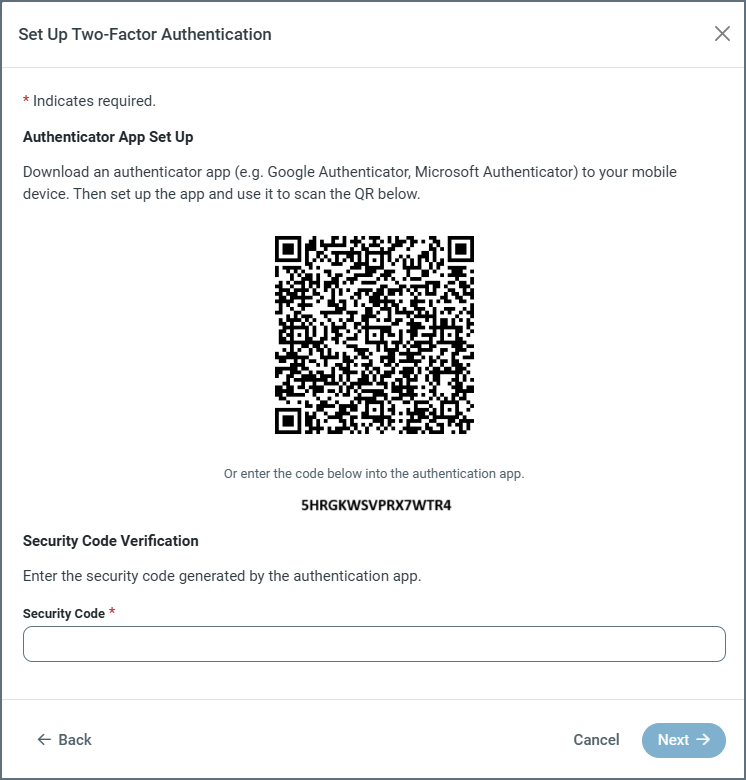
After you scan the QR code with your authenticator app, CData Sync is added to your list of secured accounts.
-
Enter the security code that is generated by your authenticator app into the Set Up Two-Factor Authentication dialog box. Then, click Next. If the code is valid, a success message confirms that 2FA was configured successfully.
After this configuration, each time you log into the application, you will enter your password first as usual. Then, you will be prompted to enter the current security code from your authenticator app to complete the login process.
Notes:
-
You must set up your own 2FA.
-
You can verify whether 2FA is enabled for your account by clicking your avatar in the top right of the Sync window.
-
You can remove 2FA from your own account by navigating to Users > UserName > Two-Factor Authentication > Remove.
Managing Two-Factor Authentication as an Admin User
Admin users can control whether 2FA is available for users from the Additional Settings category on the Advanced tab (Settings > Advanced). In the Additional Settings dialog box, Admin users can choose from these control options:
-
Enabled: The default option. This option allows Sync users to enable 2FA for their accounts.
-
Required: When you select this option, Sync users are required to setup 2FA for their account. The next time that a user signs in and 2FA is not setup on their account, they are prompted to enable it.
-
Disabled: When you select this option, 2FA cannot be enabled for any user.
In addition, Admin users can remove 2FA from their account as well as other accounts by navigating to Users > UserName > Two-Factor Authentication > Remove.