Salesforce
Version 25.3.9396
Version 25.3.9396
Salesforce
You can use the Salesforce connector from the CData Sync application to capture data from Salesforce and move it to any supported destination. To do so, you need to add the connector, authenticate to the connector, and complete your connection.
Add the Salesforce Connector
To enable Sync to use data from Salesforce, you first must add the connector, as follows:
-
Open the Connections page of the Sync dashboard.
-
Click Add Connection to open the Select Connectors page.
-
Click the Sources tab and locate the Salesforce row.
-
Click the Configure Connection icon at the end of that row to open the New Connection page. If the Configure Connection icon is not available, click the Download Connector icon to install the Salesforce connector. For more information about installing new connectors, see Connections.
Authenticate to Salesforce
After you add the connector, you need to set the required properties.
On the New Connection page, enter the connection name of your choice.
CData Sync supports authenticating to Salesforce in several ways. Select your authentication method below to proceed to the relevant section that contains the authentication details.
Basic
To connect with user credentials and a security token, specify the following settings:
-
Auth Scheme: Select Basic.
-
User: Enter the username that you use to authenticate to your Salesforce account.
-
Password: Enter the password that you use to authenticate to your Salesforce account.
-
Security Token: Enter the security token for your Salesforce account. If you do not know your security token, you can reset it as follows:
-
Open your personal information page on the https://www.salesforce.com/ website.
-
Click the link to reset your security token. The token will be emailed to you.
-
OAuth
CData Sync provides an embedded OAuth application with which to connect. To use the application, select OAuth for Auth Scheme. No additional properties are required.
OAuth Password
To connect with OAuth credentials, specify the following settings:
-
Auth Scheme: Select OAuthPassword.
-
User: Enter the username that you use to authenticate to your Salesforceaccount.
-
Password: Enter the password that you use to authenticate to your Salesforce account.
-
Security Token: Enter the security token for your Salesforce account. If you do not know your security token, you can reset it as follows:
-
Open your personal information page on the https://www.salesforce.com/ website.
-
Click the link to reset your security token. The token will be emailed to you.
-
OAuth JWT
To connect with JWT, specify the following settings:
-
Auth Scheme: Select OAuthJWT.
-
OAuth JWT Cert: Enter your Java web tokens (JWT) certificate store.
-
OAuth JWT Cert Type: Enter the type of key store that contains your JWT Certificate. The default type is PEMKEY_BLOB.
-
OAuth JWT Issuer: Enter the issuer of your Java web token. Typically, the issuer is either the client Id or the email address of the OAuth application.
-
OAuth JWT Cert Password: Enter the password for your OAuth JWT certificate.
-
OAuth JWT Cert Subject: Enter the subject of your OAuth JWT certificate.
-
OAuth JWT Subject: Enter the user subject for which the application is requesting delegated access.
OneLogin
To connect with single sign-on (SSO) via OneLogin, specify the following settings:
-
Auth Scheme: Select OneLogin.
-
User: Enter the username for your PingFederate account.
-
Password: Enter the password for your PingFederate account.
-
SSO Login URL: Enter the login URL for your single sign-on (SSO) provider.
-
SSO Properties: Enter the SSO properties that you want to use(for example, SSOProperty1=Value1;SSOProperty2=Value2;…) .
-
SSO Exchange URL: Enter the Salesforce OAuth 2.0 token endpoint for the identity provider (for example, https://MyOrganization.My.SalesforceAcct.com/services/oauth2/token).
PingFederate
To connect with single sign-on (SSO) via PingFederate, specify the following settings:
-
Auth Scheme: Select PingFederate.
-
User: Enter the username for your OneLogin account.
-
Password: Enter the password for your OneLogin account.
-
SSO Properties: Enter the single sign-on (SSO) properties that you want to use (for example, SSOProperty1=Value1;SSOProperty2=Value2;…) .
-
SSO Exchange URL: Enter the Salesforce OAuth 2.0 token endpoint for the identity provider (for example, https://MyOrganization.My.SalesforceAcct.com/services/oauth2/token).
OKTA
To connect with single sign-on (SSO) via Okta, specify the following properties:
-
Auth Scheme: Select OKTA.
-
User: Enter the username for your OKTA account.
-
Password: Enter the password for your OKTA account.
-
SSO Login URL: Enter the login URL for your single sign-on (SSO) provider.
-
SSO Properties: Enter the single sign-on (SSO) properties that you want to use (for example, SSOProperty1=Value1;SSOProperty2=Value2;…).
-
SSO Exchange URL: Enter the Salesforce OAuth 2.0 token endpoint for the identity provider (for example, https://MyOrganization.My.SalesforceAcct.com/services/oauth2/token).
ADFS
To connect with single sign-on (SSO) via ADFS, specify the following properties:
-
Auth Scheme: Select ADFS.
-
User: Enter the username for your ADFS account.
-
Password: Enter the password for your ADFS account.
-
SSO Login URL: Enter the login URL for your single sign-on (SSO) provider.
-
SSO Properties: Enter the single sign-on (SSO) properties that you want to use (for example, SSOProperty1=Value1;SSOProperty2=Value2;…).
-
SSO Exchange URL: Enter the Salesforce OAuth 2.0 token endpoint for the identity provider (for example, https://MyOrganization.My.SalesforceAcct.com/services/oauth2/token).
Azure Active Directory
To connect with single sign-on via Azure Active Directory, specify the following settings:
-
Auth Scheme: Select AzureAD.
-
SSO Properties: Enter the single sign-on (SSO) properties that you want to use (for example, SSOProperty1=Value1;SSOProperty2=Value2;…).
-
SSO Exchange URL: Enter the Salesforce OAuth 2.0 token endpoint for the identity provider (for example, https://MyOrganization.My.SalesforceAcct.com/services/oauth2/token).
-
OAuth Client Id: Enter the client Id that you were assigned when you registered your application with an OAuth authorization server.
-
OAuth Client Secret: Enter the client secret that you were assigned when you registered your application with an OAuth authorization server.
Replicating Salesforce Formula Fields
The Sync application provides a dedicated Salesforce_Formulas schema to help you manage the replication of formula fields separately from standard fields. This schema ensures that formula fields are always refreshed with the latest calculations.
Salesforce formula fields differ from standard fields in their replication behavior. Specifically, when the definition of a formula changes, Salesforce does not update the record’s SystemModStamp column. This behavior can cause issues with data synchronization that relies solely on incremental replication.
Sync addresses this issue by providing two schemas (Salesforce and Salesforce_Formulas) that allow you to apply different replication strategies to standard and formula fields.
Configure Tasks with the Salesforce_Formulas Schema
When you add or edit a task in a Salesforce job, Sync displays the two schema options, Salesforce and Salesforce_Formulas, in the Add Tasks dialog box.
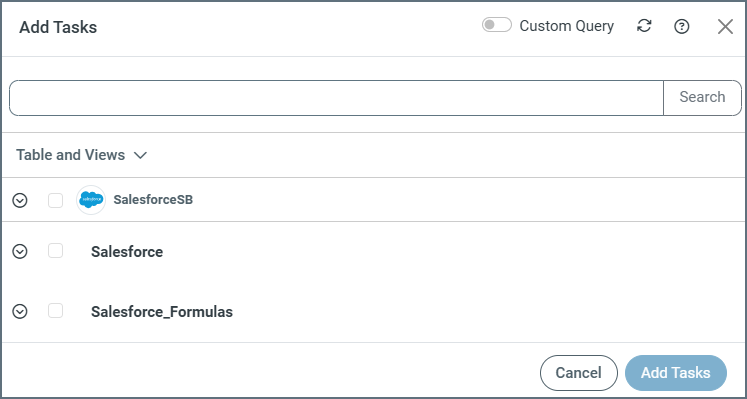
When you select the Salesforce_Formulas schema, only the Id and formula fields are available. This is in contrast to the Salesforce schema, where all standard fields (and formula fields, depending on the connection setting) are available.
Use the Salesforce_Formulas schema when you want Sync to perform the following tasks:
-
Truncate and reload formula fields on each run.
-
Automatically add new formula fields as they are created in Salesforce when you enable the Alter Schema property (available when you add or edit tasks from a job’s Task tab).
Configure Tasks with the Salesforce Schema
Use the Salesforce schema when you want Sync to replicate non-formula fields incrementally. When you use this schema, you can also control whether formula fields are included by using the Skip Formula Fields property. This property is available on the on the Advanced tab of the Salesforce connection page, under the Miscellaneous category.
-
If you set Skip Formula Fields to True, formula fields are excluded from the Salesforce schema.
-
If you set Skip Formula Fields to False, formula fields are included in the Salesforce schema.
Note: Changing the Skip Formula Fields property affects only the Salesforce schema. It does not change what the Salesforce_Formulas schema returns.
Complete Your Connection
To complete your connection:
-
Specify the following properties:
-
(Optional) API Version: Enter your API version. The default version is 56.0.
-
(Optional) Login URL: Enter your login URL for Salesforce.
-
(Optional) Use Sandbox: Set Use Sandbox to True if you want to connect to a sandbox account. Otherwise, leave the default setting (False).
-
-
Define advanced connection settings on the Advanced tab. (In most cases, though, you should not need these settings.)
-
If you authenticate with OAuth or AzureAD, click Connect to Salesforce to connect to your Salesforce account.
-
Click Create & Test to create your connection.
More Information
For more information about interactions between CData Sync and Salesforce, see Salesforce Connector for CData Sync.