Single Sign-On
Version 25.3.9396
Version 25.3.9396
Single Sign-On
CData Sync supports single sign-on (SSO) via either the SAML 2.0 or OpenID authentication protocols. This feature enables identity providers such as Microsoft Entra ID (formerly Azure Active Directory) or Okta, which support these protocols, to serve as SSO platforms for Sync.
Overview
Enabling SSO requires that you configure a group of settings on the SSO tab of the Settings page. When you configure the SSO settings, users that are created within Sync should be given a federation Identifier (Id). This federation Id associates a Sync username with an identity provider entity. When the Sync user attempts to log in to the application, it is redirected to the SSO platform where the credentials for the appropriate identity must be entered.
If Just-in-Time (JIT) user provisioning is enabled (also from the SSO tab), a new user account is automatically created in Sync at the time of login, based on attributes that are received from the identity provider (for example, the user’s name and email address). This identity and access management (IAM) process streamlines onboarding by eliminating the need for manual account creation. For more details, see Just-in-Time (JIT) User Provisioning.
After SSO is configured and Sync users have a federation Id value to associate them with an identity provider (IdP), you can perform additional configuration either in Sync (for example, enabling JIT provisioning) or directly in the IdP, as explained in later sections.
Note: Sync supports group-based access via the group-to-role mapping feature in JIT provisioning. You can map group identifiers that are provided by the IdP to Sync roles. Each user must still log in individually, but role assignment can be automated based on IdP group membership.
The following sections explain how to set up SSO configuration through two identity providers, Microsoft Entra ID and Okta, with the OpenID Connect and SAML 2.0 authentication protocols.
Configuring Microsoft Entra ID for SSO
The following sections explain how to set up Microsoft Entra ID for SSO via either OpenID Connect or SAML 2.0.
OpenID Connect Configuration
Single sign-on (SSO) with Microsoft Entra ID streamlines access to CData Sync, enabling just-in-time provisioning at the time of login. The following steps explain how to set up Microsoft Entra ID for SSO with the OpenID Connect protocol.
-
Log in to the Azure portal and open Microsoft Entra ID.
-
Log in to CData Sync and select Settings > SSO to open the Single Sign-On (SSO) Settings dialog box.
-
Navigate to Entra ID > App registrations > New registration and create an application registration for Sync. Follow the prompts to complete the process.
-
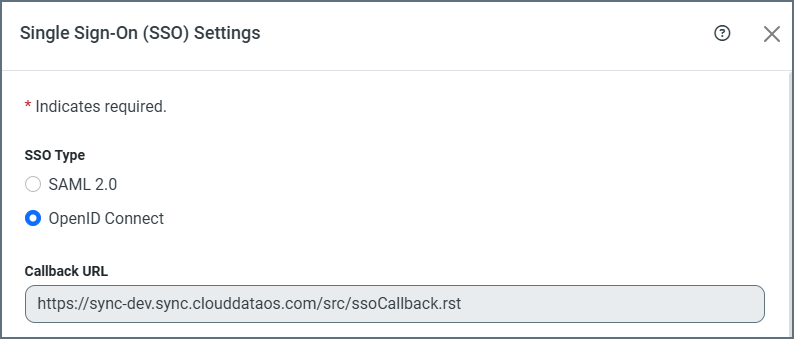
In your application registration, set the redirect URL to the Callback URL value that is specified in the Single Sign-On (SSO) Settings dialog box in Sync, as shown below.
-
In the Single Sign-On (SSO) Settings dialog box in Sync, specify the following properties:
-
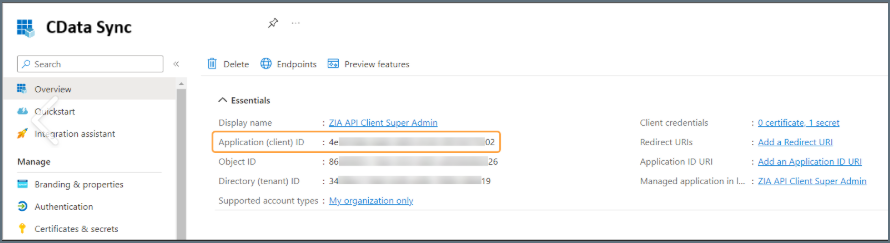
Set the Client ID property to the value of Application (client) Id that is found in the new application registration that is shown below.
-
Set the Client Secret property to the value of the new client secret that you generated in Entra ID.
-
Set Discovery URL to the OpenID Connect MetaData document value from the Endpoint page in your application registration. Then, click Import to import the remaining settings into Sync.
-
-
Click Save and Test in Sync to verify the SSO configuration. Sync opens a new tab and prompts you to sign in to your Microsoft account. If the test succeeds, Sync displays a success message along with claim details.
-
(Optional) Update your Sync user account with your federation Id.
-
Copy the federation Id from the Single Sign-On (SSO) Settings dialog box in the step 5.
-
Navigate to Settings > Users. Then, locate your user account and click Edit.
-
Add the federation Id to your user account. Then click Save to save your change and exit the dialog box.
-
At this point, you have completed the basic OpenID Connect SSO setup, allowing your users to log in to Sync through Microsoft Entra ID.
SAML 2.0 Configuration
With SAML-based single sign-on (SSO), users can seamlessly authenticate through their organization’s identity provider, enabling just-in-time provisioning at the time of login. The following steps explain how to set up Microsoft Entra ID SSO with the SAML 2.0 protocol.
-
Log in to the Azure portal and open Microsoft Entra ID and navigate to the Enterprise applications page.
-
Select New application > Create your own application. In the Create your own application dialog box:
-
Enter a name for your application (for example, CData Sync).
-
Specify what you want to do with your application by selecting one of the options under What are you looking to do with your application?
-
Click Create.
-
-
In your newly created application, select Set up single sign on.
-
Select SAML as the sign-on method.
-
Log into CData Sync and select Settings > SSO. On that SSO tab, click Configure in the Single Sign On (SSO) Settings section. This action displays the Single Sign On (SSO) Settings dialog box.
-
Select SAML 2.0. This selection displays the Assertion Consumer Services (ACS) URL and the audience URI.
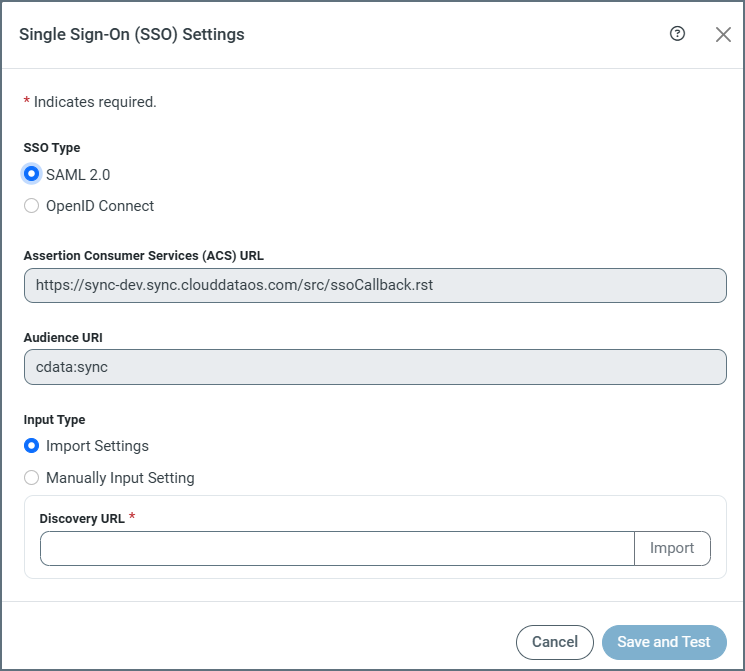
Note: Keep this dialog box open because you need to return to it later in these steps.
-
In Entra ID, set Reply URL (Assertion Consumer Service URL) to the Assertion Consumer Services (ACS) URL value in Sync. Then, set Identifier (Entity ID) in Entra ID to the Audience URI value in Sync.
Note: Leave the Sign on URL text box empty if you plan to use sign-on initiated by your identity provider.
-
In the Sync Single Sign-On (SSO) Settings dialog box, set Discovery URL to the App Federation Metadata URL value that is found in Entra ID. Then, click Import to import the remaining settings into Sync.
-
Click Save and Test in Sync to verify the SSO configuration. Sync opens a new tab and prompts you to sign in to your Microsoft account. If the test succeeds, Sync displays a success message along with claim details.
-
(Optional) Update your Sync user account with your federation Id.
-
Copy the federation Id from the Single Sign-On (SSO) Settings dialog box in the step 9.
-
Navigate to Settings > Users. Then, locate your user account and click Edit.
-
Add the federation Id to your user account. Then click Save to save your change and exit the dialog box
-
At this point, you have completed the basic SAML SSO setup, allowing your users to log in to Sync through Microsoft Entra ID.
Configuring Okta for SSO
The following sections explain how to set up Okta for SSO via either OpenID Connect or SAML 2.0.
OpenID Connect Configuration
Single sign-on (SSO) with Okta streamlines access to CData Sync, enabling just-in-time provisioning at the time of login. The following steps explain how to set up Okta for SSO with the OpenID Connect protocol.
-
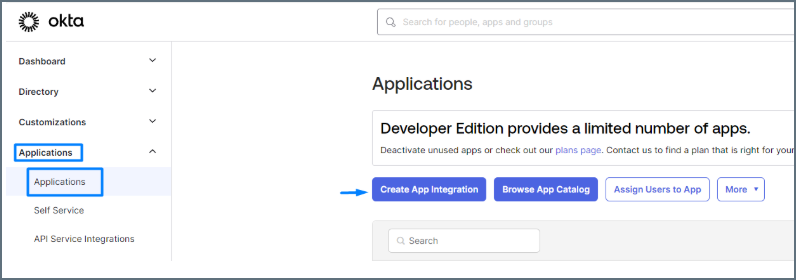
Log in to the Okta Admin Console and select Applications > Applications > Create App Integration.
-
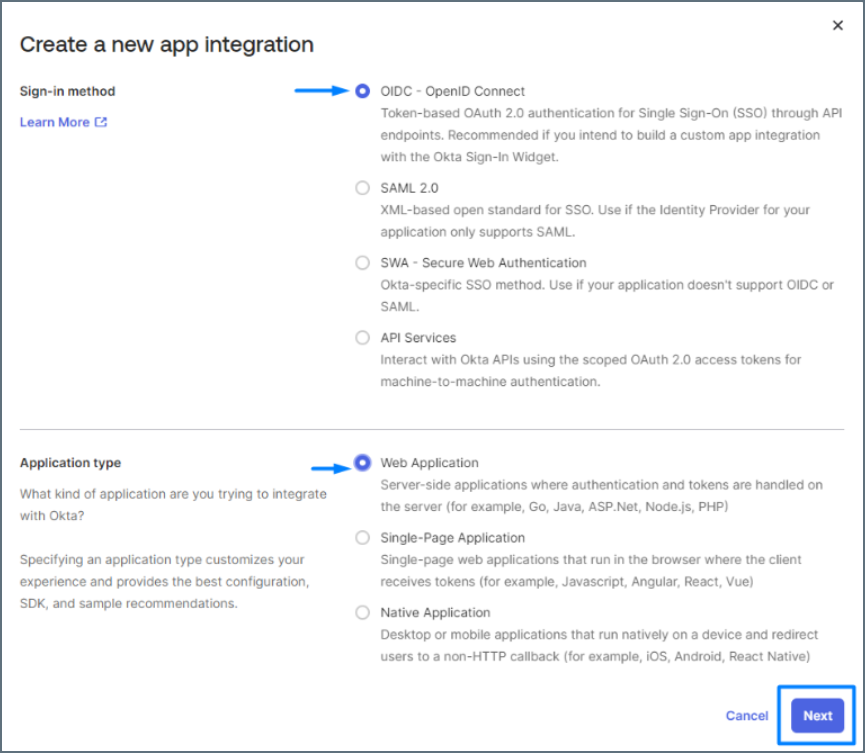
In the Create a new app integration dialog box, select OIDC - OpenID Connect for Sign-in method and Web Application for Application type. Then click Next.
-
Log in to CData Sync and select Settings > SSO to open the Single Sign-On (SSO) Settings dialog box.
-
In Okta, set the redirect URI to the Callback URL value that is specified in the Single Sign-On (SSO) Settings dialog box in Sync, as shown below.
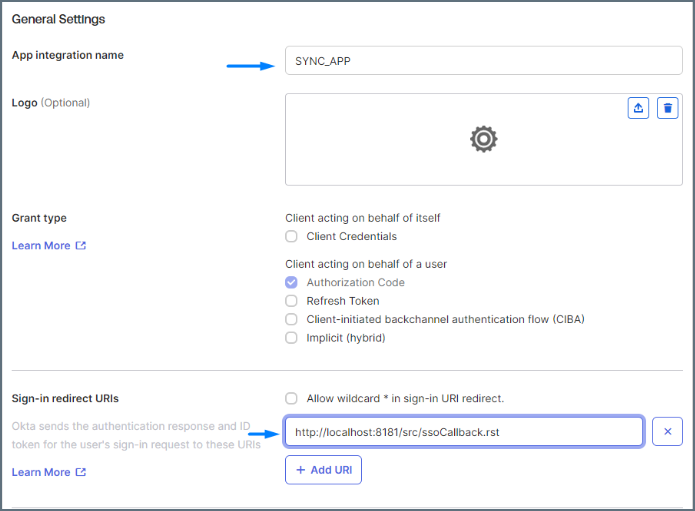
Then, click Next to create your application.
-
In the Single Sign-On (SSO) Settings dialog box in Sync, specify the following properties:
-
Set the Client ID and Client Secret properties to the corresponding values that are found on the General tab in Okta
-
Set Discovery URL to the domain of your registered Okta organization, followed by /oauth2/default/.well-known/openid-configuration.
Example: https://trial-1234567.okta.com/oauth2/default/.well-known/openid-configuration
Then, click Import to import the remaining settings into Sync.
-
-
Click Save and Test in Sync to verify the SSO configuration. Sync opens a new tab and prompts you to sign in to your Microsoft account. If the test succeeds, Sync displays a success message along with claim details.
-
(Optional) Update your Sync user account with your federation Id.
-
Copy the federation Id from the Single Sign-On (SSO) Settings dialog box in the step 5.
-
Navigate to Settings > Users. Then, locate your user account and click Edit.
-
Add the federation Id to your user account. Then click Save to save your change and exit the dialog box.
-
At this point, you have completed the basic OpenID Connect SSO setup, allowing your users to log in to Sync through Okta.
SAML 2.0 Configuration
With SAML-based single sign-on (SSO), users can seamlessly authenticate through their organization’s identity provider, enabling just-in-time provisioning at the time of login. The following steps explain how to set up Okta for SSO with the SAML 2.0 protocol.
-
Log in to the Okta Admin Console and select Applications > Create App Integration. This step opens the Create a new app integration dialog box.
-
Select SAML 2.0 as the sign-in method. Then, click Next, which opens the Create SAML Integration dialog box.
-
Enter a descriptive name (for example, CData Sync) for your application in the App Name text box. You can also add a logo for your application, if you choose. Then, click Next.
-
In the Sync application, click the SSO tab on the Settings page. On that tab, click Configure in the Single Sign On (SSO) Settings section. This action displays the Single Sign On (SSO) Settings dialog box.
-
Select SAML 2.0. This selection displays the Assertion Consumer Services (ACS) URL and the audience URI.
Note: Keep this dialog box open because you need to return to it later in these steps.
-
In Okta, enter the Assertion Consumer Services (ACS) URL value from Sync into the Single sign on URL text box. Then, enter the Audience URI value from Sync into the Audience URI (SP Entity ID) text box. You can leave the default settings for the remaining Okta fields.
-
In Sync, set Discovery URL to the domain of your registered Okta organization, followed by /oauth2/default/.well-known/openid-configuration.
Example: https://trial-1234567.okta.com/oauth2/default/.well-known/openid-configuration
Then, click Import to import the remaining settings into Sync.
-
Click Save and Test in Sync to verify the SSO configuration. Sync opens a new tab and prompts you to sign in to your Microsoft account. If the test succeeds, Sync displays a success message along with claim details.
-
(Optional) Update your Sync user account with your federation Id.
-
Copy the federation Id from the Single Sign-On (SSO) Settings dialog box in the step 8.
-
Navigate to Settings > Users. Then, locate your user account and click Edit.
-
Add the federation Id to your user account. Then click Save to save your change and exit the dialog box.
-
At this point, you have completed the basic SAML SSO setup, which enables you to log in to Sync through Okta.
Just-in-Time (JIT) User Provisioning
As mentioned earlier, Just-in-Time user provisioning enables Sync to create and manage user accounts automatically at first login by using information that is provided by your identity provider. JIT provisioning is particularly useful when users access Sync through an identity provider for the first time, and the application receives a secure message confirming their identity. The resulting account is assigned a default role, as specified in the SSO settings. This functionality streamlines user onboarding and ensures account details remain consistent with identity claims.
When a user logs in to Sync by using SAML or OpenID Connect, Sync searches for that user via a federation Id.
-
If a user does not exist, Sync first uses group-to-role mappings to assign a role. If no mapping is found, Sync then checks the default role. If no group-to-role mapping is found and no default role is configured, the user account is created without a role.
-
If a user already exists, Sync only uses group-to-role mappings to match the user’s current role. If the mapping and current role do not match, Sync updates the user’s current role. There is no default-role matching during this process.
Requirements and Mappings in your Identity Provider
Identity-provider requirements vary depending on whether you use SAML 2.0 or OpenID Connect. This section explains claim requirements for each authentication method.
OpenID Connect
-
By default, subcontrols are mapped to the user’s role and the claim is mapped to the federation Id. As an option, admin users can use a different field (for example, oid) by setting the Key Claim property in Sync (Settings > SSO > User Provisioning).
-
The email claim maps to Email Address in Sync.
-
The preferred_username claim maps to name in Sync.
SAML 2.0
-
The NameID and Email claims are required.
-
(Optional) You can add the Name claim, which maps to Username in Sync.
-
(Optional) You can add the Role claim, which controls the user’s role.
JIT Configuration in Sync
To enable and configure JIT provisioning in Sync:
-
Enable JIT provisioning, as follows:
-
Select Settings > SSO in Sync.
-
Click the Edit icon (
 ) to open the User Provisioning dialog box.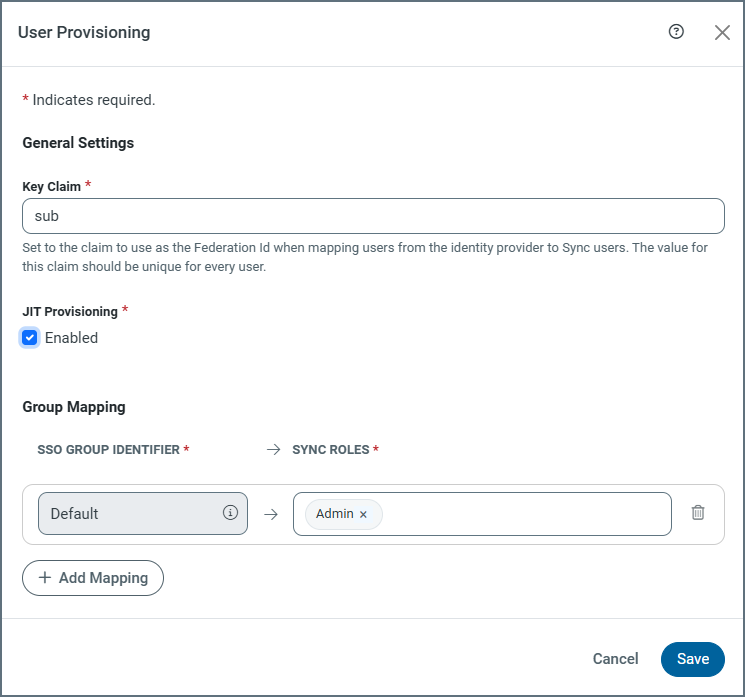
-
Select Enabled under the JIT Provisioning label.
-
(Optional) If one is not set already, select a default role from the SYNC ROLES list.
-
Click Save to save your selection and exit the dialog box.
-
When a user logs in, Sync adjusts the role based on the following order:
-
If the group-to-role mapping finds a match, Sync applies the mapped role or roles.
-
If the claim contains a role, Sync searches for that role and updates the user account.
-
If the group claim does not exist or there is no mapped Sync role, the application uses the default role.
-
If a default role is not configured, the user account has no role and the Admin user must update the user’s role manually.
Group-to-Role Mapping
In addition to assigning roles through a role claim or a default role, Sync supports mapping of Identity Provider (IdP) groups to Sync roles. This feature is useful when your IdP (for example, Microsoft Entra ID) issues group identifiers in the authentication token instead of role names.
To configure group-to-role mappings in Sync:
-
Select Settings > SSO and click Edit (
 ) to open the User Provisioning dialog box.
 -
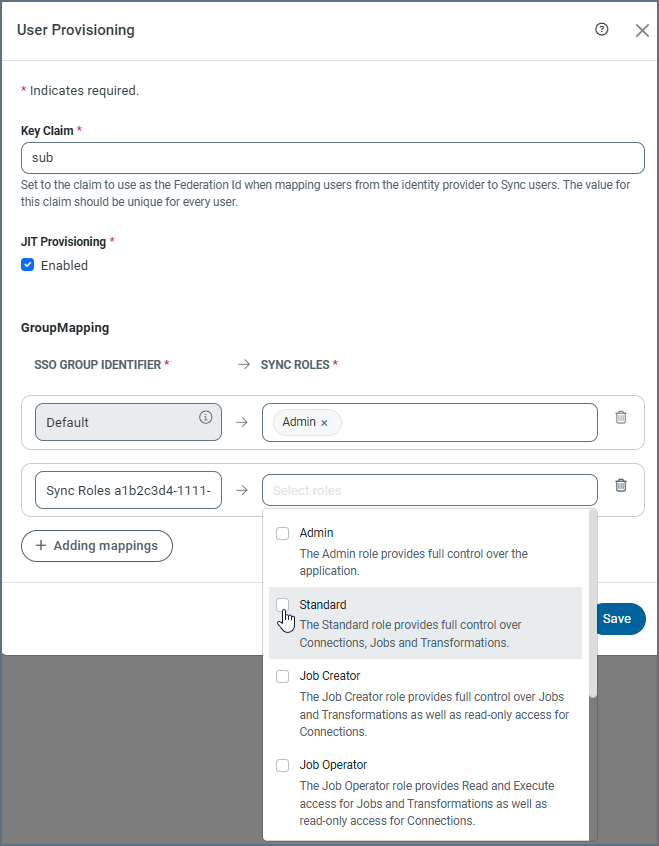
Scroll to the GroupMapping section and click Add mappings to open new mapping fields.
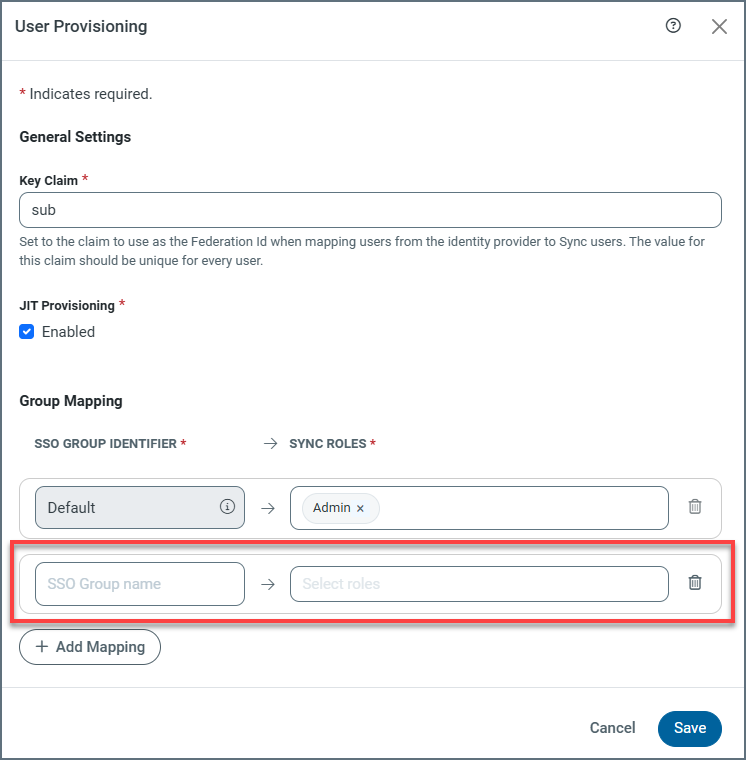
-
Enter the value that is returned by your IdP, according to the checks made by Sync:
-
OpenID Connect: Sync checks only the value of the groups claim in the IdP response.
Note: With Okta, the claim can contain group names; with Microsoft Entra ID, the claim contains group identifiers (GUIDs). Configure your mapping to match whatever your IdP issues.
-
SAML 2.0: Sync checks only the value from the role claim.
Then, select one or more Sync roles to which you want to map the group.
-
-
When you finish adding mappings, click Save to exit the dialog box.
When a user logs in with JIT provisioning, Sync assigns roles according to the rules described earlier in Requirements and Mappings in Your Identity Provider.
To delete a mapping, click the Delete icon ( ).
).