SAP ERP
Version 25.3.9396
Version 25.3.9396
SAP ERP
You can use the SAP ERP connector from the CData Sync application to capture data from SAP ERP and move it to any supported destination. To do so, you need to add the connector, authenticate to the connector, and complete your connection.
Prerequisites
Before you can connect to SAP ERP, you must set up the following components:
-
Download the Software Developer Kit (SDK), based on your operating system, from SAP Java Connector.
-
Download the sapjco3.jar and sapjco3.dll files from the SDK, as follows:
-
Open the SAP Java connector and select the Jco version that matches your platform.
-
Click the download link. This action opens the login page.
-
Login to the SAP site with a valid S-user identifier (Id).
-
Download the package.
-
-
Copy the sapjco3.jar file to the
/libs/extfolder in your application directory. -
Copy the sapjco3.dll file (or, use libsapjco3.so if your Sync instance is on a Linux machine) to the
/libs/extfolder in your application directory.
Add the SAP ERP Connector
To enable Sync to use data from SAP ERP, you first must add the connector, as follows:
-
Open the Connections page of the Sync dashboard.
-
Click Add Connection to open the Select Connectors page.
-
Click the Sources tab and locate the SAP ERP row.
-
Click the Configure Connection icon at the end of that row to open the New Connection page. If the Configure Connection icon is not available, click the Download Connector icon to install the SAP ERP connector. For more information about installing new connectors, see Connections.
Establish a Connection
To allow Sync to use data from SAP ERP, you first must establish a connection to SAP ERP. Follow these steps to connect SAP ERP to your Sync account:
-
Open the Connections page of the Sync dashboard.
-
Click Add Connection to open the Select Connectors page.
-
Click the Sources tab and locate the SAP ERP row.
-
Click the Configure Connection icon at the end of that row. If you do not see the Configure Connection icon, you need to add the connector according to the instructions in Connections.
-
Enter connection settings on the Settings tab:
-
Connection Name - Enter a connection name of your choice.
-
User - Enter the username that you use to authenticate to SAP ERP.
-
Password - Enter the password that you use to authenticate to the SAP ERP account.
-
Client - Enter the name of the client that you want to authenticate to the SAP system.
-
Connection Type - Select the connection type that you want to use. The default type is JCo.
-
Connection Scheme - Select the connection scheme that you want to use. The default scheme is ApplicationServer.
-
Host - Enter the host name of the target system. You can specify a regular host name, an IP address, or a SAP router address.
-
System Number - Select the number that defines the target system. The default value is 0.
-
-
Click Create & Test to create the connection.
-
Define advanced connection settings on the Advanced tab. (In most cases, though, you should not need these settings.)
Enabling CDC in CData Sync
To configure your SAP ERP source connection to use CDC, follow these steps:
-
Open the Advanced tab of the SAP ERP source page and navigate to the Miscellaneous category.
-
Select ChangeDataCapture for the Table Mode property.
-
Click Create & Test to save your connection change.
-
Create a job in Sync using SAP ERP as your source and select Change Data Capture for the Type option.
Once you create a CDC job, the Tasks list shows only tables that are enabled for CDC. If you have custom tables that you want to appear in the Tasks list for the CDC job, you must enable them for tracking first in the SAP GUI. The following section explains how to enable such tables for tracking.
Enable SAP Custom Tables for CDC
To prepare SAP custom tables for use with CDC in Sync, perform the steps in the following sections.
Step 1: Create Your Custom Table and Data Elements with the Change Document Flag
In the SAP GUI, create a custom table, as follows:
-
Open SAP ERP and navigate to transaction SE11.
-
On the ABAP Dictionary: Initial Screen page, select the Database Table radio button and enter a name for your custom table (for example, ZMACHINES_TABLE) in the associated text box.
Note: The initial Z in the name is required for custom objects in SAP ERP.
-
Click Create. This action opens the Create Table page.
-
On the Create Table page, enter a short description of your table (for example, Machines Table).
-
Click Technical Settings in the menu bar at the top of the window.
-
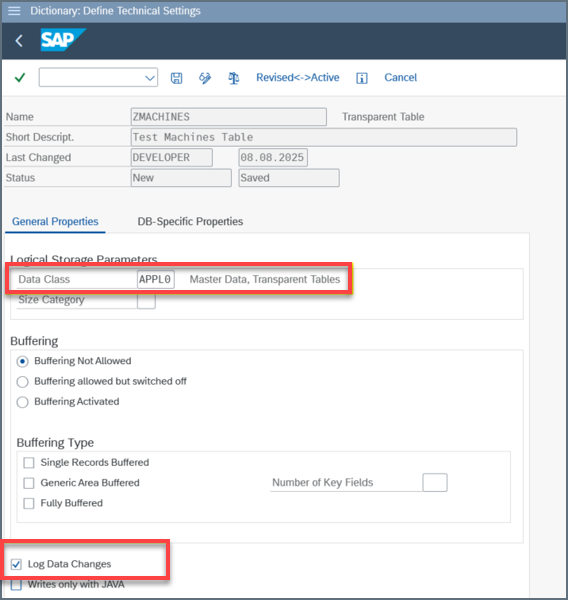
On the General Properties tab of the Dictionary: Define Technical Settings page:
-
Select APPL0 in the Data Class list. This is the typical selection for master data and transparent application tables.
-
Select the Log Data Changes checkbox and save your changes.
-
Click Cancel to return to the previous page.
-
-
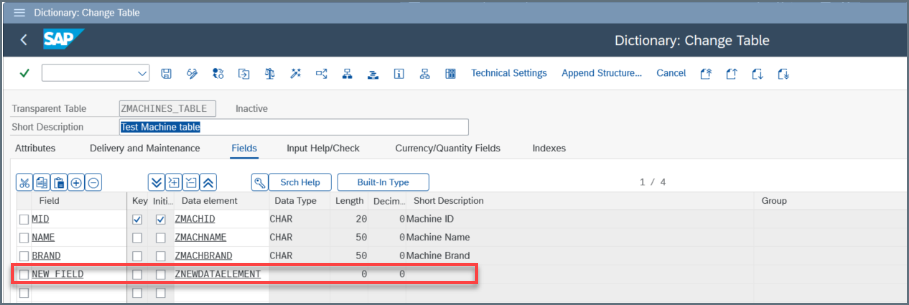
Click the Fields tab and follow these steps to create any new fields that you want.
-
Enter a field name in the Fields column (for example, NEW_FIELD).
-
Enter a name for the new element in the Data Element field. To create a custom data element, enter a name that starts with the letter Z (for example, ZNEWDATAELEMENT). SAP prompts you to create a new element if it does not already exist.
-
Double-click the name that you entered. SAP will prompt you for additional configuration in other columns (Data Type, Length, and Description).
-
-
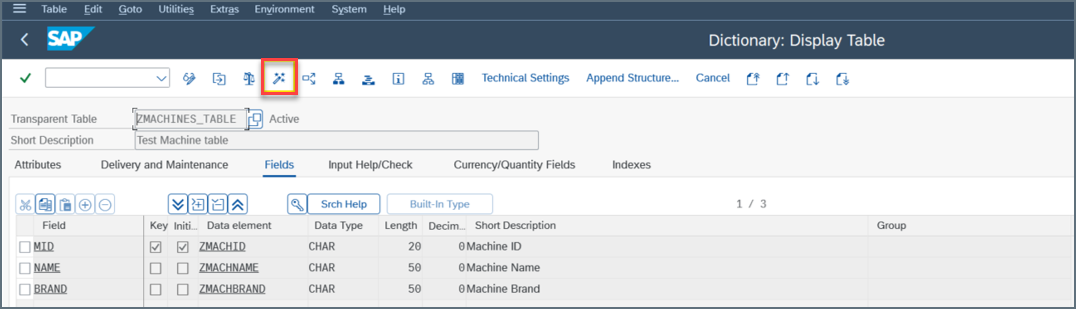
Activate the table by clicking the Activate icon in the menu bar.
Step 2: Create and Configure the Change Document Object
Follow these steps to create and configure a change document object (SCDO):
-
Open transaction SCDO.
-
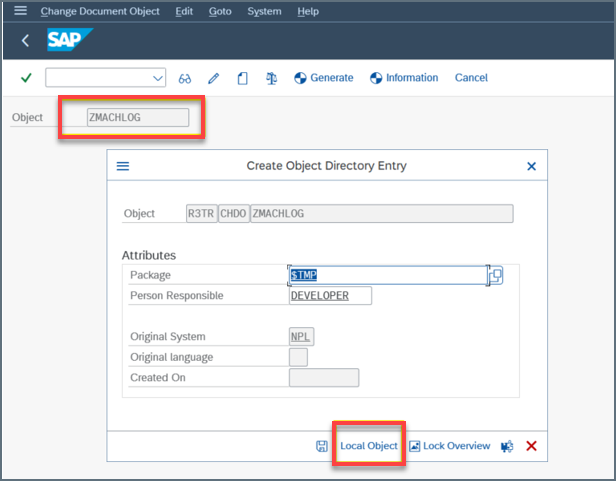
Enter a name for your object (for example, ZMACHLOG) in the Object text box.
-
Click Create to create a new change document object and open the Create Object Directory Entry dialog box.
-
Select Local Object from the Package list. Provide a short description of the object (for example, “Change Document Object for Machines Tab”).
-
Click the Table tab to assign your custom table to your change document object.
-
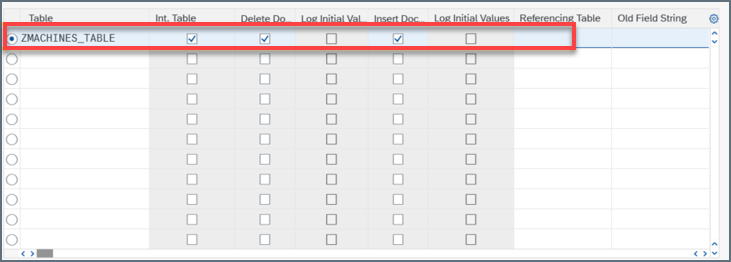
Add your table name (for example, ZMACHINES_TABLE).
-
Select the Delete Documentation column and the Insert Documentation column, as shown below:
-
Click the Save icon in the task bar at the top of the window.
-
-
Click Generate in the task bar.
-
In the Generate Update Pgm. dialog box, enter a name in the Function group text box (for example, ZMACHLOG_WRITE_DOCUMENT).
-
Click Generate at the bottom of the dialog box.
-
On the next page, double-click the name of your function group (ZMACHLOG_WRITE_DOCUMENT). This action takes you to transaction SE37.
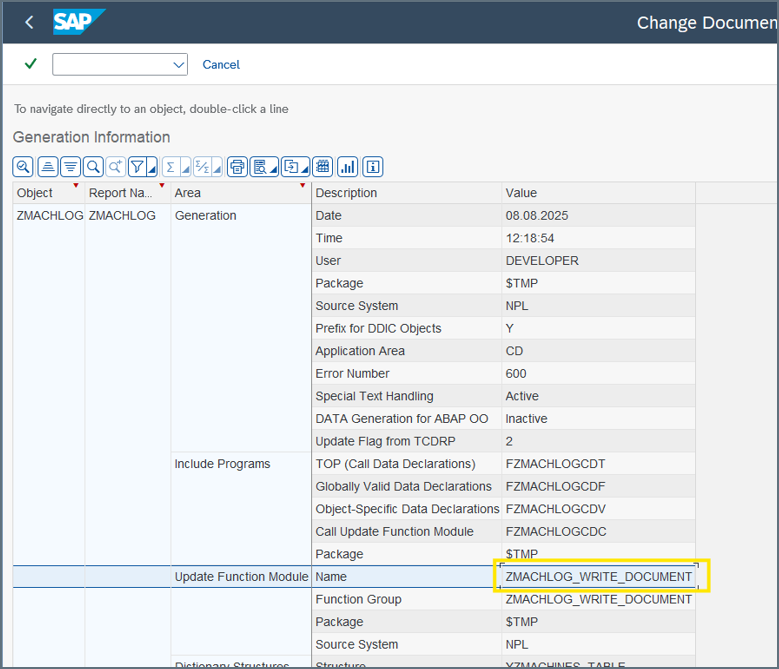
SAP generates a function module that is executed each time this object is involved. You might need to adapt the logic to handle the insertions, updates and deletions based on your scenario. You can modify this module, depending on your scenario.
-
Click the Validate icon (
 ) to check the module syntax.
 -
Click the Activate icon (
 ) to activate the function module.
At this point, the infrastructure for change documents in SAP is in place. However, no entries are logged until the system-generated function module (ZMACHLOG_WRITE_DOCUMENT) is invoked. This invocation must occur within the application logic, update module, or custom program that modifies the table, ensuring that each change is explicitly captured and recorded.
Step 3: Verify That Your Table Is Ready for CDC
Now, you should verify that the target table is ready for change-document capture (CDC). This ensures that the system recognizes the SCDO object that you created and that subsequent changes will be logged correctly.
-
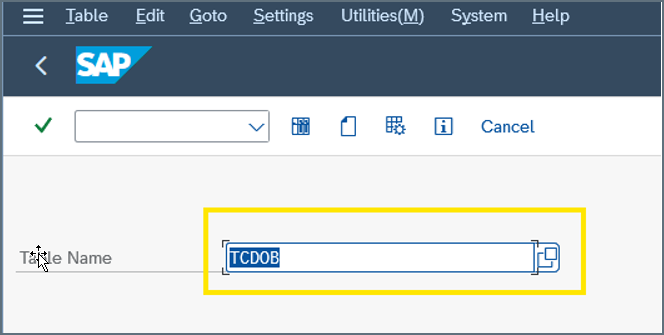
Open transaction SE16.
-
Enter the table name TCDOB.
-
On the Data Browser - Table TCDOB page, filter by entering ZMACHINES_TABLE in the TABNAME text box.
Once you do this, you can see that the SCDO object you created is linked to your table and that it is ready to handle CDC.

More Information
For more information about interactions between CData Sync and SAP ERP, see SAP ERP Connector for CData Sync.