Salesforce Marketing Cloud
Version 25.3.9414
Version 25.3.9414
Salesforce Marketing Cloud
CData Sync アプリケーションからSalesforce Marketing Cloud コネクタを使用して、サポートされている任意のデータソースから同期先のSalesforce Marketing Cloud へデータを移動できます。これを行うには、コネクタを追加し、コネクタへの認証を行い、接続を完了する必要があります。
Salesforce Marketing Cloud コネクタを追加
Sync でSalesforce Marketing Cloud のデータを使用できるようにするには、まず以下の手順でコネクタを追加する必要があります。
-
Sync のダッシュボードから接続ページを開きます。
-
接続を追加をクリックしてコネクタを選択ページを開きます。
-
データソースタブをクリックしてSalesforce Marketing Cloud 行に移動します。
-
行末にある接続を設定アイコンをクリックして、新しい接続ページを開きます。接続を設定アイコンが利用できない場合は、コネクタをダウンロードアイコンをクリックしてSalesforce Marketing Cloud コネクタをインストールします。新規コネクタのインストールについて詳しくは、接続を参照してください。
Salesforce Marketing Cloud への認証
コネクタを追加したら、必須プロパティを設定する必要があります。
-
Connection Name: Enter a connection name of your choice.
-
Subdomain: Enter the subdomain of your Salesforce Marketing Cloud API.
Salesforce Marketing Cloud supports two API schema types. Select your schema below to proceed to the relevant section for your schema.
SOAP API
To connect to Salesforce Marketing Cloud through the SOAP API, specify the following properties:
-
Schema: Select SOAP.
-
Auth Scheme: Select the authentication method that you want to use to connect to Salesforce Marketing Cloud.
- OAuth
- OAuth Client
- Basic (default)
REST API
To connect to Salesforce Marketing Cloud through the REST API, specify the following properties:
-
Schema: Select REST.
-
Auth Scheme: Select the authentication method that you want to use to connect to Salesforce Marketing Cloud.
- OAuth (default)
- OAuth Client
SOAP Authentication Methods
OAuth
OAuth カスタムクレデンシャルで接続するには、次のプロパティを指定します。
-
Auth Scheme:OAuth を選択。
-
OAuth Client Id:OAuth 認証サーバーにアプリケーションを登録した際に割り当てられたクライアントId を入力。
-
OAuth Client Secret:OAuth 認証サーバーにアプリケーションを登録した際に割り当てられたクライアントシークレットを入力。
After you specify the authentication scheme, complete the remaining steps for establishing your connection.
OAuth Client
To connect with an OAuth client, specify the following properties:
-
Auth Scheme: Select OAuthClient.
-
OAuth Client Id: Enter the client Id that you were assigned when you registered your application with an OAuth authorization server.
-
OAuth Client Secret: Enter the client secret that you were assigned when you registered your application with an OAuth authorization server.
After you specify the authentication scheme, complete the remaining steps for establishing your connection.
Basic
ユーザー資格情報で接続するには、次のプロパティを設定します。
-
Auth Scheme:Basic を選択。
-
User:Salesforce Marketing Cloud アカウントへの認証に使用するユーザー名を入力。
-
Password:Salesforce Marketing Cloud アカウントへの認証に使用するパスワードを入力。
After you specify the authentication scheme, complete the remaining steps for establishing your connection.
REST Authentication Methods
OAuth
OAuth カスタムクレデンシャルで接続するには、次のプロパティを指定します。
-
Auth Scheme:OAuth を選択。
-
OAuth Client Id:OAuth 認証サーバーにアプリケーションを登録した際に割り当てられたクライアントId を入力。
-
OAuth Client Secret:OAuth 認証サーバーにアプリケーションを登録した際に割り当てられたクライアントシークレットを入力。
-
User Legacy Authentication: Select whether you want the connection to be made to the Salesforce Marketing Cloud REST API using legacy authentication. The default option is False.
After you specify the authentication scheme, complete the remaining steps for establishing your connection.
OAuth Client
To connect with an OAuth client, specify the following properties:
-
Auth Scheme: Select OAuthClient.
-
OAuth Client Id: Enter the client Id that you were assigned when you registered your application with an OAuth authorization server.
-
OAuth Client Secret: Enter the client secret that you were assigned when you registered your application with an OAuth authorization server.
-
User Legacy Authentication: Select whether you want the connection to be made to the Salesforce Marketing Cloud REST API using legacy authentication. The default option is False.
After you specify the authentication scheme, complete the remaining steps for establishing your connection.
Salesforce Marketing Cloud as a Reverse ETL Destination
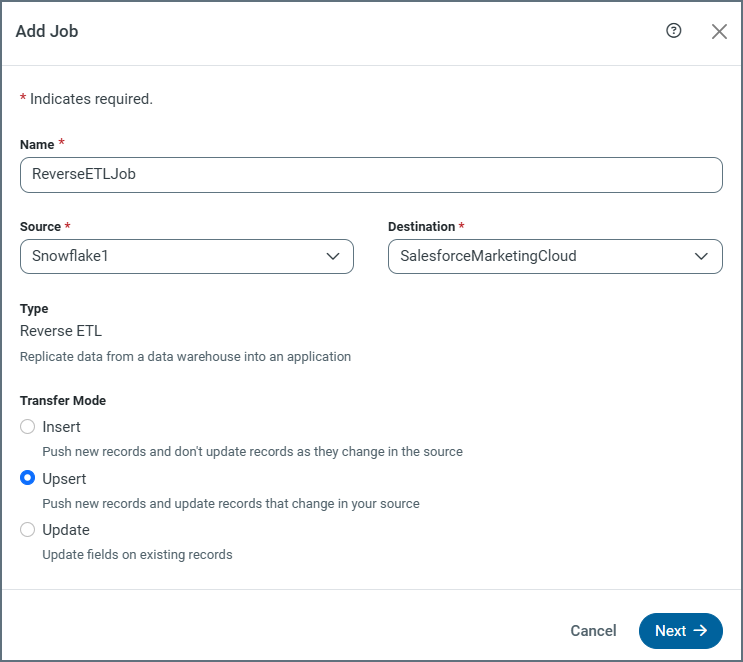
In the Sync application, you can configure Salesforce Marketing Cloud as a reverse ETL destination so that it can receive processed data from your source database or warehouse.
As a reverse ETL destination, Salesforce Marketing Cloud supports all three transfer modes (Insert, Upsert, and Update).
Supported Schemas
In Sync, the Salesforce Marketing Cloud destination supports two schemas: SOAP and REST. For both of these schemas, Insert mode behaves the same for all tables and requires no special configuration. However, the behavior of the Update and Upsert modes differs based on schema, as explained below.
SOAP Schema (default)
-
Update mode is supported for all standard and custom tables. For the AccountUser table, you must specify both primary keys as the delta snapshot key when you configure a task’s column mapping. (The delta snapshot key is the column (or set of columns) that are used to track changes when Sync processes data from multiple snapshots of a dataset.) For all other tables, you can specify one key from all of a table’s primary keys as the delta snapshot key.
-
Upsert mode is supported only for the standard tables Subscribers, List, Send, and Role, as well as for all custom tables and data extensions. For this transfer mode, you must specify all of the table’s primary keys as the delta snapshot key when you configure a task’s column mapping.
REST Schema
-
Update mode is supported for all tables. You can specify one key from all of the table’s primary keys as the delta snapshot key when you configure a task’s column mapping.
-
Upsert mode is supported only for the Contacts table. You can one key from all of the table’s primary keys as the delta snapshot key when you configure a task’s column mapping.
Transfer-Modes Summary
SOAP Schema
| Mode | Supported | Key Used for Matching | Notes |
|---|---|---|---|
| Insert | Yes | N/A (always creates new records) | Inserts new records. |
| Update | Yes | The AccountUser table requires both primary keys; other tables use any one key from all primary keys. | Updates existing records. |
| Upsert | Yes for the Subscribers, List, Send, and Role tables; also for all custom tables/data extensions. | All the table’s primary keys must be specified as the delta snapshot key. | Inserts or updates records depending on a match. |
REST Schema
| Mode | Supported | Key Used for Matching | Notes |
|---|---|---|---|
| Insert | Yes | N/A (always creates new records) | Inserts new records. |
| Update | Yes | Any one key of the table’s primary keys. | Updates existing records. |
| Upsert | Yes (for the Contacts table only) | You can use any one of the table’s primary keys. | Inserts or updates records depending on a match. |
For more information about reverse ETL jobs, see Reverse ETL.
Complete Your Connection
To complete your connection:
-
高度な設定タブで接続の高度な設定を定義します。(ただし、ほとんどの場合これらの設定は必要ありません。)
-
OAuth で認証する場合は、Salesforce Marketing Cloud への接続 をクリックしてSalesforce Marketing Cloud アカウントに接続します。
-
作成およびテストをクリックして接続を作成します。
詳細情報
CData Sync とSalesforce Marketing Cloud の連携について、詳しくはSalesforce Marketing Cloud Connector for CData Sync を参照してください。