Sage Intacct
Version 25.3.9414
Version 25.3.9414
Sage Intacct
CData Sync アプリケーションからSage Intacct コネクタを使用して、サポートされている任意のデータソースから同期先のSage Intacct へデータを移動できます。これを行うには、コネクタを追加し、コネクタへの認証を行い、接続を完了する必要があります。
Prerequisites
In addition to creating a Sage Intacct account, you also need to perform these prerequisites:
-
Enable a Web Services subscription by navigating to Company > Admin > Subscriptions.
-
Create a Web-Services user account without UI access. Sage Intacct recommends that you create a Web-Services-only user, which you can do by navigating to Company > Admin and clicking the plus sign (+) next to Web Services users.
Note: Web Services users are programmatic users and never log into the UI. Therefore, both single sign-on and multifactor authentication are disabled automatically for them.
You can establish a connection to Sage Intacct using either the embedded credentials or with your own credentials.
Sage Intacct コネクタを追加
Sync でSage Intacct のデータを使用できるようにするには、まず以下の手順でコネクタを追加する必要があります。
-
Sync のダッシュボードから接続ページを開きます。
-
接続を追加をクリックしてコネクタを選択ページを開きます。
-
データソースタブをクリックしてSage Intacct 行に移動します。
-
行末にある接続を設定アイコンをクリックして、新しい接続ページを開きます。接続を設定アイコンが利用できない場合は、コネクタをダウンロードアイコンをクリックしてSage Intacct コネクタをインストールします。新規コネクタのインストールについて詳しくは、接続を参照してください。
Sage Intacct への認証
コネクタを追加したら、必須プロパティを設定する必要があります。
-
Connection Name: Enter a connection name of your choice.
-
Company ID: Enter the identifier (Id) you use to identify your company when you log into Sage Intacct.
CData Sync supports authenticating to Sage Intacct in several ways. Select your authentication method below to proceed to the relevant section that contains the authentication details.
-
Basic (default)
Basic
ユーザー資格情報で接続するには、次のプロパティを設定します。
-
Auth Scheme:Basic を選択。
-
User:Sage Intacct アカウントへの認証に使用するユーザー名を入力。
-
Password:Sage Intacct アカウントへの認証に使用するパスワードを入力。
Okta
Okta を介したシングルサインオン(SSO)で接続するには、次のプロパティを指定します。
-
Auth Scheme:OKTA を選択。
-
User:Okta アカウントへの認証に使用するユーザー名を入力。
-
Password:Okta アカウントへの認証に使用するパスワードを入力。
-
SSO Login URL:シングルサインオン(SSO)プロバイダーが使用するログインURL を入力。
-
SSO Properties:使用するシングルサインオン(SSO)プロパティをセミコロン区切りで入力(例えば、SSOProperty1=Value1;SSOProperty2=Value2;…)。
Azure Active Directory
To connect with single sign-on via Azure Active Directory, specify the following settings:
-
Auth Scheme: Select AzureAD.
-
SSO Properties – Enter the single sign-on (SSO) properties that you want to use (for example, SSOProperty1=Value1;SSOProperty2=Value2;…).
Sage Intacct as a Reverse ETL Destination
In the Sync application, you can configure Sage Intacct as a reverse ETL destination so that it can receive processed data from the source warehouse.
As a reverse ETL destination, Sage Intacct supports only the Insert and Update transfer modes. Upsert mode is not supported and is disabled in the Sync UI.
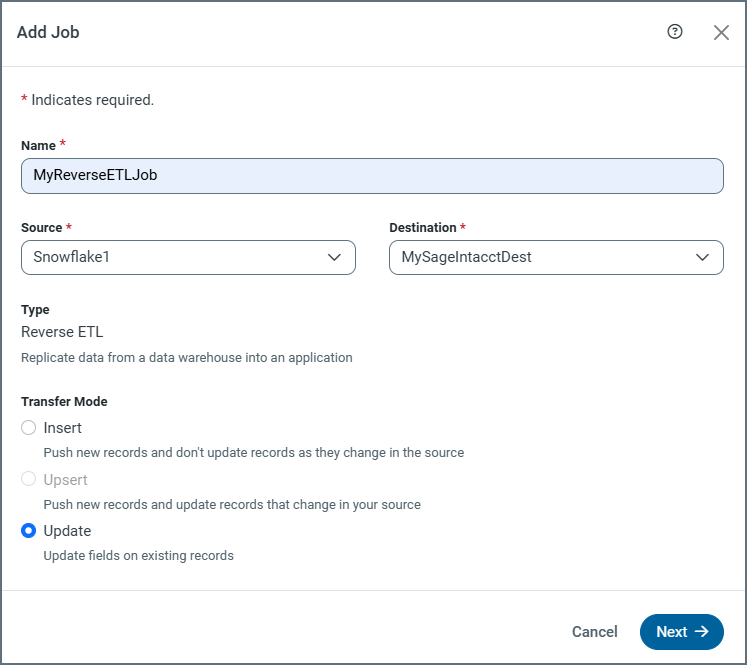
In Sage Intacct, updates are matched by the table’s primary key when a key is available. For standard tables without a primary key, the system-generated RECORDNO column is used to uniquely identify and update records.
Note: Bulk operations for Insert and Update are supported only for the current Sage Intacct API.
Transfer-Modes Summary
| Mode | Supported | Key Used for Matching | Bulk Support | Notes |
|---|---|---|---|---|
| Insert | Yes | N/A (always creates new records) | Yes (with current API) | Creates new records in Sage Intacct. |
| Update | Yes | Uses primary key or RECORDNO (standard tables) |
Yes (with current API) | Updates existing records. |
| Upsert | No | N/A | No | Not supported; disabled in the UI. |
For more information about reverse ETL jobs, see Reverse ETL.
Complete Your Connection
To complete your connection:
-
高度な設定タブで接続の高度な設定を定義します。(ただし、ほとんどの場合これらの設定は必要ありません。)
-
AzureAD で認証する場合は、Sage Intacct への接続 をクリックしてSage Intacct アカウントに接続します。
-
作成およびテストをクリックして接続を作成します。
詳細情報
CData Sync とSage Intacct の連携について、詳しくはSage Intacct Connector for CData Sync を参照してください。