Webhook Connector
Version 26.2.9686
Version 26.2.9686
Webhook Connector
Webhook connectors support exposing a public API endpoint.
Key Capabilities
- Public API endpoint exposure for HTTP POST and PUT data ingestion with modern authentiation mechanisms
- User-based rate limiting and concurrent request management with CORS support
- HMAC signature authentication for enhanced security and custom response event scripting
- Sample request templates for XML Map connector integration and workflow automation
Overview
Webhook connectors enable data to enter the CData Arc flow via HTTP POSTs and PUTs. Each Webhook connector exposes an endpoint in the application where external clients can send XML and JSON payloads. These payloads are written to an output file and passed along to the next connectors in the flow.
You can specify a sample request in the Webhook connector to simplify the process of transforming data that is POSTed to the endpoint. When an XML sample is specified, and the Webhook connector is connected to an XML Map connector in the flow, the XML Map connector automatically detects the expected structure of XML files posted to the endpoint. You can then use the XML Map connector Node Value Editor to map this structure into a target XML structure.
Connector Configuration
This section contains all of the configurable connector properties.
Settings Tab
Connector Details
Settings related to the core operation of the connector.
- Connector Id The static, unique identifier for the connector.
- Connector Type Displays the connector name and a description of what it does.
- Connector Description An optional field to provide a free-form description of the connector and its role in the flow.
- Webhook Endpoint The generated URL (based on the connector name) where the endpoint is exposed.
- Local File Scheme A scheme for assigning filenames to messages that are output by the connector. You can use macros in your filenames dynamically to include information such as identifiers and timestamps. For more information, see Macros.
Advanced Settings
- Local File Scheme A scheme for assigning filenames to messages that are output by the connector. You can use macros in your filenames dynamically to include information such as identifiers and timestamps. For more information, see Macros.
- Enable HMAC Authentication Check Enabled to use HMAC (Hash-based Message Authentication Code) signature authentication to verify the authenticity and integrity of webhook requests. See HMAC Authentication for details.
- HMAC Signature Header The signature header value. By default this is
x-cdata-hmac-signature, but you can customize it.
Request Details Tab
Supply an XML or JSON template representing the expected structure of incoming data. The primary benefit of specifying a sample request is when you connect the Webhook connector to an XML Map connector in the flow. Use XML Map connectors when the API data needs to be converted into some other format, like an EDI document or a database insert.
The XML Map connector detects the XML structure of the sample request and uses this as the Source File for the XML Map connector. Upload the XML structure representing the target format as the Destination File, then use the Node Value Editor to convert the source structure into the destination.
Users Tab
The Users tab lets you:
- Create users with their associated authtokens and OAuth 2.0 credentials
- Define POST and/or PUT privileges
- Specify how many requests each user can make per hour
- Specify how many concurrent requests are permitted
You can add, edit, and delete users on this tab. See Add or Edit Users for details on each field.
Note: The request settings here override settings in the Default Rate Limits section of the Server tab.
Server Tab
Trusted IP Addresses
The following functions are available in the Trusted IP Addresses section:
- Add Enter a new IP address range.
- Edit Modify the selected IP address range.
- Delete Deletes the selected IP address range from the list.
The following restrictions apply to this feature:
localhostcannot be modified or removed from the list.- Any IP addresses outside of the defined ranges are rejected.
- Ranges are supported. For example, the entry
100.10.100.1-15indicates that IP addresses between100.10.100.1and100.10.100.15are allowed. - Classless inter-domain routing (CIDR) notation is supported. For example, the entry
100.10.100.0/24indicates that IP addresses between100.10.100.0and100.10.100.255are allowed. - Wildcard patterns are supported. For example, the entry
100.10.100.*indicates that IP addresses beginning with100.10.100are allowed.
Note: In order for clients to reach the server, a clear network path is required. In cloud environments you might need to make changes in three places:
- The networking rules in the cloud console.
- The firewall rules on the machine hosting the application. For example, when using an Amazon AMI, you might use an Uncomplicated Firewall (UFW) to allow traffic on the desired port. A common strategy in Linux environments is to forward traffic from ports lower than 1024 to a non-standard port higher than 1024, while configuring the application to use the non-standard port. This avoids permission issues associated with non-root users binding to ports lower than 1024.
- The Network Access portion of the Security tab.
Default Rate Limits (Per User)
Settings restricting the number of requests allowed, if no values have been provided on the Users tab.
- Max Requests Per Hour The limit to the number of requests a single user can issue in an hour.
- Max Concurrent Requests The limit to the number of concurrent requests a user can issue.
Cross-Origin Resource Sharing (CORS)
Settings governing the use of CORS to serve cross-origin resources.
- Enable cross-origin resource sharing (CORS) Whether or not CORS is enabled. The rest of these options are only available when you check this box.
- Allow all domains without ‘*‘ If enabled, domain origins are not restricted to a specific list.
- Access-Control-Allow-Origin The comma-delimited list of domain origins to allow. Included as an HTTP response header.
- Access-Control-Allow-Credentials Whether or not user credentials such as cookies are allowed in cross-origin requests. Included as an HTTP response header.
- Access-Control-Allow-Methods The comma-delimited list of methods to allow. Included as an HTTP response header.
- Access-Control-Allow-Headers The comma-delimited list of headers to allow. Included as an HTTP response header.
- Access-Control-Max-Age The maximum duration (in seconds) that Access-Control response header values can be cached.
Advanced Settings
- Authtoken in URL Check this to allow the connector to pass the authtoken in query string parameters for authentication. See Using Auth Tokens as Query String Parameters for more information.
Advanced Tab
Message
Message settings determine how the connector searches for messages and manages them after processing. You can save messages to your Sent folder or you can group them based on a Sent folder scheme, as described below.
- Save to Sent Folder Check this to copy files processed by the connector to the Sent folder for the connector.
- Sent Folder Scheme Instructs the connector to group files in the Sent folder according to the selected interval. For example, the Weekly option instructs the connector to create a new subfolder each week and store all sent files for the week in that folder. The blank setting instructs the connector to save all files directly in the Sent folder. For connectors that process many transactions, using subfolders can help keep files organized and improve performance.
Logging
- Log Level The verbosity of logs generated by the connector. When you request support, set this to Debug.
- Log Subfolder Scheme Instructs the connector to group files in the Logs folder according to the selected interval. The Weekly option (which is the default) instructs the connector to create a new subfolder each week and store all logs for the week in that folder. Leaving this setting blank tells the connector to save all logs directly in the Logs folder. For connectors that process many transactions, using subfolders helps keep logs organized and improves performance.
- Log Messages Check this to have the log entry for a processed file include a copy of the file itself. If you disable this, you might not be able to download a copy of the file from the Transactions tab.
Miscellaneous
Miscellaneous settings are for specific use cases.
- Other Settings Enables you to configure hidden connector settings in a semicolon-separated list (for example,
setting1=value1;setting2=value2). Normal connector use cases and functionality should not require the use of these settings.
Alerts Tab
Settings related to configuring alerts.
Before you can execute Service Level Agreements (SLAs), you need to set up email alerts for notifications. By default, Arc uses the global settings on the Alerts tab. To use other settings for this connector, toggle Override global setting on.
By default, error alerts are enabled, which means that emails are sent whenever there is an error. To turn them off, uncheck the Enable checkbox.
Enter a Subject (mandatory), then optionally enter a comma-separated list of Recipient emails.
SLAs Tab
Settings related to configuring Service Level Agreements (SLAs).
SLAs enable you to configure the volume you expect connectors in your flow to send or receive, and to set the time frame in which you expect that volume to be met. CData Arc sends emails to warn the user when an SLA is not met, and marks the SLA as At Risk, which means that if the SLA is not met soon, it will be marked as Violated. This gives the user an opportunity to step in and determine the reasons the SLA is not being met, and to take appropriate actions. If the SLA is still not met at the end of the at-risk time period, the SLA is marked as violated, and the user is notified again.
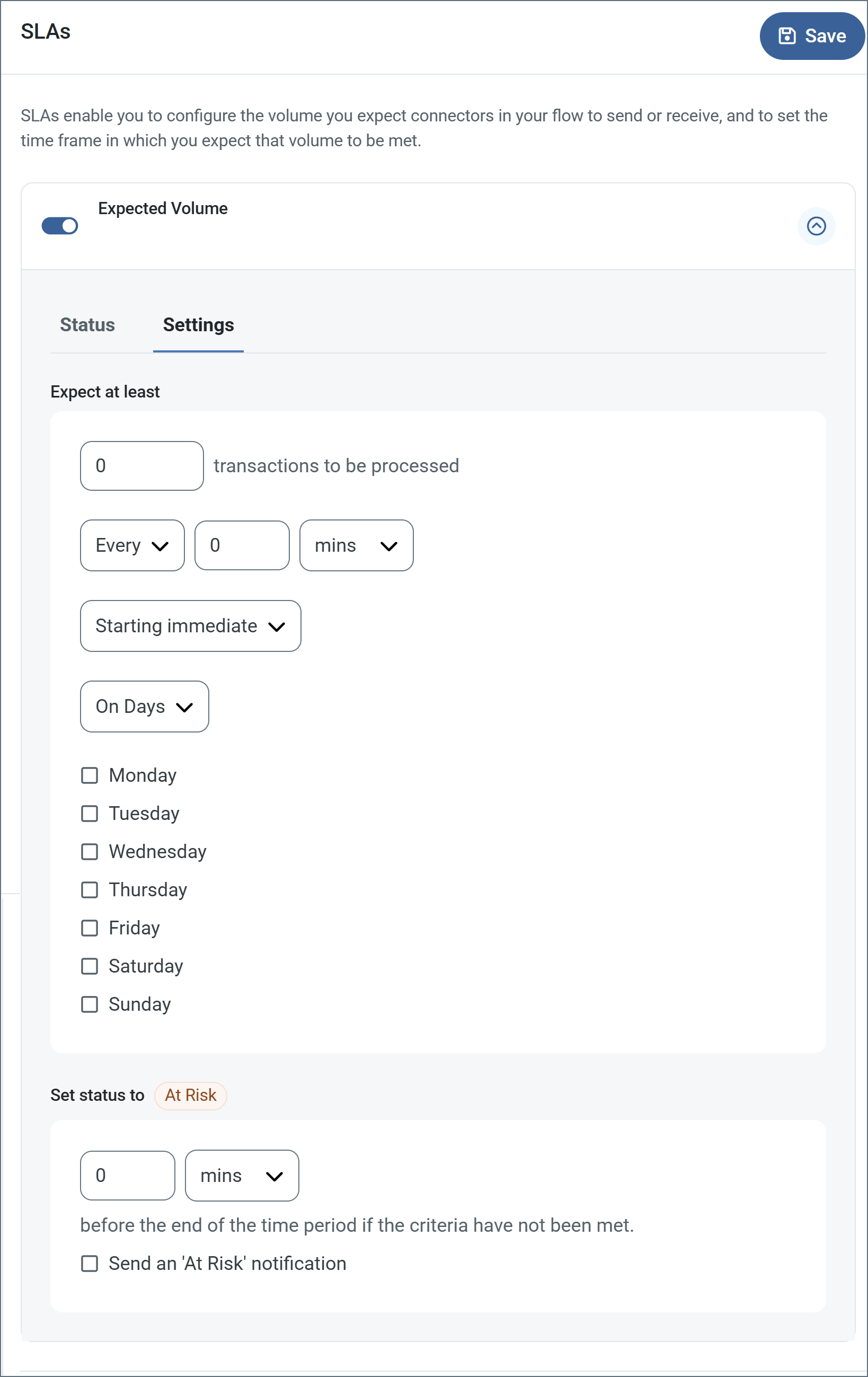
To define an SLA, toggle Expected Volume on, then click the Settings tab.
- If your connector has separate send and receive actions, use the radio buttons to specify which direction the SLA pertains to.
- In the Expect at least portion of the window:
- Set the minimum number of transactions you expect to be processed (the volume)
- Use the Every fields to specify the time frame
- Indicate when the SLA should go into effect. If you choose Starting on, complete the date and time fields.
- Check the boxes for the days of the week that you want the SLA to be in effect. Use the dropdown to choose Everyday if necessary.
- In the Set status to ‘At Risk’ portion of the window, specify when the SLA should be marked as at risk.
- By default, notifications are not sent until an SLA is in violation. To change that, check Send an ‘At Risk’ notification.
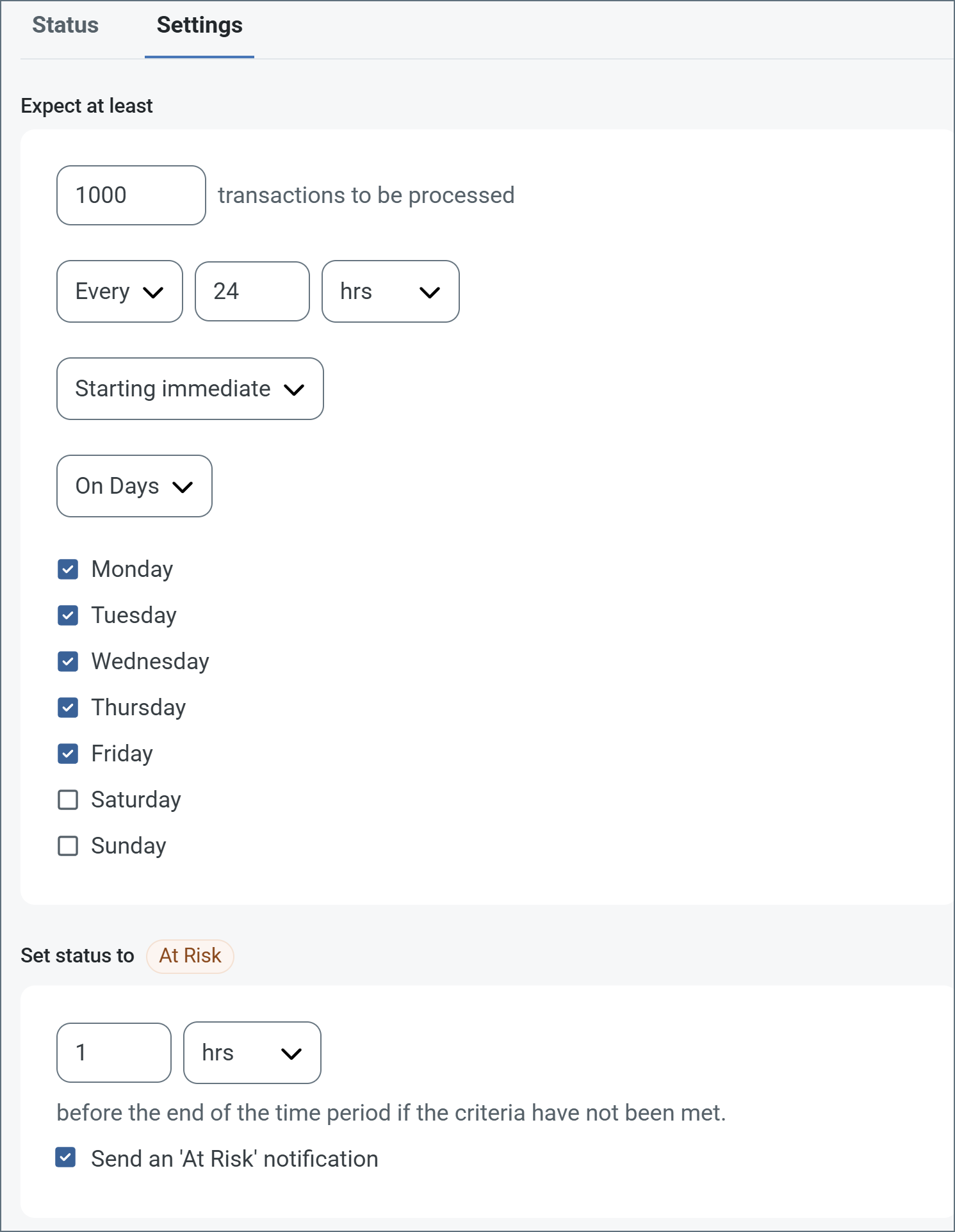
The following example shows an SLA configured for a connector that expects to receive 1000 files every day Monday-Friday. An at-risk notification is sent 1 hour before the end of the time period if the 1000 files have not been received.
Note: You can turn off SLA alerts if necessary. This can be useful during maintenance windows. Click Settings on the navbar, then navigate to Alerts > General Alerts. Click the tablet and pencil icon to edit, and uncheck the SLA Alerts setting.
HMAC Authentication
HMAC (Hash-based Message Authentication Code) signature authentication is a cryptographic method that verifies the authenticity and integrity of webhook requests. It uses a shared secret key to generate a unique signature for each request, ensuring:
- Request Authenticity: Confirms the request originated from a trusted source
- Data Integrity: Verifies that the request payload hasn’t been tampered with during transmission
- Replay Attack Prevention: Protects against malicious reuse of intercepted requests
This provides significantly stronger security compared to traditional authentication methods like basic authentication or API keys, which can be more easily compromised.
Users with Professional or Enterprise licenses can enable HMAC signature authentication for incoming webhook requests.
Configuration
Important: HMAC authentication is a global setting that applies to every user authorized to access the webhook.
- Enable HMAC Authentication
- Check Enable HMAC Authentication in the webhook connector settings.
- Optionally, customize the HMAC Signature Header value (the default is
x-cdata-hmac-signature).
Set HMAC Keys for Users
After enabling HMAC authentication:
- Navigate to the Users tab of the webhook connector.
- Configure the HMAC key each authorized webhook user:
- An HMAC key is automatically generated for each user. You can override the auto-generated key with a custom value. Each user must use their assigned HMAC key to generate valid signatures for their webhook requests.
Auth Token Authentication
Users can access Webhook resources by providing authtokens with requests. Manage users and authtokens by adding or editing a user on the Users tab, and navigating to the Authentication tab.
Before users can call the Webhook endpoint, you must also set trusted IP addresses for connections. Set these in the Trusted IP Addresses section of the Server tab. By default, all IP addresses are restricted.
Using Auth Tokens in Basic Authentication
Enter the user’s authtoken as the password when using Basic Authentication.
Using Auth tokens in the HTTP Header
Add the HTTP header x-cdata-authtoken with the authtoken as part of the HTTP request.
Using Auth Tokens as Query String Parameters
To allow the connector to pass the authtoken in query string parameters, check Allow authtoken in URL in the Advanced Settings section of the Server tab.
After enabling this feature, you can specify the authtoken as the value of the @authtoken parameter, which you supply as part of the HTTP form-post data or as a query parameter.
OAuth 2.0 Authentication
Users can secure Webhook resources using OAuth 2.0 authentication. Manage users and OAuth credentials by adding or editing a user on the Users tab, and navigating to the Authentication tab.
Receiving Data
When data is uploaded to the webhook endpoint, the body of the web request is written as an output file and passed along to the next connector in the flow. This allows for a flexible method of invoking an Arc workflow via an external API call.
Tip: Data uploaded to the endpoint is not validated in the Webhook connector, and should be validated later in the flow if necessary.
Custom Responses
Ordinarily, the Webhook connector accepts the post data with a token response that the request was accepted, but you can customize the response by using the Response event, where the _request, _httpheaders, _response, and _message special items are available. When specified, the connector expects the custom response to be provided through the _response item.
You can also use the Response event to push custom output items using the following attributes:
- Filename: The filename of the output message to pass down the flow.
- Data: The data to include in the message that is passed down the flow. For binary data, use the Base64Data attribute instead.
- Base64Data: The Base64-encoded data to include in the message that is passed down the flow.
- HeaderNames#: A list of header names to include on the message that is passed down the flow. Use the HeaderValues attribute to specify values for these headers at the matching index.
- HeaderValues#: A list of header values to include on the message that is passed down the flow. These values are used for the header names defined at the matching index in the HeaderNames list.
- Logs#: A list of log entries to include in the logs for the transaction.
Examples
To push a file containing the body of the webhook request, with a custom filename and header, down the flow, the ArcScript in the Response event might look like this:
<arc:set attr="out.Filename" value="MyCustomFilename.xml" />
<arc:set attr="out.Data" value="[_message.body]" />
<arc:set attr="out.HeaderNames#1" value="MyHeader1" />
<arc:set attr="out.HeaderValue#1" value="MyHeader1Value" />
<arc:push item="out" />
To surface a header on the incoming request as a header on the message that is passed down the flow, the ArcScript in the Response event might look like this:
<arc:set attr="_message.header:MySpecialHeader" value="[_httpheaders.MyWebhookHeader]" />
<arc:set attr="_response.header:Content-Type" value="application/xml" />
<arc:set attr="_response.write" value="<Status>Successfully processed message with MySpecialHeader=[_message.header:MySpecialHeader]</Status>" />
With the ArcScript above in the Response event, a client can send a request similar to the following:
POST https://localhost/connector/Webhook1/webhook.rsb HTTP/1.1
content-type: application/xml
X-Arc-Authtoken: 1s7U4w0a2P3l8v9W3l0q
MyWebhookHeader: Hello World!

<Items>
  <Webhook>Hello World!</Webhook>
</Items>
and receive the following response:
HTTP/1.1 200 OK
Connection: close
Date: Tue, 31 Aug 2021 19:16:13 GMT
X-Frame-Options: SAMEORIGIN
Content-Type: application/xml
Content-Length: 81
Server: Jetty(9.4.z-SNAPSHOT)

<Status>Successfully processed message with MySpecialHeader=Hello World!</Status>
Macros
Using macros in file naming strategies can enhance organizational efficiency and contextual understanding of data. By incorporating macros into filenames, you can dynamically include relevant information such as identifiers, timestamps, and header information, providing valuable context to each file. This helps ensure that filenames reflect details important to your organization.
CData Arc supports these macros, which all use the following syntax: %Macro%.
| Macro | Description |
|---|---|
| ConnectorID | Evaluates to the ConnectorID of the connector. |
| Ext | Evaluates to the file extension of the file currently being processed by the connector. |
| Filename | Evaluates to the filename (extension included) of the file currently being processed by the connector. |
| FilenameNoExt | Evaluates to the filename (without the extension) of the file currently being processed by the connector. |
| MessageId | Evaluates to the MessageId of the message being output by the connector. |
| RegexFilename:pattern | Applies a RegEx pattern to the filename of the file currently being processed by the connector. |
| Header:headername | Evaluates to the value of a targeted header (headername) on the current message being processed by the connector. |
| LongDate | Evaluates to the current datetime of the system in long-handed format (for example, Wednesday, January 24, 2024). |
| ShortDate | Evaluates to the current datetime of the system in a yyyy-MM-dd format (for example, 2024-01-24). |
| DateFormat:format | Evaluates to the current datetime of the system in the specified format (format). See Sample Date Formats for the available datetime formats |
| Vault:vaultitem | Evaluates to the value of the specified vault item. |
Examples
Some macros, such as %Ext% and %ShortDate%, do not require an argument, but others do. All macros that take an argument use the following syntax: %Macro:argument%
Here are some examples of the macros that take an argument:
- %Header:headername%: Where
headernameis the name of a header on a message. - %Header:mycustomheader% resolves to the value of the
mycustomheaderheader set on the input message. - %Header:ponum% resolves to the value of the
ponumheader set on the input message. - %RegexFilename:pattern%: Where
patternis a regex pattern. For example,%RegexFilename:^([\w][A-Za-z]+)%matches and resolves to the first word in the filename and is case insensitive (test_file.xmlresolves totest). - %Vault:vaultitem%: Where
vaultitemis the name of an item in the vault. For example,%Vault:companyname%resolves to the value of thecompanynameitem stored in the vault. - %DateFormat:format%: Where
formatis an accepted date format (see Sample Date Formats for details). For example,%DateFormat:yyyy-MM-dd-HH-mm-ss-fff%resolves to the date and timestamp on the file.
You can also create more sophisticated macros, as shown in the following examples:
- Combining multiple macros in one filename:
%DateFormat:yyyy-MM-dd-HH-mm-ss-fff%%EXT% - Including text outside of the macro:
MyFile_%DateFormat:yyyy-MM-dd-HH-mm-ss-fff% - Including text within the macro:
%DateFormat:'DateProcessed-'yyyy-MM-dd_'TimeProcessed-'HH-mm-ss%