FTP Server Connector
Version 26.2.9686
Version 26.2.9686
FTP Server Connector
FTP Server connectors provide connection credentials to access the full-featured CData Arc FTP Server.
Key Capabilities
- Full-featured embedded FTP server with FTPS (FTP over TLS/SSL) support
- Multi-client architecture with individual user profiles and directory isolation
- Configurable permissions for send and receive directories per trading partner
- Welcome banners, file filtering, and temporary file handling for reliable operations
- Support for both active and passive modes with configurable port ranges
Overview
The Arc FTP Server is primarily configured on the Profiles page. Then, individual FTP Server connectors provide a unique client profile to authenticate to the FTP Server. The client profile consists of a username (which matches the FTP Server connector’s Connector Id), a password, a set of send and receive directories, and permissions to read and/or write files in these directories.
FTP clients are not given permissions to the root of the FTP Server, which means that FTP clients should always cd into the send (to download) and receive (to upload) directories after connecting.
Video Resources
Watch this short video for an overview of how to configure an FTP Server. The video uses an SFTP Server in the example, but the principles are the same for FTP.
Profile Configuration
The FTP Server Profile must be configured before connections can be established with individual FTP Server connectors. Click Profiles on the navbar, then click the FTP Server tab.
Server Configuration
Server implementation settings.
- Port The port on which the FTP Server listens for incoming connections.
- FTP Over TLS How TLS/SSL should be negotiated when clients connect to the server. Choose Explicit to establish a plain text connection where TLS/SSL is then started with an explicit command. Choose Implicit to immediately negotiate TLS/SSL without establishing a plain text connection.
- Server TLS Certificate The TLS certificate that identifies the server. Only required if the server is operating as an FTPS server (in other words, if TLS/SSL is enabled).
- Certificate Password The password required to access the Server TLS Certificate.
- Welcome Message The banner presented to FTP clients when they connect to the server.
- Root Directory The root directory for the server. Subfolders are created in the root for individual client profiles (in other words, for each configured FTP Server connector). Each client profile includes a Send folder, where clients can download files from the server, and a Receive folder, where clients can upload files to the server.
- Allowed Files Filter A glob pattern that determines which files are accepted by the FTP server. You can use negative patterns to indicate files that should not be downloaded (for example, -*.tmp). Separate multiple file types by commas (for example, *.x12,*.edi).
Other Settings
Settings that do not fall into the previous category.
- Active Mode Check this to enable Active mode on the remote FTP server. Keep in mind that Passive mode is less likely to result in firewall interference with the connection.
- Inactivity Timeout The length of time (in seconds) that must pass without activity for a user to time out.
- Passive Port Range When using Passive mode, the application uses any available port to listen for incoming data connections. You can override this by setting this field to a port range in
start-endformat. For example:1024-refers to ports higher than 1024 (inclusive) and1024-2048refers to ports between 1024 and 2048 (inclusive). - Passive Address When using Passive mode, the applications returns the IP address for the local interface. You can override this by setting this field to a specific public IP address.
- TLS Enabled Protocols The list of TLS/SSL protocols supported when establishing outgoing connections. Best practice is to only use TLS protocols. SSL v2 and SSL v3 are considered vulnerable and should only be used if your partner does not support higher versions. Keep in mind that TLS v1.3 is not universally adopted, and might be refused if the destination server does not support it.
Logging
Settings that govern the creation and storage of logs.
- Log Level The verbosity of logs generated by the connector. When you request support, set this to Debug.
- Log Rotate Interval The number of days to wait before creating a new log file.
- Log Delete Interval The number of days to wait before deleting old log files.
Miscellaneous
Miscellaneous settings are for specific use cases.
- Other Settings Enables you to configure hidden connector settings in a semicolon-separated list (for example,
setting1=value1;setting2=value2). Normal connector use cases and functionality should not require the use of these settings.
Connector Settings
Once you configure the FTP Server profile settings, create and configure an individual FTP Server connector for each trading partner on the Flows page.
Settings Tab
Configuration
- Connector Id The static, unique identifier for the connector.
- Connector Type Displays the connector name and a description of what it does.
- Connector Description An optional field to provide a free-form description of the connector and its role in the flow.
User Configuration
Credentials for authenticating to the local FTP server.
- User The username credential for logging in to the local FTP server. This value is always the same as the Connector Id.
- Password The password credential associated with the User.
Permissions
Settings related to the read and write permissions the configured client has for the Send and Receive folders.
- Send Directory Permissions Use the checkboxes to set read and write permissions for the Send directory. This directory is where files are downloaded.
- Receive Directory Permissions Use the checkboxes to set read and write permissions for the Receive directory. This directory is where files are uploaded.
Advanced Tab
Local Folders
Settings related to the folders where clients upload and download files.
- Input Folder (Send) Files in the Send folder are available to be downloaded by clients.
- Output Folder (Receive) Files uploaded by the client are placed in the Receive folder. Files remain in the Receive folder or are passed along to the next connector in the flow.
Other Settings
Settings not included in the previous categories.
- Allowed Files Filter A glob pattern that determines which files are accepted by the FTP server. You can use negative patterns to indicate files that should not be downloaded (for example, -*.tmp). Separate multiple file types by commas (for example, *.x12,*.edi). Overrides the Allowed Files Filter option on the FTP Profile page.
- Remove File After Send Whether files in the Send folder should be removed after the client receives them.
- Temp Receive Extensions Files with a matching extension are not recorded in the Receive table and do not fire the After Receive event until they are renamed. Supply a comma-delimited list of file extensions.
- Timeout The length of time (in seconds) the server waits for a connection response before throwing a timeout error.
- Save Subfolder Check this to add a SubFolder header to received messages. This header represents the path relative to the Local Folders.
- Local File Scheme A scheme for assigning filenames to messages that are output by the connector. You can use macros in your filenames dynamically to include information such as identifiers and timestamps. For more information, see Macros.
Message
Message settings determine how the connector searches for messages and manages them after processing. You can save messages to your Sent folder or you can group them based on a Sent folder scheme, as described below.
- Save to Sent Folder Check this to copy files processed by the connector to the Sent folder for the connector.
- Sent Folder Scheme Instructs the connector to group files in the Sent folder according to the selected interval. For example, the Weekly option instructs the connector to create a new subfolder each week and store all sent files for the week in that folder. The blank setting instructs the connector to save all files directly in the Sent folder. For connectors that process many transactions, using subfolders can help keep files organized and improve performance.
Logging
Settings that govern the creation and storage of logs.
- Log Level The verbosity of logs generated by the connector. When you request support, set this to Debug.
- Log Subfolder Scheme Instructs the connector to group files in the Logs folder according to the selected interval. The Weekly option (which is the default) instructs the connector to create a new subfolder each week and store all logs for the week in that folder. Leaving this setting blank tells the connector to save all logs directly in the Logs folder. For connectors that process many transactions, using subfolders helps keep logs organized and improves performance.
- Log Messages Check this to have the log entry for a processed file include a copy of the file itself. If you disable this, you might not be able to download a copy of the file from the Transactions tab.
Miscellaneous
Miscellaneous settings are for specific use cases.
- Other Settings Enables you to configure hidden connector settings in a semicolon-separated list (for example,
setting1=value1;setting2=value2). Normal connector use cases and functionality should not require the use of these settings.
Alerts Tab
Settings related to configuring alerts.
Before you can execute Service Level Agreements (SLAs), you need to set up email alerts for notifications. By default, Arc uses the global settings on the Alerts tab. To use other settings for this connector, toggle Override global setting on.
By default, error alerts are enabled, which means that emails are sent whenever there is an error. To turn them off, uncheck the Enable checkbox.
Enter a Subject (mandatory), then optionally enter a comma-separated list of Recipient emails.
SLAs Tab
Settings related to configuring Service Level Agreements (SLAs).
SLAs enable you to configure the volume you expect connectors in your flow to send or receive, and to set the time frame in which you expect that volume to be met. CData Arc sends emails to warn the user when an SLA is not met, and marks the SLA as At Risk, which means that if the SLA is not met soon, it will be marked as Violated. This gives the user an opportunity to step in and determine the reasons the SLA is not being met, and to take appropriate actions. If the SLA is still not met at the end of the at-risk time period, the SLA is marked as violated, and the user is notified again.
To define an SLA, toggle Expected Volume on, then click the Settings tab.
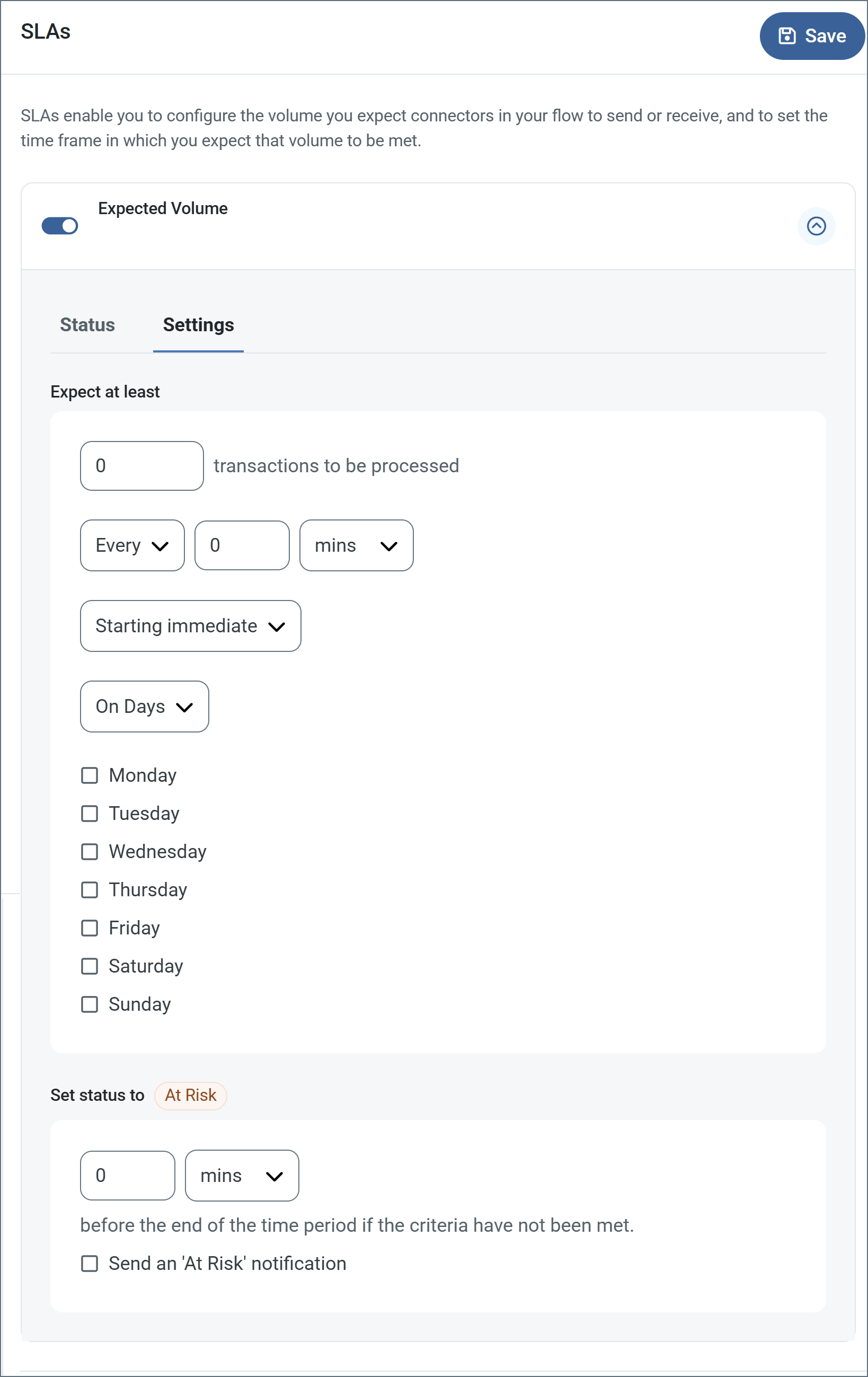
- If your connector has separate send and receive actions, use the radio buttons to specify which direction the SLA pertains to.
- In the Expect at least portion of the window:
- Set the minimum number of transactions you expect to be processed (the volume)
- Use the Every fields to specify the time frame
- Indicate when the SLA should go into effect. If you choose Starting on, complete the date and time fields.
- Check the boxes for the days of the week that you want the SLA to be in effect. Use the dropdown to choose Everyday if necessary.
- In the Set status to ‘At Risk’ portion of the window, specify when the SLA should be marked as at risk.
- By default, notifications are not sent until an SLA is in violation. To change that, check Send an ‘At Risk’ notification.
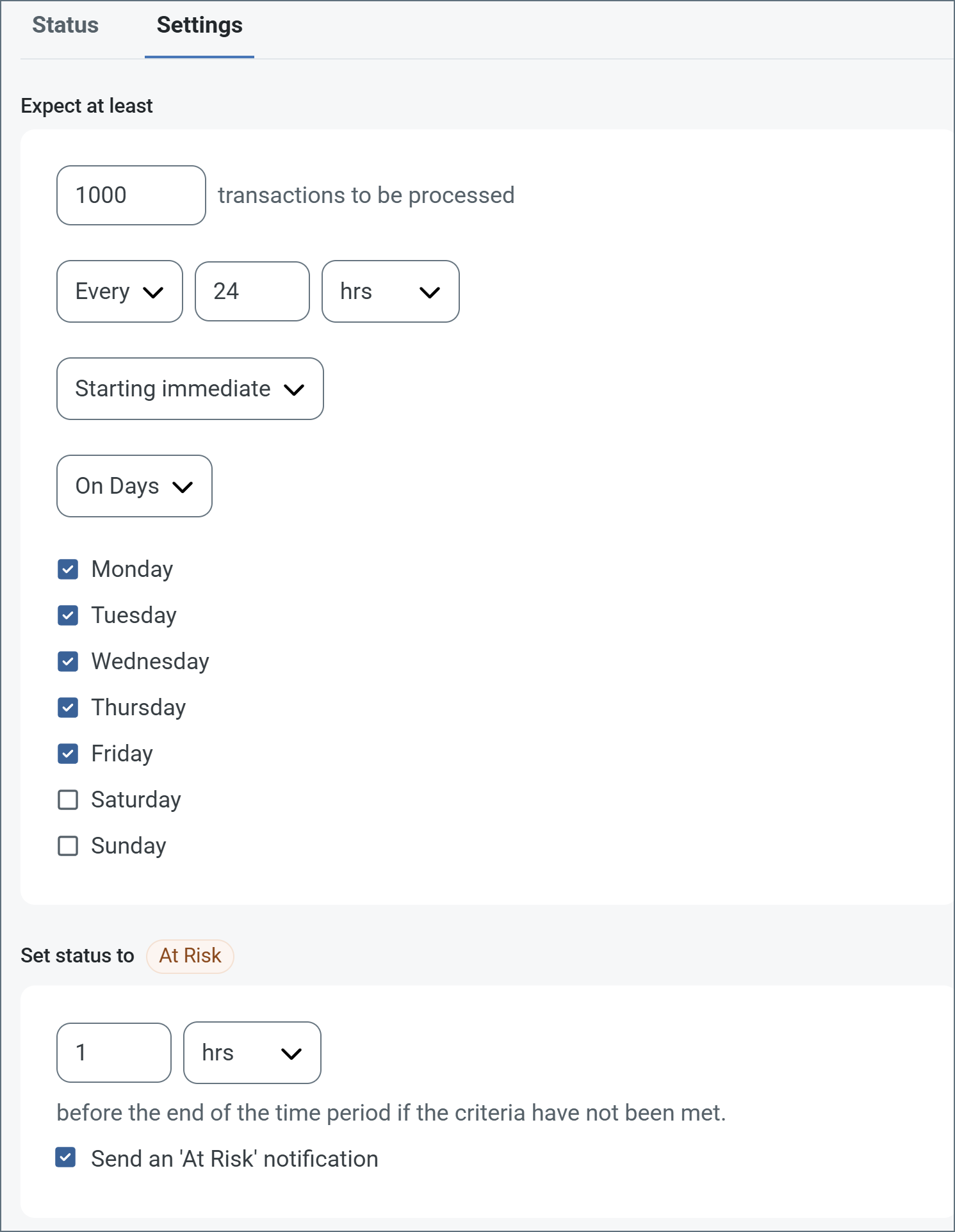
The following example shows an SLA configured for a connector that expects to receive 1000 files every day Monday-Friday. An at-risk notification is sent 1 hour before the end of the time period if the 1000 files have not been received.
Note: You can turn off SLA alerts if necessary. This can be useful during maintenance windows. Click Settings on the navbar, then navigate to Alerts > General Alerts. Click the tablet and pencil icon to edit, and uncheck the SLA Alerts setting.
Establishing a Connection
Each FTP Server connector represents a single trading partner’s connection parameters. The trading partner should connect to the FTP server using the server settings (such as port and TLS mode) from the Profile page and the user configuration settings in the dedicated FTP Server connector (User and Password).
Each trading partner has separate Send and Receive directories that are subfolders of the root. The partner should download files from the Send folder and upload files to the Receive folder. The client is not permitted to upload or download files from the root.
Macros
Using macros in file naming strategies can enhance organizational efficiency and contextual understanding of data. By incorporating macros into filenames, you can dynamically include relevant information such as identifiers, timestamps, and header information, providing valuable context to each file. This helps ensure that filenames reflect details important to your organization.
CData Arc supports these macros, which all use the following syntax: %Macro%.
| Macro | Description |
|---|---|
| ConnectorID | Evaluates to the ConnectorID of the connector. |
| Ext | Evaluates to the file extension of the file currently being processed by the connector. |
| Filename | Evaluates to the filename (extension included) of the file currently being processed by the connector. |
| FilenameNoExt | Evaluates to the filename (without the extension) of the file currently being processed by the connector. |
| MessageId | Evaluates to the MessageId of the message being output by the connector. |
| RegexFilename:pattern | Applies a RegEx pattern to the filename of the file currently being processed by the connector. |
| Header:headername | Evaluates to the value of a targeted header (headername) on the current message being processed by the connector. |
| LongDate | Evaluates to the current datetime of the system in long-handed format (for example, Wednesday, January 24, 2024). |
| ShortDate | Evaluates to the current datetime of the system in a yyyy-MM-dd format (for example, 2024-01-24). |
| DateFormat:format | Evaluates to the current datetime of the system in the specified format (format). See Sample Date Formats for the available datetime formats |
| Vault:vaultitem | Evaluates to the value of the specified vault item. |
Examples
Some macros, such as %Ext% and %ShortDate%, do not require an argument, but others do. All macros that take an argument use the following syntax: %Macro:argument%
Here are some examples of the macros that take an argument:
- %Header:headername%: Where
headernameis the name of a header on a message. - %Header:mycustomheader% resolves to the value of the
mycustomheaderheader set on the input message. - %Header:ponum% resolves to the value of the
ponumheader set on the input message. - %RegexFilename:pattern%: Where
patternis a regex pattern. For example,%RegexFilename:^([\w][A-Za-z]+)%matches and resolves to the first word in the filename and is case insensitive (test_file.xmlresolves totest). - %Vault:vaultitem%: Where
vaultitemis the name of an item in the vault. For example,%Vault:companyname%resolves to the value of thecompanynameitem stored in the vault. - %DateFormat:format%: Where
formatis an accepted date format (see Sample Date Formats for details). For example,%DateFormat:yyyy-MM-dd-HH-mm-ss-fff%resolves to the date and timestamp on the file.
You can also create more sophisticated macros, as shown in the following examples:
- Combining multiple macros in one filename:
%DateFormat:yyyy-MM-dd-HH-mm-ss-fff%%EXT% - Including text outside of the macro:
MyFile_%DateFormat:yyyy-MM-dd-HH-mm-ss-fff% - Including text within the macro:
%DateFormat:'DateProcessed-'yyyy-MM-dd_'TimeProcessed-'HH-mm-ss%
Common Errors
ERROR:
“Could not bind server socket: Permission denied.”
Cause
This error can appear when you attempt to connect to an FTP server and the process hosting Arc does not have sufficient privileges to establish a listener on the specified port.
Note: In some cases (such as Linux environments and hosted instances running in an Amazon AMI), you cannot use ports below 1024.
Resolution
Choose a different port, or change the identity of the process hosting Arc to one with permissions to bind to the port.
The Amazon AMI-hosted version of Arc uses the Ubuntu operating system, so CData recommends that you use an Uncomplicated Firewall (UFW) to manage port permission issues. For example, setting up SFTP Server to run on port 2022 in Arc and using UFW to forward port 22 to 2022 at the OS level looks like this:
ufw allow 22/tcp
ufw allow 2022/tcp
echo "
*nat
:PREROUTING ACCEPT [0:0]
-A PREROUTING -p tcp --dport 22 -j REDIRECT --to-port 2022
COMMIT" >> /etc/ufw/before.rules
If your environment uses a different Linux operating system, CData recommends that you bind to a port above the restricted range (for example, 8021 for FTP traffic)) and use iptables to route incoming requests on the desired port to the allowed port:
iptables -t nat -I PREROUTING -p tcp --dport 21 -j REDIRECT --to-port 8021