Global Settings Vault
Version 26.2.9686
Version 26.2.9686
Global Settings Vault
The Vault tab enables you to add and manage values that you can re-use throughout the CData Arc admin console. This feature can save time and prevent errors when configuring connectors that re-use certain data.
Managing Vault Items
Adding Items to the Vault
There are two ways to add an item to the vault:
-
Click Add Vault Item at the top of the vault table.
-
Enter a value in a field elsewhere in Arc, click the key symbol, and select Add to Vault.
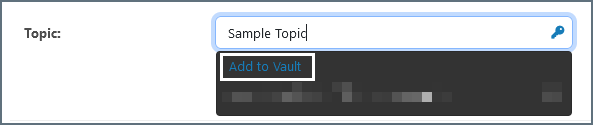
Either option opens the Add Vault Item modal. In this modal, fill out the following fields:
-
Name: The name of the vault item as it appears when you use it
-
Type: The classification for the vault item.
-
Standard items can be used in all non-sensitive fields. Examples of standard items include URLs, usernames, and ports.
-
Encrypted items can only be used in sensitive fields. Examples of encrypted items include passwords and authtokens.
-
-
Value: The actual value that the vault item contains. For example, the URL, username, or password that you want to use when this vault item is selected.
-
Labels: (Optional) Labels for the vault item that make it easier to manage and search through large vaults. Separate each label with a comma or new-line character.
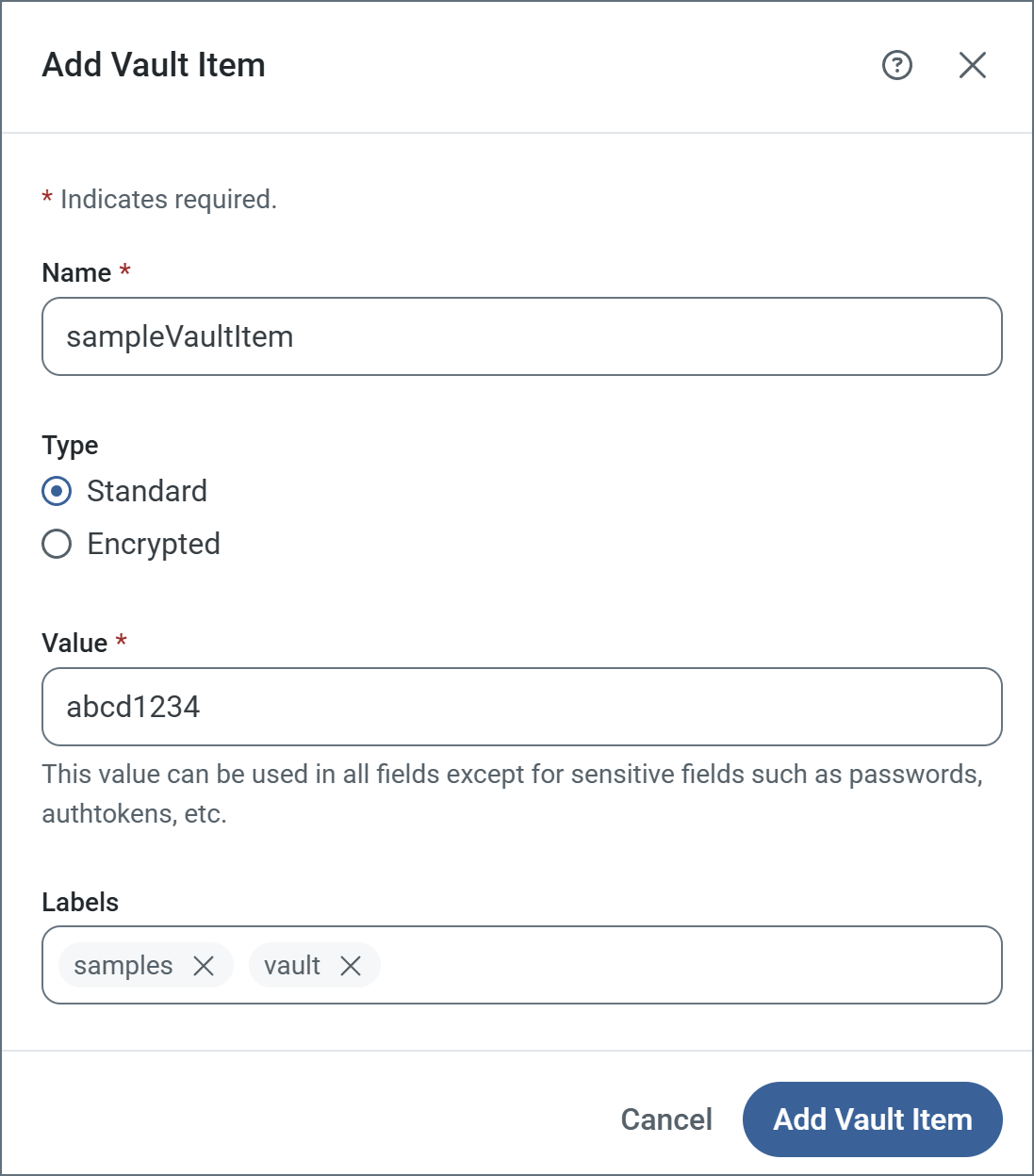
Click Add Vault Item to save the item to your vault.
Editing Vault Items
To edit a vault item, click its name or hover over it, then click the ellipses and choose Edit. The Edit Vault Item pane opens and allows you to edit the name, value, and labels for the item. Note that item Ids and types (standard or encrypted) cannot be edited after creation.
To delete multiple vault items, check the box next to each item and click Remove.
Using Vault Items
When an item is added to the vault, it can be used in fields that match the item type (standard or encrypted) and display a key symbol in the Arc UI:

Click the key to open a list of matching vault values for the field.
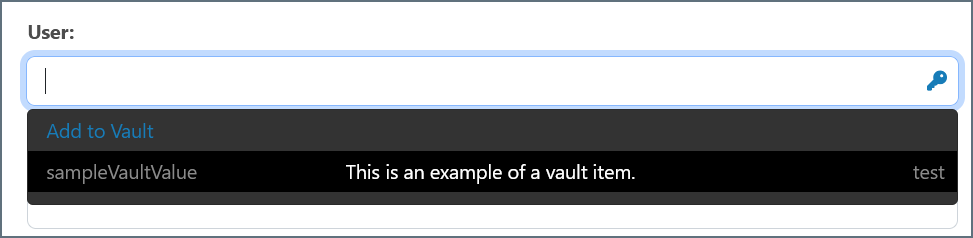
Select a value to populate it in the field.
Note: If you already have a value in the field, you can click Add to Vault to open the Add Vault Item page as outlined above.
Scripting
Vault items can be used in ArcScript contexts. For more information, please see Functions.
Note: Use caution when referring to encrypted vault items in scripting contexts to ensure that sensitive information is not included in the logs.