Copy Connector
Version 26.2.9686
Version 26.2.9686
Copy Connector
The Copy connector adds a branching shape to the flow, sending incoming messages to other connectors.
Key Capabilities
- Creates multiple processing paths from single input messages
- Visual flow branching with unlimited output connections
- Maintains original message content across all output paths
Overview
Copy connectors are primarily configured visually in the flow designer. When you connect a Copy connector to other connectors in the flow, messages that reach the Copy connector are sent to all connected connectors. This allows files to be processed by multiple flows.
When you add a Copy connector, it automatically creates two output nodes. To add more, click Add Copy. If an output node does not have a connection associated with it, messages remain in the Output folder for that node.
Connector Configuration
This section contains all of the configurable connector properties.
Settings Tab
Configuration
Settings related to the core operation of the connector.
- Connector Id The static, unique identifier for the connector.
- Connector Type Displays the connector name and a description of what it does.
- Connector Description An optional field to provide a free-form description of the connector and its role in the flow.
Advanced Tab
Logging
- Log Messages Check this to have the log entry for a processed file include a copy of the file itself. If you disable this, you might not be able to download a copy of the file from the Transactions tab.
- Log Level The verbosity of logs generated by the connector. When you request support, set this to Debug.
- Log Subfolder Scheme Instructs the connector to group files in the Logs folder according to the selected interval. The Weekly option (which is the default) instructs the connector to create a new subfolder each week and store all logs for the week in that folder. Leaving this setting blank tells the connector to save all logs directly in the Logs folder. For connectors that process many transactions, using subfolders helps keep logs organized and improves performance.
Message
- Save to Sent Folder Check this to copy files processed by the connector to the Sent folder for the connector.
- Sent Folder Scheme Instructs the connector to group messages in the Sent folder according to the selected interval. For example, the Weekly option instructs the connector to create a new subfolder each week and store all messages for the week in that folder. The blank setting tells the connector to save all messages directly in the Sent folder. For connectors that process many messages, using subfolders helps keep messsages organized and improves performance.
Other Settings
- Processing Delay The amount of time (in seconds) by which the processing of files placed in the Transactions tab is delayed. This is a legacy setting. Best practice is to use a File connector to manage local file systems instead of this setting.
Miscellaneous
Miscellaneous settings are for specific use cases.
- Other Settings Enables you to configure hidden connector settings in a semicolon-separated list (for example,
setting1=value1;setting2=value2). Normal connector use cases and functionality should not require the use of these settings.
Automation Tab
Automation Settings
Settings related to the automatic processing of files by the connector.
- Send Whether messages arriving at the connector are automatically processed.
Performance
Settings related to the allocation of resources to the connector.
- Max Workers The maximum number of worker threads consumed from the threadpool to process files on this connector. If set, this overrides the default setting on the Performance Settings portion of the Advanced Settings page.
- Max Files The maximum number of files sent by each thread assigned to the connector. If set, this overrides the default setting on the Performance Settings portion of the Advanced Settings page.
Alerts Tab
Settings related to configuring alerts.
Before you can execute Service Level Agreements (SLAs), you need to set up email alerts for notifications. By default, Arc uses the global settings on the Alerts tab. To use other settings for this connector, toggle Override global setting on.
By default, error alerts are enabled, which means that emails are sent whenever there is an error. To turn them off, uncheck the Enable checkbox.
Enter a Subject (mandatory), then optionally enter a comma-separated list of Recipient emails.
SLAs Tab
Settings related to configuring Service Level Agreements (SLAs).
SLAs enable you to configure the volume you expect connectors in your flow to send or receive, and to set the time frame in which you expect that volume to be met. CData Arc sends emails to warn the user when an SLA is not met, and marks the SLA as At Risk, which means that if the SLA is not met soon, it will be marked as Violated. This gives the user an opportunity to step in and determine the reasons the SLA is not being met, and to take appropriate actions. If the SLA is still not met at the end of the at-risk time period, the SLA is marked as violated, and the user is notified again.
To define an SLA, toggle Expected Volume on, then click the Settings tab.
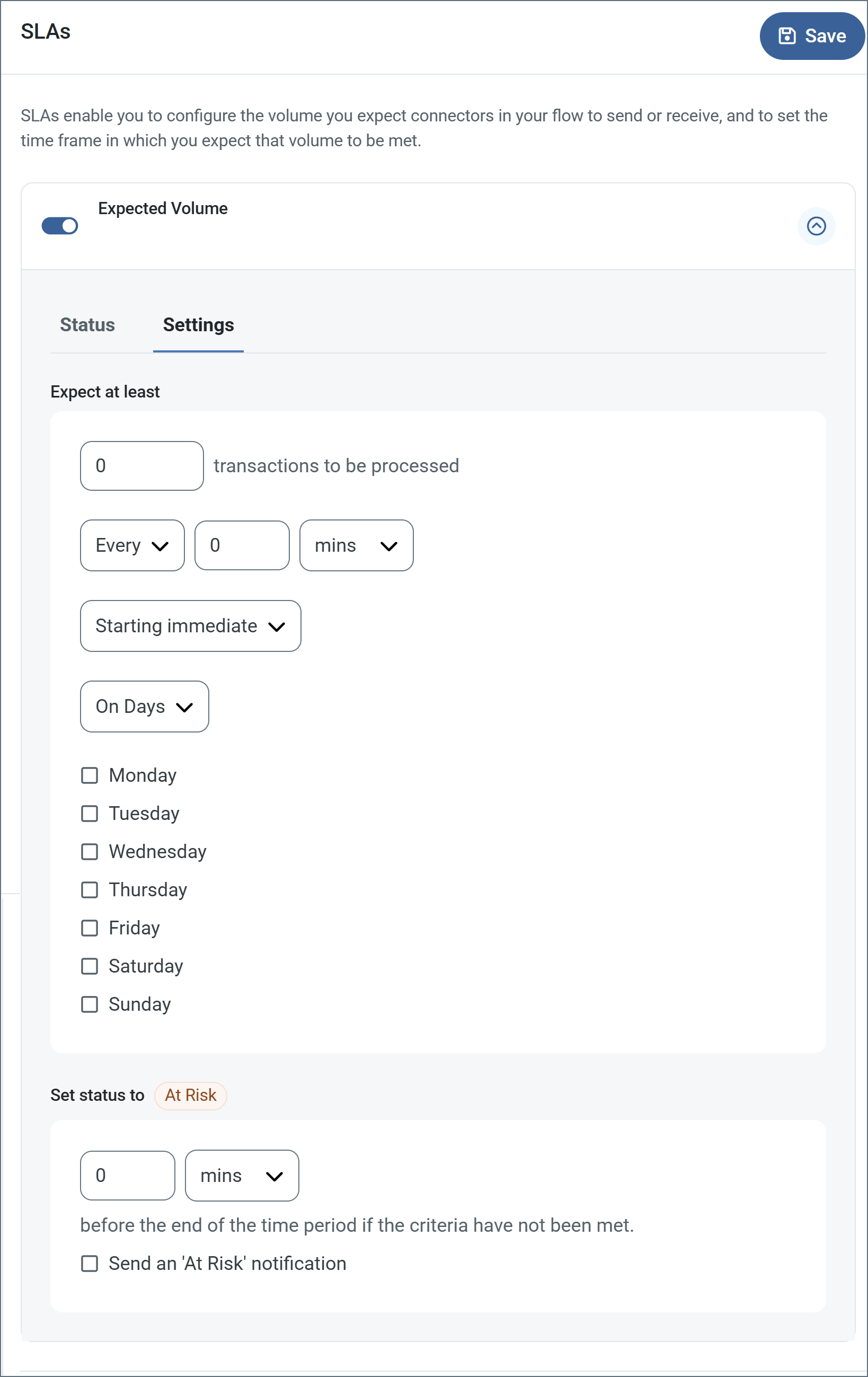
- If your connector has separate send and receive actions, use the radio buttons to specify which direction the SLA pertains to.
- In the Expect at least portion of the window:
- Set the minimum number of transactions you expect to be processed (the volume)
- Use the Every fields to specify the time frame
- Indicate when the SLA should go into effect. If you choose Starting on, complete the date and time fields.
- Check the boxes for the days of the week that you want the SLA to be in effect. Use the dropdown to choose Everyday if necessary.
- In the Set status to ‘At Risk’ portion of the window, specify when the SLA should be marked as at risk.
- By default, notifications are not sent until an SLA is in violation. To change that, check Send an ‘At Risk’ notification.
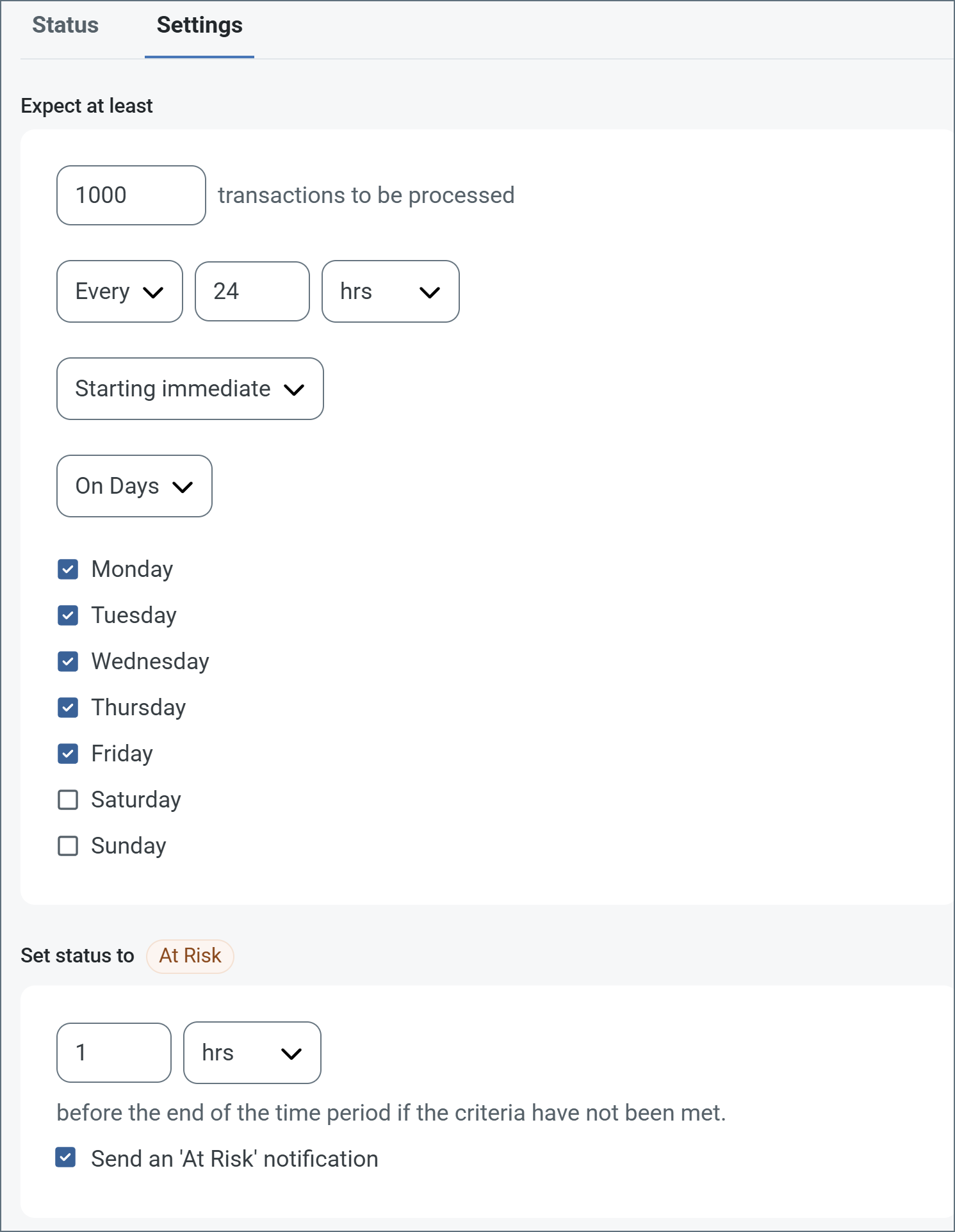
The following example shows an SLA configured for a connector that expects to receive 1000 files every day Monday-Friday. An at-risk notification is sent 1 hour before the end of the time period if the 1000 files have not been received.
Note: You can turn off SLA alerts if necessary. This can be useful during maintenance windows. Click Settings on the navbar, then navigate to Alerts > General Alerts. Click the tablet and pencil icon to edit, and uncheck the SLA Alerts setting.