Git Version Control
Version 26.2.9686
Version 26.2.9686
Git Version Control
CData Arc supports Git-based version control for most of your application configurations, bringing enterprise-grade change management to your data integration platform. This feature enables teams to track configuration changes with full audit trails, maintain separate environments for testing and production, and quickly recover from issues by rolling back to known good states.
With Git integration, team members can collaborate on Arc configurations with proper attribution and change history, ensuring compliance requirements are met while reducing the risk of configuration errors. Organizations can apply the same rigorous version control practices to their Arc configurations that they already use for application code.
All Arc files (such as *.cfg, XML, JSON, and binaries) are tracked, unless you have manually added them to your .gitignore file. See Architecture for more details on the file types that are tracked.
Note: The vault and its contents, as well as users and roles, are not version-controlled. To avoid versioning sensitive values like tokens, usernames, and passwords, CData recommends that you store all sensitive values in the vault and reference the vault items in connectors where the sensitive values are required.
Installation and Configuration
Prerequisites
Before you can use the version control features, you must install Git on all Arc environments, including development and production.
You must also create your remote repository. Arc supports all major Git platforms, including GitHub, GitLab, Azure Devops, and Bitbucket.
Installing Git
Windows
- Download the Git installer from git-scm.com/download/win.
- Run the installer and follow the installation wizard using your preferred settings.
-
Verify the installation by opening a command prompt or PowerShell and running:
git --version
You should see output showing the installed Git version.
Linux Debian/Ubuntu
Run the following:
sudo apt-get update
sudo apt-get install git
Linux Fedora/RHEL/CentOS
Run the following:
sudo dnf install git
Run this command to verify the installation:
git --version
Once Git is installed and verified, you can begin to use the Arc version control features.
Create Repository and Configure Version Control
Creating a remote repository is beyond the scope of this documentation, but Arc supports all major Git platforms, including GitHub, GitLab, Azure Devops, and Bitbucket. Consult your repository documentation for instructions and any special external connection requirements. For example, when using HTTPS authentication with GitHub, you are required you to use a Personal Access Token (PAT) instead of a password for authentication.
Once your remote repository exists, configure version control in Settings > Advanced > Git Version Control. See Git Version Control for details.
Development Environments
When you use version control with Arc in a shared production environment, CData recommends setting up individual development environments for each team member. This provides users with the best experience and avoids conflicts that can occur when multiple users try to push and pull changes simultaneously in a shared environment.
Working directly in a shared production environment with version control can lead to:
- Merge conflicts when multiple users make changes at the same time
- Poor user experience due to competing version control operations
By using development environments, each team member can work independently, test their changes locally, and push completed work to the repository without interfering with others or disrupting production operations.
Follow these steps to configure a local development environment that mirrors your production Arc instance:
-
Export the data encryption key from production (see Understanding Data Encryption Keys and Master Keys for more information on key usage)
- In your production environment, use your API key to call the Admin API exportDataEncryptionKey endpoint. Use the
passphraseparameter to create the passphrase that will be used when you import the key to the development environment. - Save the response because you need this data encryption key for your development environment.
- In your production environment, use your API key to call the Admin API exportDataEncryptionKey endpoint. Use the
-
Export the vault from your production environment:
-
Use the UI
- Navigate to Settings > Advanced > Migration > Export
- Select Custom Export and create a Password, then click Next
- On the Settings tab, only check Vault
- Click Export to perform the export and download the file
-
Use the Admin API export endpoint with the vault option enabled
-
-
Install Arc in your development environment (if it is not already installed)
- Install Arc on your development machine
- Complete the initial setup and create your first user account
- Install your development license
- Create an API key for API access
-
Import the data encryption key to development: In your development environment, use your API key to call the Admin API importDataEncryptionKey endpoint with the same passphrase you used when you exported the key from production. This ensures that your development environment uses the same data encryption key and can decrypt the vault contents.
-
Import the vault to development
- Use the UI
- Navigate to Settings > Advanced > Migration > Import
- Upload the vault file you exported earlier
- Complete the import process
- Use the Admin API import endpoint to upload and import the vault file.
- Use the UI
-
Pull the remote repository to sync your development environment with the production configuration
- Use the UI
- Install Git and GCM by following the instructions in Prerequisites
- Navigate to Settings > Advanced > Git Version Control
- Configure your remote repository connection (see Git Version Control Settings for instructions)
- Pull the latest changes from the remote repository
- Use standard Git commands to configure the repository connection on your local machine
- Use the UI
Once your development environment is configured, you can:
- Make and test changes locally without affecting production
- Commit changes to your local repository
- Push completed work to the remote repository
- Pull updates made by other team members
- Follow standard Git workflows (such as branches and pull requests) for collaborative development
Your production environment can now pull approved changes from the remote repository on a controlled schedule.
Version Control Operations
Arc’s Git integration provides essential version control operations that allow you to manage configuration changes, synchronize with remote repositories, and maintain multiple development branches. These operations follow standard Git workflows while being tailored specifically for Arc’s configuration management needs.
Once version control is implemented on your environments, the standard Arc footer becomes a status bar that displays Git metrics and actions such as the number of local files changed, the number of remote commits, and the current branch.

Permissions
Version control features are visible to all users, not just administrators. Role-based access control permissions determine what Git actions you can perform.
- Read-only users can view status and history only
- Write users can commit, push, pull, and create branches
Commit and Push
Commit captures all configuration changes in Arc as a single atomic unit and saves them to your local Git repository. When you commit, Arc automatically records your Arc username as the author and timestamps the change, ensuring full traceability of who made what changes, and when. A commit message is required to document the purpose of your changes, and you must have Write permissions to perform commits.
Push synchronizes your local commits to the remote Git repository, making your changes available to other team members and backup systems. If the remote branch contains newer changes that you haven’t pulled yet, the push operation fails with an error message and suggestions of what to do next. This prevents overwriting other users’ work and ensures proper merge handling.
The commit and push operations are handled in a single action. See Commit and Push New Changes for details.
Pull
Pull retrieves the latest changes from the remote Git repository and updates your local Arc configuration. Before pulling, you must commit or discard any uncommitted local changes—the operation fails if uncommitted changes are detected. If there are merge conflicts between your local version and the remote version, the pull fails with a message directing you to resolve the conflict externally using Git tools (see Manage Commit and Pull Conflicts) for details. Pull operations can be initiated from the Git toolbar. See Pull Changes for details.
Branch
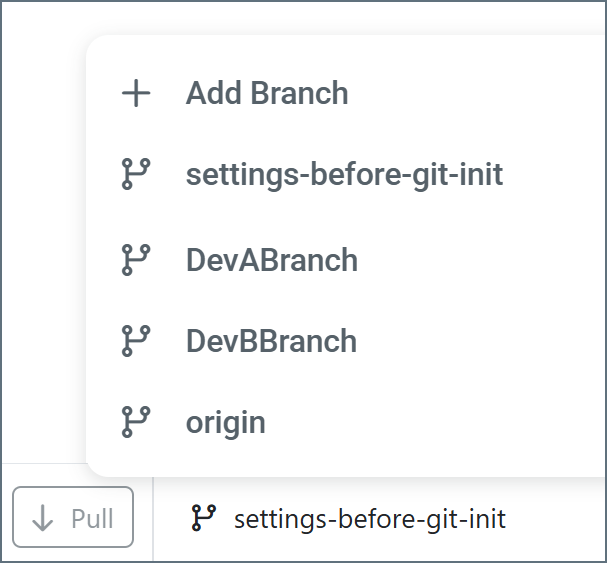
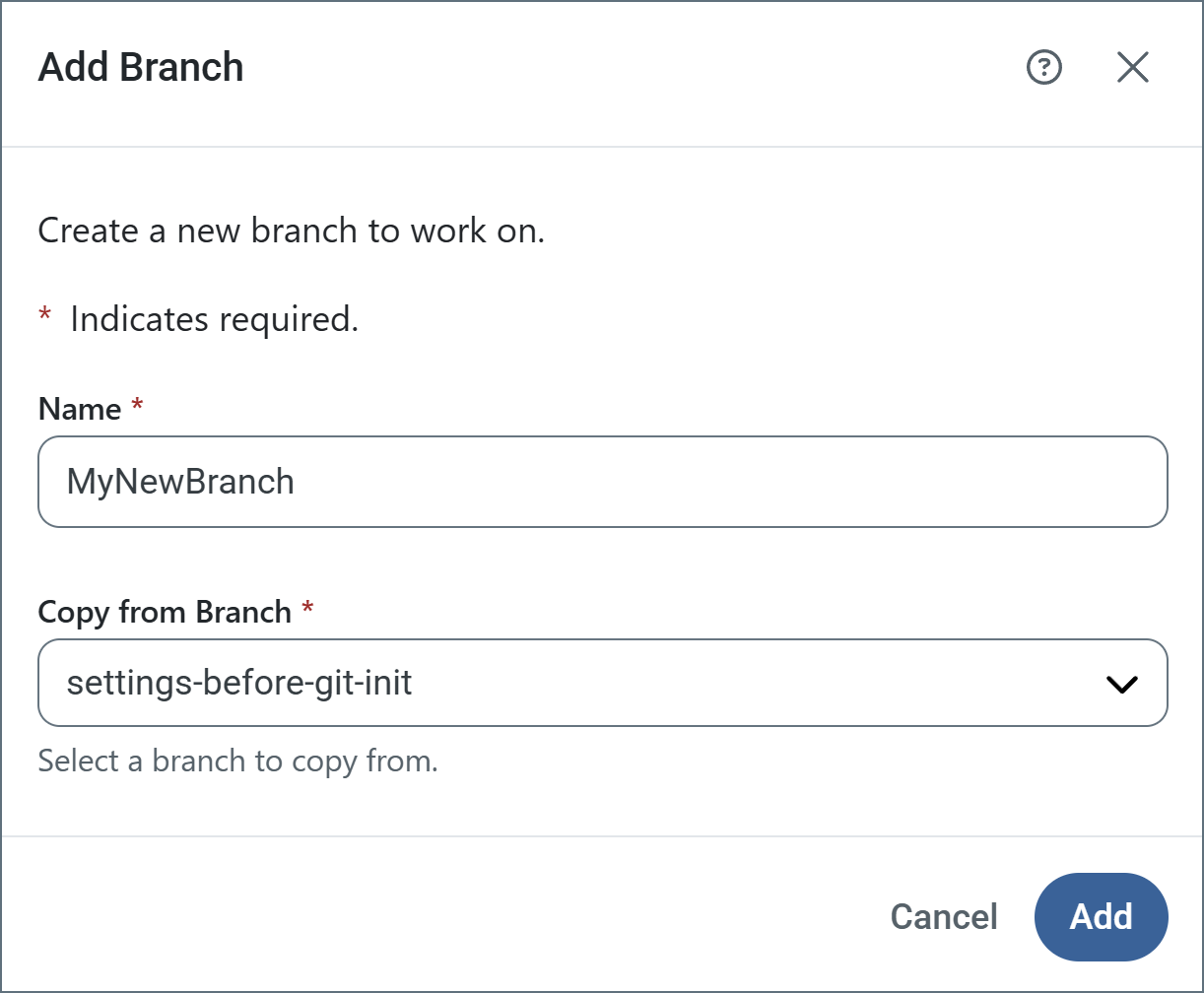
Branch management allows you to maintain separate configuration versions for different purposes, such as development, testing, and production environments. Use the branch dropdown in the toolbar to switch between branches, create new ones, or delete stale ones. When creating a new branch, specify the branch name and select which branch to create it from (the default is to use your current branch). This enables you to experiment with configuration changes without affecting your main environment. See Create Branches and Delete Branches for details.
Logging
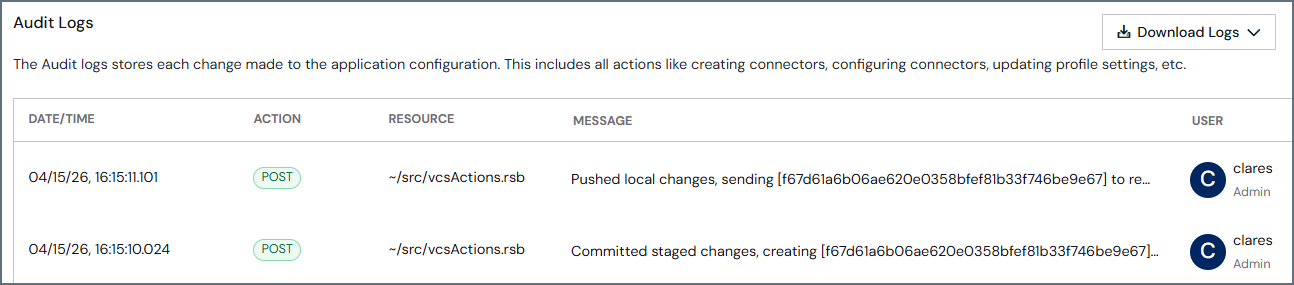
All version control changes are captured in the Audit logs section of the Activity page. You can download logs from that page as necessary.
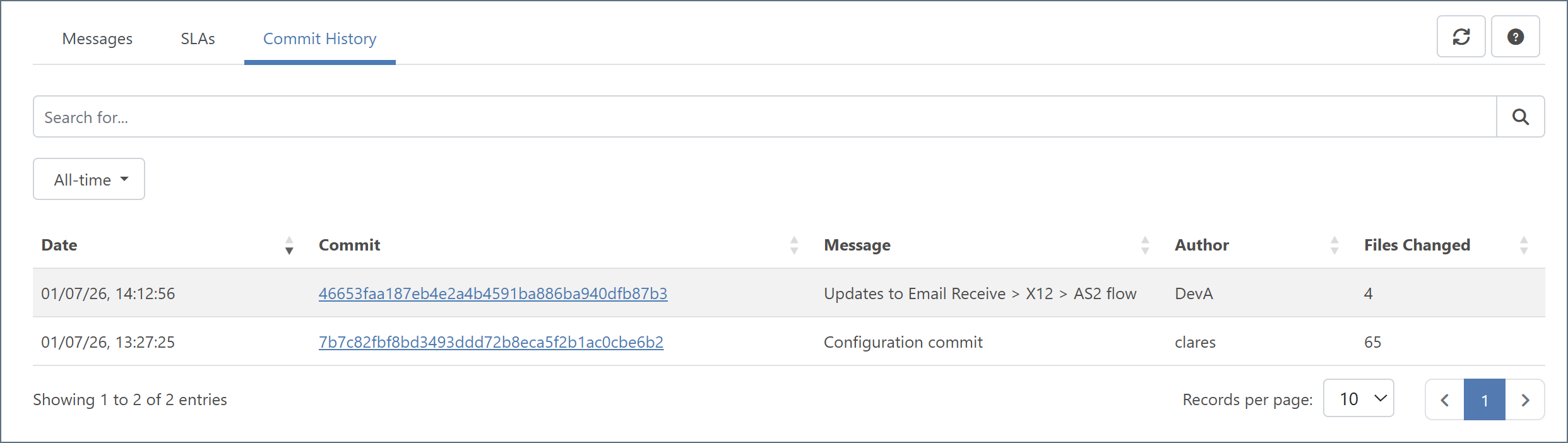
History Viewer
Once version control is enabled, a Commits History tab appears on the Activity page. It shows the complete commit history and provides details such as the commit hash, commit message, author, date and time, and a list of the files that were changed in each commit. You can search and filter the content on this tab.
Click a Commit hash to open the Commit Details page. It opens to a File Changes tab which displays a diff view of the files in the commit so you can see exactly what has changed. Click the Details tab to see the author, commit message and timestamp.
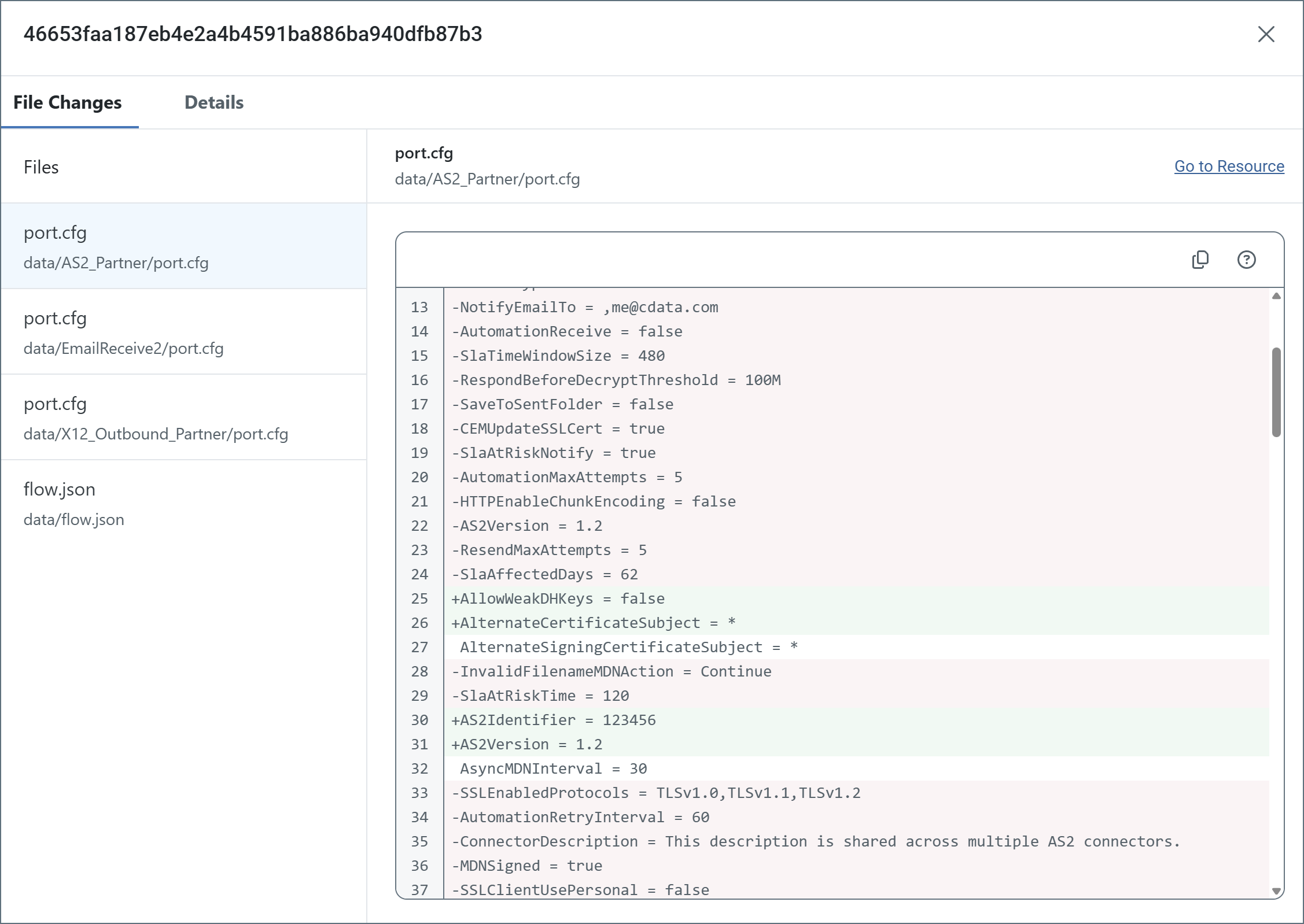
The Go To Resource link on the File Changes tab takes you to the part of Arc where the file was changed. For example, if are viewing the diff of the port.cfg file for an AS2 connector, clicking the link takes you to that AS2 connector.
Version Control Workflows Examples
The following examples demonstrate common version control scenarios encountered when working with Arc’s Git integration. These workflows cover the essential operations—pulling updates from remote repositories, creating and deleting branches, committing and pushing changes, restoring changes, resolving conflicts when local and remote changes diverge, and discarding unwanted modifications.
Pull Changes
You can pull changes from remote in several ways:
- Click Pull on the toolbar to pull the commits without reviewing them
- Click the number of commits on the toolbar to open the the Pull Remote Commits preview

- Navigate to the Commits History tab on the Activity page and click the link to the number of remote commits on the left or the Pull button on the right to open the the Pull Remote Commits preview
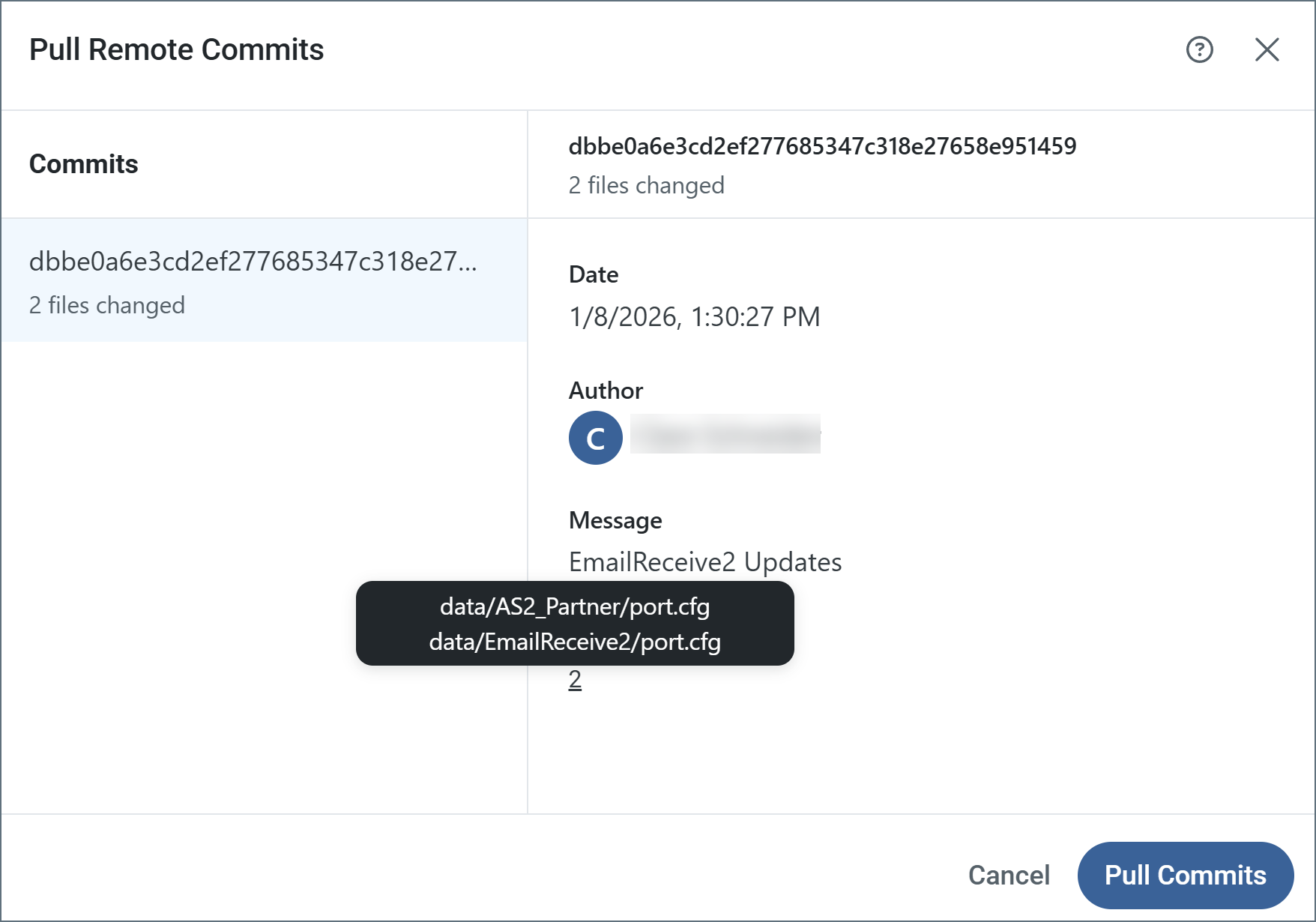
The Pull Remote Commits preview lists all commits that are ready to be pulled. Click a commit to see its details, then hover over the number of files to see which files are included in the commit. To complete the task, click Pull Commits.
Create Branches
To create a new branch, click the branch icon on the toolbar (you can also switch between branches here).
Click Add Branch and give your branch a Name. Choose which branch to copy from, then click Add.
Delete Branches
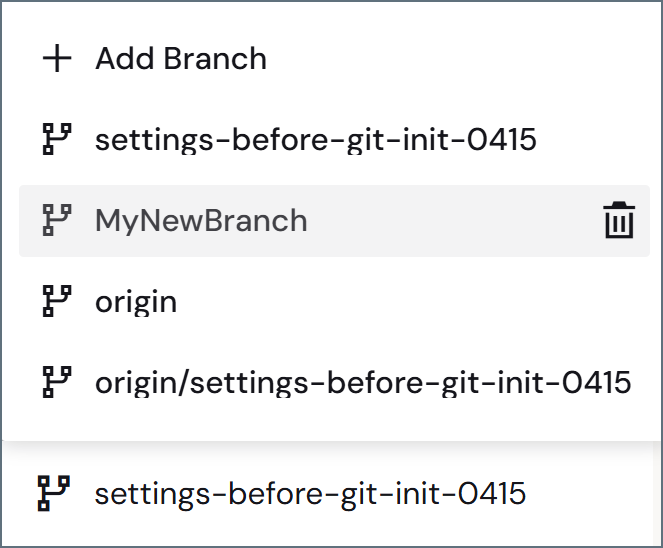
To delete a branch, click the branch icon on the toolbar. Hover over the branch you want to delete and click the trashcan icon.
Commit and Push New Changes
When you are making changes in Arc, the toolbar shows the total number of files that have been changed:
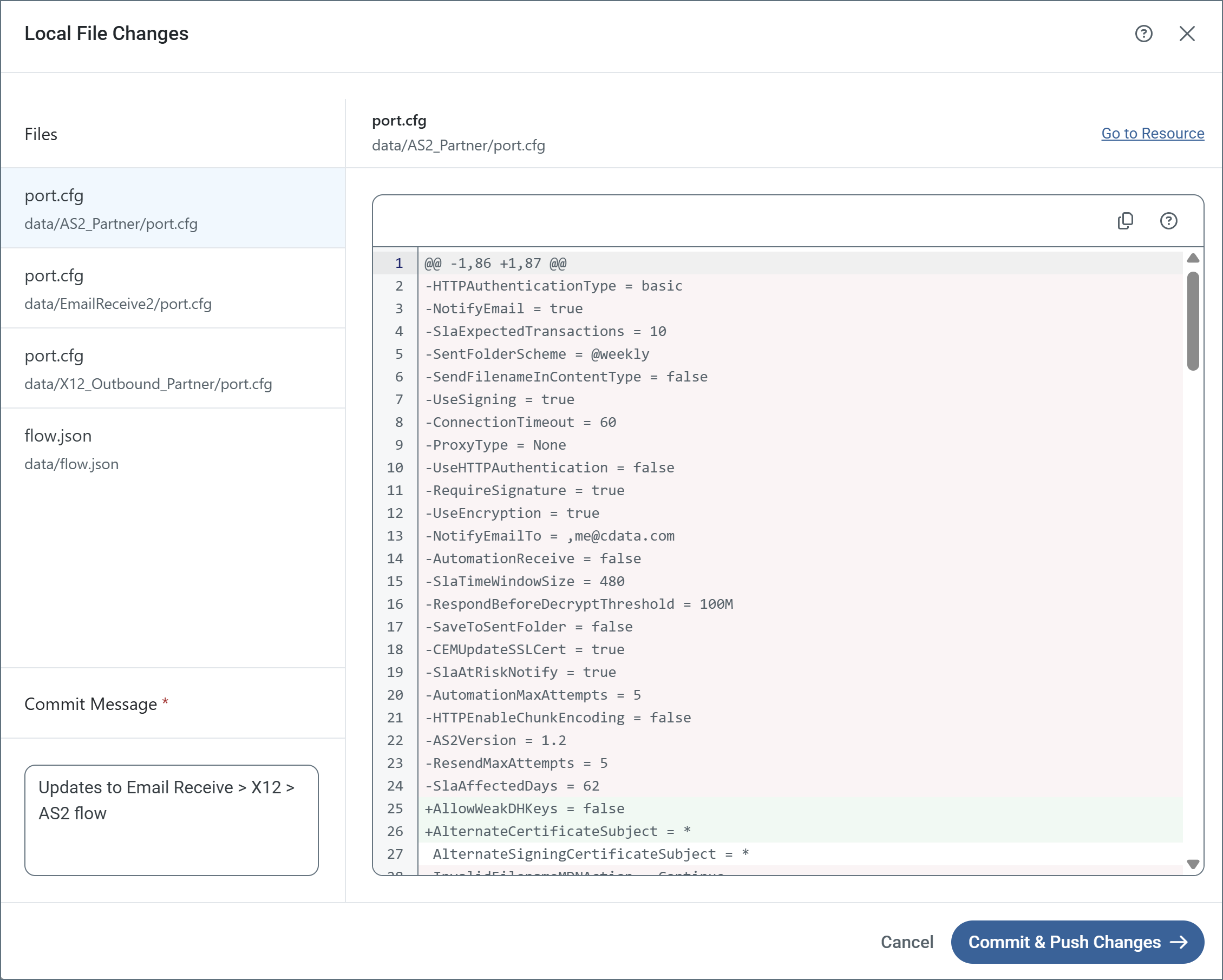
Click Commit & Push to open the Local File Changes pane. It shows details about the files that you have changed. You must supply a commit message before you can commit and push your changes to remote.
Note: Unlike some other Git-based version control implementations, commit and push happen as a single step—you do not commit to local and then push.
After you commit and push the changes, a confirmation message in the toolbar lets you know the result of your action.
Restore Changes from a Previous Revision
To restore resources to their previous state, navigate to the Commits History tab on the Activity page. Click the ellipses to the right of the Files Changed column, then click Restore. Review the diff between the current state and the proposed restore point state, then click Next. Be aware that if you proceed with the restore, any uncommitted changes in those files are permanently lost. Click Restore Resources to complete the task.
Manage Commit and Pull Conflicts
Conflicts can arise when you have local changes to push and there are also remote changes to pull. The toolbar reflects the conflicts, and provides suggestions on how to proceed. The same error messages also appear on the Commit and Pull Remote Commits preview pages.

One option is to manage the conflicts manually, and the other is to commit the current changes to a different branch, which then allows you to pull remote changes to the current branch.
Click Please commit to a new branch to open a page where you can select a different branch to commit to. Once you select (or create) the new branch, you can push your changes using Commit & Push Changes.
Discard Changes
To discard your current changes, click the trashcan icon in the toolbar. This opens a Discard Changes pane, where you can select exactly which changes to discard. Click Next, confirm that your selections are correct, then click Discard Changes. Once complete, a confirmation message appears and the number of changes in the toolbar is reduced by the number of changes that were discarded.