Flows
Version 26.2.9686
Flows
Version 26.2.9686
The flows page enables you to create data-processing workflows by linking connectors together in logical sequences. Click Flows on the navbar to open the workspaces grid. It is composed of workspace cards for each workspace you have access to. To work in a specific workspace, click the card to open the flow canvas for that workspace.
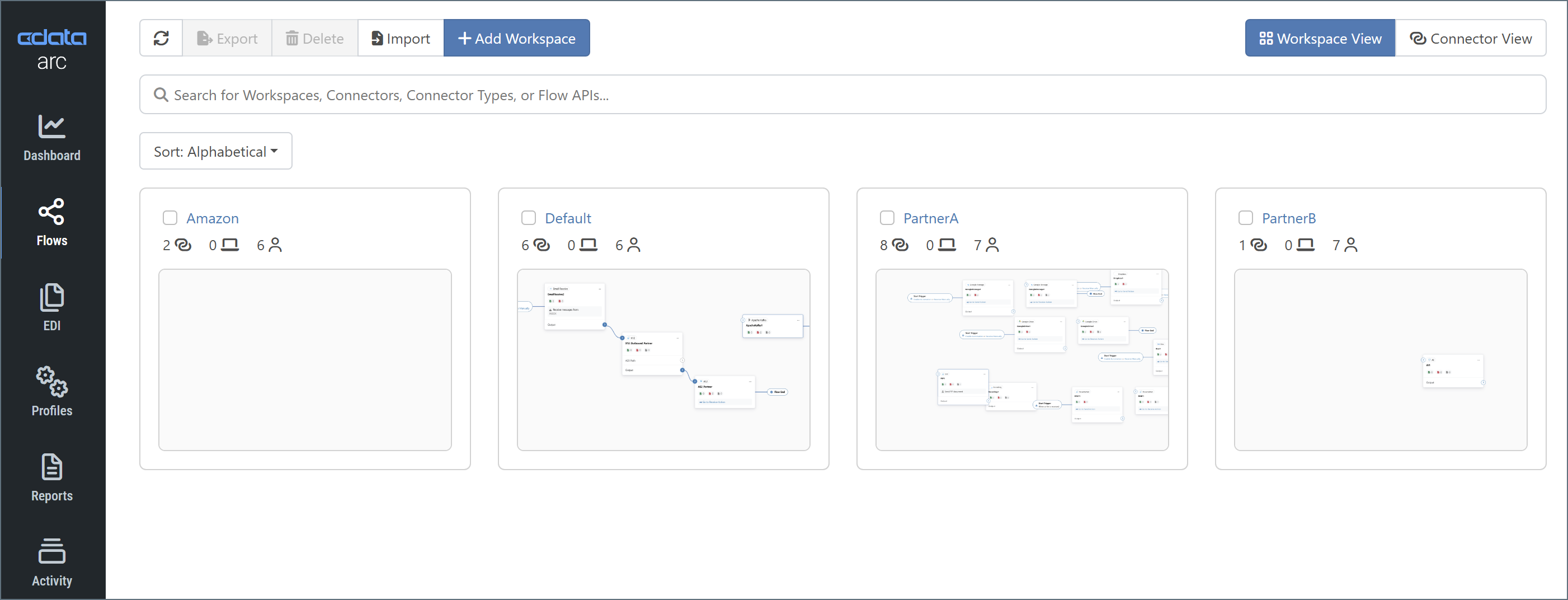
Note: You can toggle between two types of connector displays:
- Workspace View displays the workspace cards that enable you to design your flows. The previous image is of the workspace view.
- Connector View displays a list of all connectors in your application. Use this view to perform bulk edits on connectors. See Connector View and Bulk Editing Connectors for details.
Flow Canvas Example
The following image shows a simple flow canvas that links a trigger AS2_Amazon connector to a terminal File_Dropoff connector (see Connector Categories for more information about trigger and terminal connectors):
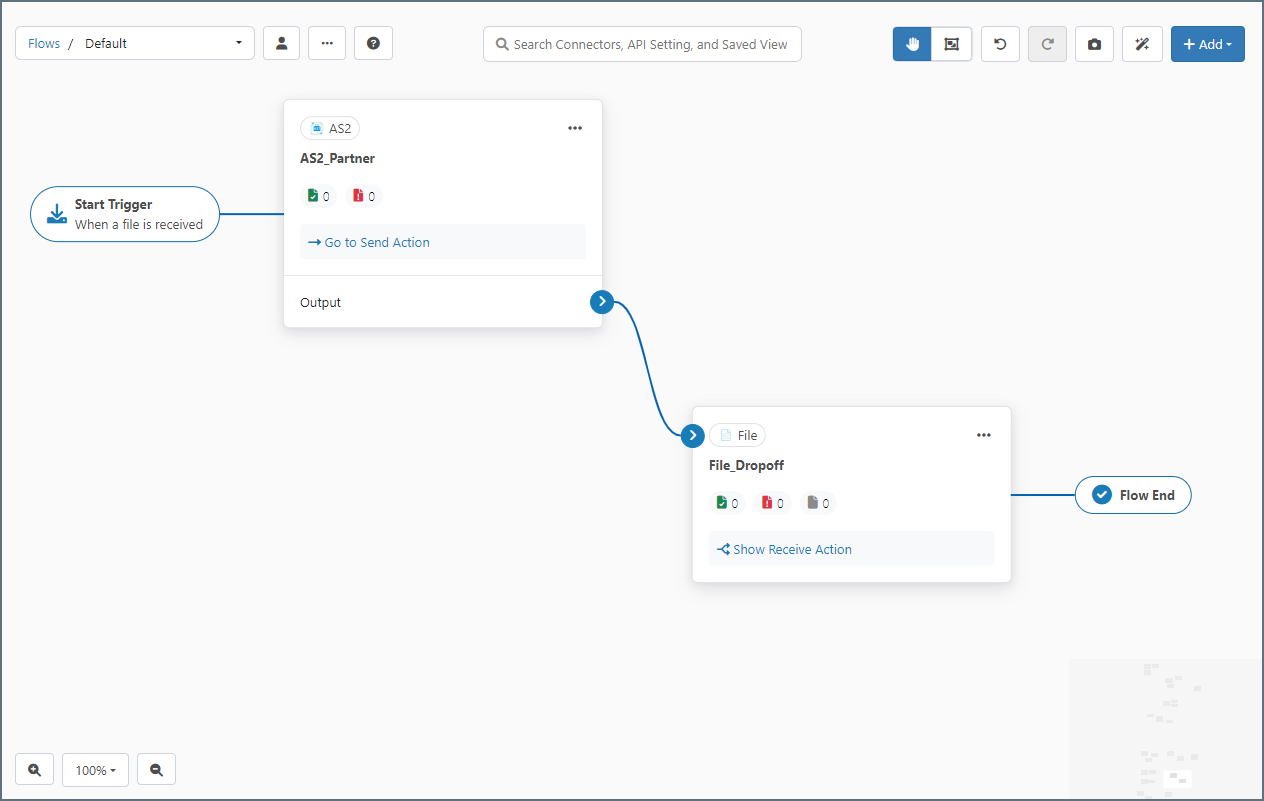
With this connection in place, any files that the AS2_Amazon connector processes are automatically passed to the File_Dropoff connector as the final step of the flow. The File connector drops off files to the underlying disk. See Designing a Flow for more information about how to link connectors in a flow.
Note: You can revert to the classic flow designer UI by navigating to Settings > Advanced and checking the Classic Flow Designer UI checkbox.