パイプラインページ
Version 26.2.9669
Version 26.2.9669
パイプラインページ
A CData Sync pipeline is a named, ordered sequence of steps that execute sequentially. Pipelines include configurable properties such as scheduling, notifications, and logging behavior, which help you automate execution and monitor workflow activity.
Within a pipeline, a step represents an individual unit of work. Each pipeline contains one or more steps, and Sync executes these steps in the order that they appear in the pipeline.
Sync supports the following step types:
-
Replication step—Uses an existing Sync job to replicate data from a source connection to a destination connection. Replication steps can use Standard, SyncAll, Change Data Capture, or Load Folder job types.
-
Reverse ETL step—Uses an existing reverse ETL job to move data from a destination back into a source system.
-
Transformation step—Uses an existing transformation to modify or process data as part of the pipeline.
-
Event step—Executes an API script or Python script to integrate external processes or extend pipeline behavior.
Pipelines enable you to coordinate multi-step workflows by combining replication jobs, reverse ETL jobs, transformations, and event-based scripts into a single, automated execution flow.
The following sections explain the features of the Pipelines summary page as well as the following tasks:
Viewing Your Pipelines
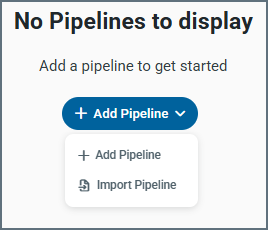
To access the Pipelines page, click Pipelines in the left navigation bar of the Sync interface. When you open the Pipelines page for the first time, it displays a message indicating that no pipelines are available, along with an Add Pipeline button.
To create your first pipeline, click Add Pipeline and select Add Pipeline from the drop-down menu, as shown below. For detailed instructions about creating a pipeline, see Adding a New Pipeline.
After you create one or more pipelines, clicking Pipelines in the navigation bar opens a summary page that displays all pipelines in the current workspace. This page includes two tabs (Overview and History) that provide details about your pipelines and their execution activity.
The following sections explain the information that is available on each of these tabs.
Overview Tab
The Overview tab displays a table that summarizes your pipelines and enables you to manage them from a single location.
Each pipeline is shown in a separate row, with columns that provide information about each pipeline. You can control how many pipeline records are displayed on the page by selecting a value from the Items per page list at the bottom of the page, as shown below.
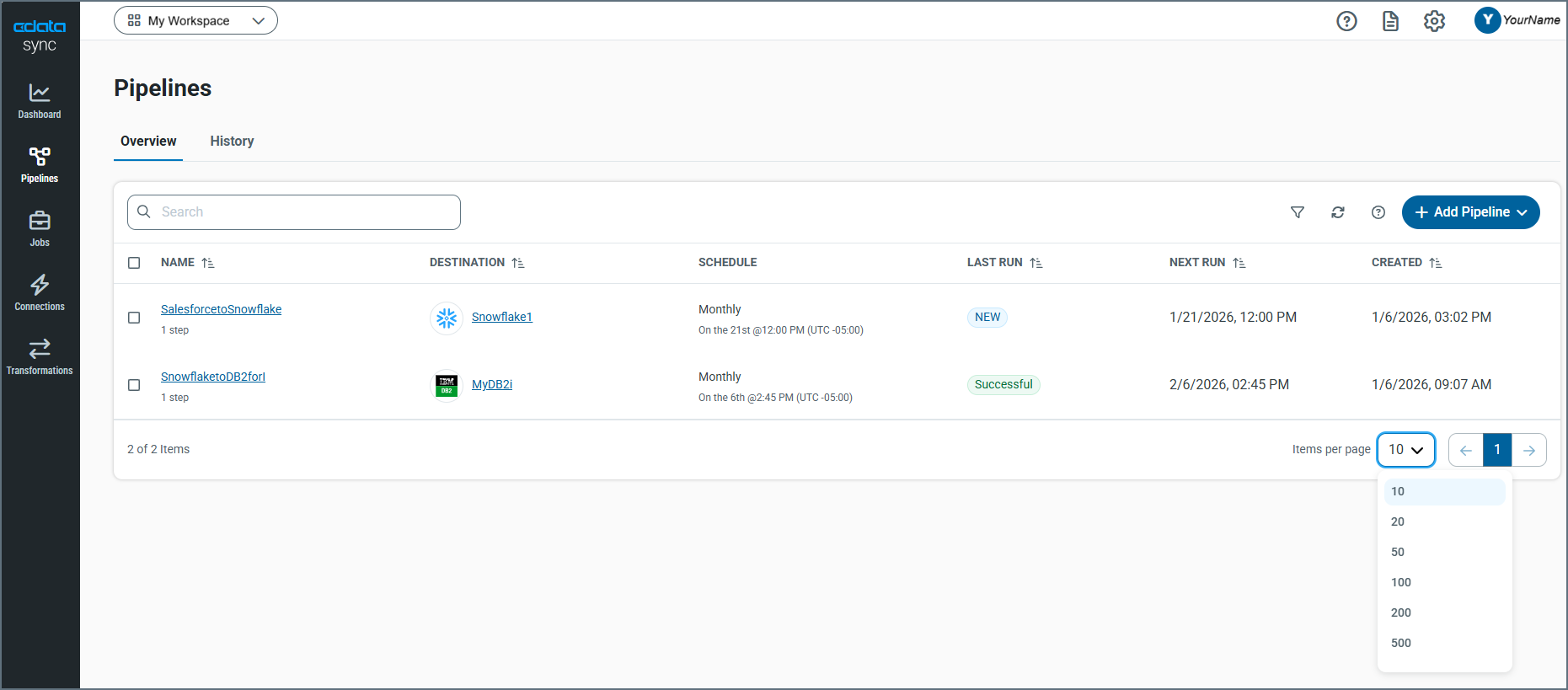
Sync provides details about your pipelines in six columns:
-
NAME—Lists the name of the pipeline and the number of steps in the pipeline flow.
-
DESTINATION—Lists the destination connector and provides a link to the settings for that connector
-
SCHEDULE—Shows the run schedule for your job. For more details, see Configuring a Run Schedule for a Pipeline.
-
LAST RUN—Shows the status (NEW, In Progress, Successful, or Failed) of the pipeline’s last run.
-
NEXT RUN—Shows the next date and time that the pipeline will run.
-
CREATED—Shows the date and time that a pipeline was created.
On this tab, you can also manage your pipeline in the following ways:
-
View a pipeline in the editor by clicking the pipeline name in the NAME column.
-
Sort the pipeline list in ascending or descending order by all of the columns except SCHEDULE. To change the sort order, click the up (↑) or down (↓) arrow next to the column header.
-
Filter the Pipeline table by destination. After you apply a filter, you can clear all filter options by clicking the Reset link to the right of the filter menu.
-
Edit settings for a pipeline, export a pipeline, and remove a pipeline by clicking the options menu (…) at the end of the pipeline row and select the action that you want.
History Tab
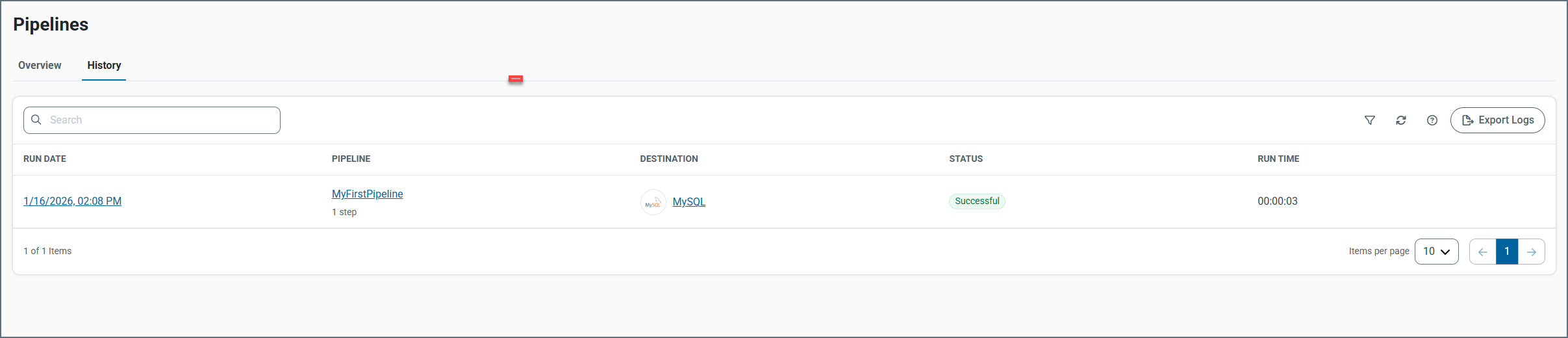
The History tab displays historical information about pipelines that you have run. The table on this page contains five columns with details about your pipeline:
-
RUN DATE—Specifies the date and time that your pipeline ran, how long it took to run, and the number of rows that were affected. If an error occurs, the error message is displayed in this column.
-
PIPELINE—Lists the name of the pipeline and how many steps are in the pipeline.
-
DESTINATION—Lists the destination connector and provides a link to the settings for that connector.
-
STATUS—Specifies a pipeline’s run status (Successful, Failed, or ERROR).
-
RUN TIME—Specifies the duration of the run in hours, minutes, and seconds (in the form HH:MM:SS).
On this tab, you can also manage your pipeline histories in the following ways:
-
Organize your pipeline history list in ascending or descending order via the RUN DATE or PIPELINE columns. To order the columns, simply click the up (↑) and down (↓) arrows next to the column by which you want to sort.
-
Filter the history table by pipeline, destination, and status. Unlike other tabs, the History tab does not allow you to save filter options. After you set a filter, you can clear filter options in one of two ways:
-
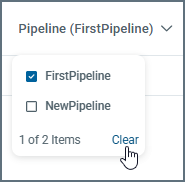
Clear items in each individual filter by opening the filter and clicking Clear at the bottom of the filter list. Once you click Clear, selected items are deselected.
-
Clear all filters by clicking the Reset link to the right of the filter menu.
-
-
Export pipeline logs to your local machine by clicking the Export Logs button (upper right of the window).
Adding a New Pipeline
Adding a pipeline requires preconfigured source and destination connections. After you define a source connection to your data source and a destination connection to your database, follow these steps to create a new pipeline:
-
Click Pipelines in the navigation bar to open the Pipelines page.
-
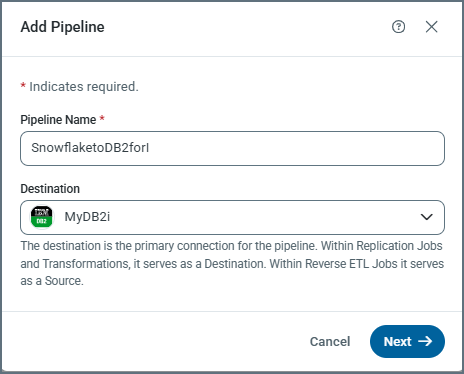
Select Add Pipeline > Add Pipeline. This action opens the Add Pipeline dialog box where you can enter pipeline information.
-
Enter a pipeline name and select a destination.
-
Select a step type. For details about step types, see the step descriptions earlier on this page.
Notes:
-
The example below uses the replicate step. Under REPLICATE STEP, select either Add New Replication Job or Convert Existing Replication Job.
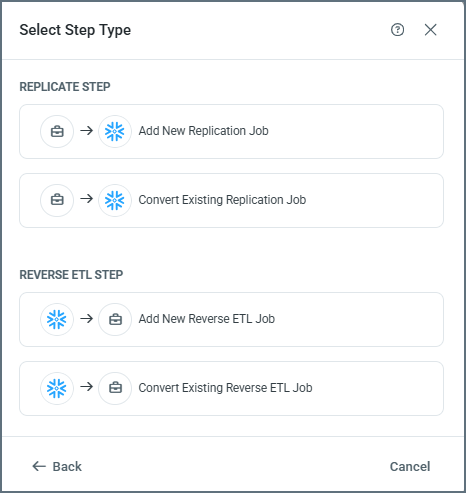
Selecting a step opens a new dialog box. Because this example uses the Add New Replication Job step, the Add New Replication Job dialog box opens.
-
The Convert Existing Replication Job step pulls an existing job directly into pipeline steps. When the existing job contains customized events, Sync also adds those events as pipeline steps. To avoid runtime conflicts in a pipeline environment, you must manually update any pre-job event scripts from the existing job after they are added to the pipeline.
Specifically, the
<input>variables must be removed from the<api:info>block because these values only apply to standalone jobs and are not used in a pipeline flow. If these variable are left in the block, Sync returns an error when it attempts to run the pipeline, as shown below: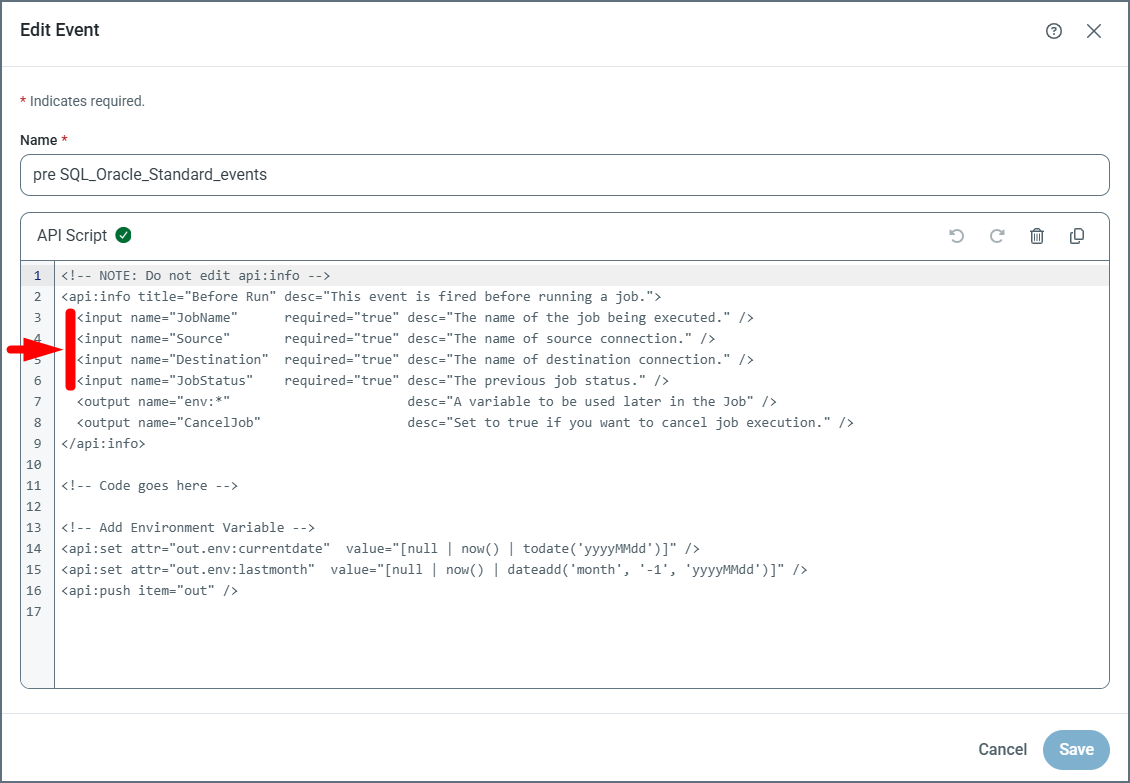
To edit a pipeline event script, see Editing Steps in a Pipeline.
-
-
Specify the following information on the tabs in the dialog box:
-
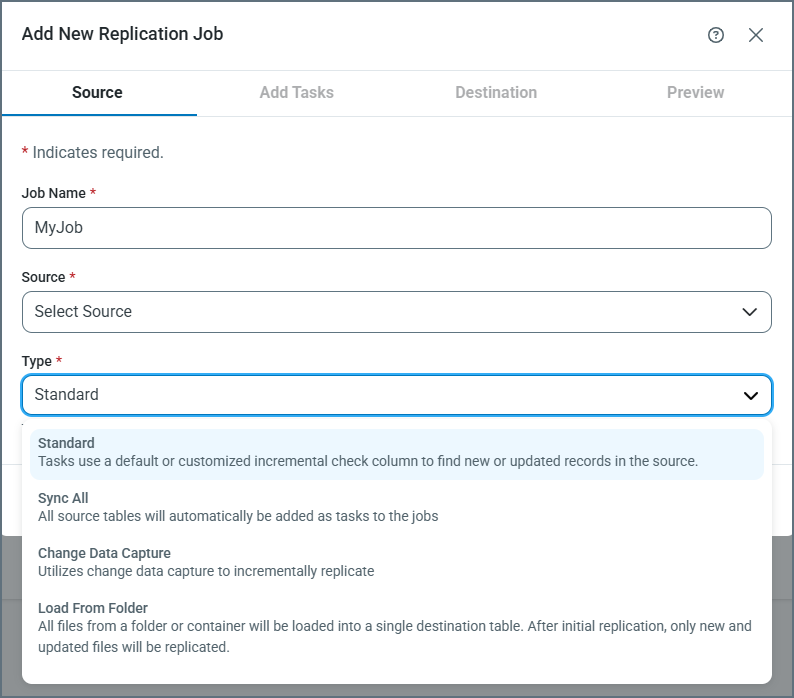
Source tab: Enter a job name, select a source connection, and select a replication type. Then, click Next.
-
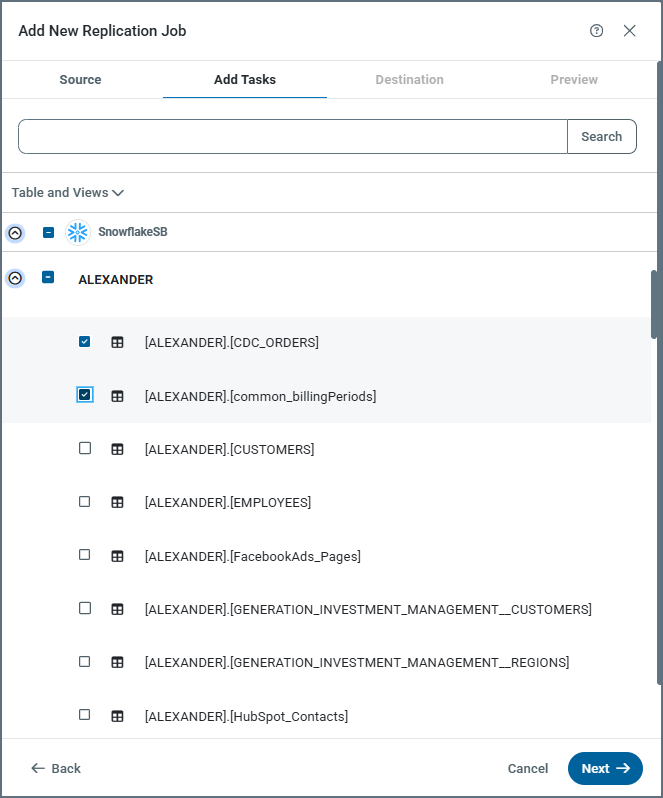
Add Tasks tab: Select one or more tables or views to replicate. Then, click Next.
-
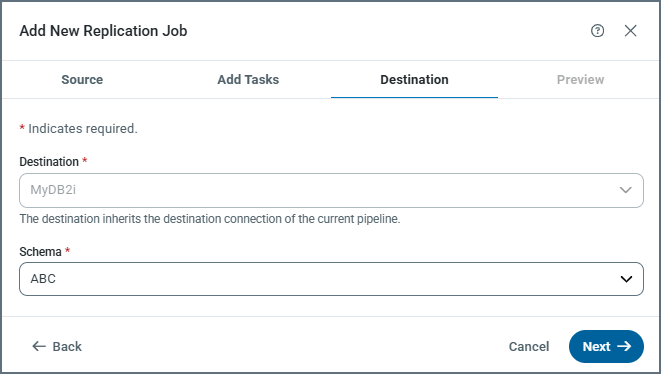
Destination tab: Confirm the destination and select a schema if one is required. Then, click Next.
-
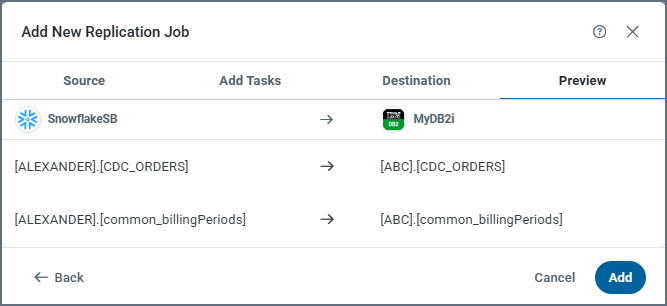
Preview tab: Review the configuration. When you are satisfied with the configuration, click Add to create the replication job.
-
Note: You can cancel pipeline creation at any time by clicking Cancel on any step in the Add New Replication Job dialog box.
When you complete these steps, Sync adds the step to the pipeline and displays the visual workflow, as shown below:
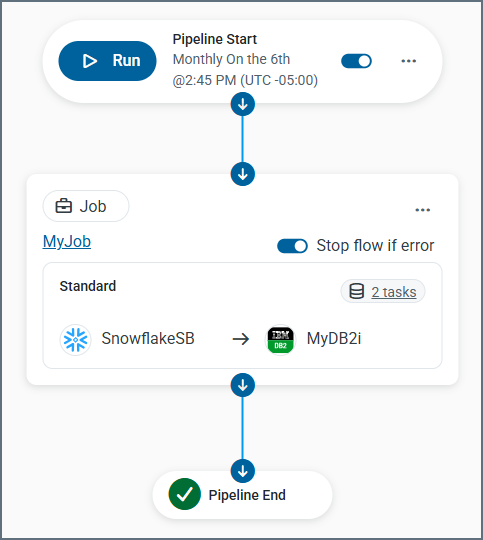
From the Pipeline editor (Pipelines > YourPipelineName), you can edit a pipeline, configure scheduling, edit associated jobs, and enable email notifications.
Editing a Pipeline
After you create a pipeline, you can modify its name.
To edit a pipeline:
-
Open the Pipelines page and locate the pipeline that you want to edit.
-
Click the options menu (…) at the end of the pipeline row and select Edit. (Alternatively, you can click the link in the pipeline name to navigate to the pipeline page.) This action opens the Pipeline editor so that you can modify pipeline structure or configuration.
-
In the Pipeline editor, click the options menu (…) in the selection path at the upper-left corner of the editor page:
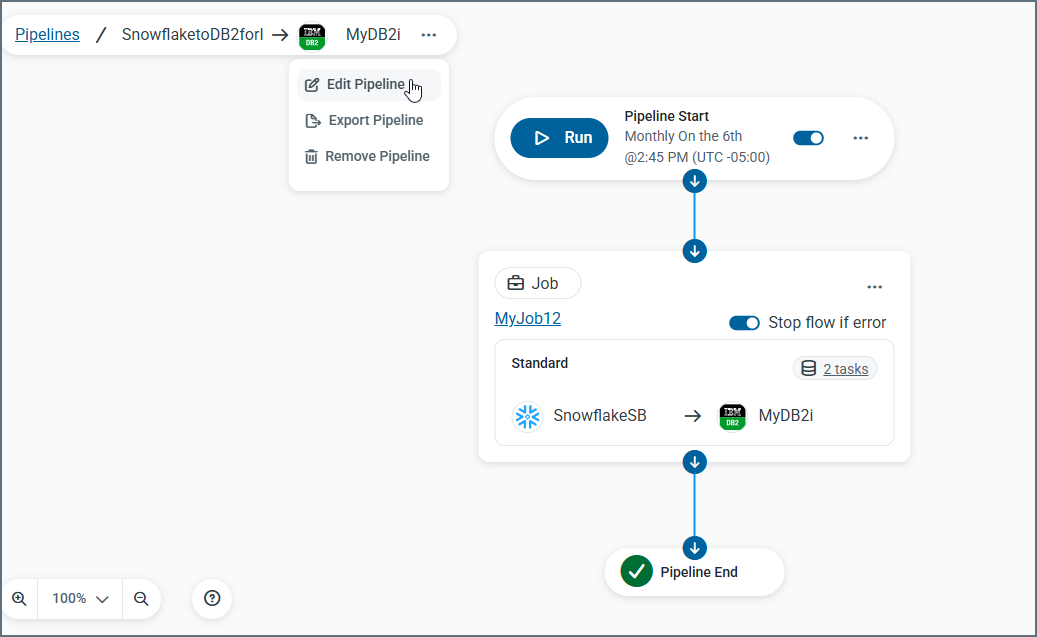
This action opens the Edit Pipeline dialog box, where you can modify the pipeline name.
-
Click Save.
Running a Pipeline
To run a pipeline:
-
Open your pipeline.
-
In the Start step for your pipeline, click Run.
Once the pipeline is running, Sync opens the Run History pane on the right side of the editor window. This pane displays the run date and time, the total execution duration, and the current status of the run (In Progress, Successful, or Failed).
Editing Steps in a Pipeline
To edit a pipeline step:
-
Open your pipeline.
-
Locate the step that you want to modify and click the options menu (…) for that step.
-
Select the action that you want to perform for the step. In the following example, which shows a replication job step, you can select Edit Job or Remove Job.
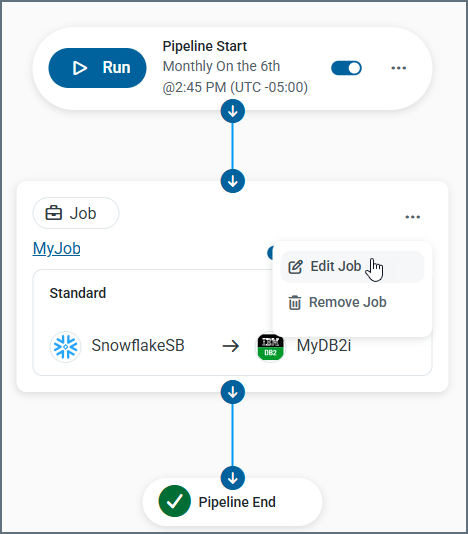
When you select Edit Job, Sync opens the job settings page where you can modify the job, as necessary.
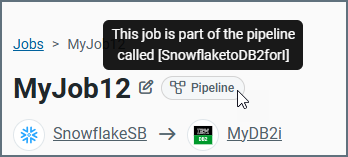
A Pipeline icon appears to the right of the job name. When you hover over that icon, Sync displays the name of the pipeline to which the job belongs.
-
Save the changes to your job settings. To return to the Pipeline editor, click the back arrow in your browser. Sync updates the pipeline to reflect your changes.
Adding Multiple Steps in a Pipeline
You can add multiple steps in a pipeline, but you must add each step individually.
To add a step:
-
Open the pipeline.
-
Select where to insert the new step by placing your cursor over one of the connecting lines in the flow.
-
Click the Add Step icon (a blue circle with a plus sign) that appears.
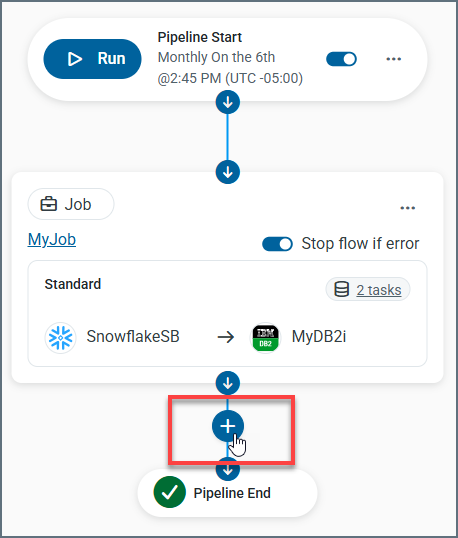
This action opens the Select Step Type dialog box.
-
Select the type of step that you want to add.
-
Continue through the dialog boxes to configure and add the new step.
In the following example, a transformation step (MyTransformation) is added after the original step.
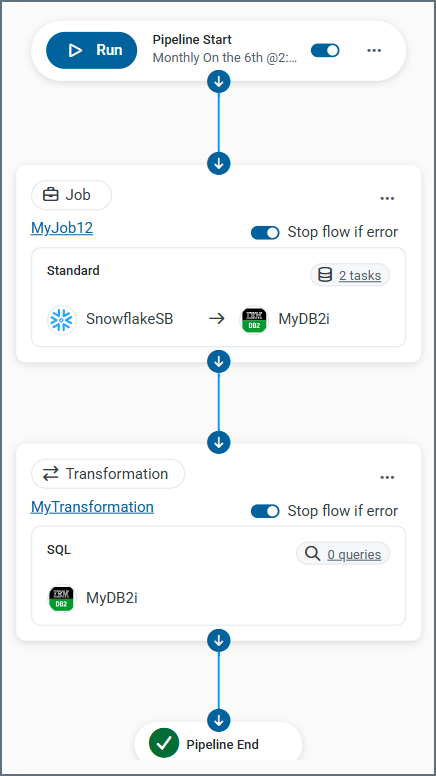
Repeat the steps above as necessary to include additional steps.
Removing a Step in a Pipeline
To remove a pipeline step:
-
Open your pipeline and locate the step that you want to remove.
-
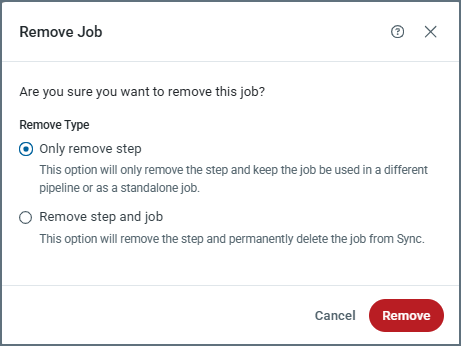
Click the options menu (…) for that step and select Remove StepType, where StepType is the name of the step type (for example, Remove Job or Remove Transformation). This action opens the Remove StepType dialog box
In the dialog box, you can choose one of the following options:
-
Only remove step: This option removes the step from the pipeline but keeps the underlying component (job, transformation, or event) for use in another pipeline or as a standalone component.
-
Remove step and component: This option removes the step and permanently removes the underlying component from Sync.
-
-
Select the option that you want, as shown in the following example:
-
Click Remove.
Managing Pipelines
After you add or import a pipeline, Sync displays it as a visual workflow diagram. You can manage pipeline configuration, execution, and monitoring from the pipeline editor.
-
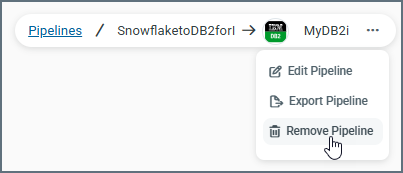
At the upper-left corner of the editor page, Sync displays the pipeline name and an options menu (…). From this menu, you can edit, export, or remove the pipeline.
-
The upper-right corner of the page provides additional controls, including a notifications toggle, an Edit Notifications (
 ) icon , and a Run History button. Clicking Run History displays the pipeline’s run history in a side pane.
 -
The pipeline workflows appears in the center of the editor page and consists of the following nodes and functionality.
-
Pipeline Start node: This node provides controls for executing and scheduling the pipeline.
-
A Run button enables you to execute the pipeline manually.
-
An Add Schedule link is displayed if no schedule is configured. Clicking the link opens the Add Schedule dialog box, where you can define a run interval. After you configure a schedule, that information appears in the Pipeline Start node. You can edit or remove the schedule by clicking the options menu (…) and selecting the appropriate option.
-
-
Step nodes: Each step, which appears as a node in the pipeline, includes the following information and actions:
-
the step type (job , reverse ETL, transformation, or event)
-
the job, transformation, or event type
-
the number of tasks that are configured for the step
-
an options menu (…) that enables you to edit or remove the step
-
the Stop flow if error toggle
-
the source and destination connectors that are associated with the step
-
-
Pipeline End node: This node indicates the completion of the pipeline workflow and marks the point at which execution stops after the final step runs.
-
Configuring a Run Schedule for a Pipeline
You can configure a pipeline to run automatically on a defined schedule.
To schedule a pipeline run:
-
Click the Add Schedule link in the Pipeline Start node.
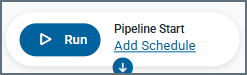
When you click the link, Sync opens the Add Schedule dialog box.
-
Select the run interval that you want for your pipeline. Then, click Add Schedule.
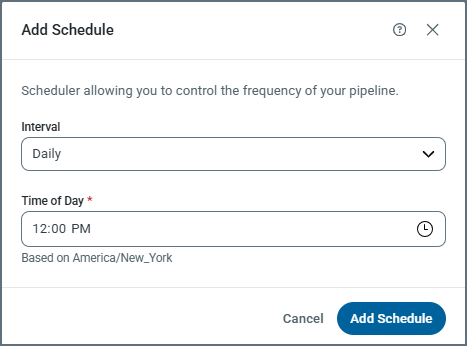
After you add a schedule, the configured run interval appears in the Pipeline Start node, as shown below.

Enabling Email Notifications
You can configure email notifications to be sent after a pipeline runs.
To enable email notifications for a pipeline:
-
In the upper right of the Pipelines editor, slide the notifications toggle to the right.
-
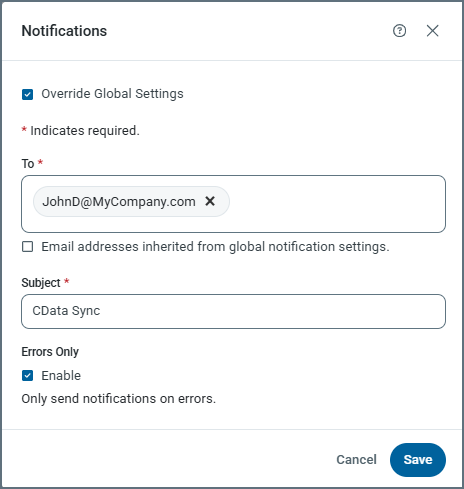
(Optional) To override any global notification settings, click the Edit Notifications (
) icon to the right of the toggle. This action opens the Notifications dialog box. -
Select Override Global Settings and modify the notification settings, as necessary.
-
Click Save to apply your changes.
Exporting a Pipeline
You can export a pipeline from Sync to a file on your local machine.
To export a pipeline:
-
Open the Pipelines summary page.
-
Locate the pipeline that you want to export.
-
Click the options menu (…) at the end of the pipeline row and select Export. Alternatively, you can open the pipeline and click the options menu in the upper-left corner of the Pipeline editor, and then select Export Pipeline.
When you are prompted, choose a location on your machine to save the exported pipeline file.
Sync downloads the pipeline file (with a syncpipeline extension) to your machine. You can store this file for backup purposes or import it into another workspace or environment at a later time.
Importing a Pipeline
You can import a .syncpipeline file into Sync from a location on your local machine.
To import a pipeline:
-
Open the Pipelines summary page.
-
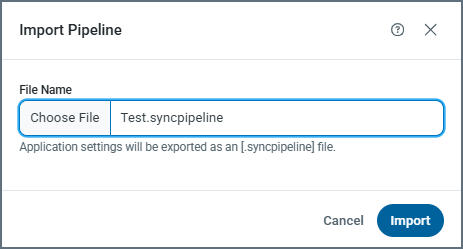
Select Add Pipeline > Import Pipeline. This action opens the Import Pipeline dialog box.
-
Click Choose File to open a file explorer. Select the pipeline file that you want to import, and then click Open. (The file should have a .syncpipeline extension.)
-
Click Import in the Import Pipeline dialog box to import your pipeline to Sync.
You can import this file at a later time to any workspace in Sync.
Removing a Pipeline
You can remove a pipeline in either of the following ways:
-
On the Pipelines summary page, click the options menu (…) at the end of the pipeline row and select Remove.
-
From the Pipeline editor, click the options menu (…) in the upper left corner of the page and select Remove Pipeline.