RSS Connector
Version 26.2.9686
Version 26.2.9686
RSS Connector
RSS Connectors support downloading remote RSS and Atom feeds.
Key Capabilities
- RSS and Atom feed consumption with automatic polling and multiple authentication schemes
- Incremental update support using If-Modified-Since headers and ETag-based duplicate detection
- Configurable response header promotion for metadata extraction
Overview
RSS connectors expose a simple interface to automatically poll for downloadable content from a specific RSS or Atom feed. The connector can be configured to only process new and updated content, and can perform both HTTP and TLS authentication to the remote service.
Connector Settings
Settings Tab
Configuration
Settings related to the core configuration of the connector.
- コネクタId コネクタの静的な一意の識別子。
- コネクタの種類 コネクタ名とその機能の説明が表示されます。
- コネクタの説明 コネクタとフローにおけるロールについて自由形式の説明を記載するオプションのフィールド。
- Feed URL The HTTP or HTTPS endpoint from where RSS content should be downloaded.
- Feed Type Whether the remote URL is an RSS or Atom feed.
- Use If-Modified-Since When enabled, the connector includes an If-Modified-Since header in the outgoing request that equals the latest publication date and time from the previous download attempt. This causes the server to filter responses based on what content is new or has been modified recently.
- Process New Items When enabled, the connector stores the last modified date from previous downloads, and filters out results that are not new or modified since that date. The result is the same as Use If-Modified-Since, but the filtering is done on the client-side rather than sending a filter condition to the server.
Authentication
Settings related to authenticating with the RSS service.
- Authorization Type The type of authentication to use with the RSS service. See the Authentication section for details.
TLS Server Authentication
Settings related to verifying the TLS server’s identity.
- TLS Server Certificate The public key certificate used to verify the identity of a TLS server. You can upload a certificate, leave the field blank to allow the underlying OS/JVM to perform certificate validation, or set it to Any Certificate to trust the target server’s identity. Use Any Certificate with caution: the certificate verifies that you are connecting to the intended server.
Advanced Tab
Advanced Settings
Settings not included in the previous categories.
- Include Channel Whether to include data about the RSS channel in the output.
- TLS Enabled Protocols The list of TLS/SSL protocols supported when establishing outgoing connections. Best practice is to only use TLS protocols. Some obsolete operating systems do not support TLS 1.2.
- Skip Processed Items When enabled, the connector maintains a checksum of each item downloaded, and does not download the same content more than once.
- Timeout The duration in seconds to wait for a response from the RSS server before throwing a timeout error.
- 処理の遅延 トランザクションタブに置かれたファイルの処理を遅延させる時間(秒)。これは旧式の設定です。代替として、ローカルファイルシステムの管理にはFile コネクタの使用がベストプラクティスです。
- Use ETag Servers might include a checksum of the RSS content as the ETag (entity tag). Enable this setting to have the connector include the ETag from the previous response as the If-None-Match header in the outgoing request.
Proxy Settings
Settings for using a proxy with the connector.
- Use Global A toggle that instructs the connector to use the proxy settings configured under the Settings tab of Arc.
- Proxy Type The type of proxy to use. Select None to not use a proxy. Otherwise, select Tunnel, SOCKS4, SOCKS5, or HTTP.
- Proxy Host The proxy server. Formatting depends on the Proxy Type selected.
- Proxy Port The port to use when connecting to the proxy.
- Proxy User The username to use when connecting to the proxy.
- Proxy Password The password for the associated username.
- Authentication Scheme The protocol to use when connecting to the proxy. Options include Basic, Digest, Proprietary, and NTLM.
Message
Message settings determine how the connector searches for messages and manages them after processing. You can save messages to your Sent folder or you can group them based on a Sent folder scheme, as described below.
- Sent フォルダに保存 チェックすると、コネクタで処理されたファイルをコネクタのSent フォルダにコピーします。
- Sent Folder Scheme Instructs the connector to group files in the Sent folder according to the selected interval. For example, the Weekly option instructs the connector to create a new subfolder each week and store all sent files for the week in that folder. The blank setting instructs the connector to save all files directly in the Sent folder. For connectors that process many transactions, using subfolders can help keep files organized and improve performance.
Logging
- Log Level The verbosity of logs generated by the connector. When you request support, set this to Debug.
- Log Subfolder Scheme Instructs the connector to group files in the Logs folder according to the selected interval. The Weekly option (which is the default) instructs the connector to create a new subfolder each week and store all logs for the week in that folder. Leaving this setting blank tells the connector to save all logs directly in the Logs folder. For connectors that process many transactions, using subfolders helps keep logs organized and improves performance.
- Log Messages Check this to have the log entry for a processed file include a copy of the file itself. If you disable this, you might not be able to download a copy of the file from the Transactions tab.
Miscellaneous
Miscellaneous settings are for specific use cases.
- Other Settings Enables you to configure hidden connector settings in a semicolon-separated list (for example,
setting1=value1;setting2=value2). Normal connector use cases and functionality should not require the use of these settings.
Automation Tab
Automation Settings
Settings related to the automatic processing of files by the connector.
- Receive Whether the connector should automatically send RSS download requests according to a specified interval.
- Interval The interval between automatic requests.
- 毎時何分 時間単位のスケジュールの分オフセット。上記の受信間隔の設定が Hourly に設定されている場合にのみ適用されます。例えば、この値を5 に設定すると、自動的に1:05、2:05、3:05 のようにダウンロードを行います。
- 時 試行が行われる時刻。上記の受信間隔の設定が Daily 、Weekly、または Monthly に設定されている場合にのみ適用されます。
- 曜日/日付 試行が行われる日。上記の受信間隔の設定が Weekly または Monthly に設定されている場合にのみ適用されます。
- 分 ダウンロードを試行するまでの待機時間。上記の受信間隔の設定が Minute に設定されている場合にのみ適用されます。
- Cron 式 いつ試行するかを決定するcron 式を表す5つの欄の文字列。上記の受信間隔の設定が Advanced に設定されている場合にのみ適用されます。
アラートタブ
アラートの設定に関連する設定.
サービスレベル(SLA)を実行する前に、通知用のE メールアラートを設定する必要があります。デフォルトでは、Arc はアラートタブのグローバル設定を使用します。このコネクタに他の設定を使用するには、グローバル設定をオーバーライドをON にしてください。
デフォルトでは、エラーアラートが有効になっています。これはエラーが発生するたびにE メールが送信されることを意味します。アラートをオフにするには、有効化チェックボックスのチェックを外します。
件名(必須)を入力し、オプションでE メールの受信者のリストをカンマ区切りで入力します。
SLA タブ
サービスレベル(SLA)の設定に関連する設定.
サービスレベルでは、フロー内のコネクタが送受信すると予想される処理量を設定し、その量が満たされると予想される時間枠を設定できます。CData Arc は、サービスレベルが満たされていない場合にユーザーに警告するE メールを送信し、SLA を At Risk(危険) としてマークします。これは、サービスレベルがすぐに満たされない場合に Violated(違反) としてマークされることを意味します。これにより、ユーザーはサービスレベルが満たされていない理由を特定し、適切な措置を講じることができます。At Risk の期間内にサービスレベルが満たされなかった場合、SLA はViolated としてマークされ、ユーザーに再度通知されます。
SLA を定義するには、予想処理量をON にして設定タブをクリックします。
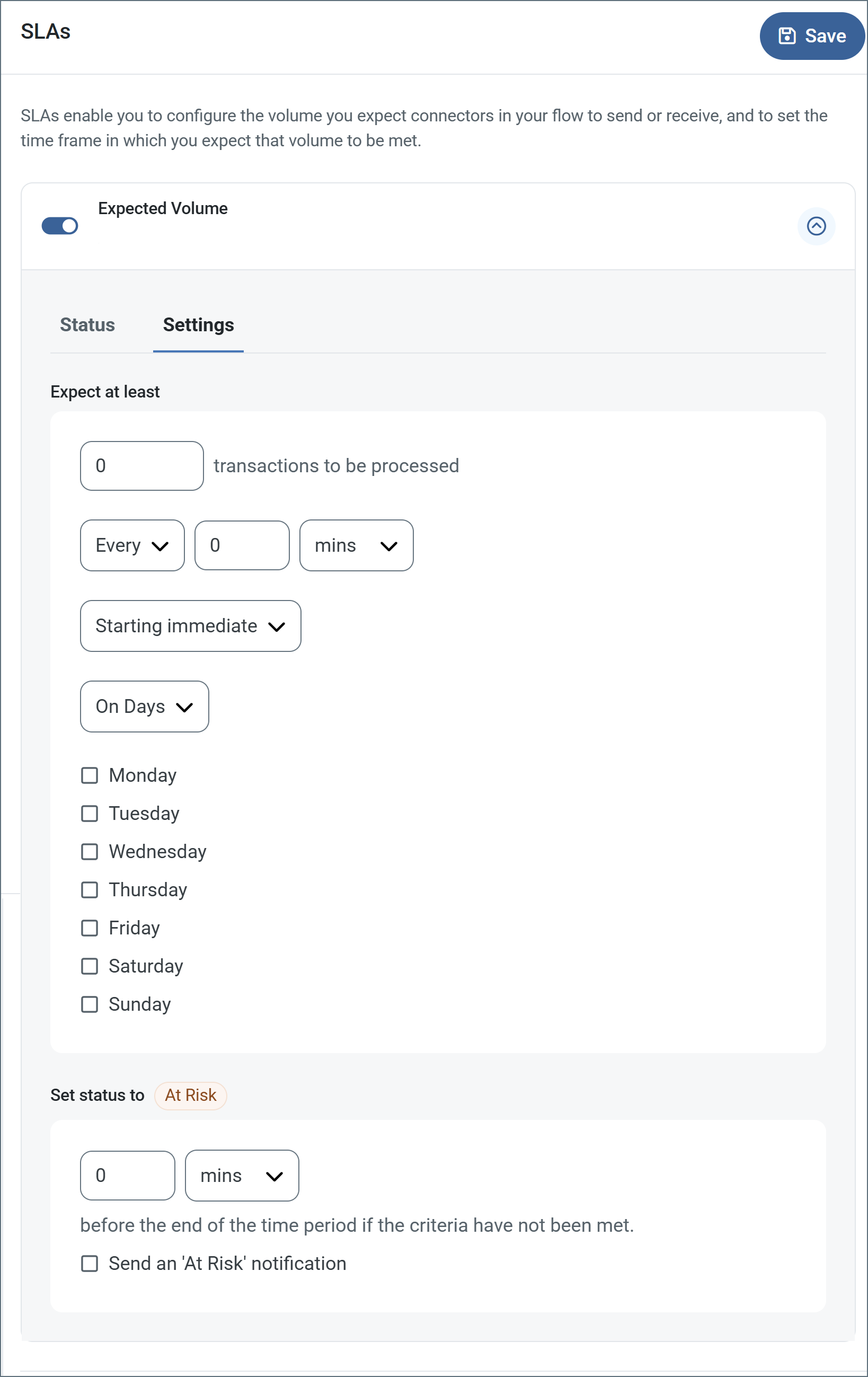
- コネクタに個別の送信アクションと受信アクションがある場合は、ラジオボタンを使用してSLA に関連する方向を指定します。
- ウィンドウの検知基準(最小)で:
- 処理が予想されるトランザクションの最小値(量)に設定します
- 毎フィールドを使用して期間を指定します
- SLA がいつ有効になるかを示します。開始日 を選択した場合は、日時フィールドを入力してください。
- SLA を有効にする曜日のボックスをON にします。必要に応じて、ドロップダウンから毎日を選択します。
- ウィンドウの期間終了前にステータスを’At Risk’ に設定するタイミングで、SLA がAt Risk としてマークされるタイミングを指定します。
- デフォルトでは、通知はSLA が違反のステータスになるまで送信されません。これを変更するには、‘At Risk’ 通知を送信のチェックをON にします。
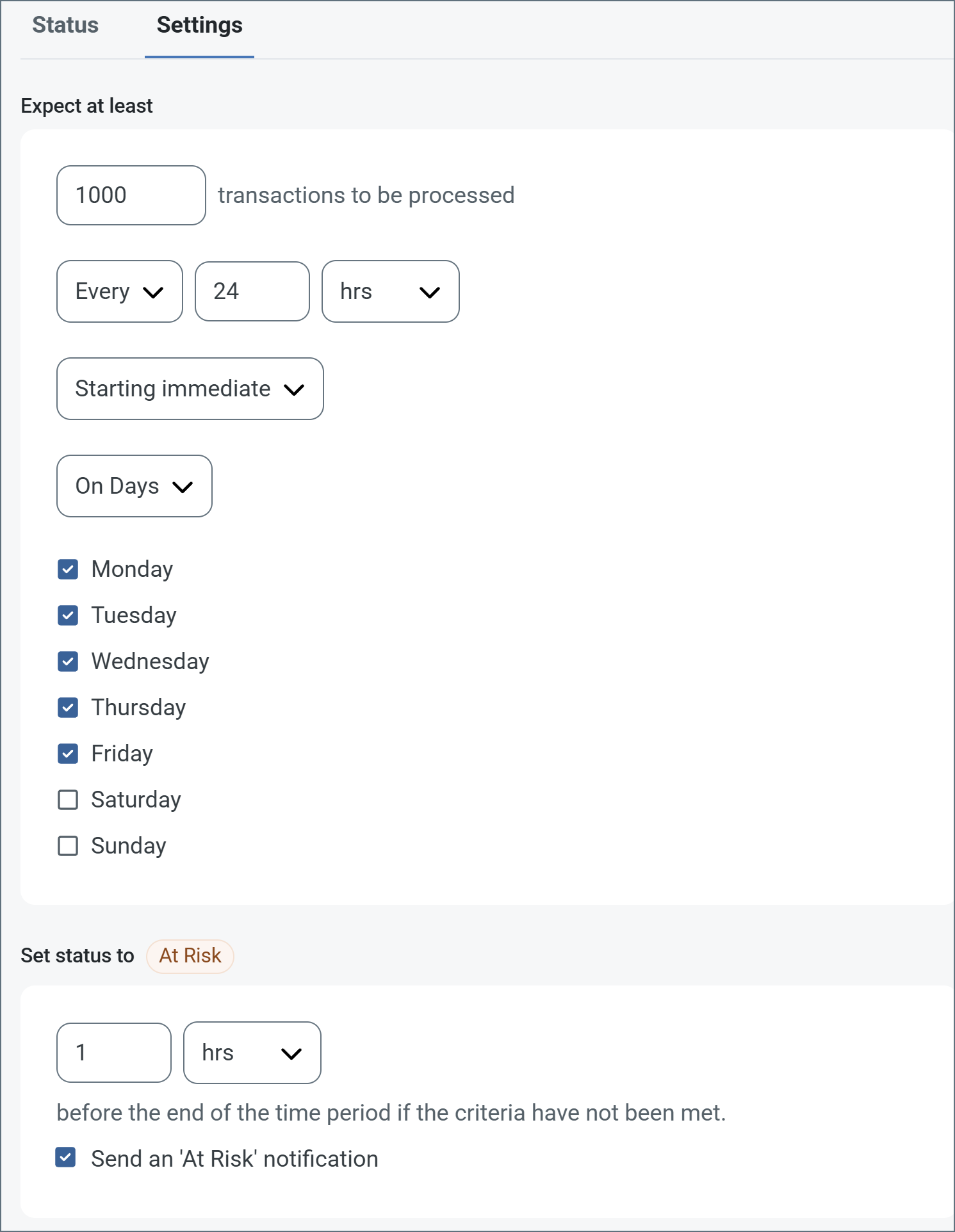
次の例は、月曜日から金曜日まで毎日1000ファイルを受信すると予想されるコネクタに対して構成されたSLA を示しています。1000ファイルが受信されていない場合、期間終了の1時間前にAt Risk 通知が送信されます。
Note:必要に応じてSLA アラートをOFF にすることができます。これはWindows メンテナンス期間中に役立ちます。ナビゲーションバーの設定をクリックし、アラート > 一般的なアラートに移動します。タブレットと鉛筆のアイコンをクリックして編集し、SLA アラート設定のチェックを外します。
Establishing a Connection
A valid target Feed URL is required to establish a connection to any RSS service. Some services might also require authentication or a set of custom headers in order to consume the service.
The connector silently supports both HTTP and HTTPS target URLs. If the target URL is an HTTPS URL, set the TLS Server Certificate to the public key certificate identifying the server. To implicitly trust the target endpoint, set the field to Any Certificate.
Authentication
The RSS connector supports HTTP authentication in the following formats:
- Basic (plain text)
- Digest (encrypted)
- NTLM
- Negotiate
- Proprietary
The connector provides the credentials specified in Username and Password with each request to the remote RSS service.
Automatic Cache Cleanup
Arc automatically cleans up the resource cache. This process runs in the background during every receive cycle and removes stale cache entries for files that are no longer present on the remote server. This keeps the cache size manageable without requiring any manual action.
By default, files are retained for 30 days, but you can use the ResourceCacheRetentionDays setting in the Other Settings field on the Advanced tab to adjust it to fit your environment. For example, ResourceCacheRetentionDays=15 retains files for 15 days before removing them.