API
Version 25.3.9411
Version 25.3.9411
API
The API page of API Server contains the resources (tables and stored procedures) you surfaced from your data store and want to query.
Click View Endpoints on the API page to copy either the OData endpoint URL or the OpenAPI endpoint URL:
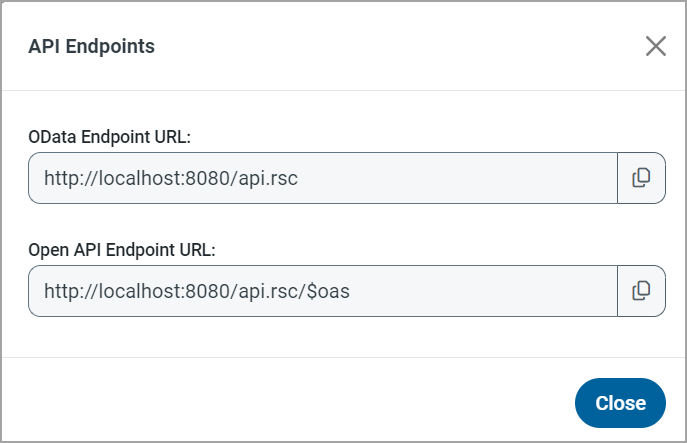
You can paste either one of these base URLs into your querying application, along with the table or stored-procedure name.
The API page contains two tabs:
-
Tables - The tables that are available to query.
-
Stored Procedures - The stored procedures that are available to query.
Tables Tab
The Tables tab displays a list of tables that are available to query, including the following information about each table:
-
NAME - The name of the table within the data store.
-
CONNECTION NAME - The name of the data store that contains the data (for example, PostgreSQL).
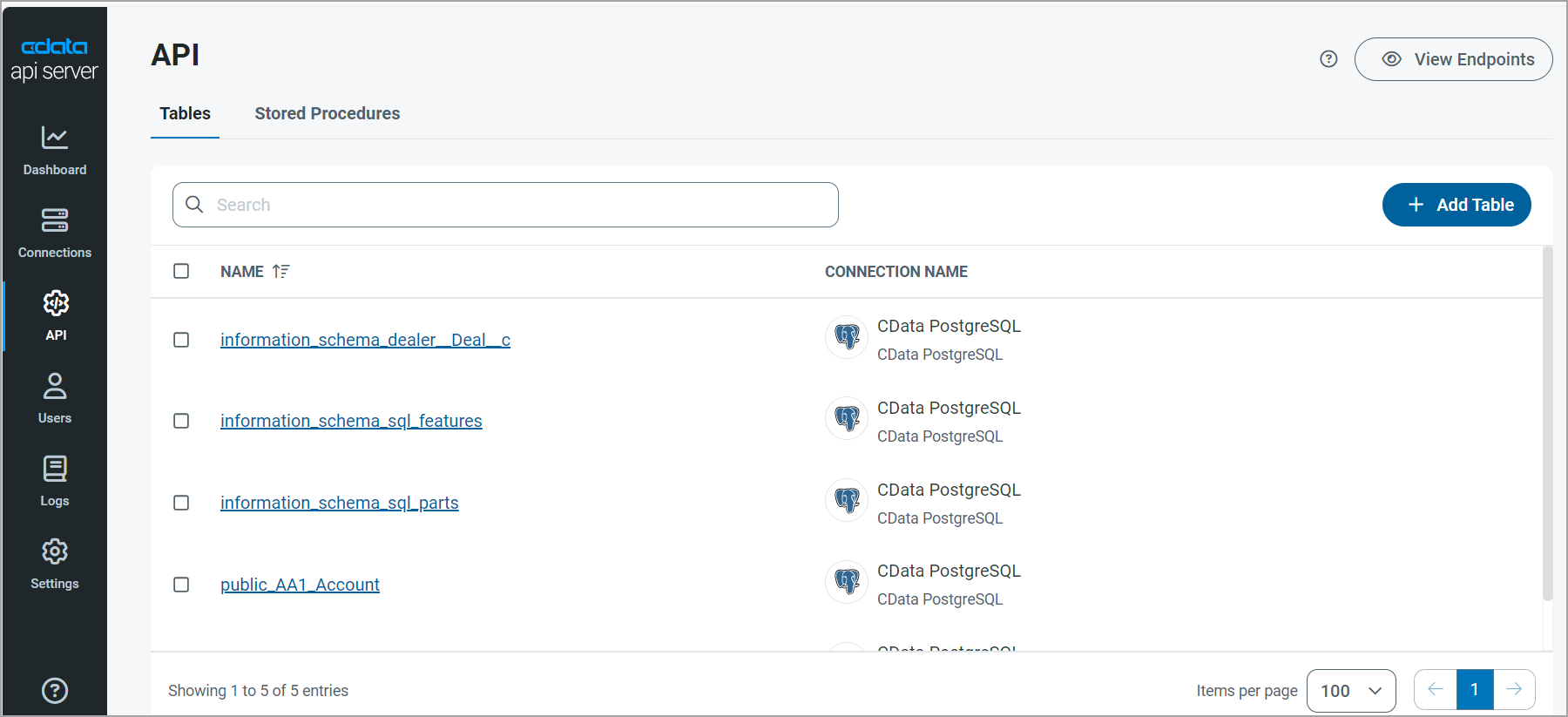
Use the search bar to search for a specific table.
Adding a Table
To add a new table to the API page, follow these steps:
-
Click Add Table.
-
Select a connection from the list, or search for a connection in the search bar.
-
Click Next.
-
Find the schema where your table resides and click the Expand icon. Select one or more tables to add to the Tables tab.
-
Click Confirm. The surfaced tables appear on the Tables tab. You can now access and query these tables in the tool of your choice, such as Postman.
Editing a Table
-
Edit a table page either by selecting the table name or by clicking the Edit icon (
 ) that appears at the end of the row. Either option opens the Edit Table page.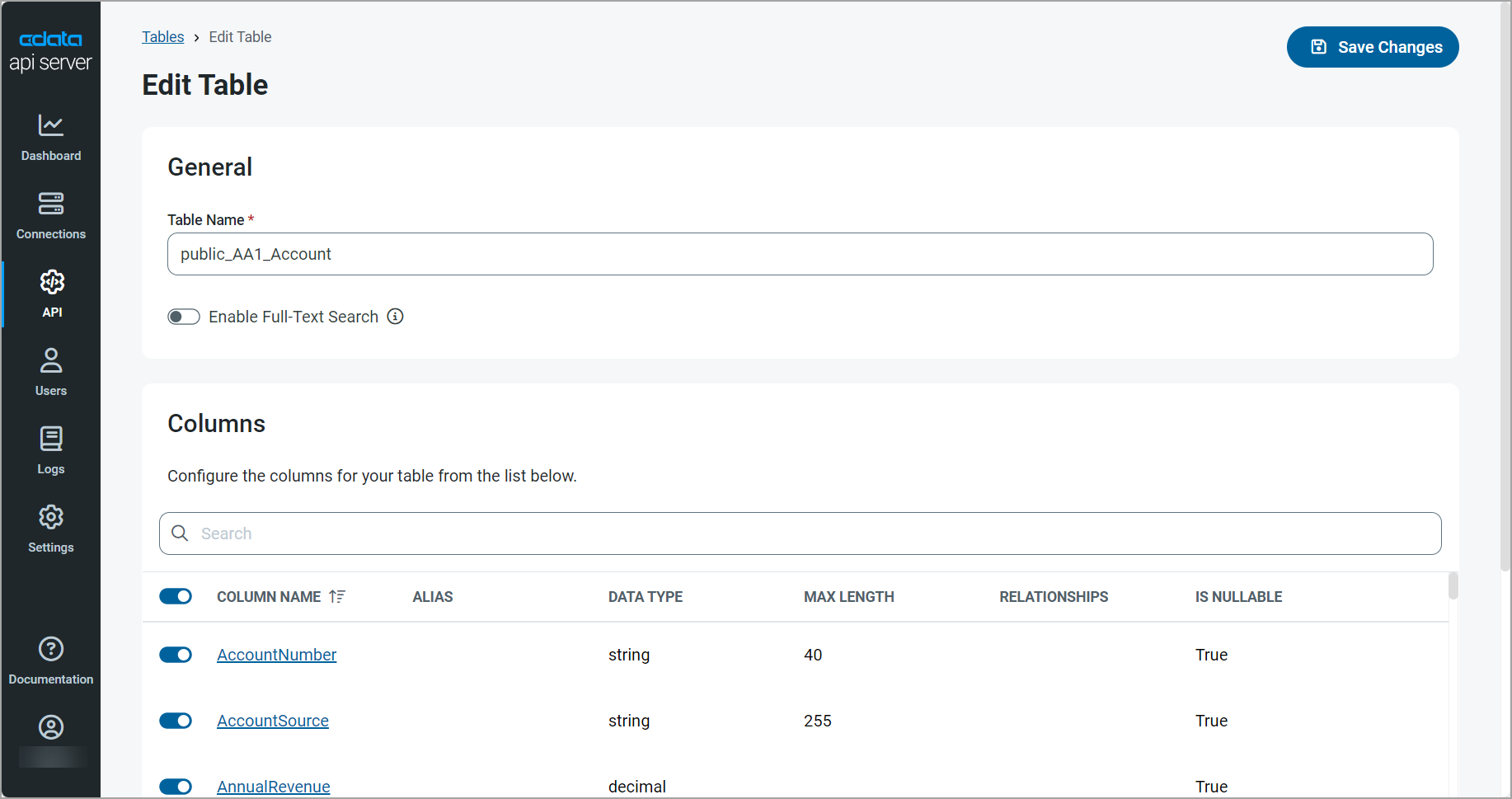
On this page, you can edit the table as follows:
-
In the General category:
-
Rename the table in the Table Name text box.
-
Turn on full-text search by toggling the Enable Full-Text Search to the right. This option enables you to run full-text queries against character-based data in the table.
-
-
In the Columns category:
-
Turn off any columns that you do not want in your table by using the toggle switch to the left of the column name. By default, all columns are selected. You can also turn on or off all tables by using the toggle switch to the left of the COLUMN NAME column. Use the search bar to search for a specific column.
-
Edit columns either by clicking the column name or by clicking the Edit icon (
) to the right end of the row. Either option opens the Edit ColumnName dialog box.Some of the available column properties depend on the data type of the column. The following are common properties:
-
Alias - You cannot change the name of a resource column, but you can set an alias for the column for use in your API.
-
Data Type - Select a new data type from the drop-down list.
-
Relationships - You can add relationships between resources that you have surfaced to the API. To specify a valid relationship, the resources corresponding to the related tables should also be surfaced to the API. After you add the relationship here, you can define the relationship using the OData
$expandfunctionality. See Expand for more information. -
Is Nullable - This value can be null.
-
-
-
-
Make any necessary edits on the Edit Table page. (If you make any edits in the Edit ColumnName dialog box from that page, click Save to save your changes and return to the Edit Table page).
-
Click Save Changes on the Edit Table page.
-
Click the Tables link at the top of the page to return to the list of tables.
Stored Procedures Tab
The Stored Procedures tab displays a list of stored procedures available to query, including the following information about each stored procedure:
-
NAME - The name of the stored procedure within the data store.
-
CONNECTION NAME - The name of the data store containing the data (for example, PostgreSQL).
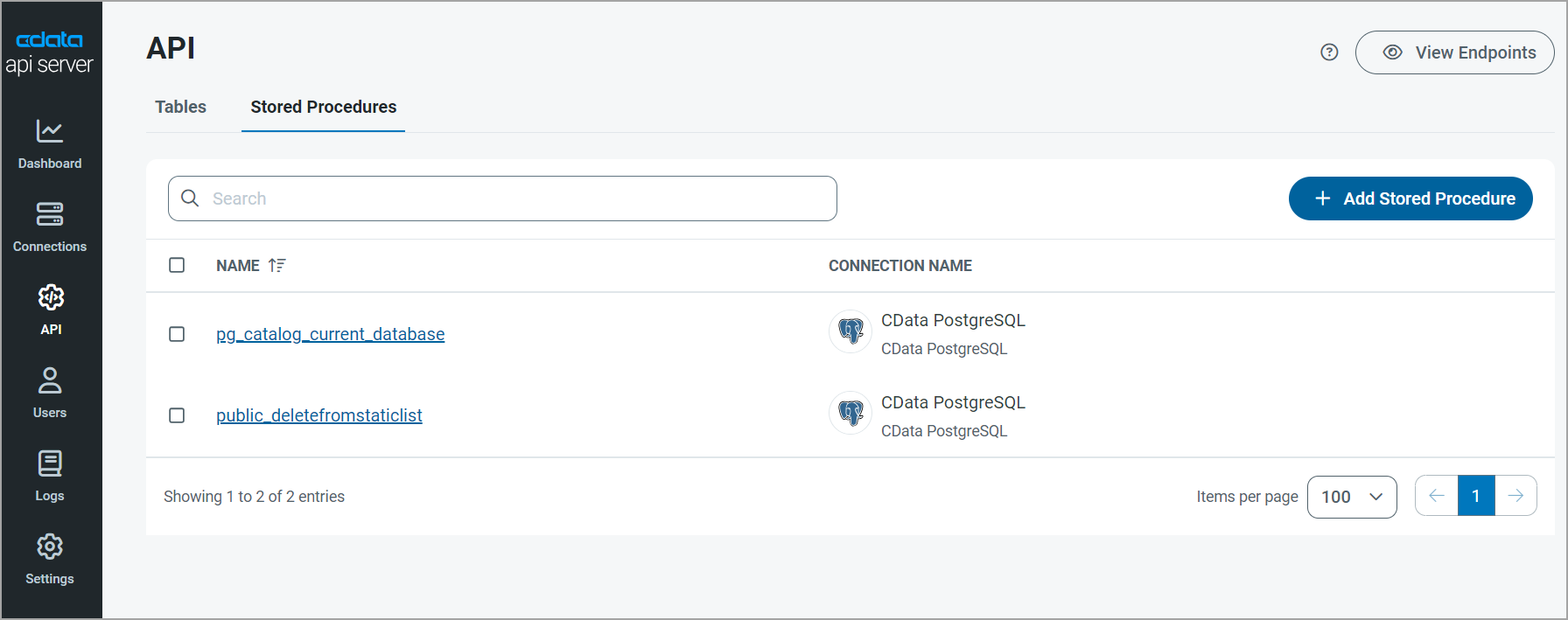
Use the search bar to search for a specific stored procedure.
Adding a Stored Procedure
To add a new table to the API page, follow these steps:
-
Click Add Stored Procedure.
-
Select a connection from the list, or search for a connection in the search bar.
-
Click Next.
-
Find the schema where your stored procedure resides and click the Expand icon. Select one or more stored procedures to add to the Stored Procedures tab.
-
Click Confirm. The surfaced stored procedures appear on the Stored Procedures tab. You can now access this stored procedure in the tool of your choice, such as Postman.
Editing a Stored Procedure
-
Edit a stored procedure either by selecting the stored-procedure name or by clicking the Edit icon (
) at the end of the row. Either option opens the Edit Stored Procedure page for the selected stored procedure.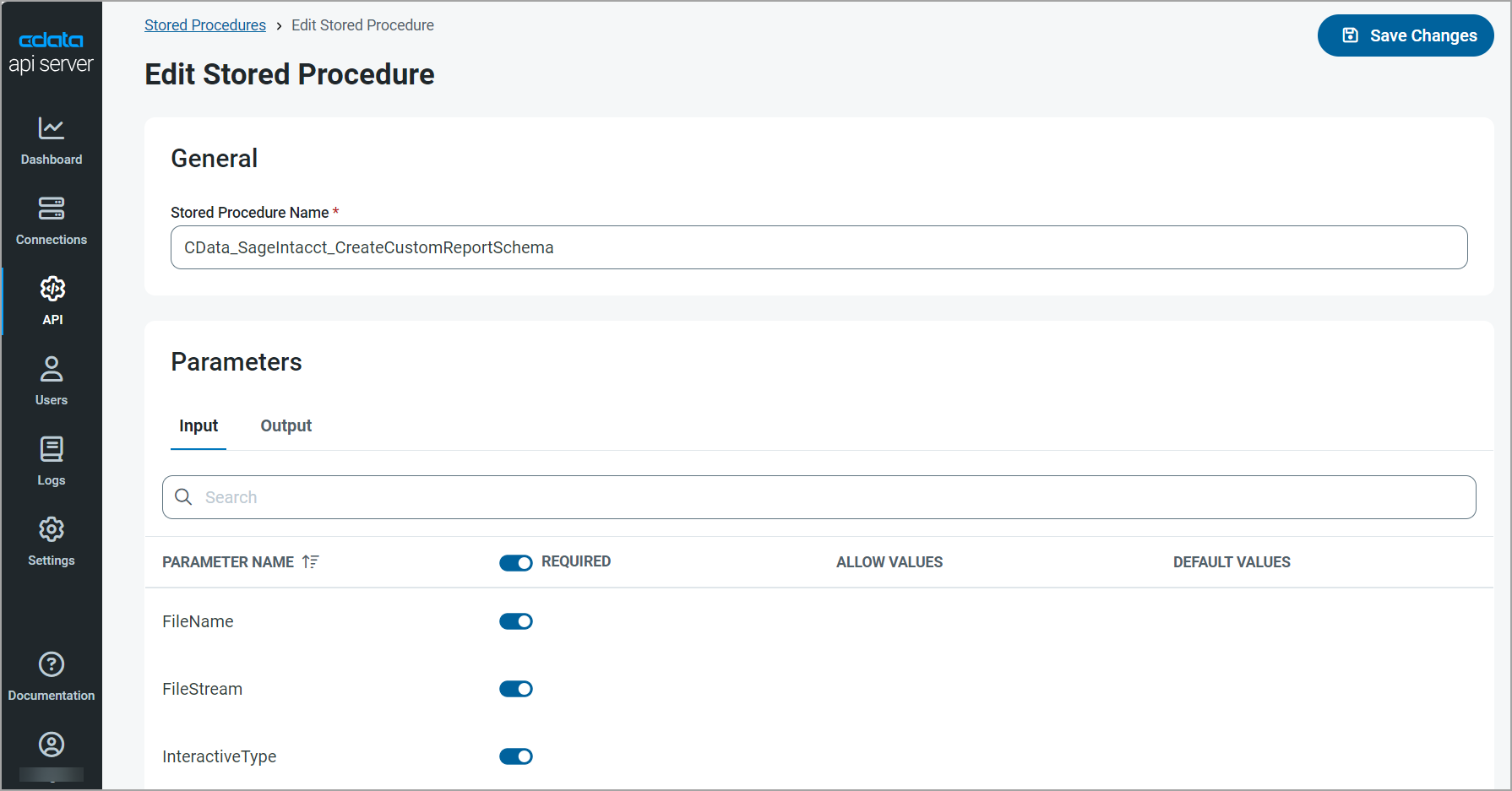
On this page, you can edit the stored procedure as follows:
-
Rename the stored procedure in the Stored Procedure Name text box under the General category.
-
Define whether your input stored procedures as required on the Input tab in the Parameters category. (The Input and Output tabs display the parameters for your input and output procedures.) To set a parameter on the Input tab as required or not required, toggle the global REQUIRED switch in the column-header bar. You can also define individual stored procedures as required or not by toggling the switch in the REQUIRED column for those specific procedures.
Note: The parameters on the Output tab are static, so you cannot change or manipulate them.
-
-
Make any necessary edits and click Save Changes.
-
Click the Stored Procedures link at the top of the page to return to the list of stored procedures.