Retrieving Data
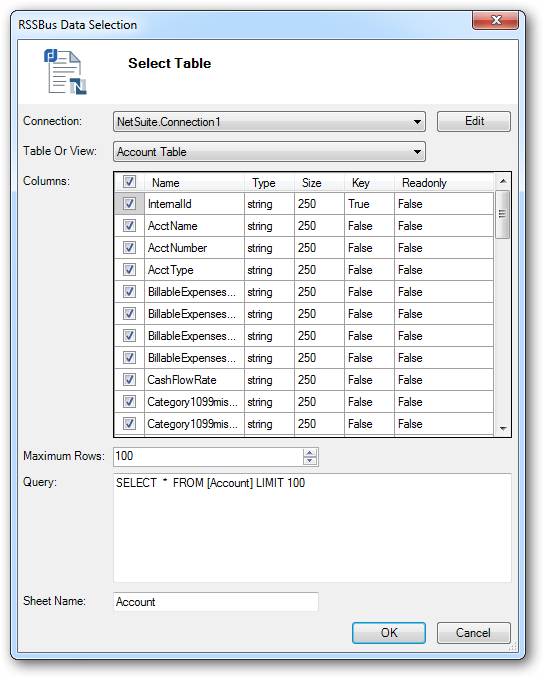
After Establishing a Connection, you are ready to obtain data from NetSuite. The RSSBus Excel Add-In for NetSuite will present the Data Selection dialog. You can also open it from the ribbon. In the Data Selection dialog, you can build an SQL query. You can use the UI to build the query or, if you are familiar with SQL, you can directly edit the query. See the Getting Records section for more details..
The first step to configure an SQL query is to select a table or a view. Tables are data entities that can be both read and modified; views are data entities that can only be read.
After selecting a table or a view, you can select the data columns that you would like to retrieve. Some of the tables can have a large number of columns and the Data Selection dialog allows you to select only the columns you need.
Finally, you can select the maximum number of records you want to obtain and the name of the worksheet that should contain the retrieved data. Click OK to execute the SQL query and obtain the data. The add-in will create a worksheet with the specified name and fill it with the selected data.
The image below shows a typical Data Selection dialog.