From PowerPivot
Power Pivot is a popular business-intelligence add-in from Microsoft for Microsoft Excel. When PowerPivot is installed, the PowerPivot tab is added to the Excel ribbon. PowerPivot is freely available from Microsoft. You can follow this guide to import tables into PowerPivot.
- Launch the PowerPivot window from the PowerPivot Window button on the PowerPivot tab of Excel.
-
Launch the Table Import Wizard: Click Get External Data -> Other Data Sources as shown in the image below.
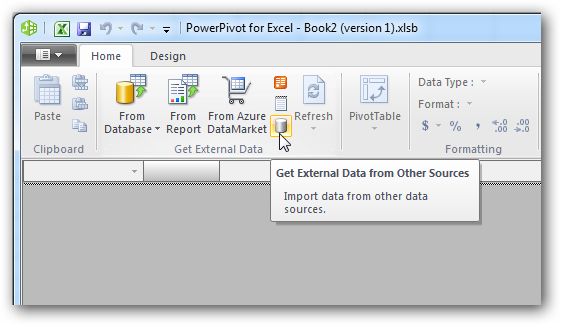
- Select Other/Advanced (OLEDB/ODBC) Relational Data Source and click Next. You will be presented with a dialog that allows you to define a user-friendly connection name for your connection and build a connection string for it.
- Click the Build button to launch the Data Link Properties window.

- On the Provider tab, select the 'Microsoft OLEDB Provider for ODBC Drivers' option.
- On the Connection tab of the Data Link Properties window, select the 'Use data source name' option and select the RSSBus NetSuite Data Source. See Data Source Name (DSN) Configuration to configure an ODBC Data Source if you do not see the RSSBus NetSuite data source. Once you select the correct data source and exit the Data Link Properties dialog, a connection string will be built for you. It should resemble the one below:
Provider=MSDASQL.1;Persist Security Info=False;DSN=RSSBus NetSuite
- Select the option to select from a list of tables the data to import. Select the tables you want to import and click Finish.
If you want to import specific columns or only the results that match your criteria, you can also select the option to write a query.