Establishing a Connection
In this section, the Eclipse IDE is used as an example, but a similar approach can be used to integrate with other IDEs.
Configure the JDBC Connection
To browse a data source in Eclipse, you will need to install the Database Development plugin for Eclipse. This plugin will allow you to configure a connection using any JDBC driver. Navigate to Window -> Open Perspective -> Database Development to open the Database Explorer. Right-click Database Connections to configure a new connection and select the Generic JDBC connection profile type. A similar approach will work in IntelliJ and NetBeans.
In the connection configuration window, you can select the .jar file by clicking on the wheel-like icon to the right of the first row.
This can be seen in the image below. This window also allows you to specify the connection URL. The connection URL is as below:
URL="jdbc:netsuite:Account Id=XABC123456;Password=password;User=user;Role Id=3;Version=2013_1;Location=C:\\myfolder\\;"The URL must start with "jdbc:netsuite:" and can include any of the connection properties, separated with a semicolon.
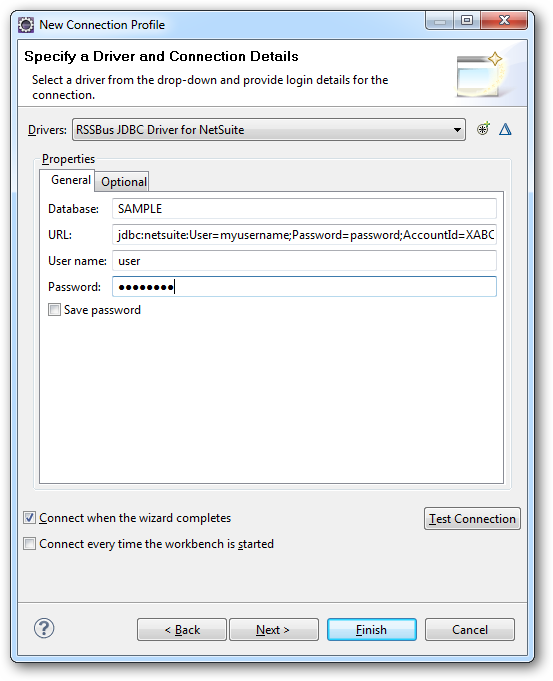
The User and Password properties, under the Authentication section, must be set to valid NetSuite user credentials. In addition, the AccountId must be set to the Id of a company account that can be used by the specified User. The RoleId can be optionally specified to log in the user, with limited permissions.
Retrieve the Metadata
Once a connection has been configured and verified, you can connect to NetSuite and see the tables and views available. See section Browsing data in IDEs for details.