Custom Data Sources as Tables
Salesforce Data Cloud allows you to use Ingestion API Connectors to create data streams for data sources that the Salesforce Data Cloud platform does not natively support.
Create an Ingestion API Connector and an associated data stream to access your custom data sources from the cmdlet.
Prepare your Custom Data Source Schema
Before you can import data from a custom data source into Salesforce Data Cloud, you must create a schema file that describes the data model of your custom data source.
Salesforce Data Cloud supports custom data sources that are defined in OpenAPI (OAS) formatted schema files (.yaml format).
Creating an Ingestion API Connector
To create an Ingestion API Connector:
- Click the Gear icon in the top-right corner of the page, then click Data Cloud Setup.
- In the sidebar on the left side of the page, click EXTERNAL INTEGRATIONS > Ingestion API.
- Click New. Under Connector Name, set a name for the new connector and click Save. The setup page for your new Ingestion API Connector opens.
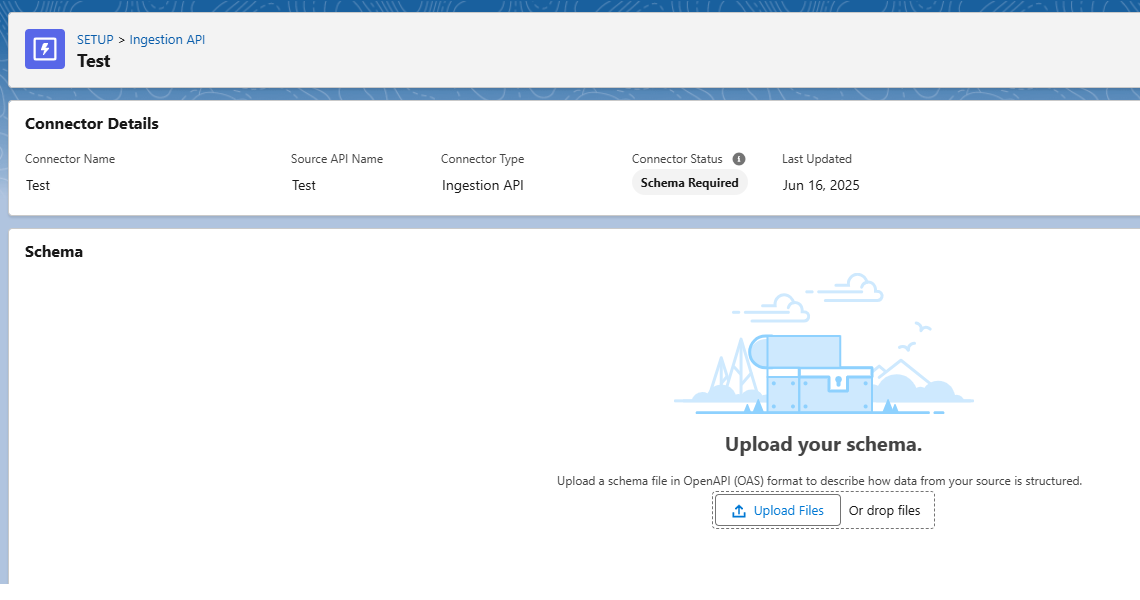
- In the Schema section, click Upload Files.
- In the upload files prompt, select an OpenAPI (OAS) formatted schema file (.yaml format) and click Open. The Preview Schema window opens.
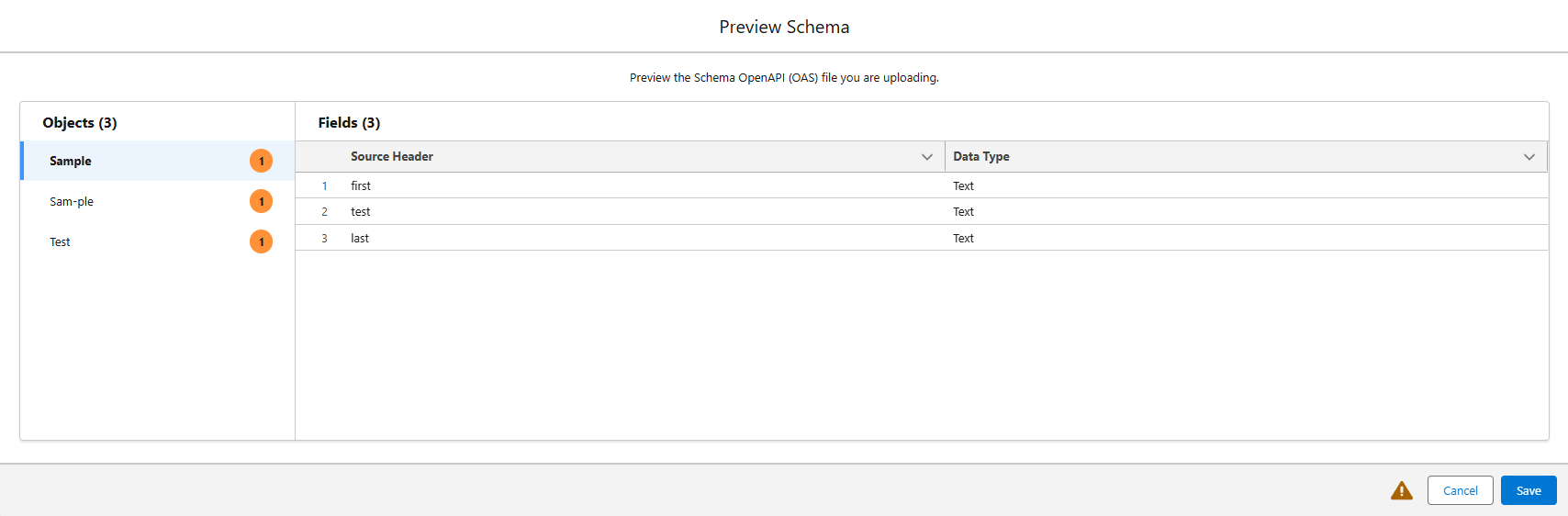
- Click Save.
Creating a Data Stream
Next, set up a data stream for your Ingestion API Connector to create a DLO to your custom data:
- Return to the Salesforce Data Cloud home page.
- Click the Data Streams tab (click the text "Data Streams", not the dropdown menu attached to it). The Data Streams page opens.
- Click New. The New Data Stream window opens.
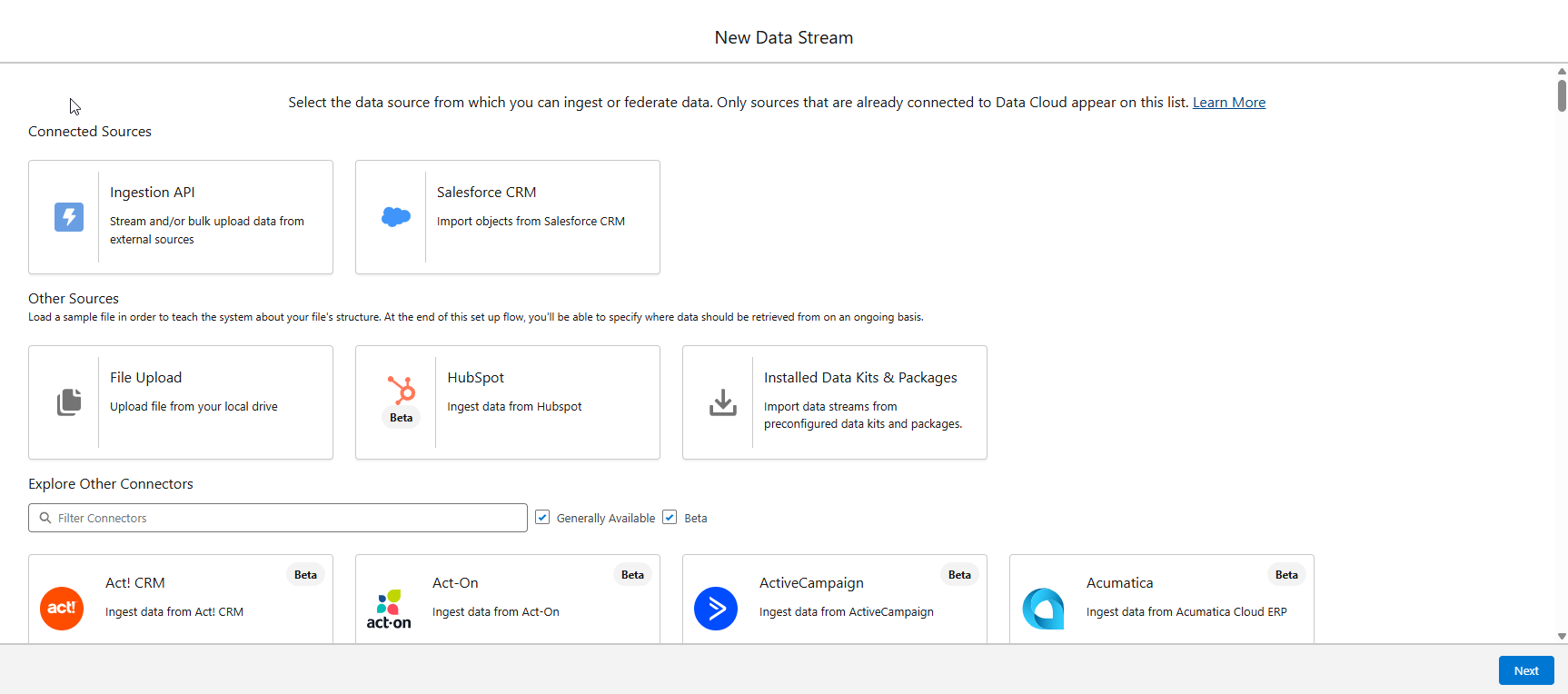
- Under Connected Sources, click Ingestion API. If it is not visible here, you may need to search for "Ingestion API" in the Other Sources section.
- Click Next.
- In the Ingestion API dropdown menu, select the Ingestion API Connector you created earlier.
- In the Objects section, select each object that you want to include in the data stream, then click Next.
- For each object, select a Category and Primary Key from their respective dropdown menus, then click Next.
- In the Data Space dropdown, select the data space you want to deploy your data stream to.
- To enable standard SQL-compatible behavior, we recommend setting Refresh Mode to Partial. Set Upsert mode only if you want to re-write all missing columns to NULL when updating a row.
- Click Deploy to create the data stream.
Accessing Custom Data Objects as Tables
Once an Ingestion API Connector and an associated data stream have been created, Salesforce Data Cloud automatically populates a Data Lake Objects (DLO) for each custom data object. The cmdlet detects these custom DLOs and makes them available as tables in the DataLakeObjects schema. These tables support UPSERT and DELETE operations.